Executive Summary: A computer virus can silently destroy files, steal personal data, and compromise your entire digital life before you even realize something is wrong. This comprehensive guide covers everything you need to know: how to recognize the early warning signs of a computer virus, how to actively scan and confirm an infection, how malware finds its way onto your PC, what immediate steps to take when you suspect a threat, and how to fully clean and restore your system afterward. Whether you are dealing with sluggish performance, mysterious pop-ups, or outright data loss, the strategies outlined here—combining built-in Windows tools with powerful dedicated solutions like 360 Total Security—will guide you from detection to complete recovery and prevention.
What Are the Most Common Symptoms of a Computer Virus?
Computer viruses do not always announce themselves with dramatic fanfare. More often, they reveal their presence through subtle but persistent disruptions to your system’s normal operation. Recognizing these early warning signs is your first and most critical line of defense. The symptoms range from annoying performance issues to alarming behavioral changes, and understanding them empowers you to act quickly before the damage becomes irreversible.
Unusual Performance Degradation and System Crashes
One of the most universally reported signs of malware is a sudden and unexplained decline in system performance. If your PC used to boot in under 30 seconds and now takes several minutes, or if launching a simple application like a web browser feels like pulling teeth, this is a significant red flag. Malware often runs hidden background processes that consume substantial system resources, leaving far less computing power available for your legitimate tasks.
Beyond slowdowns, frequent application crashes and system freezes are deeply concerning symptoms. The notorious Blue Screen of Death (BSOD) appearing repeatedly without any recent hardware changes or software installations is a documented warning sign referenced in Microsoft’s official documentation on common Windows error causes. These crashes can occur because malware corrupts critical system files or interferes with memory management at a fundamental level.
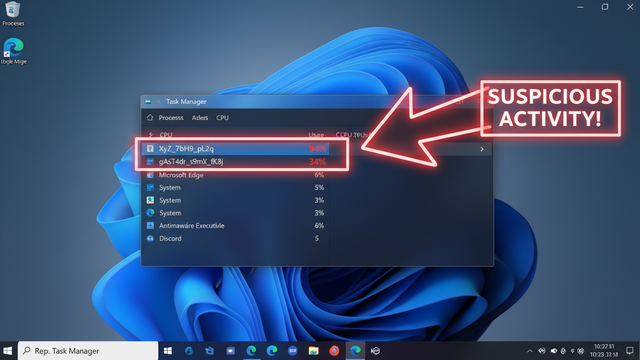
To investigate further, open your Windows Task Manager (press Ctrl + Shift + Esc) and navigate to the Processes tab. Sort by CPU, Memory, or Disk usage. If you see an unfamiliar process consuming an abnormally high percentage of your resources—especially one with a cryptic name or random string of characters—this warrants serious investigation.
Unexpected Pop-ups, Browser Hijacking, and Homepage Changes
A persistent barrage of pop-up advertisements is one of the most obvious and disruptive signs of adware or a browser hijacker infection. These pop-ups often appear even when your browser is completely closed, promoting fake antivirus software, dubious prize claims, or adult content. They are not merely annoying—they are evidence that malicious code is actively running on your system and attempting to generate revenue or redirect you to further infection points.
Browser hijacking takes this a step further. If you open your browser and find that your homepage has changed to an unfamiliar search engine, or if your default search engine has been silently replaced, and these changes revert even after you manually correct them, you are almost certainly dealing with a browser hijacker. These programs modify browser settings at a registry or configuration-file level, making them difficult to remove without specialized tools.
Unwanted toolbars, extensions, and plugins that appear in your browser without your consent are another telltale sign. According to a 2025 cybersecurity industry report, browser hijackers account for a substantial portion of all consumer malware complaints, with millions of users affected annually. These extensions can log keystrokes, redirect search queries, and inject additional advertisements into every webpage you visit.
Missing Files, Strange Programs, and Unauthorized Network Activity
More alarming symptoms involve direct interference with your files and data. If documents, photos, or other files become corrupted, disappear entirely, or suddenly cannot be opened, this could indicate a destructive virus or, more urgently, ransomware beginning its encryption process. Simultaneously, strange new icons appearing on your desktop or unfamiliar programs showing up in your installed applications list are signs that malware has installed additional components.
Your internet connection speed can also serve as a diagnostic tool. If your bandwidth feels inexplicably throttled even when you are not actively downloading anything, malware may be using your connection in the background for data exfiltration—sending your personal files, passwords, or financial data to a remote attacker—or for botnet activity, using your PC as part of a larger criminal network.
A particularly alarming symptom is when your email contacts or social media friends report receiving spam or suspicious links from your accounts. This indicates that malware has either stolen your credentials or is directly accessing your accounts to propagate itself to new victims.
| System Behavior Category | Normal System Behavior | Potential Virus Symptom |
|---|---|---|
| Boot Time | Consistent, fast startup (under 60 seconds) | Dramatically slower boot, hanging at startup screen |
| CPU / Memory Usage | Low usage at idle (under 20%) | Consistently high usage (80–100%) with no active programs |
| Browser Behavior | Homepage and search engine remain as configured | Homepage redirects to unknown sites; search results hijacked |
| Pop-up Ads | Rare, only within websites and browser tabs | Persistent pop-ups even when browser is closed |
| File Integrity | Files open normally and remain accessible | Files corrupted, missing, or encrypted unexpectedly |
| Network Activity | Network usage corresponds to active downloads/streaming | Unexplained high network usage at idle |
| Installed Programs | Only programs you deliberately installed are present | Unknown programs appear in the installed apps list |
| Email / Social Media | Messages sent only when you initiate them | Contacts report receiving spam from your accounts |
How Can You Actively Scan for and Confirm a Virus?
Recognizing symptoms is important, but confirmation requires action. Suspecting an infection is not the same as knowing you have one, and the steps you take to confirm a threat will directly inform how you respond to it. A layered approach—starting with built-in tools and progressing to dedicated security software—gives you the most reliable picture of your system’s health.
Using Built-in Windows Security (Windows Defender) for a First Check
Microsoft Defender Antivirus, built into Windows 10 and Windows 11, is a solid first line of defense and a reasonable starting point for confirming a suspected infection. To run a full scan, navigate to Start > Settings > Privacy & Security > Windows Security > Virus & Threat Protection, then click Scan options and select Full scan before clicking Scan now. A full scan examines every file on your system and can take anywhere from 30 minutes to several hours depending on your storage size.
After the scan completes, the results screen will clearly indicate either No current threats or list detected items with options to quarantine or remove them. It is important to interpret these results carefully: a clean result from Defender does not definitively mean your system is safe, as Defender has documented limitations against newer, sophisticated threats, zero-day exploits, and certain categories of potentially unwanted programs (PUPs) that fall into legal gray areas.
Do not overlook the Protection History section within Windows Security. This log records all past detections, including threats that were automatically remediated. Reviewing this history can reveal infections that occurred in the past and may have left residual damage or configuration changes even after the initial threat was neutralized.
Analyzing Running Processes in Task Manager for Red Flags
Task Manager is a powerful built-in diagnostic tool that gives you a real-time window into everything running on your system. Open it with Ctrl + Shift + Esc, then click the Processes tab and sort columns by CPU, Memory, or Disk usage by clicking the respective column headers. This immediately surfaces any process consuming disproportionate resources.
When reviewing the process list, look for these specific red flags:
- Random character strings: Legitimate Windows processes have recognizable names. A process named something like
xvb7k2ms.exeis immediately suspicious. - Deliberate misspellings of system processes: Malware commonly masquerades as critical Windows processes with subtle name changes. For example,
svch0st.exe(with a zero) impersonating the legitimatesvchost.exe, orlsass.exerunning from an unusual directory instead ofC:\Windows\System32\. - High network activity from unknown processes: The Network column in Task Manager can reveal processes sending or receiving data unexpectedly.
Critical warning: Never terminate a process simply because it looks unfamiliar. Some system processes are essential for Windows stability and ending them can cause an immediate crash. Instead, right-click on a suspicious process and select Open file location to see where it lives on your disk, and then research the process name through a trusted online resource before taking action.
Leveraging a Dedicated Antivirus for a Second Opinion Scan
For definitive confirmation of an infection, a dedicated antivirus solution is essential. 360 Total Security is specifically designed for this purpose, offering a depth of analysis that goes far beyond what built-in tools can provide. Its most significant technical advantage is its multi-engine scanning architecture, which combines its own proprietary AI-powered detection engine with renowned third-party engines including Bitdefender and Avira. This means a single scan simultaneously applies multiple detection methodologies—signature-based, behavioral, heuristic, and cloud-assisted—dramatically increasing the probability of catching threats that any single engine might miss.
Independent antivirus laboratory tests from 2025 consistently demonstrate that multi-engine solutions achieve significantly higher detection rates for both known malware families and newly emerging threats compared to single-engine alternatives. This is particularly critical for catching zero-day threats and sophisticated polymorphic malware that regularly mutates its signature to evade detection.
To use 360 Total Security for a definitive second-opinion scan:
- Download the installer from the official 360 Total Security website.
- Run the installer and complete the setup process.
- Open the application and navigate to the Antivirus tab.
- Select Full Scan to initiate a comprehensive examination of all system files, running processes, startup entries, and registry keys.
- Review the detailed results report and follow the recommended actions for each detected item.
What Are the Main Ways Your Computer Gets Infected?
Understanding how viruses and malware enter your system is just as important as knowing how to remove them. The vast majority of infections are not the result of sophisticated, targeted attacks—they occur because of predictable, preventable user behaviors or neglected system maintenance. By identifying and eliminating these infection vectors, you significantly reduce your attack surface.
Risky Downloads: Pirated Software, Cracked Games, and Fake Updates
Downloading software from torrent sites, unofficial repositories, or websites offering cracked or pirated versions of paid applications is one of the single most dangerous online behaviors. Malware authors deliberately target these distribution channels because they know users seeking free software are unlikely to scrutinize what they are actually installing. Bundled malware in pirated software can include ransomware, keyloggers, cryptocurrency miners, and remote access trojans (RATs), often installed silently alongside the desired application.
Fake update pop-ups represent another highly effective infection vector. These are carefully crafted browser notifications or pop-up windows that mimic the appearance of legitimate update prompts for widely used software like Adobe Flash Player, Java, or popular web browsers. The visual design is often convincing enough to fool even experienced users. Clicking the fake update button downloads and executes a malware installer, not an actual software update.
Email attachments from unknown senders remain a perennially effective attack vector. Particularly dangerous file types include:
- Executable files:
.exe,.scr,.bat,.com - Compressed archives:
.zip,.rar,.7z(which may contain malicious executables) - Macro-enabled documents:
.docm,.xlsm(Microsoft Office files with embedded malicious macros) - Script files:
.js,.vbs,.ps1
Social Engineering: Phishing Links and Malicious Advertisements
Phishing remains the dominant social engineering attack vector because it exploits human psychology rather than technical vulnerabilities. A phishing email, SMS message (smishing), or social media post is crafted to appear as though it originates from a trusted source—your bank, a government agency, a popular e-commerce platform, or even a friend’s compromised account. The goal is to get you to click a link that leads to either a fake login page designed to steal your credentials or a drive-by download site that automatically installs malware when you visit it.
Malvertising—the injection of malicious code into online advertising networks—is a particularly insidious threat because it can affect users on entirely legitimate, reputable websites. When an advertising network is compromised, even a trusted news site or major web portal can inadvertently serve ads that redirect visitors to exploit kits. These exploit kits silently probe your browser and plugins for known vulnerabilities and, if found, automatically install malware without any user interaction beyond simply viewing the page.
Free utility software offered by deceptive websites—including “system optimizers,” browser toolbars, download managers, and media players from unofficial sources—is frequently pure adware or spyware. These programs may offer some nominal functionality while simultaneously harvesting your browsing data, injecting advertisements, and installing additional unwanted software.
Unpatched Software and Network Vulnerabilities
Software vulnerabilities are discovered constantly, and security patches are released to fix them. When users fail to install these updates promptly, they leave known, documented security holes open for exploitation. This applies to your operating system, your web browser, and critical software components like Java Runtime Environment, Adobe Reader, and media players. Attackers actively scan the internet for systems running vulnerable software versions, and exploitation can happen within days of a vulnerability being publicly disclosed.
According to a 2026 cybersecurity industry analysis, over 60% of successful cyberattacks exploit known vulnerabilities for which patches were already available at the time of the attack. This statistic underscores that patch management is not optional—it is a fundamental security requirement.
Connecting to unsecured public Wi-Fi networks—in coffee shops, airports, hotels, or libraries—exposes you to man-in-the-middle (MITM) attacks. An attacker on the same network can intercept unencrypted traffic, inject malicious content into web pages you visit, or redirect you to fake versions of legitimate sites to steal credentials.
Using an outdated operating system that no longer receives security updates, such as Windows 7 or Windows 8.1, is equivalent to leaving your front door permanently unlocked. Without ongoing security patches, every newly discovered vulnerability in that OS remains permanently exploitable, and the number of such vulnerabilities grows over time.
Immediate Steps to Take If You Suspect a Virus Infection
Speed and systematic action are paramount when you suspect your computer has been infected. Every minute an active infection continues, it has the potential to steal more data, encrypt more files, or spread to more systems. The following steps are designed to contain the damage, preserve your options, and set you up for successful removal.
Step 1: Disconnect and Isolate to Prevent Further Damage
Your very first action should be to cut the infected machine off from all network connections. If you are using a wired Ethernet connection, physically unplug the cable from your computer. If you are on Wi-Fi, disable the wireless adapter immediately—either through the system tray network icon or by using the physical Wi-Fi toggle if your laptop has one. This single action can stop an active ransomware attack from completing its encryption, prevent an ongoing data exfiltration from sending more of your files to attackers, and stop the malware from downloading additional payloads or receiving new instructions from its command-and-control server.
If your infected computer is part of a home or office network, the isolation step extends beyond just the internet connection. Disconnect from any shared network drives, NAS (Network Attached Storage) devices, and other computers on your local network. Many modern malware strains, particularly ransomware and network worms, are specifically programmed to scan local networks and spread to any accessible connected device.
Do not, under any circumstances, log into sensitive accounts—online banking, email, social media, or any account with payment information—on the compromised machine. Your credentials entered on an infected system can be captured by a keylogger or credential-stealing malware and transmitted to attackers even after you disconnect from the internet, to be exfiltrated later.
Step 2: Enter Safe Mode and Backup Critical Data (If Possible)
Booting into Windows Safe Mode is a powerful technique for malware removal because Safe Mode loads only the essential minimum set of drivers and services required to run Windows. Most malware is designed to launch automatically with Windows through startup entries, registry run keys, or services—none of which load in Safe Mode. This effectively disables the malware, making it far easier to detect and remove.
For Windows 10 and Windows 11, you can access Safe Mode by holding the Shift key while clicking Restart from the Start menu. This opens the Advanced Startup Options menu. Navigate to Troubleshoot > Advanced Options > Startup Settings > Restart, then press F5 to boot into Safe Mode with Networking (the networking capability allows your antivirus software to download the latest definition updates before scanning).
Once in Safe Mode, you may want to back up irreplaceable personal data—documents, photos, videos—to an external USB drive or hard drive. However, exercise caution: back up only personal data files, never program folders or system directories, as these may contain infected files. Treat the backup drive itself as potentially contaminated and scan it thoroughly with antivirus software before accessing its contents on any other device.
Step 3: Run a Full System Scan with a Powerful Antivirus Tool
With the system isolated and running in Safe Mode, you are now in the optimal position to run a thorough antivirus scan. 360 Total Security is particularly well-suited for this scenario for several reasons beyond its multi-engine detection:
- 360 Sandbox: This feature allows suspicious files to be executed in a completely isolated virtual environment, where their behavior can be observed without any risk to your real system. This is invaluable for identifying sophisticated malware that only activates under specific conditions.
- System Repair: After removing malware, many system files, registry entries, and settings may have been damaged or altered. 360 Total Security’s System Repair module can identify and restore these damaged components, helping to return your system to full functionality.
- Comprehensive Scope: The full scan examines running processes, startup programs, browser extensions, scheduled tasks, and all files on all drives—leaving no common hiding place unchecked.
When the scan completes, carefully review every detected item. Follow the software’s recommended actions—typically quarantine or delete—for confirmed malware. Do not skip or ignore items flagged as Potentially Unwanted Programs (PUPs). While PUPs may not be outright malicious, they frequently include adware, spyware components, and backdoors that can facilitate future infections.
In severe cases where the infection has progressed to the point where it prevents you from installing or running antivirus software within Windows, a bootable rescue disk is the solution of last resort. This is a version of the antivirus software that boots from a USB drive or CD before Windows loads, allowing it to scan and clean the system from completely outside the operating system environment—where even the most deeply embedded rootkits have nowhere to hide.
“Boot-time scanning is one of the most powerful tools in our arsenal against persistent threats. When malware embeds itself into system processes or the boot sector, trying to remove it while Windows is running is like trying to renovate a house while the residents are still living in it. Scanning from outside the operating system entirely removes that obstacle and gives us a clean shot at even the most stubborn infections.” — Senior Security Specialist, 360 Total Security Support Team
How to Clean and Restore Your System After an Infection
Successfully removing the primary malware infection is a significant achievement, but it is not the final step. A thorough post-infection cleanup is essential to ensure no remnants remain hidden on your system, to restore system stability and performance, to secure any accounts that may have been compromised, and to implement the protective measures that will prevent a recurrence.
Deep Cleaning: Removing Residual Files and Registry Entries
Malware frequently leaves behind residual components even after the main infection has been removed. These can include temporary files containing malicious scripts, orphaned registry entries that point to deleted malware files (which can cause system errors), and modified configuration files. Begin with Windows’ built-in Disk Cleanup utility: type Disk Cleanup in the Start menu search bar, run it, and select all temporary file categories for deletion.
For a more thorough cleanup, 360 Total Security’s integrated Cleanup tool goes significantly deeper than Windows’ built-in utilities. It identifies and removes junk files across all system locations, clears invalid and orphaned registry entries that can slow system performance and cause errors, and eliminates leftover traces from the removed malware. Users frequently report noticeable improvements in system speed and responsiveness after running this tool post-infection.
Manually audit two additional areas for remaining unwanted entries:
- Browser Extensions: Open each browser you use (Chrome, Firefox, Edge) and navigate to its extensions or add-ons manager. Remove any extension you do not recognize or did not deliberately install.
- Windows Startup Programs: Open Task Manager (Ctrl + Shift + Esc), click the Startup tab, and review every entry. Right-click and disable any startup program you do not recognize or need. Research unfamiliar entries before disabling them.
Securing Your Accounts and Restoring System Integrity
This is arguably the most critical phase of post-infection recovery, and it must be completed on a clean, trusted device—not the computer that was infected. If a keylogger or credential-stealing malware was present, any password you change on the infected machine could itself be captured. Use a different computer, a smartphone on mobile data (not your home Wi-Fi), or a tablet to complete this step.
Change passwords for all accounts in the following priority order:
- Email accounts (as these can be used to reset all other passwords)
- Online banking and financial accounts
- Social media accounts
- Shopping accounts with saved payment methods
- Any other accounts with sensitive personal information
Enable two-factor authentication (2FA) on every account that supports it. Even if an attacker has your password, 2FA prevents them from logging in without physical access to your authentication device.
Carefully review your bank and credit card statements for any unauthorized transactions over the past 30–60 days. Contact your financial institution immediately if you discover any suspicious activity. If you have reason to believe your credit card or banking credentials were stolen, proactively contact your bank to request new card numbers.
If your system had automatic restore points enabled before the infection, Windows System Restore can roll back system files and registry settings to a clean state. Access it via Start > System Properties > System Protection > System Restore. Choose a restore point dated before you first noticed infection symptoms. Note that System Restore does not affect personal files, but it can undo malware-made changes to system configuration.
| Step | Action | Priority | Notes |
|---|---|---|---|
| 1 | Change all important passwords | Critical | Do this from a CLEAN device, not the infected PC |
| 2 | Enable two-factor authentication on all key accounts | Critical | Email and banking accounts are the highest priority |
| 3 | Review bank/credit card statements for unauthorized charges | High | Check the past 30–60 days; report any suspicious transactions |
| 4 | Run a second full antivirus scan to confirm clean status | High | Use 360 Total Security for comprehensive multi-engine verification |
| 5 | Remove residual files with Disk Cleanup and 360 Cleanup tool | Medium | Improves performance and eliminates hidden malware traces |
| 6 | Audit browser extensions and startup programs | Medium | Remove all unrecognized entries |
| 7 | Reset browser settings to default | Medium | Clears hijacked homepage, search engine, and injected settings |
| 8 | Use Windows System Restore (if available) | Optional | Roll back to a restore point predating the infection |
| 9 | Update all software and the operating system | High | Close the vulnerabilities that may have allowed the infection |
| 10 | Configure real-time protection and enable auto-updates | High | Set up 360 Total Security for ongoing, layered protection |
Proactive Protection Setup to Prevent Reinfection
The final and ongoing phase of recovery is establishing a robust security posture that makes a future infection significantly less likely. Begin by ensuring 360 Total Security is fully installed, updated to its latest version, and configured with real-time protection actively enabled. Explore and activate its layered security features:
- Core Protection: Provides continuous real-time monitoring of system processes, file system changes, and network connections for immediate threat detection.
- Sandbox: Automatically runs suspicious programs in an isolated environment before they can affect your real system.
- Firewall: Monitors and controls incoming and outgoing network traffic, blocking unauthorized connection attempts.
- Webcam Protection: Prevents unauthorized applications from accessing your webcam, protecting your privacy against spyware and RATs.
- Wi-Fi Security Check: Analyzes your network connection for security vulnerabilities and potential threats, particularly useful when connecting to new networks.
Enable automatic updates for Windows (via Settings > Windows Update) and for all major applications. Uninstall any software you no longer use—every unused application is a potential vulnerability. Adopt safe browsing habits: be skeptical of unsolicited emails with attachments or links, download software only from official developer websites or reputable app stores, and never run software from sources you do not completely trust.
Frequently Asked Questions
Can my computer have a virus even if my antivirus says it’s clean?
Yes, this is possible. No single antivirus solution detects 100% of all threats, particularly against newly created malware (zero-day threats) that has not yet been added to signature databases. This is why using a multi-engine solution like 360 Total Security—which combines multiple detection engines and behavioral analysis—provides significantly better coverage. If you have persistent symptoms but your antivirus reports clean, consider running a second-opinion scan with a different tool or using a bootable rescue disk for an offline scan.
What is the difference between a virus, malware, and a Trojan?
Malware is the broad umbrella term for all malicious software. A virus is a specific type of malware that replicates itself by attaching to legitimate files. A Trojan (or Trojan horse) is malware disguised as legitimate software to trick users into installing it. Other categories include ransomware (encrypts files for ransom), spyware (secretly monitors activity), adware (serves unwanted ads), and worms (self-replicating malware that spreads across networks without user action).
How long does a full antivirus scan typically take?
A full system scan duration depends primarily on the size of your storage drive and the number of files present. On a typical modern PC with a 500GB to 1TB drive, a full scan with a comprehensive tool like 360 Total Security generally takes between 30 minutes and 2 hours. Subsequent scans are often faster because the software can skip files that have not changed since the last scan. Running the scan in Safe Mode may also speed up the process since fewer background processes are competing for system resources.
Should I pay a ransomware demand to get my files back?
Security experts and law enforcement agencies universally advise against paying ransomware demands. Payment does not guarantee that you will receive a working decryption key, it funds criminal organizations and encourages further attacks, and it marks you as a willing payer who may be targeted again. The best defense against ransomware is maintaining regular, offline backups of your important data. If you are hit by ransomware, report it to your national cybercrime authority and check resources like the No More Ransom project, which offers free decryption tools for many ransomware families.
How often should I run a full antivirus scan?
With real-time protection enabled through a solution like 360 Total Security, your system is continuously monitored for threats as they occur. However, scheduling a full system scan at least once per week is considered best practice. This provides a comprehensive check that catches anything that may have slipped through, verifies the integrity of system files, and ensures no dormant threats are lurking in infrequently accessed areas of your storage. Running a full scan immediately after any high-risk activity—such as downloading files from unfamiliar sources—is also strongly recommended.
About the Author
Marcus T. Holloway is a Senior Technical Writer and Cybersecurity Content Strategist with over a decade of experience translating complex security concepts into actionable guidance for everyday PC users and IT professionals alike. With a background in network security and endpoint protection analysis, Marcus specializes in threat intelligence, malware behavior analysis, and consumer security best practices. His work has focused on helping users understand not just the what of cybersecurity threats, but the why and how—empowering informed, proactive security decisions. He is a strong advocate for layered security approaches and regularly evaluates endpoint protection solutions including 360 Total Security for their real-world effectiveness.
Learn more about 360 Total Security