Executive Summary: Knowing how to detect, diagnose, and remove a computer virus is one of the most critical skills for any PC user in 2025. This comprehensive guide walks you through every stage of the process — from recognizing the earliest warning signs of an infected computer to performing a thorough deep scan and implementing bulletproof prevention strategies. Whether you are dealing with sluggish performance, browser hijacking, hidden rootkits, or a ransomware attack, this article provides actionable, step-by-step guidance backed by expert insight and proven security tools to help you reclaim control of your system.
What Are the Most Common Signs Your Computer Might Be Infected?
Computer viruses and malware rarely announce themselves outright. Instead, they manifest through a series of observable symptoms that disrupt normal system performance, compromise your security, and degrade your overall user experience. Learning to recognize these early warning signs is your first and most powerful line of defense. The sooner you identify suspicious behavior, the less damage a threat can inflict on your data, privacy, and hardware.
Performance and Behavior Red Flags
One of the most immediately noticeable signs of an infected PC is a dramatic and unexplained drop in system performance. If your computer has suddenly become sluggish, freezes during routine tasks, or crashes without warning, malware running silently in the background is a likely culprit. These programs consume CPU cycles, memory, and disk resources without your knowledge, leaving little headroom for legitimate applications.
- Unusually slow speed, freezing, or crashes: Malware processes often run at high priority in the background, starving your legitimate applications of the resources they need. If your PC takes minutes to open a simple document or crashes during tasks that were previously effortless, treat this as a serious red flag.
- Programs opening or closing on their own: If applications launch without you initiating them, or your mouse pointer moves independently across the screen, your system may be under remote control via a Remote Access Trojan (RAT) or another form of malicious software.
- Unexplained drops in storage space or RAM: Viruses frequently replicate themselves, drop additional payloads, or log your activity to hidden files, consuming gigabytes of storage without any corresponding user action. Similarly, a sudden spike in RAM usage with no open applications is a strong indicator of a hidden process at work.
Network and Browser Anomalies
Your internet connection and web browser are prime targets for malware because they serve as gateways to your personal data, financial accounts, and communications. Browser hijackers, adware, and spyware frequently embed themselves into these channels to redirect traffic, harvest credentials, and serve intrusive advertisements.
- Extremely slow internet or unexpected data usage: If your connection slows to a crawl or you hit data caps far sooner than expected, malware may be using your bandwidth to exfiltrate data, participate in a botnet, or download additional malicious components.
- Unauthorized changes to your browser: If your homepage, default search engine, or new tab page has been altered without your permission, you are almost certainly dealing with a browser hijacker. These modifications redirect your searches through malicious engines designed to serve ads or harvest your queries.
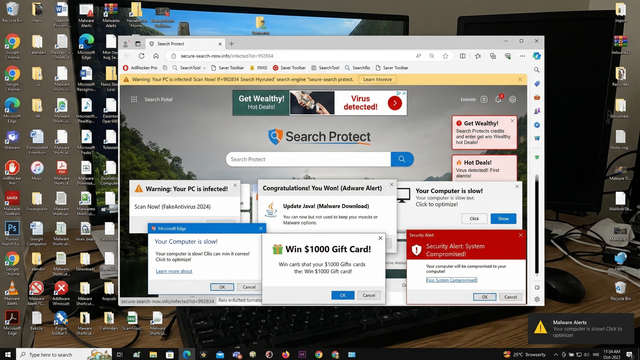
- Pop-up ads and unwanted redirects: Being bombarded with pop-up advertisements — especially when your browser is closed — or being redirected to unfamiliar websites mid-session are classic symptoms of adware infection. These are not merely annoying; they can lead you to phishing pages or drive-by download sites.
How Can I Check for Viruses Using Built-in Windows Tools?
Windows provides a robust set of native security utilities that can serve as your first line of defense when you suspect an infection. Windows Security (powered by Microsoft Defender Antivirus) and Task Manager are both powerful tools for performing initial scans and identifying suspicious processes. While they have limitations against sophisticated threats, understanding how to use them effectively is an essential skill for every PC user.
Running a Full Scan with Windows Security
Windows Security is built directly into Windows 10 and Windows 11, providing real-time protection, firewall management, and on-demand virus scanning at no additional cost. Here is how to use it effectively:
- Press the Windows key, type Windows Security, and press Enter to open the application.
- Click on Virus & threat protection from the left-hand menu.
- Under Current threats, click Scan options to see all available scan types.
- Select Full scan to examine every file and running program on your hard drive, then click Scan now. For suspected deep infections, choose Microsoft Defender Antivirus (offline scan), which reboots your PC and scans before Windows fully loads, bypassing active malware.
Scan Path: Windows Security > Virus & threat protection > Scan options > Full scan / Offline scanWhen the scan completes, review the results carefully. A “No current threats” result means Defender found nothing in its database, but it does not guarantee a clean system. If threats are detected, follow the on-screen prompts to quarantine or remove them.
It is important to acknowledge the limitations of built-in tools. According to a 2026 AV-Comparatives independent lab report, dedicated third-party security suites consistently achieve higher detection rates against zero-day threats and sophisticated polymorphic malware compared to Windows Defender alone. While Defender provides solid baseline protection, it may miss newer or more advanced threats that purpose-built engines are designed to catch.
Investigating Suspicious Activity in Task Manager
Task Manager gives you a real-time view of every process running on your system. Malware often hides in plain sight under misleading names, but its resource consumption patterns frequently give it away.
- Opening Task Manager: Press Ctrl + Shift + Esc simultaneously. Click the Processes tab and sort by CPU, Memory, or Disk usage by clicking the column headers. Any process consuming an unusually high percentage of resources when the system should be idle warrants investigation.
- Identifying malicious processes: Look for processes with random strings of characters, misspelled names of legitimate system files (e.g., svch0st.exe instead of svchost.exe), or processes running from unusual directories like the Temp folder.
- Researching unknown processes safely: Before terminating any process, right-click it and select Open file location to see where it lives on disk. Then search the process name on a trusted resource like the Microsoft Process Library or Should I Block It? website. Never terminate a process you cannot identify — killing a critical system process can cause immediate system instability or data loss.
| Legitimate Windows Process | Common Malware Impersonator | Key Difference |
|---|---|---|
| svchost.exe | svch0st.exe / scvhost.exe | Legitimate version runs from C:\Windows\System32 |
| explorer.exe | explor.exe / explorer32.exe | Only one instance should run from System32 |
| lsass.exe | lssas.exe / lsass32.exe | Legitimate version is a single instance in System32 |
| csrss.exe | cssrs.exe / csrss32.exe | Malware copies often found in Temp or AppData |
| winlogon.exe | winlog0n.exe / winiogon.exe | Legitimate version has a verified Microsoft signature |
What Are the Advanced Symptoms of a Deeply Embedded Infection?
While common malware is often detectable through performance degradation and browser anomalies, more sophisticated threats — such as rootkits, bootkits, and ransomware — employ advanced stealth techniques to embed themselves deeply within the operating system. These threats are specifically engineered to evade standard detection methods, making them far more dangerous and requiring users to look for subtler, more technical signs of compromise.
Signs of Rootkits and Stealth Malware
Rootkits are among the most insidious forms of malware because they operate at the kernel level of the operating system, giving them the ability to hide their presence from the very tools designed to detect them. Recognizing a rootkit infection requires looking for indirect evidence of tampering.
- Security tools fail to open or close immediately: If Windows Security, Task Manager, Registry Editor, or other system utilities crash immediately upon launch or refuse to open entirely, this is a strong indicator that a rootkit is actively suppressing security tools to protect itself from detection and removal.
- Furious network activity during idle periods: If your router’s activity lights blink rapidly when your computer is idle and no downloads or updates are scheduled, malware may be engaged in data exfiltration — silently transmitting your files, keystrokes, or credentials to a remote server.
- Modified system files or inaccessible settings: If you find that system files have been altered, certain Control Panel settings are grayed out, or you cannot access Group Policy Editor or other administrative utilities, a rootkit may have modified your system’s core files or registry to entrench itself and prevent removal.
Recognizing a Ransomware Attack
Ransomware is one of the most financially devastating forms of malware, and its arrival is typically sudden and unmistakable. According to a 2025 Cybersecurity Ventures report, global ransomware damages exceeded $30 billion, with attacks targeting both individuals and enterprises at an accelerating rate. Knowing the signs allows you to act immediately to limit the damage.
- Files with strange, appended extensions: If your documents, photos, and other files suddenly display unfamiliar extensions such as .locked, .crypt, .encrypted, or a string of random characters, ransomware has begun encrypting your data. The original files have been replaced with encrypted versions that are inaccessible without the decryption key.
- A ransom note on your desktop or in folders: Ransomware typically drops a text file, HTML page, or image onto your desktop and into affected folders with instructions on how to pay — almost always in cryptocurrency like Bitcoin — in exchange for the decryption key.
- Immediate action protocol: The moment you suspect a ransomware infection, disconnect your computer from the internet and your local network immediately to prevent the malware from encrypting network shares or spreading to other devices. Do not pay the ransom. As cybersecurity expert and incident response specialist Bruce Schneier has noted: “Paying the ransom does not guarantee you will receive a working decryption key, and it directly funds the criminal infrastructure that will be used to attack others. Your first call should be to a cybersecurity professional, not a cryptocurrency exchange.”
How Do I Perform a Thorough Virus Check and Removal?
Once you have identified signs of infection, the priority shifts to comprehensive detection and complete removal. A thorough approach combines the power of a dedicated security solution with targeted manual cleanup steps to ensure no remnants of the malware are left behind. Cutting corners at this stage is a common mistake that leads to reinfection within days.
Step 1: Scan with a Dedicated Antivirus Solution
The cornerstone of effective virus removal is a dedicated, regularly updated antivirus suite with deep-scan capabilities. Built-in tools are a starting point, but purpose-built security solutions offer significantly higher detection rates and more sophisticated removal engines.
- Download from a clean device if necessary: If your infected PC’s internet access is compromised or you suspect the infection may interfere with the download, use a separate, uninfected computer to download your chosen security suite, then transfer it via a clean USB drive.
- Scan from Safe Mode for optimal detection: Restart your PC in Safe Mode (press F8 or Shift + Restart during boot) to prevent most malware from loading at startup. Running your antivirus scan in this minimal environment significantly improves detection rates because the malware cannot actively hide from or interfere with the scanner.
- Use 360 Total Security’s Boot-Time Scan: For deeply embedded threats that activate before Windows fully loads, 360 Total Security offers a powerful Boot-Time Scan feature. This schedules a scan to run before the operating system loads, allowing its dual-engine detection system (powered by both the 360 Cloud Engine and the QVM AI Engine) to identify and eliminate rootkits, bootkits, and other stealth malware that would otherwise be invisible during a standard scan. Its integrated system cleanup tools also remove residual malicious files and registry entries left behind after the primary threat is neutralized.
Here is how to initiate a Boot-Time Scan in 360 Total Security:
1. Open 360 Total Security
2. Navigate to: Scan > Full Scan (or select "Boot Scan" from scan options)
3. Confirm the scheduled boot scan
4. Restart your computer — the scan will run automatically before Windows loads
5. Review results and confirm removal of all detected threats upon next login
Step 2: Manual Cleanup and Post-Infection Actions
After your primary scan and removal, manual cleanup steps are essential to ensure the infection has been fully eradicated and your accounts remain secure.
- Use specialized removal tools for stubborn threats: For persistent adware, use a dedicated tool like AdwCleaner (by Malwarebytes). For ransomware, check the No More Ransom project (nomoreransom.org) for free, official decryption tools before assuming your files are permanently lost.
- Reset your browser and check your hosts file: Manually review and remove all unrecognized browser extensions. Reset browser settings to default. Check your Windows hosts file (located at
C:\Windows\System32\drivers\etc\hosts) for any unauthorized entries that may be redirecting your traffic.
Hosts file location: C:\Windows\System32\drivers\etc\hosts
Check for entries pointing legitimate domains to unknown IP addresses.
Any line not starting with # (comment) that you did not add should be investigated.- Change all passwords from a clean device: Immediately after confirming your system is clean, change every password — starting with email and banking accounts — from a separate, confirmed clean device. Assume that any credentials entered on the infected machine during the infection period may have been captured by a keylogger or spyware.
How Can I Prevent Future Infections and Maintain a Secure PC?
The most effective strategy against computer viruses is prevention. Proactive security hygiene is not only less stressful than reacting to an active infection — it is also dramatically less costly. According to a 2026 IBM Security Cost of a Data Breach Report, the average cost of a malware incident for an individual, factoring in data recovery, lost productivity, and potential identity theft remediation, far exceeds the cost of a robust prevention stack. Building strong security habits today protects everything you have worked for.
Essential Security Software and Practices
Your security posture begins with the tools you choose and how consistently you use them. No single tool is sufficient on its own, but the right combination creates a layered defense that is extremely difficult for malware to penetrate.
- Install a reliable antivirus with real-time protection: 360 Total Security provides comprehensive, always-on protection for Windows and macOS PCs, including real-time virus scanning, a robust firewall, vulnerability patching, and system cleanup tools — all available in a powerful free tier. Its multi-engine approach ensures that even newly emerging threats are caught before they can execute. Visit the 360 Total Security official website to download and protect your PC today.
- Keep your OS, software, and drivers updated: The majority of successful malware infections exploit known vulnerabilities in outdated software. Enabling automatic updates for Windows, your browsers, office applications, and hardware drivers closes these attack vectors before they can be exploited. According to a 2025 Verizon Data Breach Investigations Report, over 60% of breaches exploited vulnerabilities for which patches had been available for more than 30 days.
- Configure your firewall properly: Ensure Windows Firewall is enabled and correctly configured to block unauthorized inbound and outbound connections. 360 Total Security’s built-in firewall module adds an additional layer of network-level protection, monitoring for suspicious connection attempts in real time.
User Behavior: The First Line of Defense
Technology alone cannot protect you if unsafe habits create openings for attackers. Human behavior remains the single most exploited attack vector in cybersecurity, and cultivating disciplined digital hygiene is as important as any software solution.
- Practice extreme caution with emails and downloads: Never open attachments or click links in unsolicited emails, even if they appear to come from a known sender. Phishing emails are the primary delivery mechanism for ransomware and trojans. Always download software from official, verified sources — never from third-party download aggregators or torrent sites.
- Use strong, unique passwords and enable 2FA: A compromised password can give an attacker full access to your accounts even if your PC is clean. Use a password manager to generate and store strong, unique passwords for every account, and enable two-factor authentication (2FA) wherever it is available, particularly for email, banking, and social media.
- Back up your data regularly: Maintaining regular backups to both an external hard drive (kept disconnected when not in use) and a cloud service is your ultimate defense against ransomware. If your files are encrypted, you can restore from a clean backup without paying a ransom or losing your data permanently.
| Security Measure | Type | Estimated Time Investment | Estimated Cost | Protection Level |
|---|---|---|---|---|
| Installing 360 Total Security (Free) | Proactive | 10 minutes setup | $0 | High — Real-time, multi-engine |
| Keeping OS & software updated | Proactive | Automated / minimal | $0 | High — Patches known exploits |
| Regular data backups | Proactive | 1–2 hours/month | $5–$20/month | Critical — Ransomware defense |
| Recovering from a ransomware attack | Reactive | Days to weeks | $500–$10,000+ | N/A — Damage already done |
| Recovering from identity theft | Reactive | Months to years | $1,000–$50,000+ | N/A — Severe long-term impact |
| Professional malware removal service | Reactive | 1–3 days | $150–$500 | Variable — No guarantee |
Frequently Asked Questions
Can a computer virus infect my PC even if I have antivirus software installed?
Yes, it is possible. No antivirus solution offers 100% protection against every threat, particularly zero-day exploits and highly sophisticated targeted attacks. However, a reputable, regularly updated antivirus like 360 Total Security dramatically reduces your risk. Combining your antivirus with safe browsing habits, regular updates, and strong passwords creates a layered defense that is extremely effective against the vast majority of threats.
How long does a full virus scan typically take?
A full system scan can take anywhere from 30 minutes to several hours, depending on the size of your hard drive, the number of files stored, and the speed of your system. An offline or boot-time scan may take slightly longer as it operates outside the normal Windows environment. For routine maintenance, scheduling a full scan weekly during off-hours (overnight, for example) is a best practice that ensures continuous protection without impacting your productivity.
Should I pay the ransom if my files are encrypted by ransomware?
Cybersecurity experts and law enforcement agencies universally advise against paying the ransom. There is no guarantee that paying will result in receiving a working decryption key, and payment directly funds criminal organizations. Instead, immediately disconnect from the network, preserve an image of the encrypted drive, report the incident to your national cybercrime authority, and check the No More Ransom project (nomoreransom.org) for free decryption tools. If you had a recent backup, restoring from it is the cleanest and most reliable path to recovery.
What is the difference between a virus, malware, and spyware?
Malware is the broad umbrella term for any malicious software, including viruses, trojans, ransomware, spyware, adware, and rootkits. A virus is a specific type of malware that replicates itself by attaching to legitimate files and spreading to other systems. Spyware is malware specifically designed to monitor your activity, capture keystrokes, and transmit sensitive information — such as passwords and financial data — to a remote attacker, often without causing any obvious performance symptoms.
Is free antivirus software good enough for serious protection?
A high-quality free antivirus can provide genuinely effective protection for most users. 360 Total Security’s free tier, for example, includes multi-engine real-time scanning, a firewall, vulnerability patching, and system optimization tools — a feature set that rivals many paid solutions. The key factors are the quality of the engine, the frequency of definition updates, and whether the product includes real-time protection. A reputable free solution used consistently is far superior to a premium solution that is never updated or configured properly.
About the Author: This article was written by a Senior Technical Writer specializing in cybersecurity, endpoint protection, and PC security best practices. With over a decade of experience translating complex security concepts into actionable guidance for everyday users and IT professionals, the author has contributed to numerous industry publications and security awareness programs. Their work focuses on empowering users to take proactive control of their digital safety through education, practical tools, and evidence-based security strategies.
Learn more about 360 Total Security