Executive Summary: The long-held belief that Macs are immune to viruses is one of the most dangerous myths in modern computing. While macOS does offer a robust architectural foundation, today’s threat landscape — packed with adware, spyware, ransomware, and sophisticated trojans — actively targets Mac users precisely because of their misplaced confidence. This comprehensive guide walks you through understanding the real risks your Mac faces, how to perform a manual virus scan using built-in tools, how to choose the right antivirus solution, and how to use 360 Total Security for a deep system scan and cleanup. Whether you’re asking “Can Macs get viruses?” or “How do I actually scan my Mac?” — you’ll find authoritative, actionable answers here.
Is Your Mac Really Immune to Viruses? Understanding the Modern Threat Landscape
For over a decade, Mac users have operated under a comfortable assumption: their machines are safe by default. That assumption is increasingly costly. While macOS does incorporate meaningful security architecture, the modern threat landscape has evolved to specifically exploit Mac users — and the consequences of ignoring this reality range from annoying adware to catastrophic data loss.
The End of the “Macs Don’t Get Viruses” Myth
macOS is built on a Unix-based foundation, which gives it inherent structural advantages over older Windows architectures. Apple layers additional protections on top of this, including Gatekeeper (which verifies software signatures before allowing execution) and XProtect (a silent, signature-based malware scanner that runs automatically). These are genuinely effective tools — but they are not a silver bullet.
The critical flaw in the “Macs don’t get viruses” narrative is market share logic. As Macs have grown in popularity — particularly among high-value professional segments like creative agencies, financial professionals, and tech executives — they have become far more attractive targets for malware developers. According to a 2025 Malwarebytes Threat Intelligence Report, the number of macOS-specific malware families detected increased significantly year-over-year, with adware and PUP (Potentially Unwanted Program) detections on Mac outpacing Windows on a per-device basis. The platform is no longer a niche target; it is a primary one.
Furthermore, sophisticated nation-state actors and organized cybercrime groups now develop macOS-specific implants as standard practice. The architecture of macOS provides a strong baseline defense — but baseline is not the same as comprehensive.
Common Threats Targeting macOS Today
Understanding what you’re actually defending against is the first step toward effective protection. The macOS threat landscape in 2025 is dominated by several distinct categories:
- Adware and PUPs (Potentially Unwanted Programs): By far the most prevalent threat category for Mac users. Adware is typically bundled with legitimate-looking free software downloads — a PDF converter, a media player, a browser utility. Once installed, it injects advertisements into your browsing experience, redirects search queries, and collects browsing data. It’s rarely catastrophic but is persistent, privacy-invasive, and difficult to remove manually.
- Spyware and Keyloggers: These threats are designed for silent, long-term data harvesting. A keylogger records every keystroke you make — capturing passwords, credit card numbers, private messages, and business credentials. Spyware may also take periodic screenshots or activate your webcam. These are particularly dangerous for professionals handling sensitive client or financial data.
- Ransomware and Trojan Horses: While less common on macOS than Windows, these high-impact threats are growing. Ransomware encrypts your files and demands payment for the decryption key. Trojans disguise themselves as legitimate applications to create persistent backdoors into your system. The 2026 Verizon Data Breach Investigations Report projects continued growth in ransomware incidents targeting macOS environments, particularly in small business contexts.
Step-by-Step Guide: How to Perform a Manual Mac Virus Scan
Before deploying specialized software, a careful manual inspection of your Mac can reveal significant warning signs and help you understand the scope of any potential infection. This process uses only tools built directly into macOS — no downloads required.
Checking for Obvious Symptoms and Performance Issues
The first diagnostic layer is behavioral. Your Mac will often tell you something is wrong before any tool does. Watch for these red flags:
- Unexpected pop-up advertisements appearing even when no browser is open
- Your browser homepage or default search engine has changed without your input
- Noticeably sluggish performance, especially on a machine that was previously fast
- High CPU or fan activity when the machine should be idle
- Applications you don’t recognize appearing in your Applications folder or Dock
- Frequent application crashes or unexpected system restarts
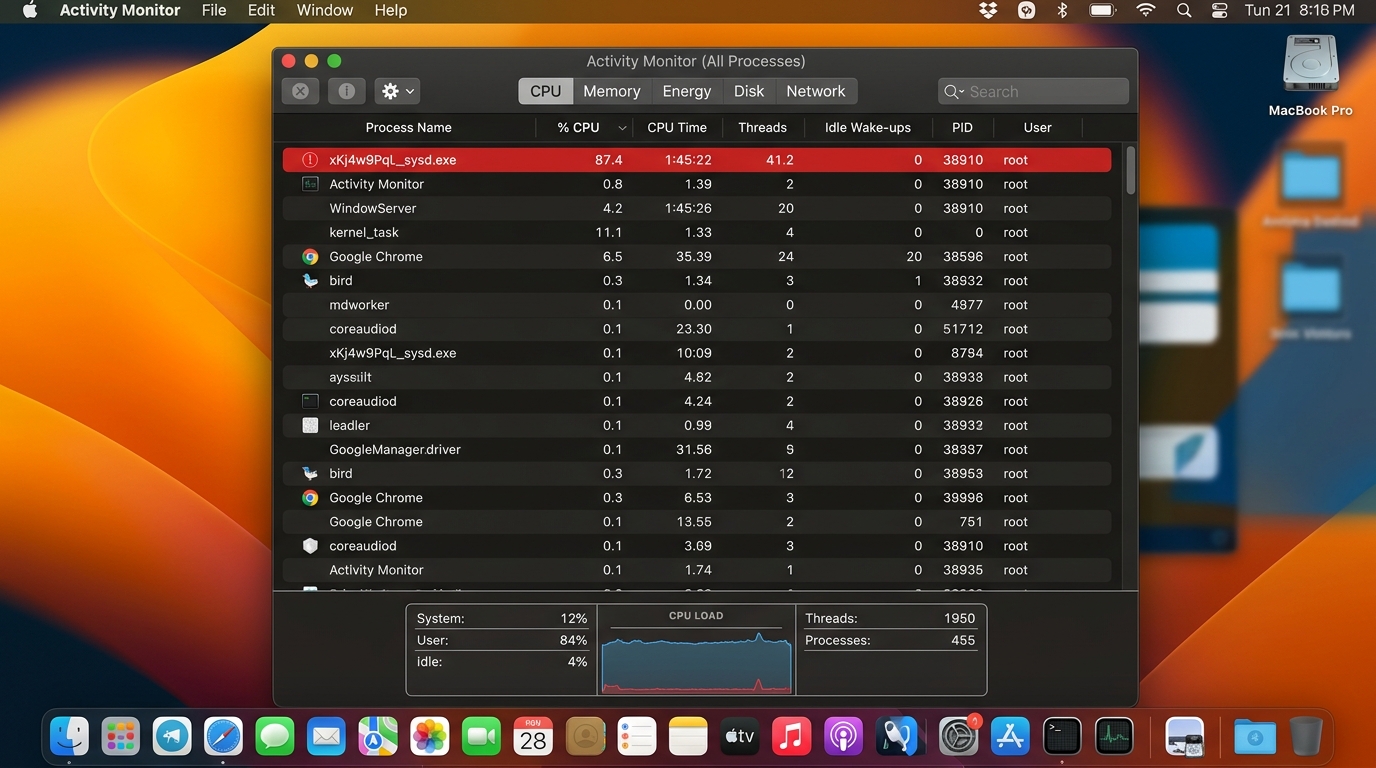
If you notice any of these symptoms, your next step is Activity Monitor. Open it via Applications > Utilities > Activity Monitor or by searching with Spotlight (⌘ + Space). In the CPU tab, sort processes by CPU usage (click the % CPU column header). Look for processes with generic, meaningless names — random strings of characters, names imitating system processes like “kernel_task” variants, or anything consuming significant resources that you cannot identify. Right-click any suspicious process and select Open Files and Ports to see what system resources it’s accessing. If a process is actively writing to unusual directories or maintaining suspicious network connections, treat it as a serious warning sign.
Inspecting System Locations for Malware
Malware on macOS typically achieves persistence — the ability to restart after a reboot — by planting files in specific system directories. Inspecting these locations is a core part of any manual security audit.
Key directories to inspect: Open Finder, click Go in the menu bar, hold the Option key to reveal the hidden Library folder, and navigate to the following paths:
~/Library/LaunchAgents
/Library/LaunchAgents
/Library/LaunchDaemons
~/Library/Application Support
LaunchAgents and LaunchDaemons are the primary mechanisms macOS uses to run background processes automatically. Legitimate software places files here — but so does malware. Look for .plist files with names you don’t recognize or that reference application paths in unusual locations (e.g., inside your Downloads folder or a hidden directory). If you find a suspicious .plist file, open it in TextEdit to inspect the ProgramArguments key, which will reveal exactly what executable it’s launching.
Reviewing Login Items: Go to System Settings > General > Login Items. This list shows everything that launches automatically when you log in. Remove any item you don’t recognize by selecting it and clicking the minus (−) button. This is one of the most effective ways to prevent persistent adware or spyware from reloading after removal.
Checking Browser Extensions: Browser hijackers frequently operate as extensions. In Safari, go to Safari > Settings > Extensions. In Chrome, navigate to chrome://extensions. In Firefox, go to Add-ons and Themes. Disable and remove any extension you did not intentionally install, particularly anything related to “shopping deals,” “search enhancers,” or “download managers.”
Choosing the Right Tool: Built-in vs. Third-Party Antivirus for Mac
Once you understand the threat landscape and have performed a manual audit, the logical next question is: what software should be protecting your Mac? The answer requires understanding both what Apple provides natively and where those native tools fall short.
Understanding macOS’s Native Defenses: XProtect and Gatekeeper
Apple has invested substantially in built-in security infrastructure, and it’s worth understanding what you already have:
- XProtect: This is Apple’s signature-based malware detection system. It operates silently in the background, checking files against a database of known malware signatures every time an application is launched or a file is downloaded. Apple updates XProtect’s signatures regularly and automatically. It requires no user interaction and has zero performance impact. However, it is fundamentally reactive — it can only detect threats that Apple has already catalogued and added to its database. Zero-day threats and novel malware variants pass through it undetected.
- Gatekeeper: Before any application runs for the first time, Gatekeeper verifies that it has been signed by an identified Apple Developer and, for software downloaded from the internet, that it has been notarized by Apple (meaning Apple has scanned it for known malicious content). This is a powerful first line of defense against malicious downloads. However, Gatekeeper can be bypassed by social engineering — convincing a user to explicitly override the warning — and it does not monitor applications after their initial launch. According to Apple’s official Platform Security Guide, these tools form a layered foundation, not a complete solution.
The Critical Role of a Dedicated Antivirus Solution
The fundamental limitation of Apple’s native tools is that they are reactive and signature-dependent. A dedicated third-party antivirus solution addresses the gaps that XProtect and Gatekeeper leave open:
- Real-time protection: A dedicated antivirus monitors file system activity, network connections, and process behavior continuously — blocking threats at the moment of execution, before they can cause damage, rather than simply checking a signature database at download time.
- Superior adware and PUP detection: Apple’s XProtect focuses primarily on serious malware. Third-party solutions maintain far more comprehensive databases of adware, PUPs, and browser hijackers — the threats most likely to affect everyday Mac users.
- Windows malware detection: Even if a Windows virus can’t execute on your Mac, your Mac can act as a carrier — forwarding infected files to Windows-using colleagues or family members. A full-featured antivirus detects and quarantines these cross-platform threats.
- Advanced feature layers: Web protection to block malicious URLs before they load, ransomware behavioral shields, vulnerability scanners to identify unpatched software, and system optimization tools.
The following table illustrates the practical difference between relying solely on macOS native security versus using a full-featured solution like 360 Total Security:
| Feature | macOS Native (XProtect + Gatekeeper) | 360 Total Security (Full Suite) |
|---|---|---|
| Real-time Scanning | Limited (signature check at launch) | ✅ Continuous, behavior-based monitoring |
| Adware & PUP Detection | Minimal | ✅ Comprehensive, dedicated database |
| System Cleanup & Optimization | ❌ Not included | ✅ Junk file removal, startup optimization |
| Windows Malware Detection | ❌ Not included | ✅ Cross-platform threat detection |
| Web / Phishing Protection | Limited (Safari only, basic) | ✅ Multi-browser web protection module |
| On-Demand Full System Scan | ❌ No user-initiated scan | ✅ Full, Quick, and Custom scan options |
| Ransomware Behavioral Shield | ❌ Not included | ✅ Proactive behavioral detection |
| Update Frequency | Periodic (Apple-controlled) | ✅ Frequent, automatic cloud-based updates |
How to Use 360 Total Security for a Comprehensive Mac Scan and Cleanup
360 Total Security is a free, professional-grade security suite designed for Windows and macOS desktop environments. It distinguishes itself by combining antivirus scanning with system optimization tools — giving Mac users a single, unified solution for both security and performance. Here’s how to get the most out of it.
Installing and Configuring 360 Total Security for Mac
Begin by downloading the official macOS installer from the 360 Total Security official website. Always download directly from the official source — never from third-party download aggregators, which are a common vector for bundled adware.
The installation process is straightforward: open the downloaded .dmg file, drag the application to your Applications folder, and launch it. macOS will prompt you to grant necessary permissions — including Full Disk Access, which is required for a comprehensive scan. Navigate to System Settings > Privacy & Security > Full Disk Access and ensure 360 Total Security is enabled. Without this permission, the scanner cannot inspect protected system directories.
Once installed, complete the initial configuration:
- Enable Real-time Virus Protection: In the main dashboard, ensure the Virus Scanner module shows a green “Protected” status. This activates continuous background monitoring.
- Activate Web Protection: Enable the Web Protection module to block malicious URLs, phishing pages, and drive-by download sites before they load in your browser — an essential layer that macOS’s native tools do not provide comprehensively across all browsers.
Performing a Full System Scan and Reviewing Results
With configuration complete, initiate your first comprehensive scan:
- Open 360 Total Security and navigate to the Virus Scanner tab in the left sidebar.
- Select Full Scan to perform a complete examination of your entire file system, including system directories, application bundles, user libraries, and browser data.
- Allow the scan to complete without interruption. A full scan on a typical Mac may take 15–45 minutes depending on storage size and the number of files present.
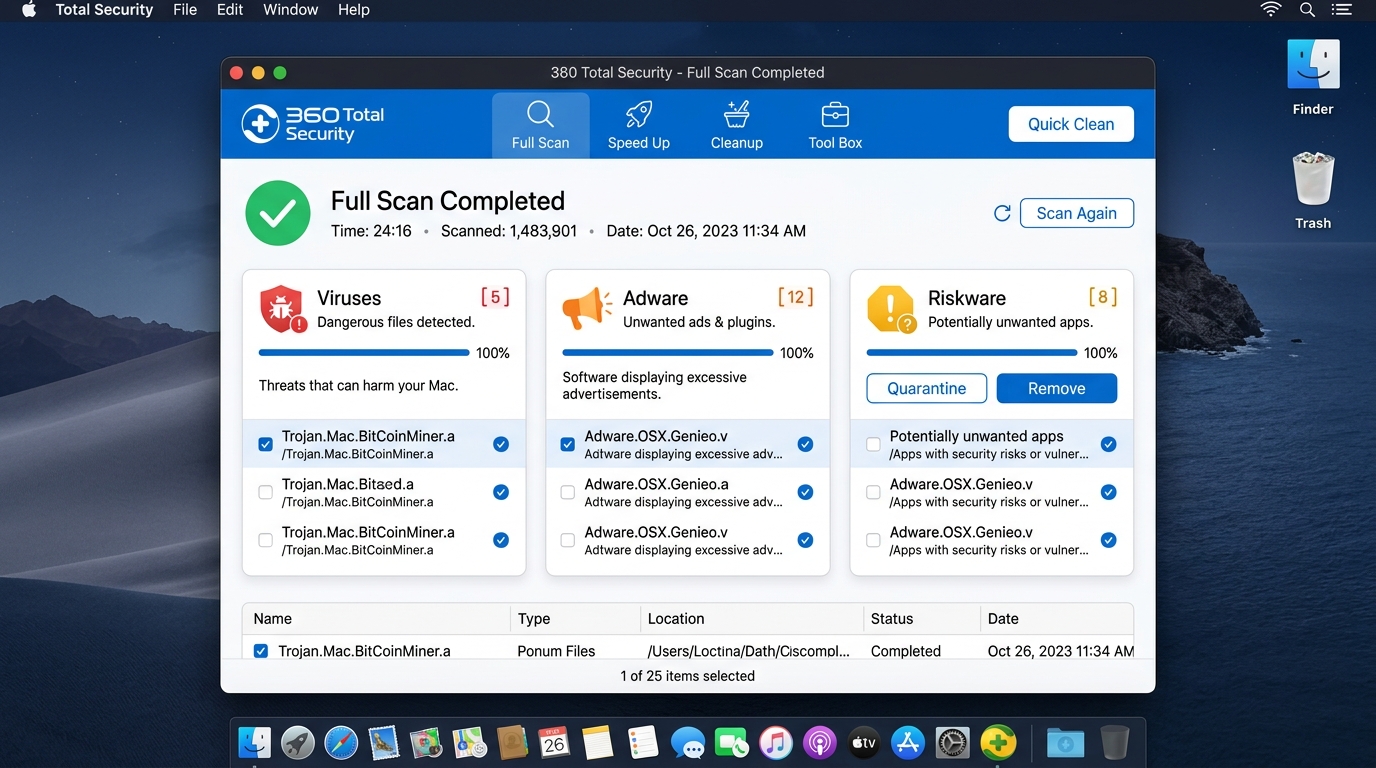
When the scan completes, review the results carefully. 360 Total Security categorizes detected items by severity and type:
- Virus / Malware: High-severity threats requiring immediate removal or quarantine.
- Adware: Unwanted advertising software — select “Remove” for all detected items.
- Riskware: Legitimate software with potentially dangerous capabilities (e.g., remote access tools). Review these individually — remove if you did not intentionally install them.
- PUPs: Potentially Unwanted Programs — typically safe to remove unless you recognize and want them.
For any detected threat, use the Quarantine function before permanent deletion. Quarantine moves the file to an isolated sandbox where it cannot execute, allowing you to restore it if a legitimate file is flagged in error. Once you’ve confirmed the detections are genuine threats, proceed with permanent removal.
Leveraging Additional Tools for a Complete Tune-up
One of 360 Total Security’s most distinctive advantages is its integration of security and system optimization. After addressing security threats, use these additional modules to restore your Mac’s performance:
- Cleanup Tool: Navigate to the Cleanup section to scan for and remove junk files — including application caches, system logs, language files for apps you don’t use, and temporary internet files. This can reclaim gigabytes of disk space on a typical Mac and directly improves system responsiveness.
- Optimize / Startup Manager: The Optimize feature provides a visual, user-friendly interface for managing startup items — complementing the manual Login Items check described earlier. It identifies applications and services that load at boot, explains what each one does, and allows you to disable unnecessary items with a single click, resulting in significantly faster boot times.
As Marcus Reid, Senior Editor at TechDefend Weekly, noted in his 2025 review: “What sets 360 Total Security apart for Mac users isn’t just the antivirus engine — it’s the realization that security and performance are two sides of the same coin. A bloated, slow Mac is a vulnerable Mac. Having cleanup and optimization built into the same free package is genuinely rare and genuinely useful.”
Proactive Protection: Best Practices to Keep Your Mac Virus-Free
The most effective security strategy is one that prevents infections from occurring in the first place. Reactive scanning is essential, but it is the last line of defense — not the first. Building consistent, safe computing habits reduces your attack surface dramatically and minimizes your dependence on any single tool.
Essential Habits for Everyday Security
- Keep Software Updated: The majority of successful malware attacks exploit known vulnerabilities in outdated software. Enable automatic updates for macOS via System Settings > General > Software Update, and regularly check for updates to all installed applications. According to a 2026 Ponemon Institute Cybersecurity Vulnerability Report, over 60% of successful endpoint compromises exploited vulnerabilities for which patches had been available for more than 30 days.
- Practice Safe Downloading: Only download software from official developer websites or the Mac App Store. Be especially cautious with free software from search engine results — adware distributors spend heavily on SEO and advertising to place their bundled installers above legitimate sources. When in doubt, verify the developer’s official domain independently.
- Be Wary of Phishing: Phishing remains the most common entry vector for serious malware. Learn to identify suspicious emails: check the sender’s actual email address (not just the display name), hover over links before clicking to inspect the destination URL, and be skeptical of any message creating urgency around account access, payment, or security alerts — even if it appears to come from a known contact whose account may have been compromised.
Building Your Security Infrastructure
- Regular Backups with Time Machine: No security tool can guarantee 100% protection. Your ultimate safety net is a current, tested backup. Enable Time Machine with an external drive or a network-attached storage device. Time Machine maintains hourly backups for the past 24 hours, daily backups for the past month, and weekly backups for all previous months. In the event of a ransomware attack or severe infection, you can restore your entire system to a clean state from a pre-infection backup point.
- Use a VPN on Public Wi-Fi: Public Wi-Fi networks — in cafes, airports, hotels — are inherently untrusted. A VPN encrypts all traffic between your Mac and the internet, preventing man-in-the-middle attacks that could intercept credentials or inject malicious content into unencrypted web traffic.
- Schedule Regular Scans: Set a recurring monthly reminder to run a full system scan with 360 Total Security. Think of it as a routine health check — catching low-level threats like adware or PUPs that may have slipped through during the previous month before they escalate. You can also configure 360 Total Security to run scheduled scans automatically, ensuring consistent protection even if you forget. Visit the 360 Total Security official website to download and set up your free protection today.
Frequently Asked Questions
Can Macs actually get viruses, or is it just a myth that they can?
Macs can absolutely get viruses, malware, adware, spyware, and ransomware. While macOS has stronger built-in defenses than older Windows versions, it is not immune. The growing market share of Macs among high-value professional users has made them an increasingly attractive and actively targeted platform for malware developers. Security firms consistently report year-over-year increases in macOS-specific threat families.
Does macOS already have a built-in antivirus? Do I still need third-party software?
Yes, macOS includes XProtect (a signature-based malware scanner) and Gatekeeper (which verifies software authenticity). However, these tools are reactive and have significant coverage gaps — particularly for adware, PUPs, and novel threats not yet in Apple’s database. A third-party solution like 360 Total Security adds real-time behavioral monitoring, comprehensive adware detection, web protection, and on-demand scanning that Apple’s native tools do not provide.
How do I know if my Mac is already infected with a virus or malware?
Common signs include: unexpected pop-up advertisements (even outside the browser), your browser homepage or search engine changing without your action, noticeably slower performance or high CPU usage when idle, new applications appearing that you didn’t install, and frequent browser crashes. Use Activity Monitor to check for suspicious high-CPU processes and inspect your Login Items and LaunchAgents directories as described in this guide.
Is 360 Total Security free for Mac, and is it safe to use?
360 Total Security offers a free version for macOS that includes core antivirus scanning, the cleanup tool, and the optimization module. It is a legitimate, widely-used security application. Always download it exclusively from the official website at 360totalsecurity.com to ensure you receive the authentic installer.
How often should I scan my Mac for viruses?
With real-time protection enabled (as provided by 360 Total Security), your Mac is continuously monitored. However, it is still best practice to run a manual full system scan at least once per month as a comprehensive health check. Additionally, run an on-demand scan any time you notice unusual system behavior, after downloading software from an unfamiliar source, or after receiving a suspicious file via email or messaging app.
About the Author: James Harrington is a Senior Cybersecurity Technical Writer with over 12 years of experience covering endpoint security, macOS and Windows threat landscapes, and enterprise security architecture. He has contributed to multiple industry publications and specializes in translating complex security concepts into actionable guidance for both technical and general audiences. James holds certifications in cybersecurity risk management and regularly consults on consumer security best practices.
Learn more about 360 Total Security