Executive Summary: A computer virus can silently compromise your personal data, cripple system performance, and expose sensitive credentials — often before you realize anything is wrong. This comprehensive guide walks you through the most reliable signs of infection, hands-on manual investigation techniques using built-in Windows tools, and the definitive step-by-step process for scanning and removing malware using dedicated antivirus software. You will also discover proven prevention strategies and security habits that keep your system resilient against future attacks. Whether you are troubleshooting a sluggish PC or building a long-term security posture, this guide delivers the actionable knowledge you need.
What Are the Most Common Signs Your Computer Might Be Infected?
While some viruses operate silently in the background, most infections eventually manifest through noticeable changes in system behavior, performance, and user experience that deviate from normal operation. Recognizing these early warning signals is the first and most critical step in stopping an attack before it escalates. Understanding the signs of a computer virus — from sluggish performance to unauthorized account activity — empowers you to act swiftly and decisively.
Performance Degradation and System Instability
One of the earliest and most universally reported malware symptoms is a sudden, unexplained decline in system performance. This can manifest in several ways:
- Slow boot times and application launches: If your PC suddenly takes twice as long to start up or open programs you use daily, a background process may be consuming system resources without your knowledge.
- Frequent crashes, BSODs, and application freezes: Malware that corrupts system files or interferes with kernel-level processes often triggers Blue Screens of Death (BSOD) or causes applications to hang unpredictably. According to a 2026 Consumer Cybersecurity Behavior Report, performance degradation remains the single most commonly reported symptom of a virus infection among everyday PC users.
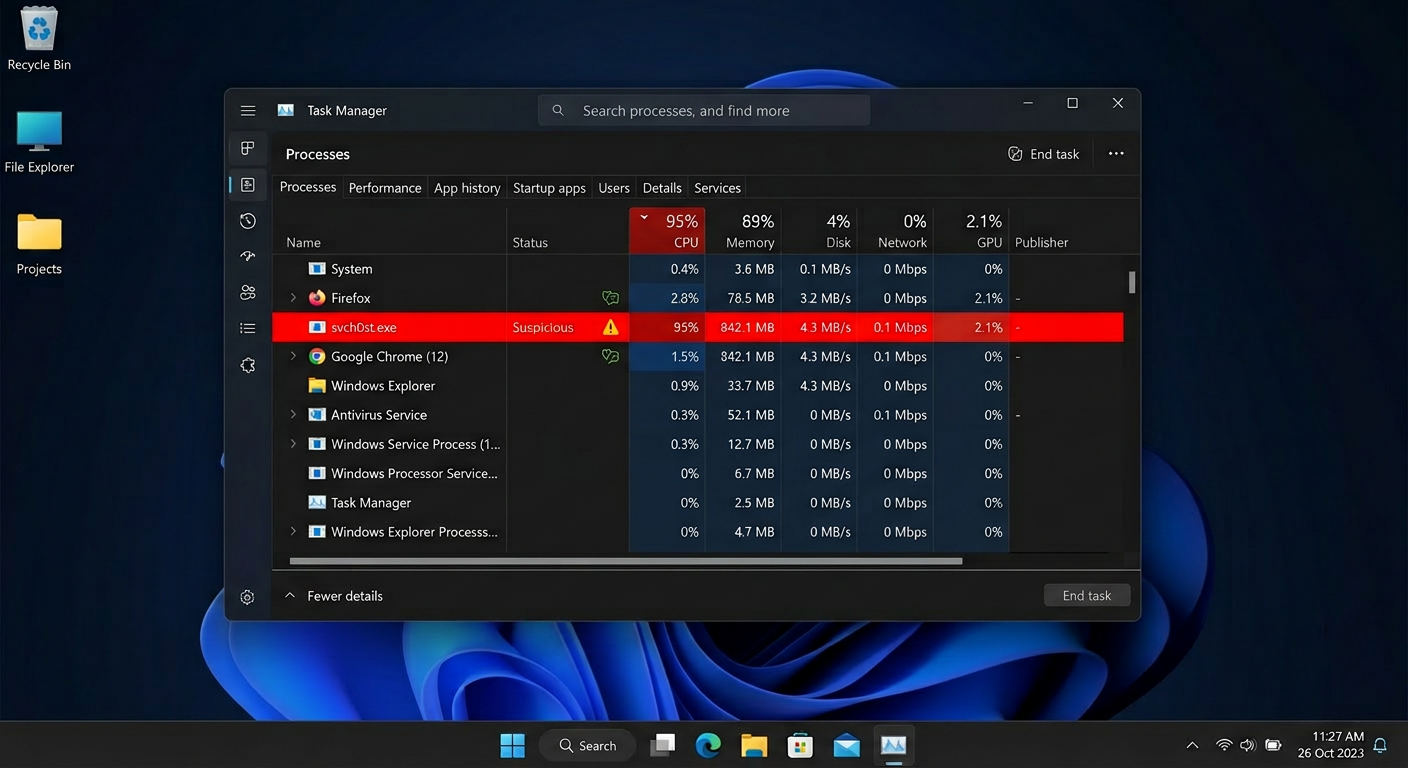
- Abnormal CPU, memory, or disk usage at idle: Open Windows Task Manager and observe resource usage when you are not running any demanding applications. If CPU or disk activity is consistently high — above 30–40% at idle — hidden malicious processes are a likely culprit. Cryptocurrency mining malware (cryptojackers), for instance, is specifically designed to hijack your processing power silently.
Unusual Network Activity and Pop-ups
Your network connection is a primary channel through which malware communicates with its operators. Monitoring unusual computer behavior related to network usage is therefore essential:
- Unexpected data usage spikes: If your internet data consumption has increased dramatically without a corresponding change in your usage habits, your machine may be part of a botnet, actively sending spam, participating in distributed denial-of-service (DDoS) attacks, or exfiltrating your personal files to a remote server.
- Intrusive pop-up ads and browser hijacking: A barrage of pop-up advertisements — particularly those appearing outside of any open browser window — is a classic virus detection sign associated with adware. Browser homepage or default search engine changes you never authorized are equally suspicious and typically indicate the presence of a Potentially Unwanted Program (PUP) or browser hijacker.
- Security software being disabled: Advanced malware frequently targets your first line of defense. If your firewall or antivirus has been turned off without your action, treat this as a critical red flag. This self-preservation tactic is a hallmark of sophisticated threats designed to operate undetected.
File and System Anomalies
Beyond performance and network issues, direct changes to your files and system environment are among the most alarming signs of infection:
- Missing, corrupted, or encrypted files: Ransomware — one of the most destructive malware categories — encrypts your documents, photos, and databases, then demands payment for the decryption key. Files that suddenly cannot be opened, display garbled content, or have had their extensions changed (e.g.,
.docxbecoming.docx.locked) are unmistakable ransomware indicators. - Unfamiliar programs, icons, or toolbars: New desktop shortcuts, browser toolbars, or entries in your installed programs list that you did not deliberately install are classic signs of a drive-by download or a bundled software attack.
- Strange messages sent from your accounts: If friends or colleagues report receiving unusual emails, social media messages, or chat notifications from your accounts — messages you never sent — your credentials may have been stolen by a keylogger or your accounts compromised by a spam-sending bot.
How to Manually Investigate and Confirm a Virus Infection
Before taking drastic action, you can perform a series of systematic manual checks using built-in Windows tools to gather evidence and confirm your suspicions. A manual virus check does not replace dedicated security software, but it provides valuable intelligence about what may be running on your system and helps you understand the scope of the problem.
Using Windows Task Manager for Process Analysis
Windows Task Manager is your most immediately accessible diagnostic tool. Here is how to use it effectively for malware investigation:
- Opening Task Manager: Press Ctrl + Shift + Esc simultaneously to open Task Manager directly. Navigate to the Processes tab and click the CPU or Disk column headers to sort by resource consumption, pushing the heaviest consumers to the top.
- Identifying suspicious processes: Look for processes with misspelled names that mimic legitimate Windows components — a classic Windows Task Manager malware trick. For example,
svch0st.exe(with a zero) impersonating the legitimatesvchost.exe, orlsass.exerunning from an unusual directory. Legitimate Windows processes should have a verified publisher listed. Any process showing high resource usage with no description, no publisher, or an unfamiliar name warrants further investigation. - Right-clicking for more information: Right-click any suspicious process and select Open file location to see where the executable is stored. Legitimate system processes reside in
C:\Windows\System32\. A process running from a temporary folder, the Downloads directory, or an obscure AppData subfolder is highly suspicious.
Checking for Unauthorized Programs and Startup Items
Malware must persist across reboots to remain effective. Checking startup entries is one of the most reliable manual investigation steps:
- Reviewing installed applications: Navigate to Settings > Apps > Apps & features (Windows 10/11) and scroll through the list carefully. Sort by installation date to quickly identify recently added software you do not recognize. Uninstall anything unfamiliar, but note that some malware resists standard uninstallation — in those cases, dedicated removal tools are necessary.
- Auditing the Startup tab in Task Manager: Click the Startup tab in Task Manager to see every program configured to launch when Windows starts. This is a common persistence mechanism for malware. Right-click and Disable any entry you do not recognize or did not intentionally add. Pay close attention to entries with a high startup impact and an unknown publisher.
- Using MSConfig for deeper inspection: Type
msconfigin the Windows search bar and open System Configuration. The Services tab, with Hide all Microsoft services checked, reveals third-party services — another common hiding place for persistent malware components.
Advanced Checks with Windows Command Line and Resource Monitor
For a deeper system investigation, the Windows command line and Resource Monitor provide powerful visibility into active network connections and real-time system activity:
- Using
netstat -ano: Open Command Prompt as Administrator and run thenetstat -anocommand to list all active TCP/UDP connections along with their associated Process IDs (PIDs). Look forESTABLISHEDconnections to unfamiliar foreign IP addresses, especially on unusual port numbers. You can cross-reference the PID with Task Manager to identify the process responsible. - Leveraging Resource Monitor (
resmon): Typeresmonin the Run dialog (Win+R) to open Resource Monitor. The Network tab provides a real-time, process-by-process breakdown of all network activity, including the exact remote addresses each process is communicating with. This is invaluable for catching malware “phoning home” to a command-and-control server.
Below is an example of filtering established connections using the command line:
# Run this in an elevated Command Prompt (Run as Administrator)
netstat -ano | findstr ESTABLISHED

# Example Output (annotated):
# Proto  Local Address          Foreign Address        State           PID
# TCP    192.168.1.5:54231      185.220.101.47:443     ESTABLISHED     4872
#        ^Your PC               ^Suspicious foreign IP  ^Active conn    ^PID to check in Task Manager
#
# WHAT TO LOOK FOR:
# - Foreign IPs on non-standard ports (not 80, 443, or well-known service ports)
# - Multiple connections from the same unknown PID to different foreign IPs
# - Connections persisting even when you have closed all browsers and apps
# - Use a WHOIS lookup tool on the foreign IP to check its registered owner/country
# - Cross-reference the PID in Task Manager > Details tab to find the executable name
Why You Need Dedicated Antivirus Software for Accurate Detection
Manual checks are invaluable for gathering clues and understanding system behavior, but they have fundamental limitations. Modern malware employs sophisticated evasion techniques — including rootkit-level hiding, code obfuscation, polymorphic mutation, and process injection — that make it effectively invisible to casual inspection. Dedicated antivirus software with real-time protection and heuristic analysis is not optional; it is essential for definitive threat diagnosis, complete removal, and ongoing prevention.
The Limitations of Built-in Tools Like Windows Defender
Windows Security (formerly Windows Defender) has improved substantially in recent years and provides a meaningful baseline of protection. However, it carries notable limitations that users should understand:
- Detection rate gaps for advanced threats: Independent testing laboratories such as AV-TEST and AV-Comparatives consistently publish reports showing that dedicated third-party security suites often outperform Windows Defender in detecting zero-day exploits and Advanced Persistent Threats (APTs). According to a 2025 AV-TEST evaluation cycle, some specialized suites achieved near-perfect detection rates for zero-day malware samples in controlled tests, while Windows Defender showed a measurable gap in the same category.
- Absence of integrated optimization and privacy tools: Windows Defender is a pure security tool. It lacks integrated system optimization utilities, browser privacy cleaners, junk file removal, a dedicated gaming mode, or a sandbox for safely running untrusted applications — features that comprehensive security suites bundle together for a holistic PC health approach.
- User experience for non-technical users: Interpreting Windows Security alerts, navigating its settings, and understanding quarantine actions can be less intuitive for everyday users compared to third-party solutions that are designed with guided workflows and plain-language explanations.
How Modern Antivirus Software Detects Hidden Threats
Understanding the detection mechanisms inside modern antivirus engines explains why dedicated software catches threats that manual inspection misses entirely:
- Signature-Based Detection: The foundational layer. Every known malware sample has a unique digital fingerprint (hash). The antivirus engine compares every file on your system against a continuously updated database of millions of these signatures. This method is fast and reliable for known threats but is blind to brand-new malware variants.
- Heuristic and Behavioral Analysis: This is the critical advancement that addresses the limitations of signatures. Rather than asking “Does this file match a known threat?”, behavioral analysis asks “Is this program behaving like a threat?” It monitors running processes in real-time and flags suspicious patterns — such as a process attempting to encrypt hundreds of files in rapid succession (ransomware behavior), injecting code into other processes, or disabling security services. This approach is essential for catching unknown or zero-day malware before it can cause damage.
- Sandboxing and AI-Powered Analysis: Suspicious files or URLs can be detonated inside an isolated virtual environment (sandbox) where their behavior is observed safely without any risk to the host system. Machine learning models, trained on vast datasets of both benign and malicious software, analyze behavioral patterns and assign risk scores with increasing accuracy — enabling proactive blocking of novel threats that no human analyst has yet catalogued.
Core Security Feature Comparison: Windows Defender vs. A Comprehensive Suite
The table below illustrates the practical difference in feature coverage between the built-in Windows Security and a dedicated comprehensive security suite like 360 Total Security:
| Security Feature | Windows Security (Defender) | 360 Total Security |
|---|---|---|
| Real-Time Behavioral Protection | ✅ Basic | ✅ Advanced (Multi-Engine) |
| Ransomware Protection | ✅ Controlled Folder Access (manual setup) | ✅ Dedicated Ransomware Shield (automatic) |
| Firewall | ✅ Windows Firewall (basic rules) | ✅ Enhanced Firewall with Application Control |
| System Optimization Tools | ❌ Not included | ✅ Cleanup, Speed Booster, Startup Manager |
| Privacy Cleaner | ❌ Not included | ✅ Browser Trace Cleaner, Privacy Protector |
| Sandbox (Safe Run) | ❌ Not included (consumer version) | ✅ Integrated Sandbox Environment |
| Gaming / Do Not Disturb Mode | ❌ Not included | ✅ Gaming Mode (suppresses interruptions) |
| Automatic Patch / Update Management | ⚠️ Windows Updates only | ✅ Patch Up (scans all installed software) |
| Price (Core Protection) | Free (bundled with Windows) | Free (with premium upgrade options) |
Step-by-Step Guide: Using 360 Total Security to Scan and Remove Viruses
360 Total Security provides a user-friendly, multi-engine approach to thoroughly scanning your Windows or macOS system, identifying all categories of malware with high accuracy, and safely removing infections — all while offering integrated system repair tools to restore your PC to full health after a cleanup. Here is a complete walkthrough of the process.
Downloading, Installing, and Initial Setup
- Download from the official source only: Always obtain the installer directly from 360totalsecurity.com. Downloading security software from third-party mirrors or unofficial repositories is a well-documented attack vector — malicious actors frequently distribute trojanized versions of popular security tools. Verify the URL in your browser address bar before downloading.
- Installation and database update: The installation process is straightforward and guided. Immediately upon first launch, the application will prompt you to update its virus definition databases. Accept this update before running any scan. An outdated database significantly reduces detection accuracy, particularly for recently emerged malware families.
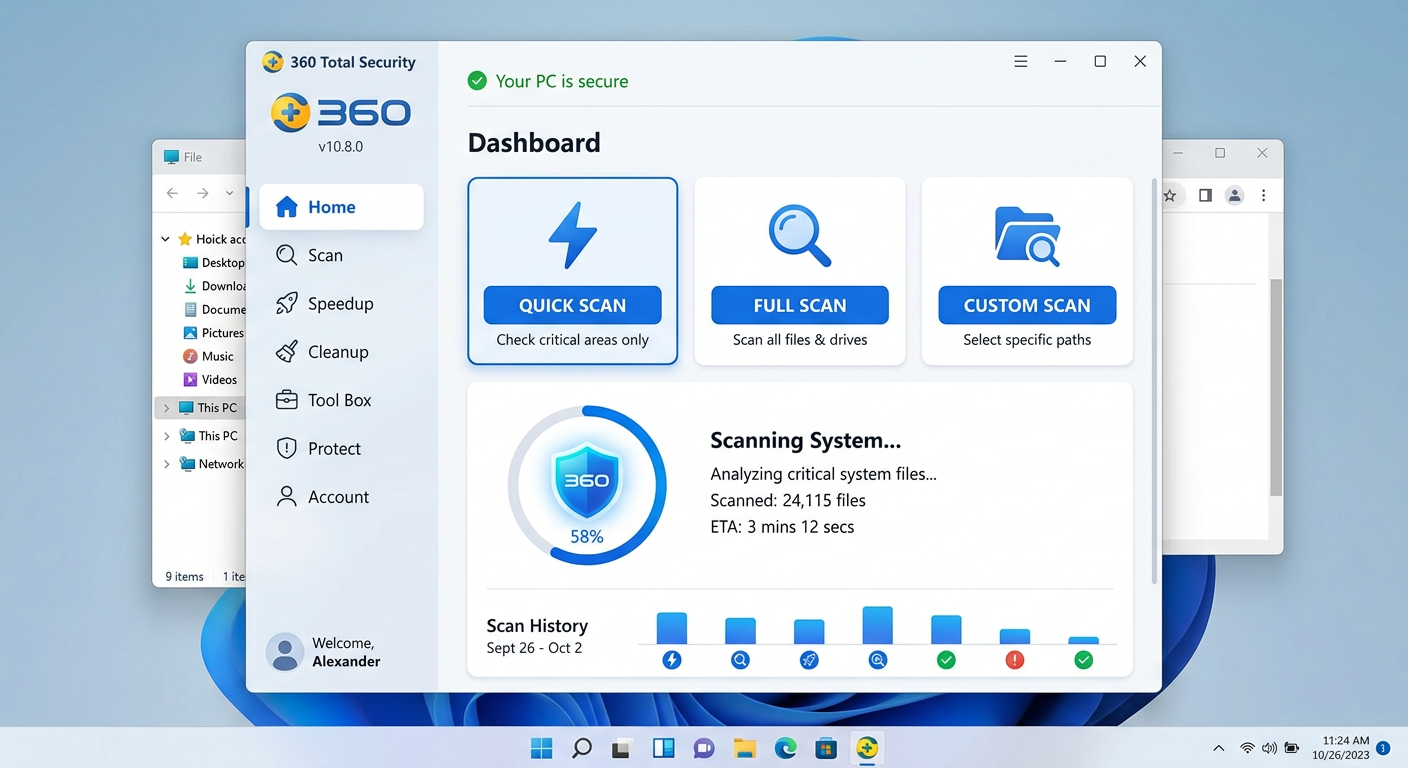
- Navigating the dashboard: The main interface is organized around three core modules prominently displayed on the home screen: Checkup (a quick overall health assessment), Virus Scan (your primary threat detection tool), and Cleanup (for junk file removal and system optimization). This clean layout ensures that even first-time users can navigate to the tools they need without confusion.
Performing a Comprehensive System Scan
360 Total Security offers multiple scan modes, each suited to different situations and time constraints:
- Quick Scan: Focuses on the most vulnerable and commonly targeted areas of your system — active memory processes, startup items, critical system folders, and the registry. A Quick Scan typically completes in 2–5 minutes and is ideal for routine daily or weekly checks when you want fast reassurance without a full system sweep.
- Full Scan: Performs an exhaustive, file-by-file examination of every drive and partition on your system. This is the definitive option when you have reason to suspect an active infection. Depending on the size of your drives and the number of files, a Full Scan may take 30 minutes to several hours, but it provides the most thorough analysis possible.
- Custom Scan and Right-Click Scan: Custom Scan allows you to target specific folders, drives, or file types — useful when you have downloaded a suspicious file to a specific location. The Right-Click Scan integrates directly into Windows Explorer’s context menu, enabling you to scan any file or folder on demand without opening the full application interface.
Reviewing Results, Quarantine, and System Repair
- Interpreting scan results: After the scan completes, 360 Total Security presents a categorized results screen. Detected items are classified by threat type — Virus (confirmed malicious files), PUP (Potentially Unwanted Programs, such as adware or bundled toolbars), and Riskware (programs with potentially dangerous capabilities that are not definitively malicious). Each entry displays the full file path, helping you understand exactly where the threat resides.
- Using Quarantine instead of immediate deletion: Always use the Quarantine option as your first response rather than permanent deletion. Quarantine isolates the detected file in an encrypted, sandboxed container where it cannot execute or cause harm, but from which it can be restored if the detection turns out to be a false positive. This is especially important for business users who may have legitimate but unusual software that triggers heuristic alerts. Permanent deletion should only be chosen after you have confirmed the item is genuinely malicious.
- Post-cleanup repair and optimization: Malware frequently damages the system beyond the infected files themselves — corrupting registry entries, breaking file associations, and leaving behind broken shortcuts. After removing threats, use 360 Total Security’s System Repair module to automatically diagnose and restore these damaged components. Follow this with the Cleanup tool to remove junk files, temporary caches, and residual malware artifacts that may remain after removal.
How to Prevent Future Virus Infections and Harden Your System
Successful malware removal is only half the battle. Without adopting proactive security hygiene and leveraging the preventative capabilities built into a comprehensive security suite, your system remains vulnerable to reinfection. Building a resilient defense requires both behavioral discipline and the right technological safeguards working in concert.
Essential Security Habits for Every User
The most effective security tools in the world cannot fully compensate for risky user behavior. These foundational habits dramatically reduce your attack surface:
- Software Hygiene — Keep Everything Updated: The majority of successful malware attacks exploit known vulnerabilities in outdated software. Keep your operating system, web browser, browser extensions, PDF readers, and all installed applications updated to their latest versions. Security patches are released specifically to close the gaps that attackers exploit, and delaying updates leaves those doors open.
- Download and Email Caution: Only download software from official developer websites or verified, reputable distribution platforms. Treat every unsolicited email attachment as potentially dangerous, regardless of the apparent sender’s identity — email spoofing is trivial for attackers. Never click links in emails from unknown senders, and be skeptical of urgent or alarming messages that pressure you to act immediately, as these are hallmarks of phishing attacks.
- Strong, Unique Passwords and Two-Factor Authentication (2FA): Credential theft is among the most common goals of modern malware. Use a reputable password manager to generate and store complex, unique passwords for every account — never reuse passwords across services. Enable two-factor authentication (2FA) on every platform that supports it, particularly email, banking, and cloud storage accounts. Even if a password is stolen, 2FA prevents unauthorized access.
Leveraging Proactive Features in Your Security Suite
360 Total Security includes several proactive defense features that go beyond on-demand scanning to create a continuously active protective shield for your desktop PC:
- Real-Time Protection and Firewall: Ensure that Real-Time Protection is permanently enabled. This feature monitors all file system activity, process execution, and network connections continuously, blocking threats the instant they attempt to execute — before they can cause any damage. Pair this with the enhanced Firewall to control which applications are permitted to communicate over the network, blocking unauthorized outbound connections from potential malware.
- Sandbox (Safe Run): When you encounter a program or file you are uncertain about — perhaps a free utility downloaded from an unfamiliar site — use the Sandbox feature to run it in an isolated virtual environment. Any malicious behavior is contained within the sandbox and cannot affect your real system files, registry, or data. This is an invaluable tool for safely evaluating software before committing to a full installation.
- Patch Up (Automatic Update Management): 360 Total Security’s Patch Up tool scans all software installed on your system — not just Windows — and identifies applications with available security updates. Running this tool regularly ensures that the vulnerability gaps attackers most commonly exploit are closed promptly, even for software you might not think to update manually.
Regular Maintenance and Backup Strategy
Consistent maintenance routines and a disciplined backup strategy transform your security posture from reactive to genuinely resilient:
- Scheduled scanning: Configure 360 Total Security to run automated Quick Scans on a weekly basis and Full Scans monthly. Scheduled scans ensure that new threats are caught promptly even during periods when you are not actively thinking about security. Early detection is always preferable to dealing with a fully established infection.
- Regular system cleanup: Use the Cleanup module periodically to remove accumulated junk files, temporary files, and browser caches. Beyond improving system performance, this practice eliminates residual files that could potentially harbor dormant malware components or be used by attackers as staging areas.
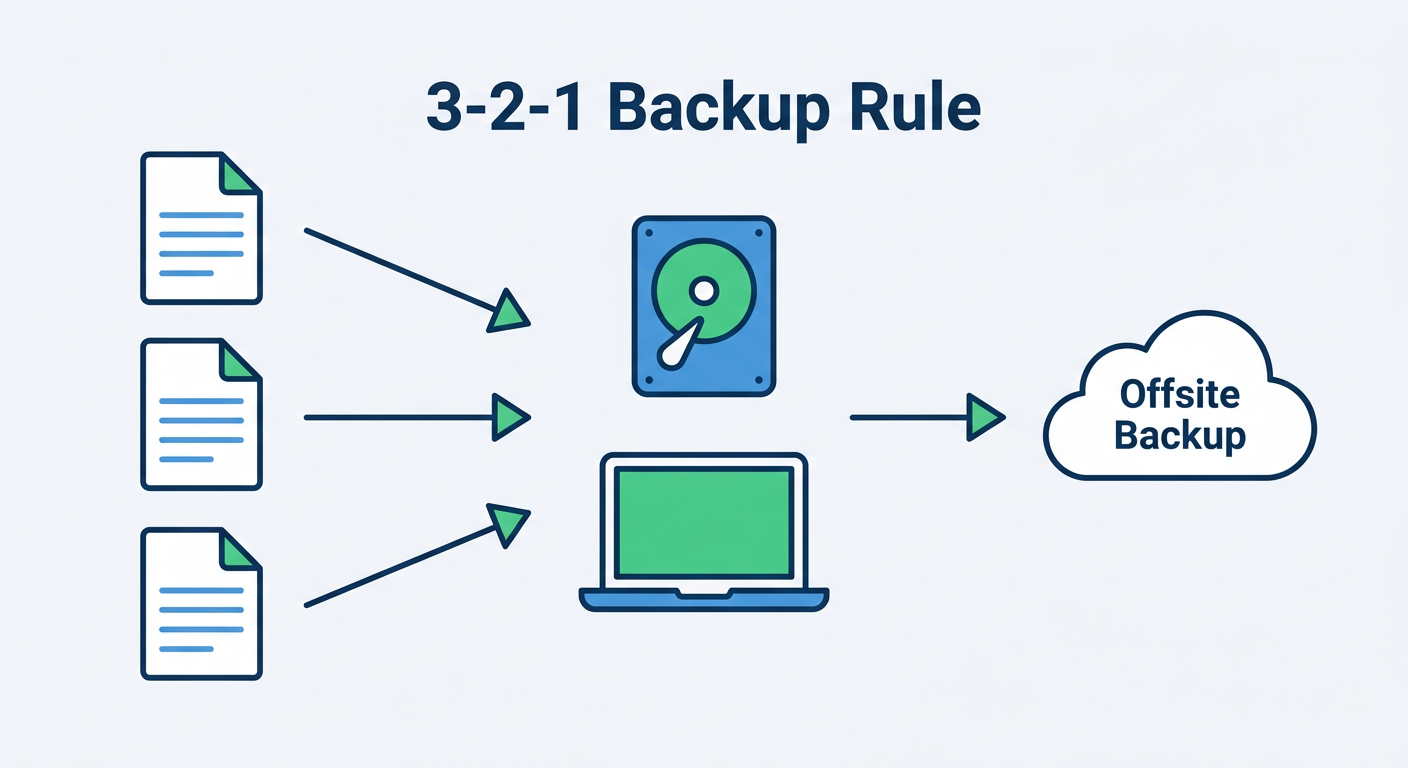
- Implement the 3-2-1 Backup Rule: This is your ultimate and non-negotiable defense against ransomware. The rule is simple: maintain 3 copies of all important data, stored on 2 different types of media (e.g., an external hard drive and a cloud storage service), with 1 copy stored offsite or in the cloud and disconnected from your primary network. If ransomware encrypts your local files, your offsite backup remains untouched and recoverable. As cybersecurity consultant Dr. Marcus Elliot notes: “In the current threat landscape, a backup strategy is not a luxury or an advanced practice — it is the absolute minimum baseline for any user who values their data. No antivirus, however sophisticated, can guarantee zero infections. Your backup is your guarantee of recovery.”
Building a truly secure computing environment means combining the right tools with the right habits. 360 Total Security provides the technological foundation — multi-engine detection, real-time protection, sandboxing, system repair, and optimization — while the security practices outlined above ensure you are not inadvertently creating the vulnerabilities that even the best software cannot fully compensate for. Visit the official website today to download 360 Total Security and take the first step toward comprehensive, proactive PC protection.
Frequently Asked Questions
How can I tell if my computer has a virus without antivirus software?
You can look for several warning signs without dedicated software: unexplained slowdowns or high resource usage in Task Manager, unfamiliar programs in your installed applications list, suspicious processes running in the background (especially those mimicking legitimate Windows process names), unauthorized changes to your browser settings, or contacts reporting strange messages from your accounts. While these indicators are useful, they are not definitive — sophisticated malware can operate invisibly. A dedicated antivirus scan is always the most reliable confirmation method.
Is Windows Defender enough to protect my PC, or do I need additional antivirus software?
Windows Defender provides a functional baseline of protection and is significantly better than having no security software at all. However, independent laboratory tests consistently show that dedicated third-party security suites offer higher detection rates for zero-day threats, more comprehensive feature sets (including system optimization, privacy tools, sandbox environments, and automatic patch management), and more user-friendly interfaces. For users who store sensitive personal or financial data, or who frequently download software, a comprehensive suite like 360 Total Security offers meaningfully stronger protection.
What should I do immediately if I suspect my computer is infected right now?
Take these steps in order: First, disconnect from the internet (unplug your ethernet cable or disable Wi-Fi) to prevent any ongoing data exfiltration or further malware downloads. Second, do not log into any sensitive accounts (banking, email) from the potentially infected machine. Third, boot into Safe Mode (restart while holding Shift and selecting Safe Mode with Networking) to prevent most malware from loading at startup. Fourth, run a Full Scan with a trusted antivirus tool — if you do not have one installed, download 360 Total Security from a clean device, transfer it via USB, and install it in Safe Mode. Finally, after cleanup, change all your important passwords from a different, trusted device.
Can a virus survive a factory reset or Windows reinstallation?
In the vast majority of cases, a full Windows reinstallation (not a repair install, but a clean install that formats the drive) will eliminate malware. However, certain highly sophisticated threats — specifically firmware-level rootkits or UEFI bootkits — can survive even a full OS reinstall by embedding themselves in the device’s firmware rather than the operating system partition. These threats are rare and typically associated with nation-state-level attacks. For the overwhelming majority of users, a clean OS reinstall, followed by immediately installing updated antivirus software before restoring any backed-up data, is an effective last resort for severe infections.
How often should I run antivirus scans on my PC?
With real-time protection enabled in a tool like 360 Total Security, your system is continuously monitored for threats, which reduces the urgency of manual scans. That said, best practice is to run a Quick Scan at least once per week to check critical system areas, and a Full Scan at least once per month for a thorough sweep of all files. Additionally, always run a manual scan after downloading software from an unfamiliar source, receiving a suspicious email attachment, or connecting an external storage device (USB drive, external hard disk) that has been used on other computers.
About the Author: This article was written by a Senior Technical Writer and cybersecurity content specialist with over a decade of experience translating complex security concepts into actionable guidance for everyday PC users and IT professionals. Their work focuses on endpoint security, malware analysis, and practical system hardening strategies for Windows and macOS environments, with a commitment to accuracy verified against current threat intelligence reports and independent security laboratory findings.
Learn more about 360 Total Security