Executive Summary: Cybersecurity is no longer an exclusive concern for corporations or IT professionals — it is a fundamental life skill for every PC user. This comprehensive guide demystifies cybersecurity for beginners, walking you through the essential concepts, must-have tools, threat recognition skills, and sustainable habits that form a robust personal defense. From understanding what malware actually is, to configuring a reliable antivirus like 360 Total Security, to building a monthly security routine, this guide provides everything you need to confidently protect your digital identity, personal data, and Windows or macOS computer from the threats that matter most in today’s landscape.
What Does Cybersecurity Really Mean for the Average PC User?
When most people hear the word “cybersecurity,” they picture government agencies, corporate IT departments, or shadowy hackers in dark rooms. The reality is far more personal. For the average PC user, cybersecurity fundamentally means developing simple, proactive habits that shield your digital identity, safeguard your personal data, and keep your computer running safely. You do not need a technical degree to be secure — you need awareness, the right tools, and consistency.
Demystifying the Terminology: Threats, Vulnerabilities, and Risks
Before you can defend yourself, you need to understand what you are defending against. Here are the three most critical concepts, explained without jargon:
- Malware: Short for “malicious software,” this is any program designed to harm your computer or steal your data. It includes viruses (which spread by attaching to files), ransomware (which locks your files and demands payment), spyware (which secretly watches what you type), and trojans (which disguise themselves as legitimate software).
- Phishing: A deceptive tactic where an attacker impersonates a trusted entity — your bank, a delivery company, or even a friend — to trick you into clicking a malicious link or handing over your login credentials. It arrives most commonly via email, but also through text messages and fake websites.
- Data Breach: When a company or service you use is hacked and your stored information — passwords, email addresses, credit card numbers — is exposed or stolen. Even if you did nothing wrong, your data can end up for sale on the dark web.
It is equally important to understand the difference between a vulnerability and an attack. A vulnerability is a weakness — like a bug in an unpatched version of your browser or an outdated operating system. An attack is when a cybercriminal actively exploits that weakness to gain access to your system. The gap between a vulnerability being discovered and a patch being released is called a “zero-day window,” and it is one of the most dangerous periods for any user.
The Real-World Consequences of Poor Security
Abstract threats become very real when they translate into tangible losses. Understanding the consequences is a powerful motivator for action:
- Financial Loss: Identity theft and compromised online banking accounts are among the most devastating outcomes. According to a 2025 consumer cybersecurity report by the FTC, victims of identity theft spent an average of hundreds of hours and significant financial resources resolving fraudulent accounts and recovering stolen funds. A single stolen password can cascade into drained bank accounts, fraudulent loans, and ruined credit scores.
- Privacy Violation: A compromised device can expose private photos, personal messages, and sensitive documents. Beyond the immediate distress, this data can be used for blackmail, social media impersonation, or reputational damage that affects your professional and personal relationships for years.
- Practical Device Impact: Malware frequently degrades system performance dramatically — causing slowdowns, unexpected crashes, and corrupted or permanently deleted files. The cost of professional data recovery or device repair can easily run into hundreds of dollars, not counting the irreplaceable personal data that may be lost forever.
Your First Line of Defense: Mindset and Awareness
Technology is only part of the solution. The most effective security upgrade you can make costs nothing: developing a security-conscious mindset.
- Cultivate Healthy Skepticism: Treat every unsolicited email, unexpected link, and “too good to be true” download offer with suspicion until proven otherwise. Ask yourself: “Did I request this? Does this make sense? Why is this asking for my information?” This habit alone blocks a significant percentage of common attacks.
- Security is a Habit, Not an Event: Many beginners make the mistake of thinking that installing one piece of software solves the problem permanently. In reality, cybersecurity is an ongoing practice — threats evolve, software needs updating, and your habits need periodic review. Think of it like brushing your teeth: you do it consistently, not just once.
- Adopt a “Zero Trust” Perspective: The Zero Trust philosophy, originally developed for corporate networks, translates simply for personal use: never automatically trust any link, file, or request, regardless of who appears to have sent it. Verify first, then act.
What Are the Absolute Essential Security Steps Every Beginner Must Take?
Once you understand the threat landscape, the next step is building your foundational defense. A multi-layered security setup — combining reliable antivirus software, disciplined update habits, and strong password practices — blocks the overwhelming majority of automated attacks that target everyday users. These are not optional extras; they are the non-negotiable baseline.
Installing and Configuring a Reliable Antivirus Suite
A quality antivirus program is the cornerstone of your PC security. Its role goes far beyond simply scanning files on demand. A modern antivirus suite acts as a real-time monitor, continuously watching running processes, network connections, and file system activity for signs of malicious behavior. It blocks threats before they can execute, quarantines suspicious files, and alerts you to potential dangers.
For beginners, one of the most practical and accessible options is 360 Total Security. What makes it particularly well-suited for those new to PC security is its all-in-one approach. Rather than requiring you to piece together multiple separate tools, 360 Total Security integrates a comprehensive feature set into a single, free package:
- Multi-engine virus scanning for thorough threat detection across your entire system.
- Real-time protection that monitors your PC continuously without requiring manual intervention.
- A built-in sandbox that allows you to run suspicious files in an isolated environment before they can affect your real system.
- System cleanup and optimization tools that keep your PC running smoothly alongside keeping it secure.
- A firewall component for monitoring network traffic — more on this in a later section.
After installation, the recommended first steps are: run a full system scan immediately, ensure real-time protection is enabled, and familiarize yourself with the main dashboard so you know where to find scan results and alerts.
The Lifesaving Habit: Keeping Everything Updated
Software updates are arguably the single most impactful security action you can take, yet they are consistently neglected. Here is why they are critical:
- Operating System Updates: Both Windows and macOS release regular security patches that fix known vulnerabilities in the core system. When Microsoft or Apple announces a critical security update, cybercriminals immediately begin targeting users who have not yet applied it. Delaying an OS update by even a few days creates a window of exposure.
- Application Updates: Your browser, PDF reader, media player, and especially browser plugins (like Java or Flash, if still installed) are frequent attack vectors. Outdated versions of these applications contain known flaws that malware exploits automatically. Keeping them current closes those doors.
- Enabling Automatic Updates: The easiest way to stay protected is to enable automatic updates wherever possible.
For Windows, navigate to Settings → Windows Update → Advanced Options and ensure automatic updates are turned on. You can also enable updates for other Microsoft products from the same menu. For macOS, go to System Settings → General → Software Update and enable “Automatic Updates.” For third-party applications, check each app’s settings menu for an auto-update option, or use a software updater tool. To manually check at any time:
# Windows: Check for updates via Settings
Settings → Windows Update → Check for updates

# macOS: Check for updates via Terminal
softwareupdate --list
softwareupdate --install --all
Mastering Password Hygiene and Account Security
Weak and reused passwords are responsible for an enormous proportion of account compromises. The solution is straightforward in principle but requires a system to execute effectively.
The principles of a strong password:
- Length over complexity: A password that is 16+ characters long is exponentially harder to crack than a short one with special characters. Aim for passphrases (e.g.,
PurpleTiger!Runs42Miles). - Uniqueness is non-negotiable: Every account must have a different password. If one service is breached, attackers immediately try those same credentials on banking, email, and social media sites — a technique called “credential stuffing.”
- Never use personal information: Birthdates, pet names, and addresses are easily guessable from social media profiles.
The only practical way to maintain unique, strong passwords for dozens of accounts is to use a Password Manager. Tools like Bitwarden (free, open-source), 1Password, or KeePass securely store and auto-fill your credentials, meaning you only need to remember one master password. This single tool transforms password security from a burden into an automated habit.
Equally critical is enabling Two-Factor Authentication (2FA) on every important account. Even if your password is stolen, 2FA requires a second verification step that the attacker cannot easily bypass. The table below compares the most common 2FA methods:
| 2FA Method | How It Works | Security Level | Convenience for Beginners | Best Used For |
|---|---|---|---|---|
| SMS Code | A one-time code is sent to your phone via text message | Moderate (vulnerable to SIM swapping) | Very High — no extra app needed | Low-risk accounts; better than no 2FA |
| Authenticator App | An app (e.g., Google Authenticator, Authy) generates a time-based code every 30 seconds | High (not interceptable via SMS attacks) | Medium — requires installing an app once | Email, social media, financial accounts |
| Hardware Security Key | A physical USB/NFC device (e.g., YubiKey) that you plug in or tap to authenticate | Very High (resistant to phishing) | Low — requires purchasing a physical device | High-value accounts; advanced users |
How Can You Recognize and Avoid Common Online Scams and Attacks?
Technical defenses are essential, but the most sophisticated antivirus cannot protect you if you willingly hand your password to an attacker disguised as your bank. Learning to recognize the hallmarks of common cyber threats — phishing, malicious advertising, and social engineering — is a skill that pays dividends every single day you spend online. The goal is not paranoia; it is educated discernment.
Identifying Phishing Attempts: Emails, Texts, and Websites
Phishing remains one of the most prevalent and successful attack methods precisely because it targets human psychology rather than software vulnerabilities. Knowing the red flags is your primary defense:
- Urgent or threatening language: Messages that say “Your account will be suspended in 24 hours!” or “Immediate action required” are engineered to bypass your critical thinking by creating panic.
- Generic greetings: Legitimate companies you have accounts with know your name. “Dear Valued Customer” or “Dear User” is a significant warning sign.
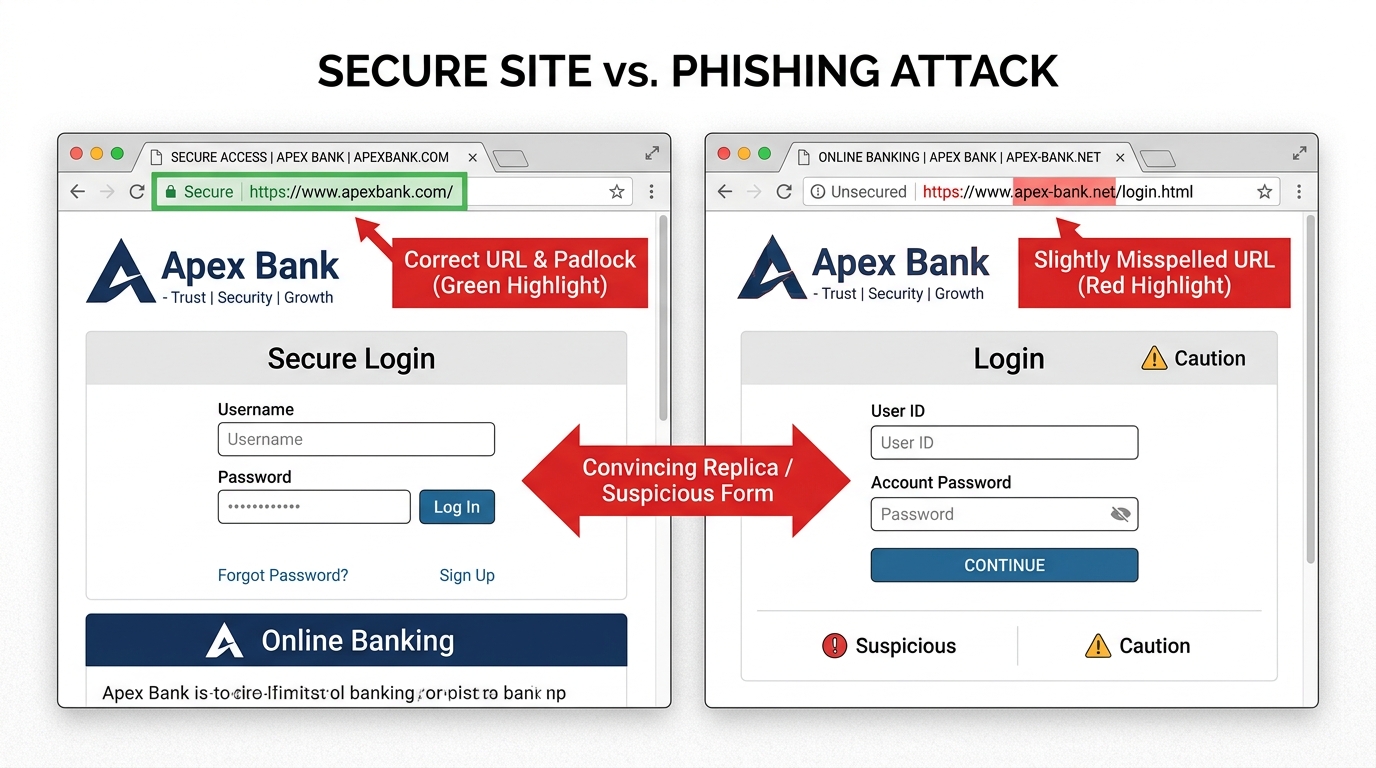
- Mismatched sender addresses: The display name might say “PayPal Security Team,” but hovering over the sender address reveals something like
noreply@paypa1-secure.net. Always check the actual email address, not just the display name. - Suspicious links: Before clicking any link in an email, hover your mouse over it (without clicking) to see the actual destination URL in your browser’s status bar. If the URL looks unusual, does not match the supposed sender’s domain, or uses a URL shortener, do not click it.
- Check for HTTPS, but do not rely on it alone: A padlock icon in the browser address bar means the connection is encrypted, not that the website is legitimate. Phishing sites routinely use HTTPS. Always verify the full domain name carefully — look for subtle misspellings like
arnazon.cominstead ofamazon.com.
The Danger of “Too Good to Be True”: Malicious Ads and Offers
The internet is saturated with deceptive advertising designed to trick users into downloading malware or surrendering personal information.
- Fake download buttons: On software download sites, large, colorful “Download Now” buttons are often advertisements that lead to malware, not the software you want. Look for the actual, smaller download link from the verified publisher.
- Prize pop-ups: Any pop-up claiming you have won a prize, been selected for a survey reward, or that your computer has a virus (and you should call a number) is a scam. Close the browser tab immediately. If the pop-up prevents you from closing it, use Task Manager (Ctrl+Shift+Esc on Windows) to force-close the browser entirely.
- Cracked and pirated software: Downloading pirated games, applications, or media from unofficial sources is one of the highest-risk behaviors a PC user can engage in. These files are a primary distribution method for trojans, ransomware, and keyloggers. The cost of “free” software can be the entire contents of your hard drive or bank account.
This is an area where having 360 Total Security actively running provides significant protection. Its web protection module checks URLs against a continuously updated database of known malicious sites, blocking access before a dangerous page even loads. Its real-time file scanning also intercepts malicious downloads the moment they arrive on your system, before they can execute.
Social Engineering: When the Attack is a Conversation
Not all attacks come through software. Social engineering is the art of manipulating people into performing actions or divulging confidential information. It is frighteningly effective because it exploits trust and authority rather than technical vulnerabilities.
- Tech Support Scams: You receive an unexpected phone call from someone claiming to be from “Microsoft Support” or “Windows Security” informing you that your computer has been hacked and they need remote access to fix it. This is a scam. Microsoft, Apple, and other technology companies do not proactively call customers about security issues. Hang up immediately.
- Social Media Manipulation: Fake friend requests from attractive profiles, messages from “friends” whose accounts have been compromised asking you to click a link or lend money, and fake customer service accounts on social platforms are all common vectors.
- The Golden Rule: Never share your passwords, one-time verification codes, or grant remote desktop access to anyone who contacts you unexpectedly — regardless of how official they sound or how urgent the situation seems. Legitimate organizations will never ask for your password.
As cybersecurity awareness trainer and author Hadnagy Christopher has noted in his work on human hacking, social engineering attacks succeed because they exploit our natural instincts toward helpfulness, authority, and urgency. According to a 2026 Cybersecurity Awareness Report, over 85% of successful breaches involve a human element — making awareness training more impactful than almost any technical control. Recognizing these psychological triggers is the core skill that makes you resistant to manipulation.
Beyond Antivirus: What Advanced Tools and Settings Should Beginners Explore?
Once your foundational defenses are in place, you can significantly strengthen your overall security posture by layering in complementary tools and system settings. These address aspects of security that antivirus alone cannot fully cover — network privacy, data resilience, and system-level access control. Do not be intimidated by the word “advanced”; these steps are straightforward to implement and provide substantial protection.
Controlling Your Network Traffic: Firewalls and VPNs
Your antivirus protects you from malicious files; a firewall and VPN protect you at the network level.
- Firewall: A firewall acts as a gatekeeper for all network connections entering and leaving your computer. It monitors traffic and blocks unauthorized connections based on a set of rules. Both Windows (Windows Defender Firewall) and macOS (built-in Application Firewall) include functional firewalls that should always be enabled. You can verify your Windows firewall status via:
# Windows: Check Firewall Status via Command Prompt (run as Administrator)
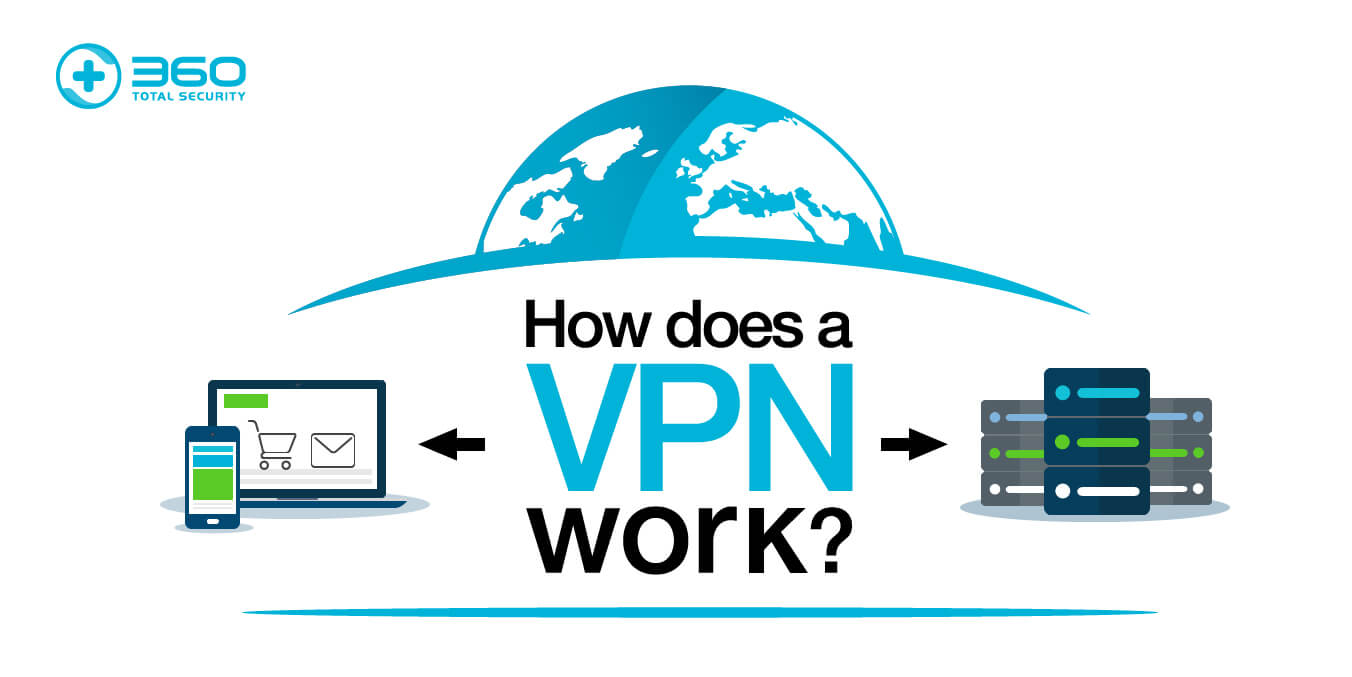
netsh advfirewall show allprofiles- VPN (Virtual Private Network): A VPN encrypts your internet traffic and routes it through a server in a location of your choice. This is especially important when using public Wi-Fi networks (in coffee shops, airports, hotels), where attackers on the same network can potentially intercept unencrypted data. A VPN also masks your IP address, adding a layer of privacy from websites and advertisers tracking your online location.
- Built-in Solutions: For beginners who prefer simplicity, comprehensive security suites like 360 Total Security include a built-in firewall component, meaning you do not need to configure a separate tool for basic network protection. This integrated approach significantly reduces the complexity of managing multiple security applications.
The Ultimate Safety Net: Regular and Secure Data Backups
No security system is 100% infallible. Ransomware, hardware failure, accidental deletion — any of these can result in catastrophic data loss. A robust backup strategy is your ultimate insurance policy. The industry-standard framework is the 3-2-1 Backup Rule:
- 3 copies of your data (the original plus two backups)
- 2 different storage media types (e.g., an external hard drive AND a cloud service)
- 1 copy stored offsite or in the cloud (so a fire or theft cannot destroy all copies simultaneously)
Both major operating systems include built-in backup tools that are easy to configure:
# Windows: Enable File History Backup
1. Connect an external hard drive or USB drive.
2. Go to Settings → Update & Security → Backup.
3. Click "Add a drive" and select your external drive.
4. Toggle "Automatically back up my files" to ON.
5. Click "More options" to set backup frequency and which folders to include.

# macOS: Enable Time Machine Backup
1. Connect an external hard drive.
2. Go to System Settings → General → Time Machine.
3. Click "Add Backup Disk" and select your external drive.
4. Time Machine will automatically back up hourly, daily, and weekly.
Critical step that most people skip: Test your backup by actually restoring a file. Navigate to your backup location, find a recent file, and restore it to a different folder to confirm the process works. A backup you have never tested is a backup you cannot trust.
Locking Down Your System: User Accounts and Encryption
Two often-overlooked system-level settings provide significant security benefits with minimal effort:
- Use a Standard User Account for Daily Tasks: Many users run their computer with an Administrator account for everything. This is a significant risk — if malware executes under an admin account, it has unrestricted access to your entire system. Create a separate standard user account for everyday use and reserve the admin account for installing software and changing system settings only.
- Enable Device Encryption: If your laptop is lost or stolen, encryption ensures the thief cannot read your data even by removing the hard drive. Windows Pro includes BitLocker; Windows Home users can use Device Encryption if their hardware supports it. macOS includes FileVault. Both are straightforward to enable.
The following table provides a practical checklist of advanced security settings for both Windows and macOS:
| Setting Name | Where to Find It | Security Benefit |
|---|---|---|
| BitLocker / Device Encryption | Windows: Settings → Privacy & Security → Device Encryption | Protects all data if device is lost or stolen |
| FileVault | macOS: System Settings → Privacy & Security → FileVault | Full-disk encryption for Mac; same protection as BitLocker |
| Windows Defender Firewall | Windows: Control Panel → System and Security → Windows Defender Firewall | Blocks unauthorized inbound/outbound network connections |
| macOS Application Firewall | macOS: System Settings → Network → Firewall | Controls which apps can accept incoming connections |
| Standard User Account | Windows: Settings → Accounts → Family & Other Users; macOS: System Settings → Users & Groups | Limits malware’s ability to make system-wide changes |
| App Permissions Review | Windows: Settings → Privacy & Security → App Permissions; macOS: System Settings → Privacy & Security | Prevents apps from accessing camera, microphone, or location without reason |
| Automatic Screen Lock | Windows: Settings → Personalization → Lock Screen; macOS: System Settings → Lock Screen | Prevents physical access to an unattended, unlocked computer |
| Secure DNS (e.g., Cloudflare 1.1.1.1) | Windows: Network Adapter Settings → IPv4 Properties; macOS: System Settings → Network → DNS | Reduces DNS-based tracking and blocks known malicious domains at the network level |
How Do You Build a Sustainable and Improving Security Routine?
The most technically sophisticated security setup in the world provides limited protection if it is never maintained. Effective cybersecurity for PC users is not a destination — it is an ongoing practice. The good news is that with the right system, maintaining strong security requires only a modest and predictable investment of time. The goal is to integrate security seamlessly into your digital life so that it becomes automatic rather than burdensome.
Performing a Monthly Security “Health Check”
Setting aside approximately 15–20 minutes once a month for a structured security audit keeps your defenses current and catches problems before they escalate. Here is a practical monthly checklist:
- Run a Full Antivirus Scan: While real-time protection handles day-to-day threats, a scheduled full scan sweeps every file on your system for anything that may have slipped through or been dormant.
- Check for OS and Application Updates: Manually verify that all pending updates have been applied, especially for your operating system, browser, and any software you use regularly.
- Review Backup Status: Confirm your last backup completed successfully and that the backup destination (external drive or cloud) has adequate space. Restore one test file to verify integrity.
- Audit Your Password Manager: Most password managers include a security audit feature that flags reused passwords, weak passwords, and accounts associated with known data breaches. Address any flagged items.
- Review App Permissions: Check which applications have access to your camera, microphone, location, and contacts. Revoke permissions for any app that does not genuinely need them.
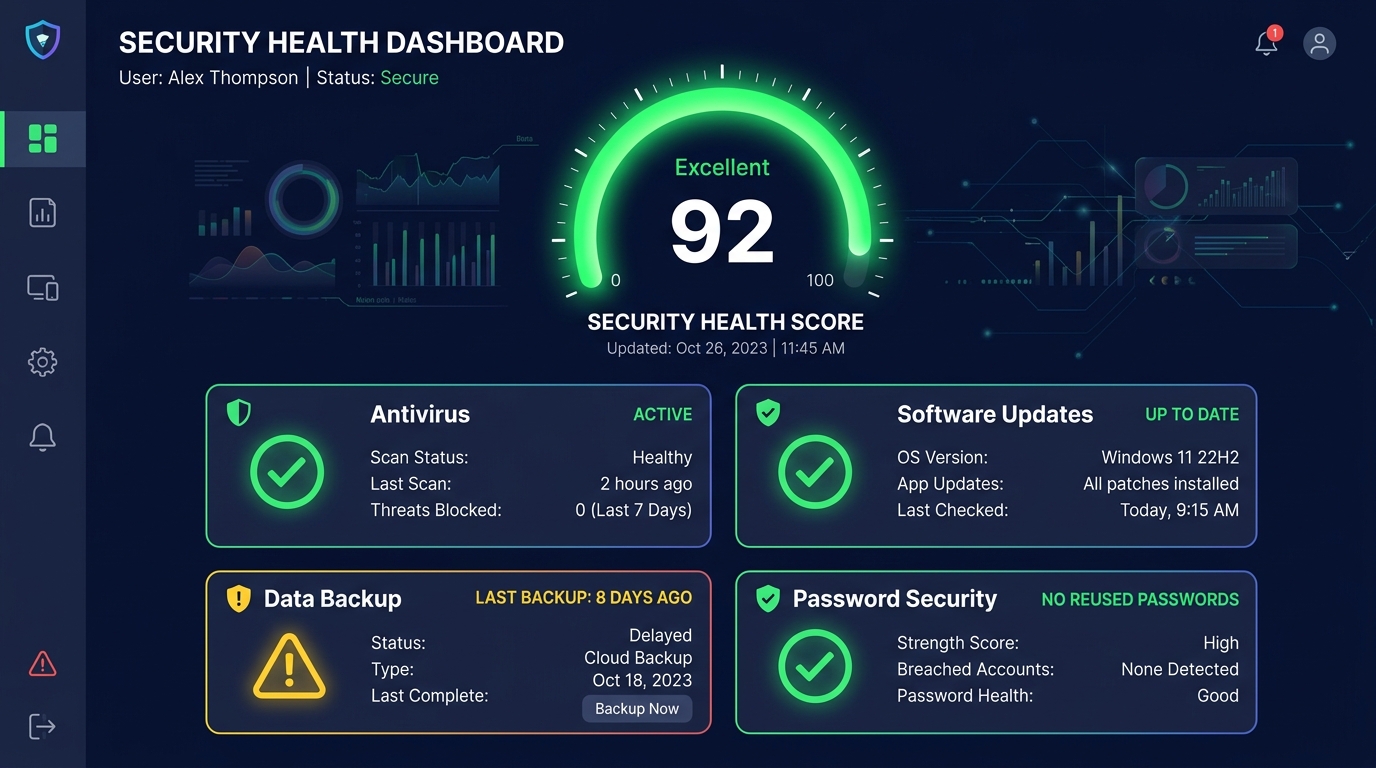
A key advantage of using 360 Total Security is that its main dashboard provides a clear, consolidated overview of your protection status — showing real-time protection state, recent scan results, and system health indicators in one place. This makes the monthly audit significantly faster and more intuitive for beginners, as you are not hunting through multiple separate tools for status information.
Staying Informed Without Being Overwhelmed
The cybersecurity threat landscape evolves constantly, but staying informed does not require reading dense technical reports every day. The key is choosing the right sources and format:
- Beginner-Friendly News Sources: Websites like Krebs on Security, The Hacker News (for news), and the SANS Internet Stormcast podcast offer accessible coverage of current threats. You do not need to read every article — scanning headlines a few times a week keeps you aware of major threats.
- Interactive Learning: Google’s Phishing Quiz (phishingquiz.withgoogle.com) and similar interactive tools let you test your ability to identify phishing emails in a safe, simulated environment. These are surprisingly effective at sharpening your real-world detection skills.
- Vendor Notifications: Subscribe to update and security notifications from your software vendors. When 360 Total Security notifies you of a critical threat definition update or a new feature addressing an emerging attack type, that is directly actionable information relevant to your specific setup — far more useful than generic industry news.
- Official Government Resources: The U.S. Cybersecurity and Infrastructure Security Agency (CISA) at cisa.gov and the UK’s National Cyber Security Centre (NCSC) publish clear, practical guidance specifically designed for non-technical users.
Integrating Security into Daily Digital Behaviors
The ultimate goal is to reach a point where security-conscious behavior is automatic rather than effortful. Here are the daily habits that make the biggest difference:
- Verify Before You Enter Credentials: Every single time you are about to type a username and password, take two seconds to confirm you are on the correct, legitimate website. Check the domain name carefully in the address bar.
- Think Before You Click: Apply the same skepticism to links in emails and messages as you would to a stranger handing you an unmarked package. If you did not expect it, verify it through a separate channel before clicking.
- Periodic Digital Cleanup: Every few months, audit your online accounts and delete ones you no longer use. Each dormant account is a potential vulnerability — a forgotten password on an old service could be the entry point an attacker uses to access your current accounts through password reuse. Review app permissions on your PC during the same session.
- Maintain Proportionality: The goal of security is to enable safe, confident use of technology — not to create anxiety that prevents you from functioning online. Not every email is a phishing attempt; not every download is malware. Develop calibrated judgment, not blanket fear. When your security tools are properly configured and your habits are sound, you can navigate the internet with confidence rather than constant apprehension.
Building these habits takes conscious effort for the first few weeks, but they quickly become second nature. Combined with the technical foundation of a reliable antivirus suite, updated software, strong passwords, and regular backups, these behavioral habits create a genuinely robust personal security posture that protects you from the vast majority of threats you will encounter. Visit the 360 Total Security official website to download and configure your PC’s first line of technical defense today.
Frequently Asked Questions
Is free antivirus software actually effective, or do I need to pay for protection?
Free antivirus solutions can be highly effective, particularly those from reputable vendors with strong threat intelligence infrastructure. 360 Total Security’s free tier, for example, provides real-time protection, multi-engine scanning, a sandbox environment, and system optimization tools — a comprehensive feature set that covers the core security needs of most home PC users. The key is choosing a well-established vendor rather than an unknown free tool, which could itself be malicious.
How do I know if my computer has already been infected with malware?
Common signs of a malware infection include: significantly slower performance than usual, unexpected pop-up advertisements appearing outside of your browser, programs launching or closing on their own, your browser homepage or search engine changing without your input, unfamiliar programs appearing in your installed applications list, and unusual network activity (your internet connection being heavily used when you are not actively browsing). If you notice these symptoms, run a full scan with your antivirus software immediately and consider booting into Safe Mode to run the scan in a cleaner environment.
What is the single most important cybersecurity step for a complete beginner?
If you can only do one thing, enable automatic updates for your operating system and install a reputable antivirus program. These two actions together — keeping your software patched and having real-time malware protection — block the vast majority of automated attacks that target everyday users. Password hygiene and 2FA are equally critical but can be implemented progressively over the following weeks.
Do I need a VPN if I only use my home Wi-Fi network?
On your own password-protected home network, a VPN is not strictly essential for security purposes, though it does add a layer of privacy from your Internet Service Provider and websites tracking your IP address. A VPN becomes significantly more important when you connect to public Wi-Fi networks in cafes, airports, hotels, or libraries, where other users on the same network could potentially intercept unencrypted traffic. If you regularly use public Wi-Fi, a VPN is a worthwhile investment.
How often should I change my passwords?
Current guidance from cybersecurity authorities, including NIST (National Institute of Standards and Technology), has shifted away from mandating regular password changes on a fixed schedule. Forced periodic changes often lead to predictable, weaker passwords (e.g., Password1 becoming Password2). Instead, the recommended approach is to change a password immediately when: you suspect an account has been compromised, your password manager’s breach alert notifies you that a service you use has been breached, or you realize you have been reusing a password. Focus on making passwords strong and unique from the start, rather than changing them frequently.
About the Author: This article was researched and written by a Senior Technical Writer specializing in consumer cybersecurity, digital privacy, and PC security best practices. With over a decade of experience translating complex security concepts into accessible guidance for everyday users, the author has contributed to cybersecurity education initiatives, software documentation projects, and consumer protection publications. Their work focuses on empowering non-technical users to take confident, effective control of their digital security without requiring an IT background.
Learn more about 360 Total Security