Executive Summary: Recognizing the warning signs of a computer virus early can mean the difference between a quick cleanup and a catastrophic data loss. This comprehensive guide walks you through every observable symptom — from subtle performance degradation and unexpected pop-ups to missing files and network anomalies — and provides actionable, step-by-step methods to manually investigate your system using built-in tools. You will also learn how to run a professional antivirus scan with 360 Total Security for definitive detection and removal, and how to build a multi-layered defense strategy to prevent future infections on your Windows or macOS PC.
How Can I Tell If My Computer Is Acting Strangely Due to a Virus?
A virus often manifests through subtle, persistent changes in your computer’s behavior and performance. These early behavioral signals are the first and most critical signs to recognize. Understanding them allows you to act swiftly before deeper damage occurs. Whether your machine is suddenly sluggish, bombarded with pop-ups, or crashing without explanation, these symptoms are your computer’s way of telling you something is wrong.
Unusual Performance Degradation and System Sluggishness
One of the most common and earliest indicators that something is wrong is a noticeable, unexplained decline in your computer’s performance. This isn’t the gradual slowdown that comes from years of use — it’s a sudden, significant change that appears seemingly out of nowhere.
- Slow boot-up and application launch times: If your computer suddenly takes two or three times longer to start up, or if applications that used to open instantly now hang for several seconds, this is a red flag. Many viruses and trojans inject themselves into the startup sequence, consuming resources before you even reach the desktop.
- Excessive and unexplained hard drive activity: Listen carefully to your computer. If you hear constant clicking, whirring, or grinding from your hard drive — or if the drive activity light on your laptop is flickering constantly even when you’re not actively doing anything — this may indicate a malware process running silently in the background. According to analysis from cybersecurity communities, many malware strains perform intensive disk operations to replicate themselves, log keystrokes, or encrypt files.
- Abnormally high CPU or memory usage: Open your system’s Task Manager (Windows) or Activity Monitor (macOS) and check the CPU and memory columns. If an unfamiliar process is consuming 30%, 50%, or even 80% of your CPU resources without a clear reason, this demands immediate investigation. Cryptomining malware, for example, is specifically designed to hijack your processor’s power for the attacker’s financial gain.
Unexpected Pop-ups, Ads, and Browser Behavior Changes
Adware and browser hijackers are among the most visually disruptive forms of malware. Their goal is often to generate fraudulent advertising revenue or redirect your web traffic to malicious sites. The symptoms are hard to miss once you know what to look for.
- Pop-up advertisements outside of your browser: Legitimate software rarely generates pop-up advertisements. If you are seeing ad windows appearing on your desktop even when your web browser is closed, this is a strong indicator of adware infection. These ads often promote fake antivirus tools, dubious products, or links that lead to further malware downloads.
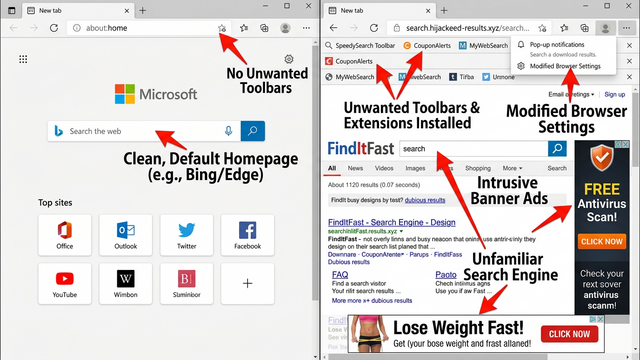
- Unauthorized browser changes: Check your browser’s homepage and default search engine. If they have changed to an unfamiliar website without your consent, a browser hijacker has likely been installed. These hijackers often redirect your searches through their own servers to harvest your data or serve you malicious ads.
- New, uninvited toolbars and software: If new toolbars have appeared in your browser, new icons have materialized on your desktop, or unfamiliar programs have appeared in your installed applications list that you never knowingly installed, this is a direct sign of a potentially unwanted program (PUP) or malware. These are often bundled with free software downloads from untrustworthy sources.
If you want to see how to identify and remove unwanted browser extensions that may have been installed by malware, this walkthrough is a helpful visual reference:
https://www.youtube.com/watch?v=8mQnGMBo_lA
Frequent System Crashes, Errors, and Program Failures
System instability is another major warning sign. While crashes can sometimes be attributed to hardware issues or buggy software, a sudden increase in their frequency — especially when accompanied by other symptoms — points strongly toward a malware infection.
- Blue Screens of Death (BSOD) and unexpected freezes: On Windows systems, a BSOD indicates a critical system error. While these can have hardware causes, malware that operates at the kernel level — such as rootkits — can trigger these crashes by corrupting system files or interfering with driver operations.
- Strange, unexplained error messages: If you are receiving cryptic error messages from system components, especially ones that appear at odd times or reference files you don’t recognize, this warrants investigation. These can be side effects of a virus corrupting or replacing legitimate system files.
- Security software being disabled or blocked: This is one of the most alarming signs. Many sophisticated malware strains are specifically designed to disable antivirus software, block firewall rules, and prevent Windows Update from running. According to a 2025 cybersecurity threat report, a significant percentage of advanced persistent threats (APTs) include modules specifically engineered to terminate or corrupt endpoint security processes. If your security software has suddenly stopped working or cannot be opened, treat this as a critical emergency.
What Are the Direct Signs of a Virus Infection I Can Look For?
Beyond strange behavioral patterns, there are concrete, observable symptoms that more directly point to an active infection. Missing or altered files, unusual network activity, and explicit security warnings are tangible evidence that malware has taken hold. Knowing these direct signs allows you to confirm your suspicions and take targeted action.
Missing, Corrupted, or Inaccessible Files and Data
Your data is often the primary target of a virus. Changes to your files — whether they disappear, become unreadable, or are held hostage — are among the most serious and direct signs of infection.
- Disappearing or inaccessible files and folders: If personal documents, photos, or project files that you know were saved in a specific location are suddenly gone or show as inaccessible, this could indicate a virus has deleted, moved, or hidden them. Some malware hides files to cause panic or to obscure its own activity.
- Renamed, corrupted, or altered files: Viruses can modify files as part of their replication process, corrupting their contents in the process. If you open a document and find it filled with garbled text, or if files have been renamed with strange extensions, a file-infecting virus may be responsible.
- Encrypted files with ransom demands — the hallmark of ransomware: If you find that large numbers of your files have been renamed with unusual extensions (such as
.locked,.encrypted, or a random string of characters) and you discover a text file demanding payment for a decryption key, you have been hit by ransomware. As cybersecurity experts consistently advise: do not pay the ransom. Paying does not guarantee file recovery, funds criminal operations, and marks you as a willing target for future attacks. Immediately disconnect the affected machine from your network to prevent the ransomware from spreading to other devices, and seek professional help.
Unusual Network Activity and Internet Connection Problems
Many types of malware — including spyware, botnets, and trojans — rely on your internet connection to communicate with attacker-controlled servers, exfiltrate your data, or receive new instructions. This malicious communication leaves a detectable footprint.
- Unexplained internet slowdowns: If your internet connection feels significantly slower than usual despite your router and ISP connection being healthy, malware may be consuming your bandwidth to upload stolen data or participate in a distributed denial-of-service (DDoS) attack as part of a botnet.
- Network traffic spikes on an idle computer: Using a network monitoring tool, observe your data usage when your computer is sitting idle with no programs open. A healthy, idle computer should generate virtually no network traffic. Significant, sustained data transfers during this state are a strong indicator of malware communicating with a command-and-control (C2) server.
- Being blocked from security websites: Some malware actively modifies your system’s hosts file or DNS settings to prevent you from visiting antivirus vendor websites, security forums, or Microsoft/Apple support pages. This is a deliberate tactic designed to prevent you from downloading tools or finding information that could help you remove the infection.
Normal vs. Malware-Induced Network Traffic: A Comparison
| Characteristic | Normal Network Traffic | Malware-Induced Network Traffic |
|---|---|---|
| Activity When Idle | Minimal to none (occasional OS check-ins) | Sustained, significant data transfer |
| Destination Servers | Known services (Microsoft, Google, Apple) | Unknown IPs, often in foreign regions |
| Traffic Pattern | Burst-based, correlates with user actions | Periodic, scheduled, or constant beaconing |
| Data Volume | Proportional to user activity | Disproportionately high for apparent activity |
| Port Usage | Standard ports (80, 443, 53) | Unusual or non-standard ports |
| DNS Requests | Resolve to known, legitimate domains | Frequent requests to obscure or dynamic DNS domains |
Security Software Alerts and Antivirus Warnings
Your antivirus software is your most direct line of defense, and its alerts are the clearest possible indication that something malicious is present on your system. Never ignore these warnings.
- Quarantine and detection notifications: When your antivirus software displays a notification that it has detected and quarantined a threat, take it seriously. Review the alert details, including the threat name, the file path where it was found, and the recommended action. This is the system working as intended.
- Warnings from 360 Total Security about suspicious processes: 360 Total Security provides real-time monitoring that can flag suspicious processes attempting to modify system settings, access sensitive data, or establish unauthorized network connections. These proactive warnings are invaluable for catching threats before they fully establish themselves.
- Antivirus software failing to function: As mentioned earlier, if your antivirus program itself cannot open, update its definitions, or complete a scan, this is not a software bug to dismiss — it is a critical symptom. Advanced malware specifically targets security software as one of its first actions after infection to ensure its own survival.
How Do I Perform a Manual Check Using Built-in System Tools?
Windows and macOS both ship with powerful built-in diagnostic utilities that can reveal the footprints of malware even before you run a dedicated antivirus scan. Knowing how to use these tools gives you a significant advantage in identifying and understanding a potential infection. While these methods are not a replacement for professional antivirus software, they are an excellent first-response investigation step.
Analyzing Processes and Performance in Task Manager (Windows)
Task Manager is one of the most powerful and accessible diagnostic tools available on any Windows PC. Learning to read it correctly is an essential skill for any computer user concerned about security.
- Scrutinize the Processes tab: Press Ctrl + Shift + Esc to open Task Manager directly. Click on the “CPU,” “Memory,” or “Disk” column headers to sort processes by their resource consumption. Any unfamiliar process name near the top of these sorted lists warrants investigation. Be aware that malware often uses names designed to look like legitimate system processes (e.g.,
svch0st.exeinstead of the legitimatesvchost.exe). - Review the Startup tab: Click on the “Startup” tab to see every program configured to launch automatically when your computer starts. This is a favorite persistence location for malware. Look for entries with unknown names, missing publisher information, or suspicious file paths. Right-click any suspicious entry and select “Disable” to prevent it from loading, then research the file name.
- Research unknown process names: For any process you cannot identify, right-click on it in Task Manager and select “Open file location” to see where it lives on your hard drive. Legitimate Windows system processes are almost always located in
C:\Windows\System32. A process claiming to be a system file but located in your Downloads folder or a temp directory is almost certainly malicious. You can also search the process name online to cross-reference it against known malware databases.
Using Activity Monitor and System Logs on macOS
Mac users have equally powerful tools available. While macOS is often perceived as more secure, it is not immune to malware, and using Activity Monitor and the Console app can reveal suspicious activity.
- Open Activity Monitor: Navigate to Applications > Utilities > Activity Monitor. Just as with Task Manager, sort by CPU or Memory to find resource-hungry processes. Look for processes with generic or meaningless names, and pay special attention to anything consuming significant resources under the “Energy” tab, as cryptominers often show up here.
- Examine logs in the Console app: The Console application (also in Utilities) provides a real-time stream of system and application log messages. While this can be overwhelming, you can use the search bar to filter for terms like “error,” “denied,” or “malware.” Repeated, identical error messages appearing in rapid succession can indicate a malicious process that is failing to execute fully or is being blocked.
- Watch for unkillable processes: In Activity Monitor, if you attempt to quit a suspicious process by clicking the “X” button and it immediately reappears in the list, this is a strong indicator of malware. Legitimate applications do not typically re-spawn themselves in this manner. This behavior suggests the malware has installed a launch daemon or agent to ensure it restarts automatically.
Checking for Unauthorized Changes in System Settings
Beyond running processes, malware often makes persistent changes to your system’s configuration. Checking these settings manually can uncover evidence of tampering.
- Windows Registry inspection (Advanced): The Windows Registry is a primary target for malware seeking persistence. Press Win + R, type
regedit, and press Enter. Navigate to the following common autorun keys and look for unfamiliar entries:HKEY_CURRENT_USER\Software\Microsoft\Windows\CurrentVersion\Run HKEY_LOCAL_MACHINE\Software\Microsoft\Windows\CurrentVersion\RunAny entries pointing to unfamiliar file paths in temporary directories or unusual locations should be researched. Caution: Only delete Registry entries if you are certain they are malicious, as removing legitimate entries can destabilize your system.
- Verify firewall settings: On Windows, go to Control Panel > System and Security > Windows Defender Firewall and ensure it is turned on. Check “Allow an app through Windows Firewall” and look for any programs listed that you do not recognize. Malware often adds exceptions to the firewall to allow its own traffic to pass unimpeded.
- Check for unauthorized user accounts: Some malware creates backdoor administrator accounts to maintain persistent access to your system. On Windows, go to Settings > Accounts > Other users and verify that all listed accounts are ones you created. On macOS, check System Settings > Users & Groups. Any account you do not recognize should be investigated and removed.
What Is the Most Reliable Method: Running a Professional Antivirus Scan?
While manual checks are valuable for spotting symptoms and gathering initial evidence, they have clear limitations — they rely on your ability to recognize what is abnormal, and sophisticated malware is designed specifically to evade casual observation. A full system scan with a robust, professional antivirus solution like 360 Total Security is the definitive, most reliable method to detect, identify, and eliminate hidden malware from your Windows or macOS PC. Its dedicated scanning engines are built with the knowledge of millions of malware signatures and behavioral patterns that no manual check can replicate.
Choosing the Right Scan Type: Quick, Full, and Custom
Modern antivirus software offers multiple scan modes, each suited to different situations. Choosing the right one ensures you get the information you need in the most efficient way.
- Quick Scan: A Quick Scan targets the most common infection points — active memory processes, startup items, browser data, and critical system folders. It is fast, typically completing in a few minutes, making it ideal for a routine daily check or when you want a rapid first assessment. However, it will not catch malware hiding in less-traveled areas of your hard drive.
- Full / Deep Scan: This is the most thorough option. A Full Scan examines every single file, folder, and drive on your entire system. It takes significantly longer — potentially hours on a large drive — but it leaves nowhere for malware to hide. If you have strong reason to believe your computer is infected, this is the scan to run.
- Custom Scan: A Custom Scan lets you target a specific drive, folder, or even a single file. This is particularly useful if you have just downloaded a file from an untrusted source and want to check it before opening it, or if you suspect a specific external drive or USB device may be infected.
Step-by-Step Guide to Scanning with 360 Total Security
360 Total Security provides a comprehensive, user-friendly scanning experience backed by multiple detection engines. Here is how to perform a thorough system scan:
- Step 1 — Launch the application: Open 360 Total Security from your desktop shortcut or system tray icon. Before scanning, ensure the software is up to date by checking for the latest virus definition updates. An outdated database may miss recently discovered threats.
- Step 2 — Navigate to Virus Scan and select your scan type: From the main dashboard, click on the “Virus Scan” section. You will see the available scan options. For a comprehensive investigation when you suspect an infection, select “Full Scan”. Allow the scan to run to completion without interrupting it.
- Step 3 — Monitor the scan progress: During the scan, 360 Total Security will display real-time progress, showing which files and directories are being examined. If threats are detected during the scan, they will be flagged in the results panel as the scan proceeds.
Understanding Scan Results and Taking Action
A completed scan report is only as useful as your ability to interpret and act on it correctly. Here is how to respond to your results effectively.
- Follow the recommended action for detected threats: 360 Total Security will categorize detected items by severity and provide a recommended action for each — typically Quarantine, Delete, or Clean. Quarantine is the safest first step, as it isolates the threat without permanently deleting it, allowing you to restore the file if it turns out to be a false positive. For confirmed malware, proceed to deletion.
- Research threat names for deeper understanding: The scan results will display the technical name of each detected threat (e.g.,
Trojan.GenericKD.XXXXXorAdware.BrowseFox). Searching these names in a reputable threat encyclopedia can tell you exactly what the malware was designed to do — whether it was stealing passwords, mining cryptocurrency, or serving as a backdoor — helping you assess the potential impact and determine if further action (like changing passwords) is warranted. - Run a second scan to confirm full removal: After cleaning all detected threats, restart your computer and run a second Full Scan. This confirms that all malware components have been successfully removed and that no secondary infection was left behind. 360 Total Security offers notable advantages for this recovery phase: its lightweight design means it won’t slow down your already-stressed system during the scan, its fast multi-engine scanning architecture delivers thorough results efficiently, and its integrated system optimization and cleanup tools help restore your computer’s performance after an infection has been removed — clearing the junk files and registry clutter that malware often leaves behind.
How Can I Prevent Future Infections and Keep My Computer Safe?
Detection and removal are reactive measures. True security is built on a proactive, multi-layered prevention strategy. By combining reliable antivirus protection, smart daily habits, and consistent system maintenance, you can dramatically reduce your risk of future infections and keep your Windows or macOS PC running safely and efficiently for years to come.
Maintaining Robust Antivirus Protection and Firewall
Your first and most important layer of defense is a reliable, always-active security solution. This is not optional in today’s threat landscape.
- Keep your antivirus enabled and updated at all times: An antivirus program with outdated virus definitions is significantly less effective than one with current ones. New malware variants are discovered every single day. Ensure that 360 Total Security is set to update its definitions automatically so it is always equipped to recognize the latest threats. Never disable your real-time protection, even temporarily.
- Maintain an active and correctly configured firewall: Your system’s firewall acts as a gatekeeper for network traffic, blocking unauthorized inbound and outbound connections. Ensure it is always enabled. Periodically review the list of applications that have been granted firewall exceptions and revoke access for any programs you no longer use or do not recognize.
- Leverage your security suite’s full feature set: Modern security suites like 360 Total Security offer far more than just virus scanning. Take full advantage of features such as real-time web protection to block malicious URLs before they load, download scanners to check files before they are executed, and behavioral monitoring to catch zero-day threats that haven’t yet been added to signature databases.
Adopting Safe Computing and Browsing Habits
Technology can only do so much. Human behavior remains one of the most significant factors in whether a computer gets infected. Cultivating safe habits is a critical layer of your defense strategy.
- Exercise extreme caution with email attachments and downloads: Phishing emails with malicious attachments remain one of the top infection vectors, according to 2025 cybersecurity industry data. Never open an attachment from an unknown sender, and be suspicious even of attachments from known contacts if the email content seems unusual. Only download software from official developer websites or reputable, well-known platforms.
- Use strong, unique passwords and a password manager: If a data breach or keylogger compromises one of your passwords and you have reused that password across multiple sites, the damage can be catastrophic. Use a reputable password manager to generate and store unique, complex passwords for every account. Enable two-factor authentication (2FA) wherever it is available.
- Avoid suspicious websites and deceptive pop-up ads: Be wary of websites that trigger multiple pop-up windows, offer suspiciously good deals, or prompt you to download a “required plugin” or “urgent security update.” These are classic social engineering tactics used to trick users into voluntarily installing malware. If a pop-up claims your computer is infected and urges you to call a phone number or download a specific tool, close it immediately — this is a scareware tactic.
Performing Regular System Updates and Health Maintenance
A well-maintained system is a more secure system. Regular updates and housekeeping tasks close security gaps and eliminate the clutter that malware can exploit.
- Keep your operating system and all applications updated: Software vulnerabilities are a primary entry point for malware. When Microsoft, Apple, or any application developer releases a security patch, it is because a real vulnerability has been discovered and fixed. Delaying updates leaves a known open door for attackers. Enable automatic updates for your OS and review your installed applications regularly to ensure they are all current.
- Use system optimization tools for regular maintenance: 360 Total Security‘s built-in system cleanup and optimization features serve a dual security purpose: they remove junk files, temporary data, and unnecessary registry entries that can slow your system down, and they also eliminate the cluttered, hidden corners of your file system where malware often attempts to hide or persist. Regular cleanup keeps your system transparent and easier to monitor.
- Maintain consistent, reliable data backups: No security strategy is complete without a backup plan. Ransomware and destructive malware can render your files permanently inaccessible. Maintain regular backups of all critical data using the 3-2-1 rule: keep 3 copies of your data, on 2 different types of media, with 1 copy stored offsite or in a cloud service. This ensures that even in a worst-case infection scenario, your most important files are safe and recoverable.
Frequently Asked Questions
Q1: Can a virus be present on my computer without showing any obvious symptoms?
Yes, absolutely. Many sophisticated forms of malware — particularly spyware, rootkits, and certain trojans — are specifically engineered to operate silently and avoid detection. They may consume minimal resources, hide their processes from Task Manager, and communicate with external servers in ways that appear as normal background traffic. This is precisely why relying solely on observable symptoms is insufficient and why running regular, scheduled antivirus scans with a tool like 360 Total Security is essential even when your computer appears to be running normally.
Q2: My antivirus scan came back clean, but my computer is still acting strangely. What should I do?
A clean scan result does not always guarantee a completely clean system. A few possibilities exist: the malware may be a very new variant not yet in your antivirus’s definition database, it could be a rootkit operating at a level below where standard scans reach, or the strange behavior might have a non-malware cause (such as a failing hard drive or a conflicting software installation). Try running a second scan with your definitions fully updated, consider running a scan in Safe Mode to prevent malware from actively hiding, and also run a hardware diagnostic to rule out physical drive failure as a cause.
Q3: Is it safe to use my computer while a virus scan is running?
For most modern antivirus software, including 360 Total Security, you can continue using your computer during a scan, though you may notice slightly slower performance as the scanning engine works in the background. However, if you have strong reason to believe your computer is actively infected — particularly with ransomware or a banking trojan — it is safest to disconnect from the internet and avoid accessing sensitive accounts or financial information until the scan is complete and threats have been removed.
Q4: What is the difference between a virus, malware, and a trojan?
Malware (malicious software) is the broad, umbrella term for any software designed to harm, exploit, or gain unauthorized access to a computer system. A virus is a specific type of malware that self-replicates by attaching its code to legitimate files, spreading when those files are shared. A trojan (or trojan horse) is malware that disguises itself as legitimate, useful software to trick users into installing it, but does not self-replicate. Other categories under the malware umbrella include ransomware, spyware, adware, worms, and rootkits. In everyday conversation, “virus” is often used loosely to refer to any of these threats.
Q5: How often should I run a full antivirus scan on my computer?
For most home users, running a full system scan at least once per week is a reasonable baseline. If you frequently download files, install new software, or visit a wide variety of websites, consider increasing this to more frequent scans. Many security experts recommend scheduling your full scan during off-hours — overnight, for example — so it does not interfere with your daily work. In addition to scheduled full scans, ensure your real-time protection is always active to catch threats the moment they appear, rather than waiting for the next scheduled scan.
About the Author: This article was written by a Senior Technical Writer and Cybersecurity Content Specialist with over a decade of experience translating complex security concepts into clear, actionable guidance for everyday computer users. Specializing in endpoint security, malware analysis communication, and threat prevention strategies for Windows and macOS environments, the author collaborates with cybersecurity researchers and software engineers to ensure all published content reflects current, accurate, and practical security best practices.
Learn more about 360 Total Security