Executive Summary: McAfee is a legitimate, commercially developed antivirus product — not a virus. However, its aggressive marketing tactics, excessive system resource consumption, intrusive renewal pop-ups, and notoriously difficult uninstallation process have earned it a reputation that, for many everyday users, feels indistinguishable from actual malware behavior. This comprehensive guide examines the origins of the “McAfee is a virus” myth, documents the real and valid user complaints behind it, provides a step-by-step removal guide, and presents a curated list of lighter, more transparent, and equally powerful alternatives — including the free, multi-engine 360 Total Security — to help you make a confident, informed decision about your PC’s protection.
Is McAfee a Virus or Legitimate Security Software?
Few questions in consumer technology generate as much heated debate as this one. Search any major tech forum and you will find threads with titles like “McAfee is literally malware” sitting alongside official press releases celebrating McAfee’s detection awards. Understanding this contradiction requires separating factual legitimacy from the lived user experience — and both sides of that conversation are important.
The Origins of the “McAfee is a Virus” Misconception
McAfee is developed and distributed by a legitimate, established cybersecurity corporation. Originally founded by John McAfee in 1987, the company was later acquired by Intel and has since operated as a standalone entity following a corporate spin-off. It is publicly accountable, subject to regulatory oversight, and actively participates in independent security testing programs. There is no credible evidence that McAfee software was designed with malicious intent by its developers.
The confusion, however, is entirely understandable. The behaviors that users most commonly associate with McAfee — high CPU and memory usage during and between scans, relentless pop-up notifications urging subscription renewals, and an uninstallation process that requires a dedicated third-party removal tool to complete properly — are behaviors that, in any other context, would be hallmarks of a Potentially Unwanted Program (PUP) or even a low-grade adware infection. Reports aggregated from tech communities such as BleepingComputer and Tom’s Guide consistently highlight these same friction points across multiple product generations and versions.
When a piece of software makes your computer noticeably slower, fills your screen with alarming-looking pop-ups, and resists removal, the average user’s gut reaction — that something is wrong with this program — is a rational one, even if the technical classification does not support the label “virus.”
Legitimate Concerns vs. Malicious Intent
There is a critical distinction in cybersecurity between software that is poorly designed or commercially aggressive and software that is malicious. McAfee falls firmly into the former category. Security researchers and industry professionals use the term “bloatware” or “Potentially Unwanted Program (PUP)” to describe software that, while not technically harmful, imposes significant costs on the user experience — costs in performance, attention, and autonomy — in pursuit of commercial goals.
Unlike a true computer virus, McAfee does not self-replicate across systems, does not exfiltrate personal data to a command-and-control server, does not encrypt files for ransom, and does not corrupt system files. Its core business objective is generating subscription revenue, not causing damage. This is a meaningful distinction from a security classification standpoint, even if it provides little comfort to a user whose gaming PC is stuttering because a background scan is consuming 40% of their CPU.
The key takeaway: Legitimacy does not equal quality. A product can be legally and ethically above reproach while still delivering a poor, frustrating, and trust-eroding user experience.
Why User Perception Matters in Security
There is a deeply practical consequence to security software that feels adversarial to its own users. When people lose trust in their antivirus — when they associate it with slowdowns, deceptive pop-ups, and unwanted charges — they do one of two things: they disable it, or they uninstall it without replacing it. Either outcome leaves the user with less protection than they had before, which is the precise opposite of the software’s stated purpose.
This erosion of trust creates a clear and growing market opportunity for antivirus solutions that are built around a different philosophy: one that prioritizes transparency, performance efficiency, and genuine respect for the user’s time and system resources. That philosophy is the standard by which we will evaluate alternatives throughout this guide.
Common Complaints: Why McAfee Feels Like Malware to Users
Moving beyond perception, there are specific, documented, and reproducible behaviors in McAfee’s product line that form the foundation of user frustration. These are not edge cases or user error — they are consistent patterns reported across thousands of independent user accounts and validated by independent performance testing laboratories.
Excessive System Resource Consumption
The most universally cited complaint about McAfee is its impact on system performance. During active scans, CPU utilization can spike dramatically, making simultaneous tasks — video editing, gaming, streaming, or even basic web browsing — noticeably sluggish. More troublingly, even in idle states between scheduled scans, McAfee’s background processes maintain a memory and CPU footprint that is significantly larger than competing solutions.
Independent performance testing from laboratories such as AV-Comparatives, which publishes detailed system impact assessments as part of its annual testing cycles, has consistently placed McAfee’s suite among the higher-impact options in the consumer antivirus market. For users on mid-range or older hardware, this impact is not merely inconvenient — it can render the machine practically unusable during scan windows.
The following table provides a comparative snapshot of typical system resource usage across three representative security solutions:
| Metric | McAfee Total Protection | Windows Defender | 360 Total Security (Free) |
|---|---|---|---|
| Idle RAM Usage | ~250–400 MB | ~80–150 MB | ~60–120 MB |
| Idle CPU Usage | 2–8% | 0–2% | 0–2% |
| Full Scan CPU Impact | High (40–70%) | Moderate (20–40%) | Low-Moderate (15–35%) |
| Background Processes | 8–12 active services | 3–5 active services | 4–6 active services |
| Impact on App Launch Time | Noticeable slowdown | Minimal | Minimal |
Note: Values are approximate ranges based on aggregated independent lab data and community benchmarks. Actual performance varies by hardware configuration.
The Notoriously Difficult Uninstallation Process
If McAfee’s performance impact is its most complained-about feature, its uninstallation process is its most infamous. The standard Windows “Add or Remove Programs” (or “Apps & Features” in Windows 10/11) uninstaller for McAfee products frequently fails to complete a clean removal. It may appear to succeed while leaving behind a constellation of orphaned drivers, registry entries, background services, and scheduled tasks that continue to consume resources and interfere with replacement software installations.
To achieve a genuinely clean removal, McAfee itself acknowledges that users must download and execute a dedicated utility called the McAfee Consumer Product Removal (MCPR) Tool — a separate download from McAfee’s support website. This is a highly unusual requirement. For context, virtually no other mainstream consumer software — including competing antivirus products — requires a manufacturer-supplied dedicated removal tool to properly uninstall itself from a standard Windows system.
The frequency of McAfee removal requests in PC support communities is striking. On Reddit’s r/techsupport and r/pcmasterrace, threads requesting help with McAfee removal are among the most consistently recurring topics, with experienced technicians routinely noting that McAfee removal is one of the most common tasks they encounter in both professional and volunteer support contexts. The MCPR tool itself, while functional, sometimes requires multiple runs and a reboot cycle to fully clear all remnants — an experience that, for the average user, is genuinely indistinguishable from attempting to remove an actual infection.
What to Do If You’re Struggling with McAfee on Your PC
If McAfee is causing performance degradation, generating unwanted pop-ups, or you have simply lost confidence in it, the solution is straightforward: remove it completely using the correct tools, ensure your system is protected during the transition, and replace it with software that better aligns with your needs. Here is exactly how to do that safely.
Step-by-Step Guide for a Clean Removal
Step 1: Use the Built-in Windows Uninstaller First
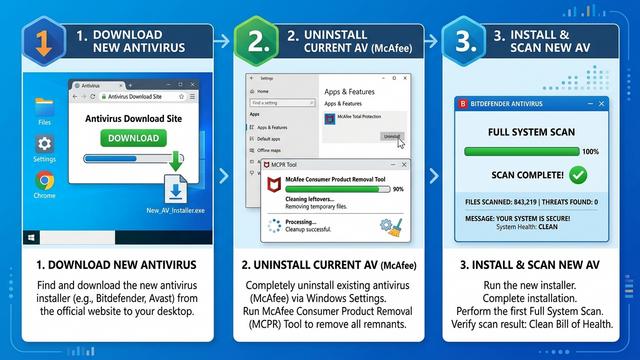
Navigate to Settings > Apps > Apps & Features (Windows 10/11) or Control Panel > Programs > Uninstall a Program (Windows 7/8). Locate McAfee in the list, click it, and select Uninstall. Follow the on-screen prompts. Allow the process to complete and restart your PC if prompted. This step will remove the majority of the user-facing application components.
Step 2: Download and Run the Official MCPR Tool
Even after a successful standard uninstall, residual components almost certainly remain. Navigate to McAfee’s official support website and download the McAfee Consumer Product Removal (MCPR) Tool. Run it as an Administrator (right-click the executable and select “Run as administrator”). The tool will scan for and remove all remaining McAfee components, drivers, and registry entries. You will be prompted to restart your computer upon completion.
// To verify removal via Windows Services after restarting:
// 1. Press Win + R, type: services.msc, press Enter
// 2. Scroll through the list and confirm NO McAfee services are present
// 3. Open Task Manager (Ctrl+Shift+Esc) > Processes tab
//    Confirm no McAfee processes (mcshield.exe, mfemms.exe, etc.) are running
Step 3: Verify Complete Removal
After restarting, open Task Manager (Ctrl+Shift+Esc) and check the Processes and Services tabs for any remaining McAfee entries. Additionally, run services.msc from the Run dialog (Win+R) to review active Windows services. Common McAfee service names to look for include mcshield, mfemms, mfevtp, and McMPFSvc. If any persist, run the MCPR tool a second time.
Ensuring Protection During and After Transition
A critical concern during any antivirus transition is avoiding a window of unprotected vulnerability. Windows Security (Microsoft Defender), built into Windows 10 and 11, will automatically re-activate itself once it detects that a third-party antivirus has been removed. Before beginning the McAfee removal process, verify that Windows Security is enabled and up to date by navigating to Settings > Privacy & Security > Windows Security > Open Windows Security. A green checkmark on the Virus & Threat Protection panel confirms it is active.
Ideally, research and download your replacement antivirus installer before beginning the removal process, so you can install it immediately after the MCPR tool completes and your system restarts. This minimizes any gap in third-party protection coverage.
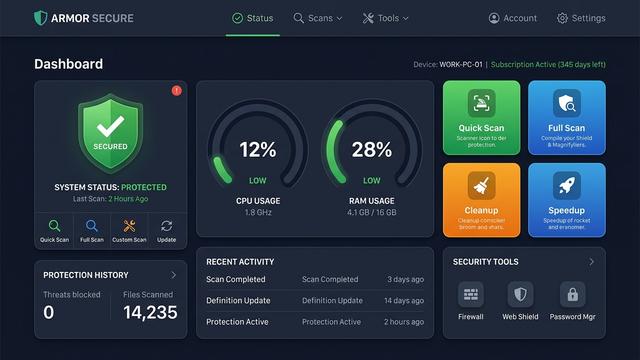
For users looking for a free, comprehensive replacement that directly addresses McAfee’s core shortcomings, 360 Total Security is an excellent candidate. It is specifically engineered for a lightweight system footprint and bundles integrated PC cleanup and optimization tools — directly counteracting the performance drain that McAfee users so frequently experience. After removing bloatware-style software, having a tool that can actively reclaim the disk space, registry clutter, and startup overhead left behind is a meaningful practical advantage.
Evaluating Modern Antivirus Solutions: Features Beyond Basic Protection
The McAfee controversy is ultimately a useful lens through which to examine what genuinely good security software looks like in the current threat landscape. The bar has risen considerably: users in 2025 and beyond should expect their security suite to do far more than scan for known virus signatures, and to do it without turning their computer into a sluggish, notification-saturated burden.
The Modern Security Suite: More Than Just Virus Scanning
A competitive modern antivirus solution should be evaluated across several functional dimensions:
- Multi-Engine Detection: Relying on a single detection engine creates blind spots. Solutions like 360 Total Security address this by combining multiple engines — including their proprietary 360 Cloud Engine alongside licensed engines from Bitdefender and Avira — to achieve higher aggregate detection rates across a broader threat taxonomy.
- Proactive Behavioral Analysis: Signature-based detection alone cannot stop zero-day threats or novel ransomware variants. Real-time behavioral monitoring, which flags programs that begin acting suspiciously (such as rapidly encrypting files), is now a baseline expectation for any serious security product.
- Ransomware Protection: Dedicated ransomware shields that monitor for unauthorized bulk file modification attempts provide a critical last line of defense against one of the most financially damaging threat categories.
- Firewall Integration: A software firewall that monitors both inbound and outbound network connections adds a meaningful layer of protection against data exfiltration and unauthorized remote access.
- Value-Added System Tools: Integrated startup managers, disk analyzers, privacy cleaners, and junk file removal utilities transform a security product into a comprehensive PC health platform — features that are particularly valuable for users transitioning away from performance-heavy software.
The Critical Balance: Security vs. Performance
The tension between comprehensive protection and system performance is the central design challenge in consumer antivirus development. The best solutions resolve this tension rather than sacrificing one for the other. When evaluating any security product, the following attributes should be assessed:
| Attribute | McAfee Total Protection | Windows Defender | 360 Total Security (Free) |
|---|---|---|---|
| System Performance Impact | High | Low-Moderate | Low |
| Independent Lab Protection Score | Good (AV-Test: ~5.5–6/6) | Very Good (AV-Test: ~6/6) | Good-Very Good |
| Extra Features (Cleanup, Boost, VPN) | Moderate (premium tier) | Minimal | Extensive (free tier) |
| Gaming / Silent Mode | Yes (premium) | Limited | Yes (free) |
| Annual Cost | $40–$110+/year | Free (built-in) | Free (premium available) |
| Uninstallation Complexity | High (requires MCPR tool) | N/A (built-in) | Low (standard uninstaller) |
A Gaming Mode or Silent Mode — which automatically suppresses notifications, defers non-critical scans, and reduces background resource consumption when a full-screen application is detected — is a feature that has transitioned from a premium differentiator to a reasonable baseline expectation. Its absence in a security suite is a meaningful usability shortcoming.
Transparency and User Control
Beyond raw performance metrics, the design philosophy of a security product reveals a great deal about its relationship with its users. The following characteristics distinguish user-respecting software from products that prioritize commercial extraction over user welfare:
- Clear, navigable settings without dark patterns, buried opt-outs, or confusingly worded toggles designed to default users into unwanted services.
- Transparent subscription and renewal policies with straightforward cancellation processes and no auto-renewal surprises billed to stored payment methods without adequate advance notice.
- A reliable, complete uninstaller that removes all components through the standard Windows uninstallation pathway without requiring supplementary tools or multiple restart cycles.
- Notification controls that allow users to meaningfully reduce alert frequency without disabling core protection functions.
These are not luxury features. They are the minimum standard of respect that software installed on a personal computer should meet.
Top Recommended Alternatives for Reliable and Lightweight Protection
With a clear framework for evaluation established, the following alternatives represent the strongest options currently available for users seeking to replace McAfee with a solution that provides equal or superior protection at a significantly reduced cost to system performance and user patience.
The Built-in Champion: Windows Security (Defender)
Pros: Windows Security is free, deeply integrated into the Windows 10/11 operating system, and has undergone a dramatic quality transformation over the past decade. It now consistently achieves top-tier scores in independent protection tests conducted by AV-Test and AV-Comparatives, with 2025 and 2026 assessment cycles continuing to validate its effectiveness against both widespread and emerging threats. Its system footprint is minimal, it updates silently in the background via Windows Update, and it requires no subscription management. For a large segment of users — particularly those who practice careful digital hygiene — it is a genuinely sufficient solution.
Cons: Windows Security lacks the advanced system optimization and cleanup tooling found in full security suites. Privacy-focused features such as VPN, password managers, and dark web monitoring are absent from the base product. Users who want active, one-click tools to manage startup programs, clean junk files, or monitor network activity will need to supplement it with third-party utilities.
Powerful Free Suites: Comprehensive Protection at No Cost
360 Total Security is a standout option in the free security suite category. Its architecture is specifically designed to address the performance concerns that drive users away from heavier products like McAfee. Key differentiators include:
- Multi-engine protection: Combines the 360 Cloud Engine with Bitdefender and Avira engines for broad-spectrum detection coverage.
- Integrated PC optimization: Built-in Cleanup, Speedup (startup manager), and Patch Up (vulnerability scanner) tools provide immediate, tangible performance benefits — particularly valuable for users whose systems have been burdened by heavier security software.
- Lightweight architecture: Engineered for minimal idle resource consumption, making it suitable for a wide range of hardware configurations including older and mid-range systems.
- Gaming Mode: Automatically minimizes interruptions and resource usage during full-screen applications.
- Transparent free tier: Core protection features are genuinely available at no cost, with clearly delineated premium upgrades rather than a bait-and-switch model.
Avast Free Antivirus / AVG Free Antivirus are long-established free options with strong independent detection scores and broad feature sets. Both are now developed by the same parent company (Gen Digital) and offer solid baseline protection. Users should be aware that both products include upsell notifications for premium features, which some may find intrusive — a consideration worth weighing given that upsell aggression is one of the core complaints driving users away from McAfee in the first place.
Premium Paid Alternatives for Maximum Security
Bitdefender Total Security is consistently among the top performers in independent laboratory testing for both protection efficacy and system performance impact. Its interface is polished and intuitive, its feature set is comprehensive (including a VPN, parental controls, and a webcam protection module), and its impact on system performance is among the lowest of any full-featured paid suite. For users who want the absolute highest assurance of protection and are willing to pay for it, Bitdefender is a premier choice.
Kaspersky Security Cloud maintains a reputation for top-tier malware detection rates and a sophisticated feature set. Prospective users should be aware that some governments and enterprise security policies have raised concerns about data routing and jurisdiction given the company’s Russian origins — a consideration that individual users should evaluate against their own privacy threat model and regional regulatory context.
Making the Switch: Your Action Plan for Better PC Security and Performance
Armed with the knowledge of what to remove and what to replace it with, the actual transition process is straightforward. The following structured action plan ensures a clean, safe, and effective migration to better security software.
The Safe Transition Checklist
- Download your new antivirus installer first. Visit the official website of your chosen replacement — for example, the 360 Total Security download page — and save the installer to your desktop or Downloads folder. Do not run it yet.
- Disable or uninstall your current antivirus. Follow the complete McAfee removal process outlined earlier in this guide, including running the MCPR tool and verifying removal via Task Manager and services.msc. Restart your PC as prompted.
- Run the new installer. Execute the installer for your chosen replacement. Follow the setup wizard, restart if prompted, and allow the software to complete its initial update and configuration process.
- Run a full system scan immediately. Before resuming normal use, run a complete full-system scan with your new software to establish a clean baseline and catch any threats that may have been missed during the transition window.
// Post-installation verification checklist:
// 1. Open Windows Security Center — confirm new AV is registered as active
// 2. Check Task Manager > Startup tab — confirm new AV is present, McAfee is absent
// 3. Run: services.msc — verify no McAfee services remain
// 4. Run full scan with new software — review and remediate any findings
// 5. Check Windows Update — ensure OS and definitions are fully current
Optimizing Your New Security Setup
Installation is only the beginning. Proper configuration of your new security software ensures you receive maximum protection with minimum disruption:
- Schedule regular scans: Configure a weekly quick scan during a low-activity period (e.g., Tuesday morning at 3:00 AM) and a monthly full scan. Most modern security suites support scheduled scanning natively.
- Leverage optimization tools immediately: If you have installed 360 Total Security, navigate to the Cleanup and Speedup modules immediately after your first full scan. These tools will identify and remove junk files, redundant registry entries, and unnecessary startup programs — many of which may be residual artifacts from your previous security software — and can produce immediate, noticeable improvements in system responsiveness.
- Enable automatic definition updates: Virus definition databases must be updated continuously to remain effective against new threats. Verify that automatic updates are enabled in your software’s settings.
- Configure notification preferences: Adjust alert settings to your tolerance level. Disable marketing notifications and upsell prompts if available, while keeping critical security alerts enabled.
- Enable Gaming or Silent Mode: If your new software includes a gaming or silent mode, configure it to activate automatically when full-screen applications are detected.
Final Verdict: Choosing Software That Protects Without Becoming a Problem
The ideal antivirus operates as an invisible shield — present, active, and effective, but never intrusive, never a burden, and never a source of frustration that causes you to disable the very protection you installed it to provide. The McAfee controversy, examined honestly, is not really about whether McAfee is a virus. It is about the gap between what security software promises and what it actually delivers in daily use.
Key Takeaways from the McAfee Dilemma
- Legitimacy does not equal quality. A product developed and sold by a major corporation can still deliver a poor, trust-eroding user experience. Corporate scale and marketing budget are not proxies for software quality.
- Performance impact and ease of removal are critical evaluation criteria that are systematically underweighted in most consumer purchasing decisions, often because they only become apparent after installation.
- User trust is a security asset. Software that feels invasive, deceptive, or impossible to control will be disabled or removed without replacement, leaving the user more vulnerable than if they had never installed it. The behavioral design of security software is not a cosmetic concern — it is a functional security issue.
- The market has excellent alternatives that provide equal or superior protection without these costs. The friction of switching is real but manageable, and the long-term benefits — in system performance, peace of mind, and genuine security confidence — are substantial.
Our Recommendation for Most Users
For the majority of home users seeking a powerful, all-in-one desktop security solution without a high annual subscription cost or a heavy system footprint, 360 Total Security represents an excellent choice. Its multi-engine detection architecture, integrated PC optimization tools, lightweight design, and genuinely capable free tier address the specific shortcomings that have defined the McAfee user experience for years. It is available for both Windows and macOS desktop platforms, making it a versatile solution for mixed-OS households.
For users who prefer simplicity and minimalism, relying on the built-in Windows Security (Defender) combined with disciplined digital hygiene practices — careful source verification before downloading software, regular OS updates, strong and unique passwords, and skepticism toward unsolicited email attachments — constitutes a perfectly valid and demonstrably effective security strategy. According to a 2026 Cybersecurity Trends Report by AV-Test, the combination of a fully updated Windows Defender with good user behavior habits successfully mitigates the overwhelming majority of consumer-level threats.
The bottom line is simple: your antivirus should make you feel more secure, more in control, and more confident about the health of your PC — not less. If it does not meet that standard, you have both the right and the practical means to change it. We encourage you to visit the 360 Total Security official website to explore its features, download the free version, and experience firsthand what security software that respects its users actually feels like.
Frequently Asked Questions
Q1: Is McAfee actually a virus?
No. McAfee is a legitimate, commercially developed antivirus product from an established cybersecurity company. It does not self-replicate, steal data, or cause malicious damage. However, its aggressive marketing, high system resource usage, intrusive pop-ups, and difficult uninstallation process cause many users to describe it as behaving “like malware” — a fair description of its user experience, even if not its technical classification.
Q2: Why is my computer so slow with McAfee installed?
McAfee’s suite of background services, real-time scanning processes, and scheduled scan tasks collectively maintain a high system resource footprint — particularly in terms of RAM and CPU usage — compared to lighter alternatives. This impact is most pronounced on mid-range and older hardware. Independent performance tests consistently rank McAfee among the higher-impact consumer antivirus products. Switching to a lightweight alternative like Windows Defender or 360 Total Security typically results in noticeable performance improvements.
Q3: How do I completely remove McAfee from my Windows PC?
A complete McAfee removal requires two steps: first, use the standard Windows “Apps & Features” uninstaller to remove the primary application. Second — and critically — download and run the official McAfee Consumer Product Removal (MCPR) Tool from McAfee’s support website to eliminate all residual drivers, services, and registry entries. After restarting, verify removal by checking Task Manager and running services.msc to confirm no McAfee processes or services remain active.
Q4: What is the best free alternative to McAfee for Windows?
For users seeking a free, feature-rich replacement, 360 Total Security is a strong recommendation. It combines multiple detection engines (including Bitdefender and Avira), offers integrated PC cleanup and optimization tools, and is specifically engineered for a lightweight system footprint. For users who prefer maximum simplicity, the built-in Windows Security (Defender) is a free, capable, and low-impact option that has consistently earned top marks in independent protection testing.
Q5: Is it safe to switch antivirus software, and will there be a gap in protection?
Yes, it is safe to switch, and a protection gap can be easily avoided. Windows Security (Defender) automatically activates when it detects that a third-party antivirus has been removed, providing continuous baseline protection throughout the transition. For best practice, download your new antivirus installer before beginning the removal of your old software, so you can install it immediately after the removal process completes and your system restarts. This approach ensures continuous, overlapping protection coverage with no unprotected window.
Author Bio: This article was researched and written by a Senior Technical Writer specializing in cybersecurity, PC performance optimization, and consumer software evaluation. With over a decade of experience covering the antivirus industry, independent security laboratory methodologies, and Windows system architecture, the author focuses on translating complex technical topics into clear, actionable guidance for everyday users. Their work draws on data from leading independent testing organizations including AV-Test, AV-Comparatives, and SE Labs, as well as extensive analysis of user experience patterns across major technical support communities.
Learn more about 360 Total Security