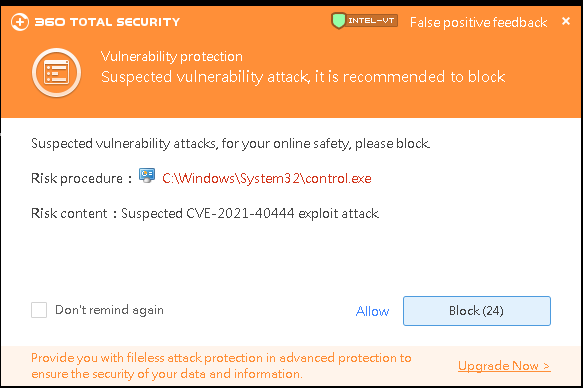
Executive Summary: The widespread belief that Macs are immune to viruses is one of the most dangerous myths in modern computing. As macOS market share has surged, cybercriminals have responded with increasingly sophisticated malware, adware, ransomware, and spyware specifically engineered for Apple systems. This comprehensive guide walks you through understanding the real threats facing macOS users, leveraging Apple’s built-in defenses, performing manual diagnostic checks, and running a full system scan with dedicated antivirus software like 360 Total Security. Whether you are a casual user or a power user, the strategies outlined here will help you build a robust, layered defense for your Mac.
Why Should Mac Users Be Concerned About Viruses and Malware?
For decades, Mac users have operated under a comfortable but increasingly false sense of security. While macOS does incorporate impressive native defenses, the notion that Apple computers are inherently immune to malware is not just outdated — it is actively dangerous. Modern cybercriminals are sophisticated, well-funded, and highly motivated to target the growing base of macOS users worldwide. Understanding the real threat landscape is the essential first step toward protecting your system.
Debunking the “Macs Don’t Get Viruses” Myth
The origin of the mac virus myth is rooted in historical market dynamics. For much of the 1990s and early 2000s, Windows dominated the personal computing market with over 90% market share, making it by far the most profitable target for malware authors. Macs, with their comparatively small user base, simply were not worth the development effort. This created a self-reinforcing perception: fewer attacks meant users believed Macs were inherently secure, which in turn led to fewer security precautions being taken.
That calculus has changed dramatically. According to a 2025 Malwarebytes State of Malware Report, Mac-specific threat detections increased by over 60% year-over-year, with adware and potentially unwanted programs (PUPs) leading the surge. A separate 2026 Kaspersky Cybersecurity Forecast projects that macOS will account for a disproportionately growing share of targeted attacks as its global installed base continues to expand. The financial incentive to target Mac users — who statistically have higher disposable incomes and are more likely to use their devices for sensitive financial and business activities — has never been greater.
Modern threats targeting macOS include not just adware and PUPs, but also ransomware variants like ThiefQuest (also known as EvilQuest), sophisticated spyware campaigns, and nation-state-level malware such as the XCSSET malware family that specifically targets macOS development environments. The macOS security landscape has fundamentally shifted, and users who do not adapt their security posture are taking on significant, unnecessary risk.
Common Types of macOS Malware and How They Spread
Understanding the specific categories of macOS malware threats helps users recognize warning signs and adopt targeted defenses. The following are the most prevalent threat types in the current environment:
- Adware and Browser Hijackers: These are by far the most common macOS threats. They are typically bundled with legitimate-looking free software downloads — video players, file converters, and download managers are frequent vehicles. Once installed, adware injects unwanted advertisements into your browser, redirects your search queries to monetized pages, and can harvest your browsing history. Common examples include Genieo, VSearch, and the persistent Pirrit adware family.
- Trojan Horses: Trojans disguise themselves as useful or desirable applications to trick users into voluntarily installing them. Classic delivery vectors include fake Adobe Flash Player update prompts, counterfeit video codecs required to play a specific file, and cracked versions of popular paid software distributed on torrent sites. Once executed, a Trojan can install backdoors, keyloggers, or ransomware payloads.
- Cryptominers and Spyware: Cryptomining malware silently commandeers your Mac’s CPU and GPU resources to mine cryptocurrency for an attacker, causing significant system slowdowns, excessive fan activity, and reduced hardware lifespan. Spyware operates even more covertly, logging keystrokes, capturing screenshots, accessing your webcam, and exfiltrating sensitive data — all without any visible symptoms until significant damage has been done.
What Are the Built-in macOS Security Tools for Scanning?
Apple has invested significantly in building a multi-layered security architecture directly into macOS. These native tools provide a genuine and valuable first line of defense, and understanding how they work — and where they fall short — is critical for any Mac user serious about their digital security. The built-in mac antivirus capabilities are real, but they are designed as a baseline, not a comprehensive solution.
Understanding Gatekeeper and App Notarization
Gatekeeper is macOS’s enforcement mechanism for application trust. By default, it prevents the execution of applications that have not been signed with a valid Apple Developer ID. When a user attempts to open an unsigned application downloaded from the internet, Gatekeeper blocks it and displays a warning. Users can override this on a case-by-case basis through System Settings, but the default behavior stops a significant volume of opportunistic malware that relies on users blindly running downloaded executables.
App Notarization takes this a step further for software distributed outside the Mac App Store. Developers who wish to distribute notarized applications must submit them to Apple’s automated scanning service, which checks for known malware signatures and verifies that the app does not use prohibited APIs. According to Apple’s official developer documentation, a notarization ticket is then attached to the app, and Gatekeeper verifies this ticket when the app is first launched. This creates a meaningful barrier against distributing known malware through seemingly legitimate channels, though it is not foolproof — a novel, previously unseen piece of malware can still pass notarization before Apple’s systems identify it.
The Silent Protectors: XProtect and MRT
XProtect is Apple’s signature-based anti-malware engine, and it operates entirely in the background without any user interaction required. When you download a file or attempt to open an application, XProtect compares it against a database of known malware signatures. This database is updated silently and automatically by Apple, independent of macOS system updates, meaning protection definitions can be refreshed quickly in response to emerging threats. XProtect checks are triggered at first launch of an app, when an app’s code changes, and when the XProtect signatures themselves are updated.
The Malware Removal Tool (MRT) works in conjunction with XProtect to actively remove infections that have already been identified. When Apple adds a new signature to XProtect for a piece of malware that has already infected systems, MRT runs automatically on affected Macs to quarantine and delete the malicious files. It is important to understand that MRT is fundamentally reactive — it removes known threats after the fact rather than proactively monitoring system behavior for suspicious activity. It does not perform on-demand scanning, nor does it offer any protection against threats that Apple has not yet catalogued.
Limitations of Native macOS Defenses
The most significant limitation of Apple’s built-in security stack is its exclusive reliance on known malware signatures. This approach, while effective against established threats, offers essentially zero protection against zero-day vulnerabilities and novel malware variants that have not yet been analyzed and catalogued by Apple. Given that sophisticated threat actors specifically design new malware to evade existing signatures, this is a substantial gap.
Furthermore, native macOS tools lack several critical features that modern security environments demand. There is no real-time web protection to block access to phishing sites or malicious URLs before you click. There is no behavioral analysis engine that can identify suspicious activity patterns — such as a process attempting to encrypt large numbers of files, a hallmark of ransomware — independent of known signatures. The following table illustrates the key feature gap between native macOS defenses and a dedicated security suite like 360 Total Security:
| Security Feature | Native macOS Tools (Gatekeeper, XProtect, MRT) | 360 Total Security for Mac |
|---|---|---|
| Signature-Based Malware Detection | ✅ Yes (Apple signatures only) | ✅ Yes (Multiple engines including Bitdefender) |
| Real-Time File System Monitoring | ⚠️ Limited (launch-time checks only) | ✅ Continuous, always-on monitoring |
| Zero-Day / Behavioral Analysis | ❌ Not available | ✅ Heuristic and behavioral engine |
| Ransomware Protection | ❌ Not available | ✅ Dedicated ransomware shield |
| Phishing and Malicious URL Blocking | ❌ Not available | ✅ Real-time web protection |
| On-Demand Full System Scan | ❌ Not user-initiated | ✅ Full, Quick, and Custom scan modes |
| Vulnerability / Outdated Software Scan | ❌ Not available | ✅ Identifies unpatched software |
| Performance Impact | Minimal (background only) | Lightweight, optimized for macOS |
Step-by-Step Guide: How to Manually Scan Your Mac for Viruses
Before deploying dedicated antivirus software, performing a manual diagnostic check can help you identify the symptoms of an infection and gather information about what may be running on your system. These manual mac virus scan techniques are valuable for triaging a potential problem, but they should always be followed by a full scan with dedicated security software for definitive detection and safe removal.
Identifying Symptoms of a Possible Infection
Malware rarely announces itself, but it almost always leaves traces. Being familiar with the warning signs of a macOS infection allows you to act quickly before damage escalates. Key symptoms to watch for include:
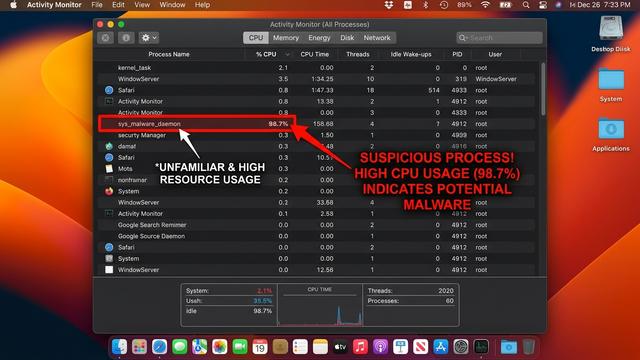
- Unexplained system slowness and high CPU usage at idle: If your Mac feels sluggish even when you are not running demanding applications, and if the fan is running loudly and frequently, a background process — potentially a cryptominer or spyware — may be consuming your resources.
- Unexpected advertisements and browser changes: Sudden pop-up ads appearing outside of your browser, your browser’s homepage or default search engine changing without your input, or a new toolbar appearing in your browser are classic signs of adware or a browser hijacker.
- Unfamiliar applications in Login Items: Malware frequently configures itself to launch at system startup to ensure persistence. If you notice applications in your startup list that you do not recognize, this warrants immediate investigation.
- Unexplained network activity: Spyware and remote access Trojans must communicate with command-and-control servers. Unusual network activity, particularly when you are not actively browsing, can indicate a compromised system.
Using Activity Monitor to Spot Malicious Processes
Activity Monitor is macOS’s built-in task manager and is one of the most useful tools for a manual malware check. Here is how to use it effectively:
Step 1: Open Activity Monitor. Navigate to Applications > Utilities > Activity Monitor, or use Spotlight Search (Command + Space) and type “Activity Monitor”.
Step 2: Sort by CPU Usage. Click on the % CPU column header to sort all running processes by their CPU consumption in descending order. Legitimate system processes rarely sustain high CPU usage for extended periods when the system is idle. Any process consistently consuming 20%, 30%, or more of your CPU while you are not doing anything intensive is suspicious.
Step 3: Identify suspicious processes. Look for processes with generic, meaningless names (random strings of characters), misspelled versions of legitimate system process names (e.g., “Safarii” instead of “Safari”), or names you do not recognize at all. Right-click on any suspicious process and select “Open Files and Ports” to see what files it is accessing and what network connections it is making — this can provide strong evidence of malicious activity.
Step 4: Research before terminating. Before force-quitting any process, search for its name online to understand what it does. Never terminate processes with names like kernel_task, WindowServer, loginwindow, or launchd — these are critical system processes, and terminating them can cause system instability or data loss.
Checking Login Items and Browser Extensions
Two of the most common persistence mechanisms used by macOS malware are Login Items and browser extensions. Auditing both should be a regular part of your security routine.
Reviewing Login Items: On macOS Ventura and later, navigate to System Settings > General > Login Items & Extensions. You will see a list of applications configured to launch automatically when you log in. Carefully review every entry. If you see an application you did not intentionally install or do not recognize, select it and click the minus (–) button to remove it. On older macOS versions (Monterey and earlier), this setting is found in System Preferences > Users & Groups > Login Items.
Reviewing Browser Extensions: Browser extensions are a favorite hiding place for adware and browser hijackers. Check each browser you use:
- Safari: Go to Safari > Settings (or Preferences) > Extensions. Disable or uninstall any extension you do not recognize or no longer use.
- Google Chrome: Navigate to chrome://extensions in the address bar. Review all installed extensions and remove any that are unfamiliar or suspicious.
- Mozilla Firefox: Go to about:addons in the address bar, then select Extensions from the left panel. Remove anything you did not intentionally install.
A general rule of thumb: if you cannot immediately recall installing an extension and cannot identify a clear, legitimate purpose for it, remove it. You can always reinstall legitimate extensions from the official browser extension stores.
How to Perform a Comprehensive Scan with Dedicated Antivirus Software
Manual checks are a valuable diagnostic tool, but they cannot replace the systematic, database-driven, and behaviorally aware scanning capabilities of dedicated antivirus software. For thorough detection and safe removal of macOS threats, a dedicated security solution is essential. 360 Total Security provides exactly this level of comprehensive protection, combining multiple scanning engines with real-time monitoring in a package that is both powerful and performance-friendly.
Choosing and Installing a Reliable Mac Antivirus
When evaluating antivirus software for your Mac, the key criteria should be: detection rate (validated by independent testing labs such as AV-TEST and AV-Comparatives), system performance impact (a security tool that slows your Mac to a crawl defeats its purpose), real-time protection capabilities, and ease of use.
360 Total Security stands out as a compelling choice for Mac users because it employs a multi-engine scanning architecture, combining its own proprietary detection engine with the Bitdefender engine — one of the highest-rated detection engines in independent laboratory testing. This layered approach means that a threat missed by one engine is highly likely to be caught by another, resulting in significantly higher overall detection rates compared to single-engine solutions.
As one technology reviewer noted in a 2025 security software roundup: “360 Total Security’s multi-engine approach gives Mac users enterprise-grade detection capabilities in a free-to-use package. The combination of its own engine with Bitdefender’s database is particularly effective at catching both established Mac malware families and emerging variants that other tools miss.”
To get started, visit the official 360 Total Security website, download the macOS installer, open the downloaded .dmg file, and follow the on-screen installation instructions. The process takes only a few minutes.
Running Your First Full System Scan
Once 360 Total Security is installed and launched, running a comprehensive scan of your entire system is straightforward. Follow these steps:
Step 1: Open 360 Total Security from your Applications folder or Launchpad.
Step 2: In the main dashboard, click on the “Virus Scan” tab in the left-hand navigation panel.
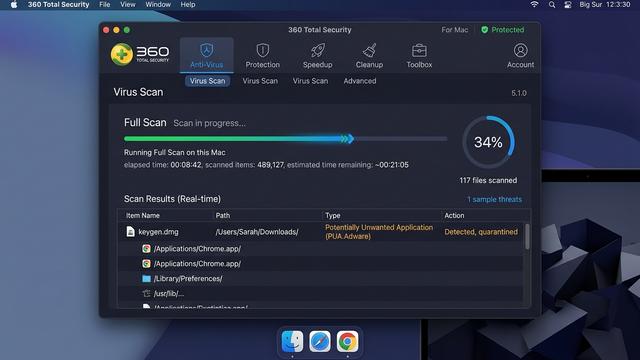
Step 3: You will be presented with three scan options: Quick Scan (checks the most common malware locations, typically completes in 2–5 minutes), Full Scan (scans every file and folder on your system), and Custom Scan (allows you to specify particular directories). For your first scan, select “Full Scan” to ensure no area of your system is left unchecked.
Step 4: The scan will begin immediately. A Full Scan typically takes between 15 and 45 minutes depending on the size of your storage and the number of files present. During the scan, you will see a real-time progress indicator showing the number of files scanned, the current directory being analyzed, and any threats detected. Resource usage is kept deliberately low so you can continue working during the scan.
Step 5: Upon completion, 360 Total Security presents a detailed scan report categorizing any detected items by threat type and severity. You can review each detected item individually and choose to quarantine, delete, or allow it. For any detected threat you are unsure about, quarantine is the safest default action — it isolates the file so it cannot cause harm while preserving it for further investigation.
Configuring Real-Time and Scheduled Scans for Ongoing Protection
A one-time scan addresses existing infections, but ongoing protection requires continuous vigilance. 360 Total Security makes this easy through its real-time monitoring and scheduled scan features.
Enabling Real-Time Protection: In the 360 Total Security settings panel, navigate to the “Protection” or “Real-Time Protection” section. Ensure that file system monitoring is toggled ON. With this enabled, every file you download, every application you launch, and every document you open is automatically scanned before execution — blocking threats at the point of entry rather than after they have had a chance to execute.
Setting Up Scheduled Scans: Navigate to the “Scan Schedule” settings within the Virus Scan tab. You can configure 360 Total Security to automatically run a Quick or Full Scan on a daily, weekly, or monthly basis at a time of your choosing — for example, every Sunday at 2:00 AM when your Mac is plugged in but not in active use. Scheduled scans ensure that even if you forget to manually initiate a scan, your system is being regularly audited for threats.
# Example: Verifying 360 Total Security real-time protection status via macOS Terminal
# This command checks if the 360 Total Security helper process is running:
pgrep -l "360"

# Expected output if real-time protection is active:
# [PID]  360TotalSecurity
# [PID]  360TSScanHelper

# If no output is returned, open 360 Total Security and re-enable real-time protection
# from the Protection settings panel.
Proactive Protection: Best Practices to Prevent Future Mac Infections
The most effective security strategy is one that prevents infections from occurring in the first place. While no single measure provides absolute protection, combining disciplined safe computing habits with the automated defenses of a robust security suite like 360 Total Security creates a defense-in-depth posture that dramatically reduces your attack surface. Prevention is not just more effective than remediation — it is also far less stressful and time-consuming.
Essential Safe Computing Habits
- Download software exclusively from trusted sources: The official Mac App Store is the safest source for applications, as all software is reviewed by Apple. For software not available on the App Store, download only from the developer’s official website. Avoid third-party download aggregators, torrent sites, and “cracked software” repositories — these are primary distribution channels for macOS malware.
- Practice healthy email skepticism: Phishing emails remain one of the most effective attack vectors against Mac users. Be suspicious of any email urging immediate action, even if it appears to come from a known contact — email addresses can be spoofed. Never click links or open attachments in unsolicited emails. When in doubt, contact the sender through a separate, verified channel to confirm they actually sent the message.
- Maintain regular data backups: Use macOS’s built-in Time Machine feature with an external drive, or a reputable cloud backup service, to maintain current backups of all important data. In the event of a ransomware infection or catastrophic system compromise, a recent backup is the difference between a minor inconvenience and a devastating data loss event. Verify your backups periodically to ensure they are completing successfully.
- Use strong, unique passwords and enable two-factor authentication: Many macOS compromises begin not with malware but with credential theft. Using a password manager to generate and store strong, unique passwords for every account, combined with two-factor authentication on your Apple ID and other critical accounts, significantly reduces the risk of account-based attacks that could lead to further system compromise.
The Critical Role of Software Updates
Unpatched software vulnerabilities are among the most commonly exploited attack vectors in macOS compromises. Keeping your system and applications current is one of the highest-impact security actions you can take.
Enabling automatic macOS updates: Navigate to System Settings > General > Software Update and enable “Automatic Updates”. Ensure that all sub-options are checked, including “Download new updates when available,” “Install macOS updates,” and “Install Security Responses and system files.” The last option is particularly important — Apple can now deploy targeted security patches independently of full macOS version updates, meaning critical vulnerability fixes can reach your system within hours of their release.
Keeping third-party applications updated: Pay particular attention to applications with a history of security vulnerabilities: web browsers (Chrome, Firefox, Safari), Java (if installed), and any media plugins. Many applications support automatic updates — enable this feature wherever available. For applications that do not auto-update, make checking for updates a regular habit, ideally as part of a monthly security maintenance routine.
Leveraging Advanced Features in Security Suites
Beyond basic virus scanning, modern security suites like 360 Total Security offer advanced features that significantly expand your defensive capabilities against the full spectrum of macOS threats.
Web Protection: 360 Total Security’s Web Protection feature integrates with your browser to check every URL you visit against a continuously updated database of known malicious and phishing websites. This protection activates before the page loads, meaning you are protected even if you click a malicious link accidentally. Given that phishing is one of the leading causes of credential theft and malware installation on Macs, this feature alone can prevent a significant category of attacks.
Vulnerability Scan: The Vulnerability Scan feature in 360 Total Security automatically audits your installed applications and system configuration to identify outdated software versions with known security vulnerabilities. Rather than manually tracking update status for every application, you receive a consolidated report of security gaps and, in many cases, can initiate updates directly from within the 360 Total Security interface.
The following checklist provides a practical framework for monthly Mac security maintenance, combining manual habits with automated tools:
| Task | Method | Frequency |
|---|---|---|
| Check for macOS system updates | System Settings > Software Update | Weekly / Automatic |
| Update all third-party applications | App Store updates + manual app checks | Weekly |
| Run a Full System Scan | 360 Total Security > Full Scan | Monthly (or after any suspicious activity) |
| Run Vulnerability Scan | 360 Total Security > Vulnerability Scan | Monthly |
| Review Login Items for unknown entries | System Settings > General > Login Items | Monthly |
| Audit browser extensions in all browsers | Browser settings > Extensions | Monthly |
| Verify Time Machine / backup status | Time Machine preferences or cloud backup app | Monthly |
| Review real-time protection is active | 360 Total Security > Protection settings | Monthly |
Protecting your Mac is not a one-time event but an ongoing practice. By combining the disciplined habits outlined above with the automated, multi-layered protection of 360 Total Security, you create a security posture that is resilient against the vast majority of threats targeting macOS users today. Download 360 Total Security for free and run your first comprehensive Mac virus scan today — because the best time to secure your Mac was yesterday, and the second-best time is right now.
Frequently Asked Questions (FAQ)
Q1: Do Macs really get viruses, or is it just a myth?
Macs absolutely can and do get viruses, malware, adware, and other threats. While macOS has strong built-in defenses and historically faced fewer attacks than Windows due to lower market share, the growing popularity of Apple computers has made them an increasingly attractive target. According to a 2025 Malwarebytes report, Mac-specific threat detections rose by over 60% year-over-year. The idea that Macs are immune is a dangerous myth that can lead users to take unnecessary risks.
Q2: Is Apple’s built-in XProtect enough to keep my Mac safe?
XProtect provides a valuable baseline layer of protection by detecting known malware signatures, but it has significant limitations. It only recognizes threats that Apple has already catalogued, offering no protection against zero-day exploits or novel malware. It also lacks real-time web protection, phishing blocking, behavioral analysis, and on-demand scanning. For comprehensive protection, pairing XProtect with a dedicated solution like 360 Total Security is strongly recommended.
Q3: How do I know if my Mac has a virus right now?
Common warning signs include unexplained slowness or high CPU usage when idle, excessive fan activity, unexpected pop-up advertisements, changes to your browser’s homepage or default search engine, unfamiliar applications appearing in your Login Items, and unusual network activity. However, many forms of malware — particularly spyware and cryptominers — are designed to operate silently with minimal visible symptoms. The most reliable way to know for certain is to run a full system scan with dedicated antivirus software like 360 Total Security.
Q4: Will antivirus software slow down my Mac significantly?
Modern, well-engineered antivirus solutions are designed to have a minimal performance footprint. 360 Total Security for Mac is specifically optimized to run efficiently in the background without causing noticeable slowdowns during normal use. The real-time protection engine is lightweight, and full scans are designed to throttle resource usage so you can continue working during the process. The performance cost of running quality antivirus software is far outweighed by the protection it provides.
Q5: Can I remove Mac malware manually without antivirus software?
For simple adware or known browser hijackers, manual removal — uninstalling the offending application, removing browser extensions, and cleaning Login Items — can sometimes be effective. However, manual removal is risky for more sophisticated threats. Malware often installs multiple components across different system directories, and if you miss even one component, the infection can reinstall itself. Additionally, attempting to manually delete system files can cause unintended damage. Using dedicated antivirus software like 360 Total Security ensures complete, safe removal of all components of a detected threat.
About the Author: This article was written by a Senior Technical Security Writer with over a decade of experience covering cybersecurity, endpoint protection, and macOS security architecture. Specializing in translating complex security concepts into actionable guidance for everyday users and IT professionals, the author has contributed to numerous cybersecurity publications and regularly evaluates antivirus software against independent laboratory benchmarks. Their work is grounded in a commitment to accurate, evidence-based security advice that helps users make informed decisions about protecting their digital lives.
Learn more about 360 Total Security