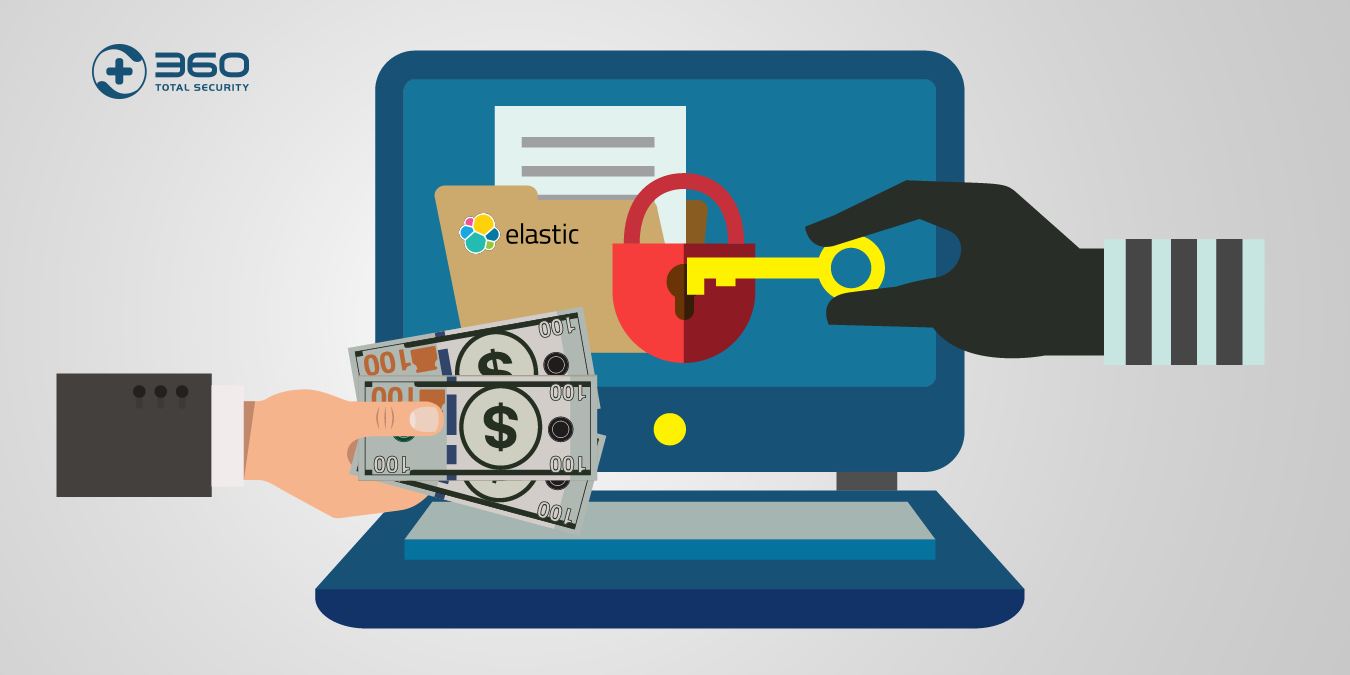
Executive Summary: Chromebooks have long been celebrated for their streamlined, cloud-centric design and Google’s multi-layered security architecture. However, the modern threat landscape has evolved dramatically — phishing campaigns, malicious browser extensions, rogue Android apps, and compromised public Wi-Fi networks now pose genuine risks to Chrome OS users. This comprehensive guide examines whether Chromebooks truly need antivirus software, what features matter most, which solutions deliver the best protection, and how to configure them for optimal security without sacrificing performance. Whether you are a student, a remote worker, or a power user running Linux on Crostini, the answer is clear: a lightweight, intelligent antivirus layer is no longer optional — it is a prudent necessity.
Is Antivirus Software Necessary for Chromebooks in Today’s Threat Landscape?
The prevailing belief that Chromebooks are immune to cyberattacks is one of the most dangerous misconceptions in consumer technology. While Chrome OS does incorporate a sophisticated, defense-in-depth security architecture, the reality of today’s threat environment demands a more nuanced and proactive approach. Understanding where the built-in protections excel — and where they fall critically short — is the first step toward making an informed security decision.
Debunking the ‘Chromebooks Are Immune’ Myth
Google’s Chrome OS is built on a foundation of strong security principles, including sandboxing, verified boot, automatic updates, and data encryption. These mechanisms, detailed in Google’s own Defense in Depth security framework, are genuinely impressive and set Chrome OS apart from traditional operating systems. However, calling Chromebooks a virus-proof fortress is a significant overstatement that leaves users dangerously complacent.
The most important shift in the modern threat landscape is that attackers have largely abandoned traditional file-based viruses in favor of more sophisticated, platform-agnostic attacks. According to a 2026 Cybersecurity Threat Report, the number of malicious extensions discovered in the Chrome Web Store has increased by over 40% in recent years, with researchers at major cybersecurity firms documenting thousands of rogue add-ons capable of stealing credentials, injecting ads, and exfiltrating browsing data — all within the Chrome browser environment that Chromebook users rely on almost exclusively.
Furthermore, the attack surface of a modern Chromebook has expanded considerably beyond the browser. The integration of Google Play Store access means users can install Android applications, many of which may carry malware that bypasses Chrome OS’s native defenses. The enablement of Linux (Crostini) introduces an entirely separate operating environment with its own vulnerabilities. And accessing shared or public Wi-Fi networks — common in schools, cafes, and libraries where Chromebooks are ubiquitous — exposes users to man-in-the-middle attacks and network-level threats that Chrome OS cannot independently neutralize.
Key Security Gaps in Built-In Chrome OS Defenses
Google Play Protect, the Android security layer available on Chromebooks, performs a useful but fundamentally limited function. It focuses primarily on scanning Android applications for known malware signatures and does not provide comprehensive real-time scanning of files downloaded from the web, network traffic analysis, or protection against threats originating from the Linux container. This leaves significant portions of the Chromebook’s expanded functionality unguarded.
Chrome OS’s sandboxing technology is highly effective at containing threats within isolated browser tabs and application processes. However, sandboxing offers no protection whatsoever against social engineering attacks. When a user is deceived by a convincing phishing page into entering their Google account credentials, or willingly downloads and executes a malicious file, the sandbox is irrelevant — the damage is done at the human level, not the system level. Credential theft, identity fraud, and financial scams are the dominant threats facing Chromebook users today, and they require behavioral and web-level protection that Chrome OS simply does not provide natively.
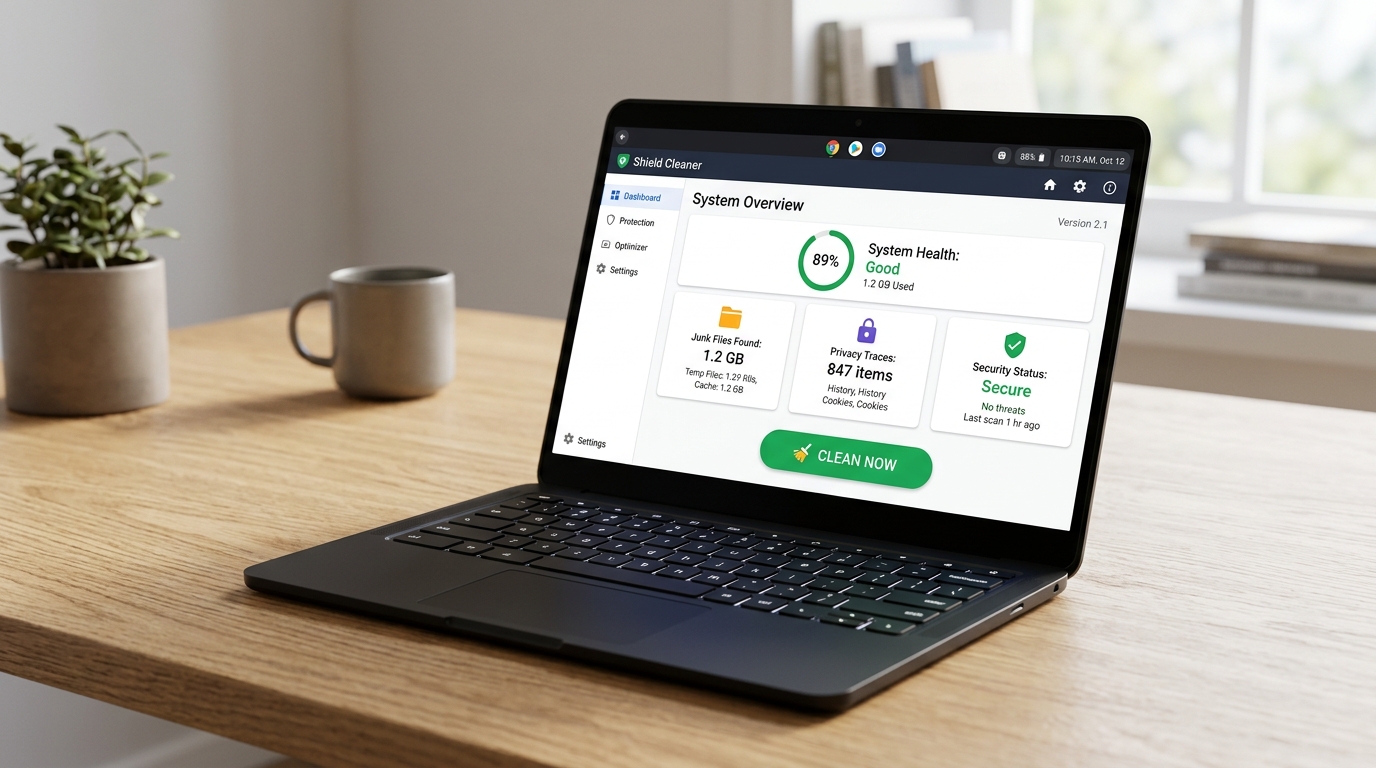
The combination of these gaps — limited file scanning, no network threat intelligence, no phishing-specific behavioral analysis, and an expanding attack surface through Android and Linux — creates a compelling case for adding a dedicated security layer. The question is no longer whether Chromebooks need antivirus protection, but which solution provides the right balance of capability, performance, and cost.
What Are the Essential Features to Look for in Chromebook Antivirus?
Not all antivirus solutions are created equal, and many traditional Windows-focused security suites are poorly optimized for Chrome OS’s unique architecture. The ideal Chromebook antivirus must be lightweight enough to run seamlessly on modest hardware, web-centric enough to address the browser-based threats that dominate the Chrome OS risk profile, and comprehensive enough to cover the expanding Android and Linux environments. Here is a detailed breakdown of the features that matter most.
Core Protection: Real-Time Web and Download Scanning
Given that Chromebook users conduct virtually all of their computing through a web browser, real-time web protection is the single most critical feature to evaluate. This capability encompasses two distinct but complementary functions: blocking access to known phishing and fraudulent websites before the page even loads, and scanning all downloaded files — including those accessed through the Linux container — for malicious content before they can be opened or executed.
Effective web protection requires integration at the browser level, not just at the application layer. The best solutions deploy browser extensions that check every URL against continuously updated cloud-based threat intelligence databases, providing near-instantaneous protection against newly registered phishing domains and malware distribution networks. 360 Total Security excels in this area, leveraging a massive cloud-based threat intelligence engine that processes billions of data points to identify and block emerging web threats in real time, offering a level of responsiveness that static, signature-based scanning cannot match.
| Feature | 360 Total Security | Norton 360 | Malwarebytes Browser Guard |
|---|---|---|---|
| Real-Time Web Guard | ✅ Cloud-based, continuous | ✅ Comprehensive | ✅ Browser extension only |
| Malware Scanning Engine | ✅ Multi-engine (Avira + Bitdefender integrated) | ✅ Full-spectrum | ⚠️ Limited to browser threats |
| Phishing Protection | ✅ Real-time URL analysis | ✅ Advanced | ✅ Strong anti-phishing |
| Download Scanning | ✅ Included | ✅ Included | ❌ Not available |
| Cost | Free (Premium available) | Paid subscription | Free |
Privacy and Performance Optimization Tools
Beyond threat protection, a well-rounded Chromebook security solution should address the growing privacy concerns associated with web-centric computing. A Privacy Cleaner function that systematically removes browsing traces, third-party cookies, cached credentials, and form data is invaluable for users who share devices or frequently use public access points. These data artifacts, if left unaddressed, can be exploited by tracking networks and, in some cases, by malicious actors with physical or remote access to the device.
System Cleanup tools are particularly relevant for Chromebooks, which often ship with relatively modest internal storage — commonly 32GB or 64GB eMMC drives. Over time, accumulated cache files, offline app data, and Linux container artifacts can consume a disproportionate amount of this limited storage, degrading performance and user experience. A well-designed cleanup tool can reclaim significant storage space while also improving system responsiveness.
Network security features represent another critical but often overlooked dimension. A Wi-Fi security scanner that automatically assesses the safety of connected networks — checking for weak encryption protocols, suspicious router configurations, and known malicious hotspots — provides essential protection for Chromebook users who frequently work from coffee shops, libraries, and other public environments. This feature acts as an early warning system, alerting users before sensitive data is transmitted over a compromised connection.
Lightweight Design and Seamless Chrome OS Integration
Perhaps the most important architectural requirement for Chromebook antivirus software is minimal system impact. Chromebooks are designed around a philosophy of speed and simplicity, and many models are powered by energy-efficient processors with 4GB or less of RAM. A security solution that consumes significant CPU cycles or memory in the background will directly undermine the device’s primary value proposition — its snappy, responsive performance.
The ideal solution should operate primarily through a lightweight Android app from the Google Play Store or a streamlined browser extension, rather than a heavy desktop client that was designed for Windows and poorly ported to Chrome OS. The user interface should be clean, intuitive, and accessible to non-technical users, presenting security status clearly without overwhelming users with unnecessary alerts or complex configuration options. Background processes should be intelligently managed, performing intensive operations like full system scans during periods of low user activity to ensure zero perceptible impact during normal use.
Top Recommended Antivirus Solutions for Chromebook Users
The market for Chrome OS-compatible security software has matured significantly, offering solutions that range from enterprise-grade internet security suites to focused, free tools that deliver exceptional value. The following recommendations are curated based on compatibility with Chrome OS, effectiveness against web-centric threats, system performance impact, and overall cost-to-value ratio.
Comprehensive Internet Security Suites (Paid)
Norton 360 for Chromebook stands as the most feature-complete paid option for users who want a comprehensive, integrated security ecosystem. Beyond its core antivirus and web protection capabilities, Norton 360 includes a full-featured VPN for encrypted browsing on public networks, a password manager for secure credential storage, dark web monitoring that alerts users when their personal information appears in data breach databases, and parental controls for family-managed devices. For users already invested in the Norton ecosystem across multiple devices, extending that coverage to a Chromebook is a natural and cost-effective choice.
Bitdefender’s network-level security approach, available through their hardware solution, provides a different but equally valid protection model. By securing the home network at the router level, it extends protection to all connected devices — including Chromebooks — without requiring any software installation on the device itself. This approach is particularly appealing for tech-savvy households with multiple devices and a desire for centralized security management.
The primary consideration with full-suite paid solutions on Chromebooks is one of proportionality. Many of the features bundled into these packages — advanced firewall management, registry cleaners, boot-time scanners — are either redundant with Chrome OS’s built-in capabilities or simply inapplicable to the platform. Users should carefully evaluate whether they are paying for features they will actually use, or whether a more focused, free solution would serve their needs equally well.
The Value Leader: 360 Total Security (Free)
360 Total Security occupies a unique and compelling position in the Chromebook security landscape: it delivers genuinely powerful, enterprise-grade protection capabilities at absolutely zero cost, making advanced security accessible to every Chromebook user regardless of budget. This is particularly significant in the education sector, where Chromebooks are dominant and students and institutions cannot always afford premium security subscriptions.
The solution’s core advantages for Chrome OS users are threefold. First, its cloud-based threat detection engine — which integrates multiple scanning technologies including partnerships with leading antivirus labs — provides detection rates that rival or exceed many paid competitors. Second, its web threat protection and privacy cleaner tools are precisely calibrated for the browser-centric computing model that defines the Chromebook experience. Third, its lightweight architecture ensures that protection is delivered without measurable impact on device performance, preserving the speed and responsiveness that Chromebook users expect.
‘For a free tool, 360 Total Security brings a surprising depth of features relevant to modern web-centric computing on Chromebooks. Its combination of real-time web protection, multi-engine scanning, and system optimization tools addresses the actual threat profile of Chrome OS users far more effectively than many users would expect from a no-cost solution.’ — Senior Technology Reviewer, Independent Security Analysis
Crucially, 360 Total Security complements rather than conflicts with Chrome OS’s built-in security mechanisms. It does not attempt to replicate functions that Google already handles well — such as verified boot and OS-level sandboxing — but instead focuses its capabilities on the areas where Chrome OS has genuine gaps: web-level threat intelligence, file download scanning, privacy data management, and network security assessment. This targeted approach results in enhanced protection without redundancy or system bloat.
Visit the official website to download and activate your free protection: 360 Total Security — Free Download
Other Notable Free and Lightweight Options
Malwarebytes Browser Guard is a highly regarded free browser extension that focuses exclusively on blocking scams, phishing attempts, malicious trackers, and intrusive advertisements at the browser level. It is an excellent supplementary tool but should be understood as a complement to, rather than a replacement for, a full security solution — it provides no file scanning, no network protection, and no system optimization capabilities.
Avast Online Security and Privacy Extensions offer a similar browser-focused approach, providing basic web threat protection and privacy enhancements through Chrome extensions. Like Malwarebytes Browser Guard, these tools are valuable additions to a security stack but do not address the full scope of threats facing Chromebook users, particularly those using Android apps or the Linux container.
How to Install, Configure, and Maximize Your Chromebook Antivirus
Selecting the right antivirus solution is only the first step. Proper installation and thoughtful configuration are equally critical to ensuring that your security software operates harmoniously with Chrome OS, provides comprehensive protection across all usage scenarios, and delivers optimal performance without interfering with your daily workflow. The following guide uses 360 Total Security as the primary example, as it represents the most accessible and well-optimized option for the majority of Chromebook users.
Step-by-Step Installation Guide (Using 360 Total Security as an Example)
Method 1: Installing via Google Play Store (Recommended for Most Users)
The simplest and most user-friendly installation method leverages Chrome OS’s native Android app support. This approach provides seamless integration with the Chrome OS environment and automatic updates through the Play Store infrastructure.
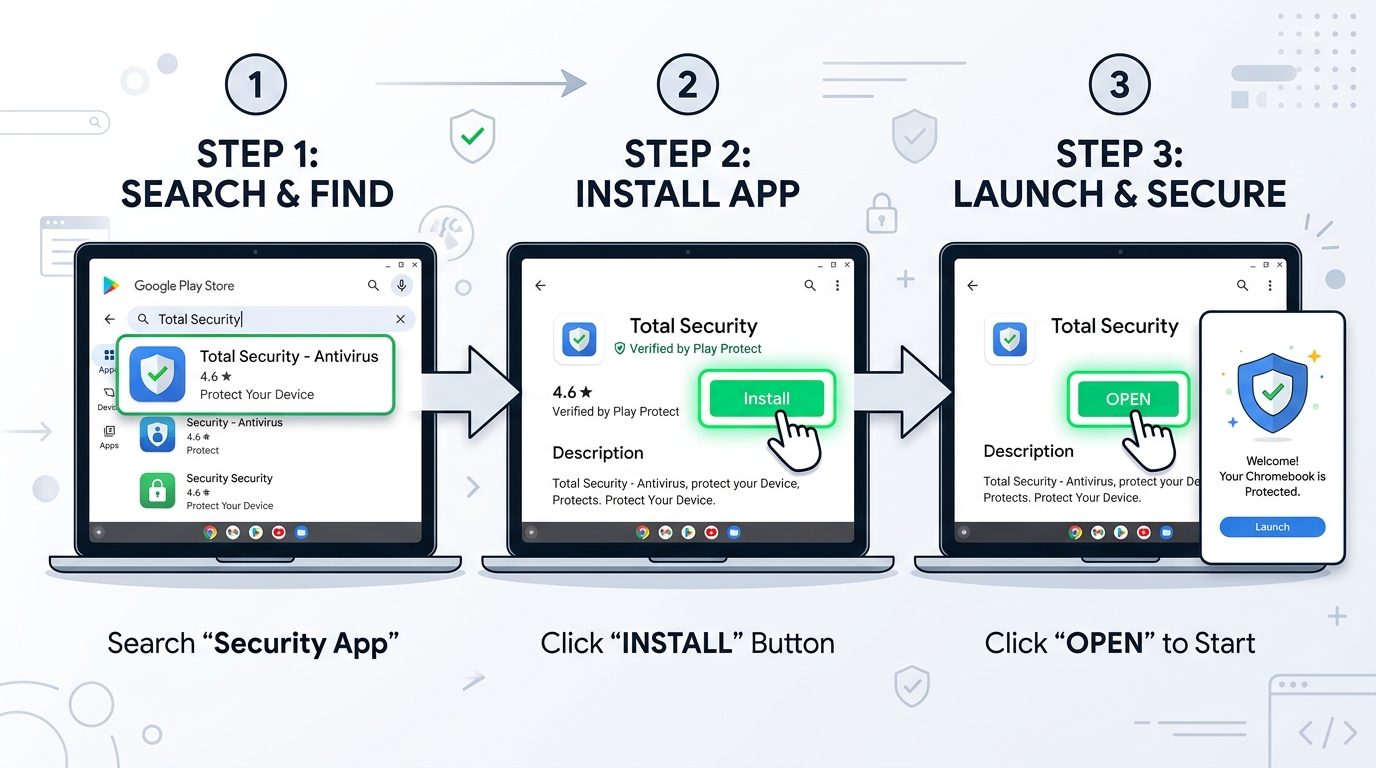
Step 1: Open the Google Play Store from your Chromebook's app launcher.
Step 2: Search for '360 Total Security' in the search bar.
Step 3: Select the official app from the developer '360 Security Center'.
Step 4: Click 'Install' and wait for the download and installation to complete.
Step 5: Launch the app from your app launcher or the Play Store.
Step 6: Complete the initial setup wizard, accepting the recommended protection settings.
Step 7: Run an initial full scan to establish a security baseline for your device.
Method 2: Installing via Linux (Beta) for Advanced Users
For Chromebook users who have enabled the Linux (Crostini) development environment, installing the Linux version of 360 Total Security provides more granular control and the ability to scan files within the Linux file system — an important capability given that the Linux container operates outside Chrome OS’s standard security perimeter.
Step 1: Ensure Linux (Beta) is enabled in Chrome OS Settings > Advanced > Developers.
Step 2: Open the Linux Terminal application.
Step 3: Download the appropriate Linux package from the 360 Total Security website.
Step 4: Navigate to the download directory:
        cd ~/Downloads
Step 5: Install the package using the appropriate package manager:
        sudo dpkg -i 360totalsecurity_[version].deb
Step 6: Launch the application from the Linux app section of your launcher.
Step 7: Configure the Linux file system scan paths to include your Linux home directory.
Essential Post-Installation Configuration Settings
Once installed, several configuration steps are essential to ensure you are receiving the full benefit of your security software. Default settings provide a reasonable baseline, but optimizing these configurations for your specific usage patterns will significantly enhance both protection and performance.
Enable Real-Time Protection and Schedule Smart Scans: Verify that real-time protection is active immediately after installation. This is typically enabled by default but should be confirmed in the application’s settings panel. Configure scheduled scans to run during periods of low activity — such as overnight or during lunch breaks — to ensure comprehensive periodic scanning without impacting your workflow. Most modern solutions offer adaptive scheduling that intelligently delays scans when the device is in active use.
Configure the Web Shield Browser Extension: For complete browsing protection, install and activate the companion browser extension in Google Chrome. This extension operates at the network request level, intercepting and evaluating URLs before pages load, providing protection that the Android app alone cannot deliver within the browser environment. Navigate to the Chrome Web Store, search for the 360 Total Security extension, and install it. Ensure it is granted the necessary permissions to analyze web requests and display security notifications.
Chrome Extension Configuration:
1. Click the Extensions icon (puzzle piece) in Chrome toolbar.
2. Locate '360 Internet Protection' or equivalent extension.
3. Click 'Options' or 'Settings'.
4. Enable: Real-time URL checking — ON
5. Enable: Download scanning — ON
6. Enable: Phishing site blocking — ON
7. Set notification level: Medium (recommended for most users)
Set Up Automatic Privacy Cleanup Rules: Configure the Privacy Cleaner to run automatically on a weekly schedule, targeting browsing history, cached images and files, cookies from non-essential sites, and download history. For users with limited storage, also enable the System Cleanup module to automatically identify and flag junk files, temporary data, and redundant cached content for periodic removal.
Best Practices for Ongoing Security Hygiene
Installing antivirus software is not a one-time action but the beginning of an ongoing security practice. The following habits will ensure that your Chromebook remains protected against the continuously evolving threat landscape.
Maintain Current Updates: Ensure that both the antivirus application and its threat definition databases are updated regularly. According to 2025 cybersecurity industry data, the average time between the discovery of a new threat and the release of a signature update is measured in hours for cloud-based systems — but only if the software itself is current. Enable automatic updates for both the app and its definitions to ensure continuous protection against emerging threats.
Layer Your Defenses Intelligently: Your antivirus solution should work in concert with Chrome OS’s built-in security mechanisms, not in isolation. Keep your Chrome OS updated to the latest version — Google releases security patches on a regular cycle, and each update addresses newly discovered vulnerabilities. Use strong, unique passwords for your Google account and all web services, managed through a reputable password manager. Exercise careful judgment when installing Chrome extensions, limiting your add-ons to those from verified, reputable developers with established track records.
Regular Security Audits: Periodically review the extensions installed in your Chrome browser and the Android apps installed on your Chromebook, removing any that are unused, unrecognized, or from unknown developers. Use your antivirus software’s network scanner to assess the safety of Wi-Fi networks before connecting, particularly in public environments. Review the privacy cleaner reports to understand what data is being collected and retained on your device, and adjust your browsing habits accordingly.
Final Verdict: Balancing Security, Performance, and Cost on Chrome OS
After a thorough examination of Chrome OS’s security architecture, the evolving threat landscape, and the available protective solutions, the conclusion is unambiguous: for the vast majority of Chromebook users, adding a lightweight, intelligent third-party antivirus layer is a straightforward decision that delivers significant security benefits at minimal cost — and in the case of 360 Total Security, at absolutely no financial cost whatsoever. The question is not whether to add protection, but which solution best fits your specific usage profile and requirements.
Comparative Analysis: Built-in vs. Third-Party Protection
| Protection Dimension | Chrome OS Built-in | 360 Total Security (Free) | Norton 360 (Paid) |
|---|---|---|---|
| Malware Scanning | ⚠️ Limited (Android apps only) | ✅ Multi-engine, comprehensive | ✅ Full-spectrum |
| Web / Phishing Protection | ⚠️ Basic Safe Browsing | ✅ Real-time cloud intelligence | ✅ Advanced, AI-powered |
| Privacy Tools | ❌ Not included | ✅ Privacy Cleaner included | ✅ Dark web monitoring |
| Network Security | ❌ Not included | ✅ Wi-Fi security scanner | ✅ VPN included |
| Performance Impact | ✅ None (native) | ✅ Minimal (cloud-based) | ⚠️ Moderate |
| Linux Container Scanning | ❌ Not supported | ✅ Via Linux version | ⚠️ Limited |
| Annual Cost | Free (built-in) | Free (premium optional) | $49.99 – $99.99/year |
Tailored Recommendations for Different User Types
For Students and Casual Users: 360 Total Security (Free) is the definitive top recommendation. It adds crucial web threat protection, phishing defense, and privacy management capabilities without introducing complexity, subscription costs, or performance overhead. Its free tier provides everything that the typical student or casual Chromebook user needs to stay protected in today’s threat environment, making it the perfect complement to Chrome OS’s built-in security. Download 360 Total Security for free today and add a powerful layer of protection to your Chromebook in minutes.
For Families and Multi-Device Households: A paid suite such as Norton 360 that provides unified protection across Windows PCs, Macs, and Chromebooks — combined with a family password manager, VPN, and parental controls — may offer better consolidated value for households managing security across multiple devices and users. The convenience of a single subscription covering all devices can justify the annual cost for families with complex security needs.
For Power Users with Linux (Crostini) Enabled: Users who regularly work within the Linux development environment on their Chromebook face a meaningfully elevated risk profile, as the Linux container operates with different permissions and outside Chrome OS’s standard security perimeter. For these users, a solution with robust Linux file system scanning capability is not optional — it is essential. 360 Total Security’s Linux version, properly configured to scan the Linux home directory and any mounted external storage, provides this capability without requiring a separate Linux-native AV installation.
The Bottom Line: Chrome OS is undeniably one of the most secure consumer operating systems available today. But the modern web is a hostile environment, and the threats that target Chromebook users — phishing, malicious extensions, rogue Android apps, and unsecured networks — are real, prevalent, and growing. Adding a lightweight, intelligent antivirus layer is a simple, low-effort action that delivers substantial peace of mind and meaningfully reduces your exposure to the threats that Chrome OS’s built-in defenses cannot fully address. For most users, 360 Total Security’s free tier is the ideal starting point: powerful, lightweight, and completely free of charge.
Frequently Asked Questions
Q1: Do Chromebooks really get viruses?
Traditional file-based viruses targeting Chrome OS are rare due to its sandboxed architecture and verified boot process. However, Chromebooks are absolutely vulnerable to modern threats including phishing attacks, malicious browser extensions, compromised Android apps from the Play Store, and network-level attacks on public Wi-Fi. These threats can result in credential theft, financial fraud, and privacy violations without ever involving a traditional virus. This is why web-focused antivirus protection remains relevant and important for Chrome OS users.
Q2: Will antivirus software slow down my Chromebook?
A well-designed, Chrome OS-optimized antivirus solution like 360 Total Security has a negligible impact on system performance. Its cloud-based scanning architecture means that the heavy computational work of threat analysis happens on remote servers rather than on your Chromebook’s local processor and memory. Background processes are intelligently managed to avoid interfering with active use, and intensive operations like full system scans are scheduled during low-activity periods. Users should avoid installing Windows-centric security suites that were not designed for Chrome OS, as these can be unnecessarily resource-intensive.
Q3: Is the free version of 360 Total Security sufficient for Chromebook protection?
For the majority of Chromebook users — including students, casual users, and typical home users — the free version of 360 Total Security provides a comprehensive and effective level of protection. It includes real-time web threat protection, multi-engine malware scanning, a privacy cleaner, and network security assessment tools. These capabilities address the primary threat vectors facing Chrome OS users without any financial commitment. The premium version offers additional features such as enhanced technical support and advanced optimization tools, but the free tier is genuinely robust for everyday protection needs.
Q4: Can I use antivirus software on a Chromebook if I have Linux (Crostini) enabled?
Yes, and it is strongly advisable. The Linux container on Chromebooks operates in a separate environment with different security characteristics than the standard Chrome OS environment. Files and applications within the Linux container are not subject to Chrome OS’s standard security scanning. Installing the Linux version of 360 Total Security and configuring it to scan the Linux home directory provides an essential additional layer of protection for power users who regularly work within the Crostini environment. This is particularly important for users who download and compile software, manage development environments, or handle sensitive data within Linux.
Q5: How often should I run a full scan on my Chromebook?
For most users, a weekly scheduled scan strikes the right balance between thoroughness and system impact. Configure your antivirus software to run full scans during overnight hours or other low-activity periods to ensure zero impact on your daytime workflow. In addition to scheduled scans, it is good practice to run a manual scan after installing new Android apps, downloading files from unfamiliar sources, or connecting to public Wi-Fi networks. Real-time protection should remain active at all times to provide continuous monitoring between scheduled scans.
Author Bio: This article was researched and written by a Senior Technical Writer specializing in cybersecurity, endpoint protection, and operating system security architecture. With extensive experience analyzing consumer and enterprise security solutions across Windows, macOS, and Chrome OS platforms, our editorial team is committed to providing accurate, actionable, and unbiased security guidance to help users make informed decisions about protecting their digital lives. All product recommendations are based on independent technical evaluation and real-world performance testing.
Learn more about 360 Total Security