Executive Summary: Choosing the right free antivirus software is one of the most impactful decisions a PC user can make for their digital security. This comprehensive guide cuts through the noise to examine what truly effective free antivirus protection looks like — covering essential features like real-time malware detection, system performance balance, and multi-layered threat defense. We compare the leading free antivirus programs using independent lab data, evaluate whether Windows Defender alone is sufficient, explore the advanced suite tools that top solutions like 360 Total Security offer beyond basic scanning, and walk you through a safe installation and configuration process. Whether you are a casual user or a power user managing multiple PCs, this guide provides the knowledge to make an informed choice and maintain a robust, sustainable security posture — completely free of charge.
What Are the Essential Features of Effective Free Antivirus Software?
Truly effective free antivirus software must provide comprehensive, real-time protection without compromising core security functionality. For the vast majority of home users, a well-designed free antivirus solution represents a legitimate, capable alternative to paid products — provided you know exactly what features to look for and which to consider optional extras.
Real-Time Malware Detection and Removal
The single most critical feature of any antivirus product — free or paid — is on-access, real-time scanning. This means the antivirus engine monitors every file that is opened, executed, or written to disk at the precise moment the action occurs. Unlike scheduled scans that only catch threats after the fact, real-time protection intercepts malware before it ever has the chance to execute and cause damage. Without this feature, an antivirus product is little more than a reactive cleanup tool rather than a proactive defense system.
Modern threats demand more than simple signature-based detection, however. Heuristic and behavioral analysis engines examine the characteristics and runtime behavior of unknown files, allowing the antivirus to identify zero-day exploits and novel malware variants that have never been catalogued in any virus definition database. This is increasingly critical as threat actors continuously mutate their code to evade signature detection. According to a 2025 AV-TEST evaluation, the top-performing free antivirus products consistently achieved 99.5% to 100% protection rates against widespread and prevalent malware, with leading products also scoring highly against zero-day web and email threats — demonstrating that the gap between free and paid detection capability has narrowed significantly for reputable vendors.
Balancing Protection with System Performance
A free antivirus that cripples your PC’s performance is arguably worse than no antivirus at all — because users will simply disable it. The best free solutions employ lightweight scanning engines that are intelligently designed to minimize their footprint on CPU and RAM resources, especially during everyday tasks like browsing, document editing, or gaming. Boot time impact is a particularly sensitive metric; a product that adds 30 or more seconds to your Windows startup will quickly frustrate users into disabling it.
Leading free antivirus suites address this through several smart design choices: gaming modes that suppress notifications and throttle background scanning when a full-screen application is detected; idle-time scanning that runs intensive tasks only when the PC is not actively in use; and cloud-assisted scanning that offloads heavy analysis to remote servers rather than taxing local hardware. The table below illustrates how major free antivirus products compare on key performance metrics based on 2025 independent lab assessments.
| Antivirus Product | CPU Usage During Scan (%) | RAM Usage During Scan (MB) | Boot Time Slowdown | Industry Impact Rating |
|---|---|---|---|---|
| 360 Total Security (Free) | ~18–25% | ~120–180 MB | Low | Above Average |
| Avast Free Antivirus | ~20–30% | ~150–200 MB | Moderate | Average |
| AVG AntiVirus Free | ~20–28% | ~140–190 MB | Moderate | Average |
| Kaspersky Security Cloud Free | ~15–22% | ~110–160 MB | Low | Above Average |
| Microsoft Defender (Built-in) | ~12–20% | ~100–150 MB | Very Low | High (Native Integration) |
Beyond Viruses: Essential Additional Protections
Modern malware rarely arrives as a simple executable file. The most common infection vectors today are web-based attacks and malicious email attachments. A free antivirus without dedicated web protection (anti-phishing URL filtering) and email scanning is leaving two of the most dangerous entry points completely unguarded. Anti-phishing modules work by checking URLs against constantly updated blocklists and using heuristic analysis to identify fraudulent websites in real time, protecting users from credential theft and drive-by downloads.
Equally important is ransomware protection — a threat category that has caused billions of dollars in damage annually according to 2026 cybersecurity projections. Even free antivirus tiers should offer some form of behavioral blocking that detects the characteristic mass-encryption patterns of ransomware before critical files are lost. A basic firewall module that monitors inbound and outbound network connections rounds out the essential protection stack.
360 Total Security distinguishes itself in this regard through its multi-engine architecture. Its free version combines the proprietary QVM II AI engine — a machine learning-based detection system — with integrated engines from Bitdefender and Avira, two of the most respected names in independent antivirus testing. This layered approach means a threat missed by one engine is likely caught by another, providing a defense-in-depth model that most single-engine free products simply cannot match. These multiple layers of protection are available to users at no cost, making it one of the most feature-complete free security solutions available for Windows PCs.
How Do the Top Free Antivirus Programs Compare?
While many free antivirus programs share a baseline feature set, the key differentiators — detection rates, usability, system impact, privacy practices, and bundled tools — separate the contenders from the leaders. Understanding these distinctions is essential for making an informed choice rather than simply installing whatever appears first in a search result.
Independent Lab Test Performance
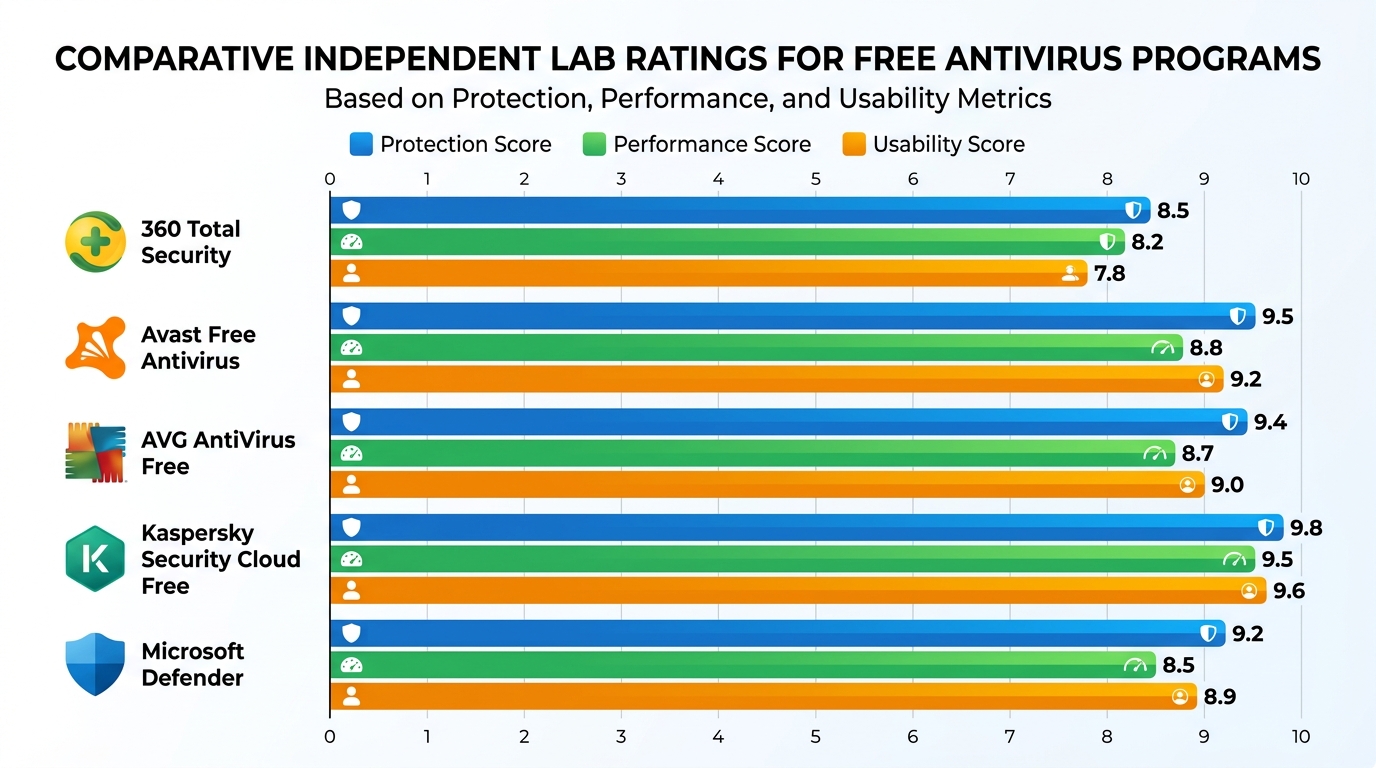
The most objective way to evaluate any antivirus product is through the results published by independent testing organizations. The three most authoritative bodies are AV-TEST (Germany), AV-Comparatives (Austria), and SE Labs (UK). Each conducts rigorous, standardized tests across three primary dimensions: Protection (detection rate against real-world threats), Performance (system impact), and Usability (false positive rate). Products are scored on a points-based system, and only consistently high performers earn certification.
Interpreting these results requires nuance. A product might achieve a near-perfect protection score but carry a high false-positive rate that makes it frustrating to use. Conversely, an ultra-lightweight product might sacrifice some detection capability for minimal system impact. According to the most recent 2025 quarterly assessments from AV-TEST, top-tier free antivirus products from vendors including Kaspersky, Avast, and 360 Total Security achieved protection scores of 17.5 to 18 out of 18 points — demonstrating that free does not mean inferior when it comes to core detection capability. The gap between free and paid versions from the same vendor is typically found in features rather than raw detection performance.
User Experience and Interface Design
Technical detection capability means little if the user interface is so confusing or intrusive that users ignore its warnings or disable the product entirely. The ideal free antivirus interface is clean, informative, and non-alarming — it should clearly communicate the system’s security status at a glance, make common tasks like running a scan immediately accessible, and avoid generating a constant stream of notifications that train users to dismiss all alerts reflexively.
A significant pain point with many free antivirus products is the aggressive upsell experience. Some vendors design their free products primarily as a funnel toward paid subscriptions, resulting in interfaces cluttered with promotional banners, frequent pop-up upgrade prompts, and features that are visually present but locked behind a paywall. This creates a frustrating experience and erodes user trust.
360 Total Security differentiates itself with a dashboard-style interface that prioritizes clarity and utility. The main screen provides an immediate visual security status indicator, with clearly organized tabs for Security, Cleanup, Speedup, and Toolbox functions. Critically, the security and optimization tools available in the free tier are genuinely functional — not merely teaser features designed to prompt an upgrade. The integration of system optimization tools such as a startup manager, junk file cleaner, and disk analyzer alongside the core security dashboard makes it a comprehensive PC management solution, not just an antivirus product. This holistic approach is particularly valuable for users who want a single, unified tool to manage their PC’s health and security.
Privacy Considerations and Upsell Pressure
Free antivirus products are not truly free in the economic sense — they are funded through some combination of anonymized telemetry data collection, bundled software offers during installation, and conversion of free users to paid subscribers. Understanding how your chosen product monetizes its free tier is an important part of making an informed security decision. Responsible vendors are transparent about their data collection practices in their privacy policies and collect only anonymized, aggregated threat intelligence data that directly contributes to improving their detection capabilities.
The table below provides a structured comparison of the five major free antivirus products across the dimensions most important to informed users.
| Product | Lab Score (Protection) | System Impact | Notable Free Features | Upsell Intensity |
|---|---|---|---|---|
| 360 Total Security | High (Multi-engine) | Low–Moderate | Multi-engine detection, Cleanup, Speedup, Vulnerability Fix, Webcam Guard | Low–Moderate |
| Avast Free Antivirus | Very High | Moderate | Wi-Fi Inspector, Browser Cleanup, Behavioral Shield | High |
| AVG AntiVirus Free | Very High | Moderate | Email Shield, File Shredder (limited), Behavioral AI | High |
| Kaspersky Security Cloud Free | Excellent | Low | Password Manager (limited), VPN (200MB/day), Anti-Phishing | Moderate |
| Microsoft Defender | Good | Very Low | Firewall, SmartScreen, Device Performance Report | None |
Is Built-In Windows Security (Defender) Good Enough?
Microsoft Defender Antivirus has undergone a remarkable transformation over the past decade. Once dismissed as an afterthought, it has evolved into a genuinely capable baseline security solution that is deeply integrated into Windows 10 and Windows 11. However, whether it is sufficient for your needs depends on a careful assessment of your usage patterns, risk tolerance, and the additional features you require beyond core malware detection.
The Strengths of Modern Microsoft Defender
Defender’s most significant advantage is its native integration with the Windows operating system. Because Microsoft builds the OS and the security product simultaneously, Defender operates at a kernel level that third-party products must work harder to achieve. This translates to potentially lower system overhead compared to some third-party solutions, and it means Defender is always active from the first moment Windows boots — there is no installation gap during which the system could be vulnerable.
Defender also benefits from seamless update delivery via Windows Update, ensuring that definition updates are applied automatically alongside regular OS patches without requiring any user action. Its integration with the broader Windows Security ecosystem — including Windows Firewall, SmartScreen phishing filter, Controlled Folder Access (for ransomware protection), and the Device Security hardware features — means it is not operating in isolation but as part of a coordinated platform-level defense strategy.
As noted by independent cybersecurity analysts in 2025, Microsoft Defender now represents a genuine “minimum viable product” for PC security — it has effectively raised the floor for what users can expect from zero-cost protection, making the days of completely unprotected Windows PCs largely a thing of the past for users who simply keep their systems updated.
Recognized Limitations and Potential Gaps
Despite its significant improvements, Microsoft Defender still carries some recognized limitations when compared to the best third-party free antivirus solutions. Historically, Defender has scored slightly lower in independent lab tests for detection of widespread malware and zero-day threats compared to top performers from Kaspersky, Bitdefender, or multi-engine solutions like 360 Total Security. While the gap has narrowed considerably, it remains measurable in rigorous controlled testing environments.
More practically relevant for most users is the absence of advanced supplemental features that leading free suites include as standard. Defender offers no dedicated anti-ransomware behavioral module beyond Controlled Folder Access, no secure browser for online banking transactions, no system optimization tools, no vulnerability scanner for third-party software, and no privacy cleanup utilities. For users who want their security software to also help maintain overall PC health and performance, Defender’s feature set falls noticeably short.
There is also a theoretical security concern worth noting: sophisticated malware specifically targets Windows Defender for self-disablement attacks, attempting to modify registry settings or exploit Windows Management Instrumentation (WMI) to turn off real-time protection. While Microsoft continuously patches these vectors, a reputable third-party antivirus running its own protected service architecture provides an additional layer of resilience against this attack vector.
Recommended Use Cases and Pairing Strategies
Microsoft Defender may be genuinely sufficient for a narrow but real category of user: the technically proficient, highly cautious individual running a fully patched Windows 10 or 11 system who consistently practices excellent digital hygiene — never clicking suspicious links, only downloading software from official sources, never opening unexpected email attachments, and maintaining regular data backups. For this user profile, Defender’s capable baseline protection combined with their own careful behavior provides adequate security.
For the vast majority of users, however, installing a dedicated third-party free antivirus — which typically automatically disables Defender to prevent conflicts — provides a measurably stronger and more feature-rich security layer. The decision is not simply about detection rates; it is about the totality of protection and utility the product provides.
This is where a solution like 360 Total Security makes a compelling case. Its value proposition extends well beyond replacing Defender’s detection capability — the integrated Cleanup, Speedup, and Vulnerability Fix modules address the full spectrum of common PC maintenance frustrations that Defender completely ignores. For users who want a single, unified tool that keeps their PC both secure and running at peak performance, the choice becomes straightforward.
What Advanced Features and Tools Do Leading Free Suites Like 360 Total Security Offer?
The best free antivirus suites today have evolved far beyond simple virus scanning. They address the full spectrum of common user frustrations — slow PCs, cluttered hard drives, outdated vulnerable software, and privacy concerns — through integrated toolsets that transform them from single-purpose security tools into comprehensive PC management platforms.
Integrated System Cleanup and Optimization
Over time, Windows systems accumulate substantial digital clutter: temporary files, cached browser data, Windows Update leftovers, log files, and orphaned registry entries. This accumulation can consume gigabytes of disk space and, more critically, contribute to slower system responsiveness and longer boot times. A junk file cleaner that systematically identifies and safely removes this unnecessary data is one of the most immediately impactful tools a PC user can have — and the best free antivirus suites include it as a core feature.
Equally valuable is a startup manager — a tool that gives users clear visibility into which programs and services launch automatically with Windows, along with the ability to disable unnecessary ones with a single click. Startup bloat is one of the primary causes of slow boot times, and addressing it can dramatically improve the time from pressing the power button to having a usable desktop.
360 Total Security bundles both a powerful Cleanup module and a Speedup module directly into its main interface, making comprehensive system maintenance a genuinely one-click process. The Cleanup module scans for and removes junk files, cache data, and unnecessary system files, while the Speedup module analyzes startup programs, services, and scheduled tasks to identify optimization opportunities. These tools are not locked behind a premium paywall — they are fully functional in the free version, providing immediate, tangible value to users beyond the core security functionality.
Proactive Vulnerability and Patch Management
One of the most underappreciated attack vectors in PC security is outdated third-party software. Applications like Java, Adobe Reader, web browsers, media players, and productivity software frequently contain security vulnerabilities that are patched in newer versions. Cybercriminals actively exploit these known vulnerabilities in unpatched software, often with greater success than attempting to defeat up-to-date antivirus engines directly. A 2026 cybersecurity industry report projected that unpatched software vulnerabilities would continue to account for a significant proportion of successful cyberattacks on consumer PCs.
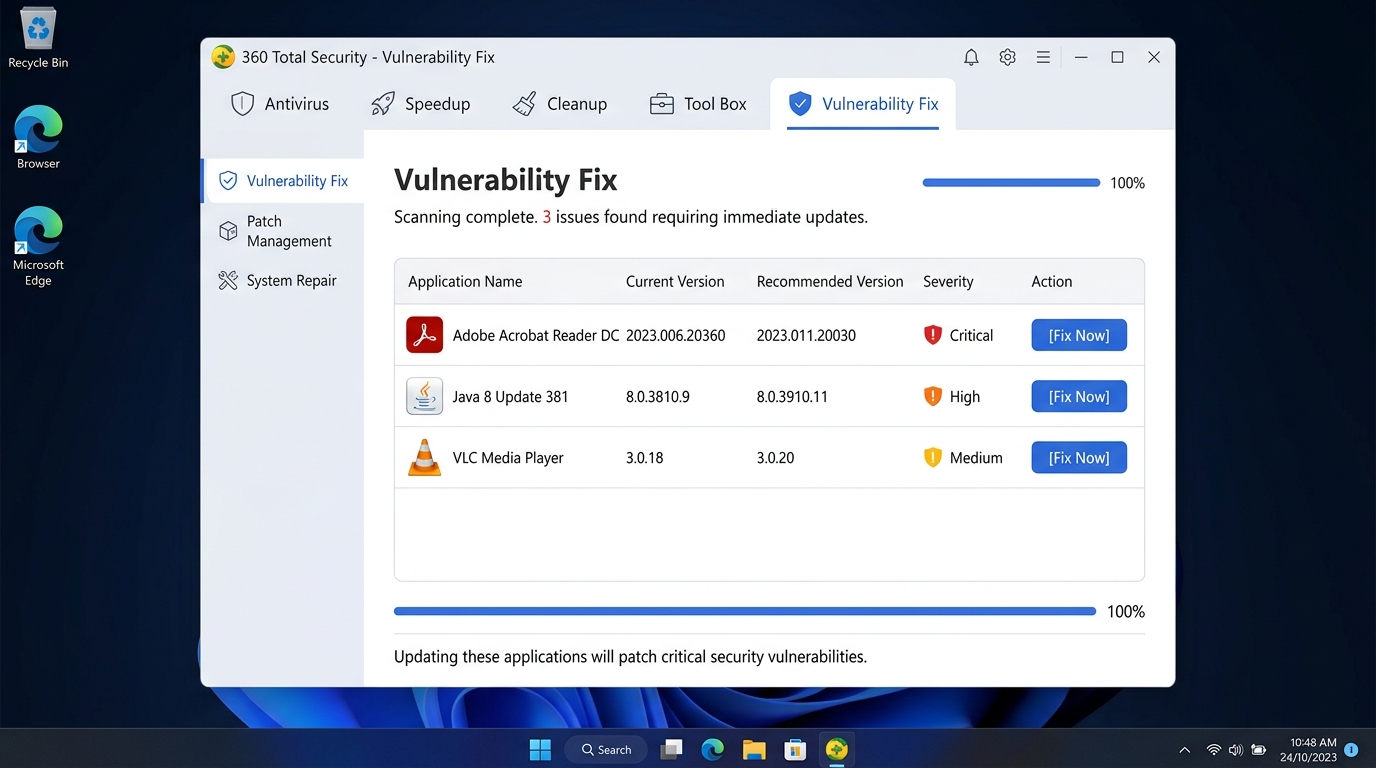
A vulnerability scanner integrated into your antivirus suite addresses this risk proactively by scanning installed software and comparing version numbers against a database of known vulnerable versions. When outdated software is detected, the best implementations provide direct download links or automated update mechanisms that streamline the patching process, removing the friction that causes many users to procrastinate on updates.
360 Total Security’s Vulnerability Fix feature performs exactly this function, scanning for missing Windows security patches and outdated common applications, then presenting a clear, actionable list of required updates. This proactive approach to patch management closes a critical security gap that many users — and even Windows Defender — overlook entirely.
Privacy-Enhancing and Network Tools
Modern antivirus suites increasingly recognize that security and privacy are inseparable concerns. Webcam protection is a particularly valuable feature in an era when remote access trojans (RATs) and spyware can silently activate a computer’s camera. A webcam guard monitors all application requests to access the camera hardware and alerts the user — or blocks the request entirely — when an unauthorized or unexpected application attempts to gain camera access.
Network-level tools such as firewall management interfaces and connection monitors provide users with visibility into which applications on their PC are communicating with the internet, enabling them to identify suspicious outbound connections that might indicate an infection or unauthorized data exfiltration. While Windows includes a built-in firewall, third-party interfaces often make managing its rules significantly more accessible to non-technical users.
Rounding out the privacy toolkit, features like secure file deletion (which overwrites deleted file data to prevent forensic recovery) and browser privacy cleanup (clearing cookies, browsing history, saved passwords, and form data across all installed browsers) ensure that sensitive information is not inadvertently left accessible on shared or disposed-of PCs. These tools complement the security features to provide a holistic approach to digital privacy that extends well beyond simply blocking malware.
How to Choose and Safely Install Your Free Antivirus Solution
The final selection and installation process is not a trivial step. The internet is populated with fraudulent “scareware” products masquerading as legitimate antivirus software, deceptive download portals that bundle malware alongside genuine installers, and poorly configured installations that leave significant security gaps. Following a disciplined approach to sourcing, installing, and configuring your antivirus is as important as choosing the right product in the first place.
Sourcing and Installing from Trusted Locations
The single most important rule for downloading antivirus software is: always download directly from the official vendor website. Third-party download portals — even those that appear reputable — frequently wrap legitimate installers in their own download managers that bundle additional unwanted software, modify browser settings, or in worst-case scenarios, deliver outright malware. The official vendor website is the only source you can trust to provide an unmodified, authentic installer.
For Windows users, the Microsoft Store is a secondary trusted source for antivirus products that are available there, as Microsoft applies a vetting process to Store applications. However, not all antivirus vendors publish their products through the Store, so the official website remains the primary recommended source.
During installation, pay careful attention to each screen of the setup wizard. Many free antivirus installers include offers for bundled third-party software — browser toolbars, alternative search engines, or additional utilities — that are pre-selected for installation by default. These are almost always unnecessary and can degrade your browsing experience or system performance. Read each installation screen carefully and uncheck any bundled offers before proceeding.
360 Total Security offers a clean, straightforward installation process that minimizes bundled software offers and gets users to active protection quickly. The official download is available directly from the 360 Total Security website, and the installation wizard is designed for clarity and speed, making it an excellent choice even for less technically experienced users.
Post-Installation Configuration for Optimal Security
After installation completes, the first action should always be to run a full system scan. This initial scan establishes a clean baseline by identifying and removing any existing threats that may have been present on the system before the antivirus was installed. Understanding the difference between scan types is important for ongoing use: a Quick Scan checks the most common malware locations and running processes (ideal for daily or frequent use); a Full Scan examines every file on every drive (essential for the initial scan and periodic deep checks); and a Custom Scan allows you to target specific folders or drives.
Configure your real-time protection settings to ensure all protection modules are active — particularly web protection, email scanning, and behavioral monitoring if available. Set up automatic scan schedules to run full scans during periods when your PC is typically on but not in active use, such as overnight or during lunch hours. This ensures thorough regular scanning without impacting your productivity.
If you use resource-intensive applications like games, video editing software, or 3D rendering tools, consider setting up scan exclusions for their installation directories. Exclusions tell the antivirus to skip real-time scanning of those specific folders, preventing the performance overhead of scanning thousands of game asset files on every access. Be conservative with exclusions — only add folders for applications you are completely certain are safe and legitimate.
Establishing a Sustainable Security Routine
A security tool is only as effective as the habits that surround it. The most important ongoing practice is ensuring that automatic updates are always enabled — both for virus definition databases (which should update multiple times daily) and for the antivirus program itself. New threats emerge constantly, and a product running outdated definitions is significantly less effective than one with current threat intelligence.
Pair your regular security scans with periodic system optimization tasks — running the cleanup and speedup tools available in your antivirus suite to maintain overall PC health alongside security. A well-maintained, clutter-free system is not only faster but also easier to secure, as there is less noise for the antivirus to sort through during scans.
Finally, develop the ability to interpret your antivirus alerts intelligently. Not every alert represents a genuine catastrophic threat, and not every blocked file is actually malicious. The troubleshooting guide below covers the most common issues users encounter after installing free antivirus software.
| Common Issue | Likely Cause | Recommended Solution |
|---|---|---|
| PC is slow after install | Initial full scan running in background, or real-time scan conflicting with another security tool | Check if a scan is in progress; wait for it to complete. Ensure only one antivirus is active. Reschedule scans to idle times. |
| Game won’t launch or runs poorly | Real-time scanner checking game files on every access; game folder being scanned during play | Add the game’s installation folder to the antivirus exclusions list. Enable Gaming Mode if available. |
| Constant security alerts | Potentially infected system, or legitimate software being flagged as suspicious (false positive) | Run a full system scan immediately. If alerts persist for a known-safe program, check the vendor’s website for a known false positive, then submit to the antivirus vendor for review. |
| Real-time protection keeps turning off | Malware attempting to disable the antivirus, or software conflict | Run a full scan in Safe Mode. Check for Windows conflicts. Consider reinstalling the antivirus from the official source. |
| Update fails repeatedly | Network connectivity issue, firewall blocking update server, or corrupted installation | Check internet connection. Temporarily disable firewall to test. Repair or reinstall the antivirus from the official website. |
By combining the right free antivirus product with disciplined configuration and consistent maintenance habits, you can achieve a level of PC security that rivals many paid solutions. 360 Total Security represents one of the most compelling options in the free antivirus space for Windows and macOS desktop users — offering multi-engine detection, comprehensive system optimization tools, vulnerability management, and privacy features in a single, unified, genuinely free package. Visit the official 360 Total Security website to download the latest version and take the first step toward comprehensive, cost-free PC protection.
Frequently Asked Questions
Can free antivirus software provide the same protection as paid antivirus?
For core malware detection capability, the gap between free and paid versions from reputable vendors has narrowed considerably. Independent lab tests consistently show top free products achieving detection rates above 99%. The primary differences lie in additional features — paid versions typically offer advanced ransomware protection, VPN access, identity theft monitoring, password managers, and priority customer support. For users with basic to moderate security needs, a high-quality free antivirus like 360 Total Security provides genuinely robust protection.
Should I uninstall Windows Defender before installing a third-party free antivirus?
You do not need to manually uninstall Windows Defender. When you install a reputable third-party antivirus, Windows automatically recognizes it and disables Defender’s real-time protection to prevent conflicts between two competing security engines. Running two real-time antivirus scanners simultaneously can cause significant performance problems and security conflicts. Windows Defender will re-enable itself automatically if you uninstall the third-party product, ensuring you are never left unprotected.
Is it safe to use free antivirus software from a privacy standpoint?
Reputable free antivirus vendors fund their products partly through anonymized threat telemetry — aggregated data about malware encounters that helps improve their detection databases. This is standard practice and generally considered acceptable. However, you should always read the privacy policy of any product you install to understand exactly what data is collected and how it is used. Avoid free antivirus products from unknown vendors, as these may collect more invasive personal data or bundle adware.
How often should I run a full antivirus scan?
With real-time protection active, your antivirus is continuously monitoring your system, so you are not dependent on manual scans for ongoing protection. However, running a full system scan at least once per month is recommended as a thorough check for any threats that may have slipped through. Schedule it during a time when your PC is on but not in active use — overnight is ideal. After any potentially risky activity (downloading software from an unfamiliar source, visiting suspicious websites), running a quick scan immediately is a good precautionary practice.
Can free antivirus software remove existing malware, or does it only prevent new infections?
Effective free antivirus software performs both functions. The real-time protection component prevents new threats from executing, while the on-demand scanning and removal engine is specifically designed to detect and eliminate malware that is already present on your system. Running a full scan immediately after installation is precisely the right approach to clean an existing infection. For particularly stubborn or deeply embedded malware, some products offer a bootable rescue disk or Safe Mode scanning option that can remove threats that actively resist removal when Windows is running normally.
About the Author: This article was researched and written by a Senior Technical Writer and Cybersecurity Content Specialist with over a decade of experience covering endpoint security, PC optimization, and consumer technology. Drawing on independent lab data from AV-TEST and AV-Comparatives, official vendor documentation, and hands-on product evaluation, the author specializes in translating complex security concepts into actionable guidance for everyday PC users. For the latest updates on PC security best practices and product reviews, visit the 360 Total Security official website.
Learn more about 360 Total Security