Executive Summary
Knowing how to check your computer for viruses is one of the most critical digital survival skills in 2025. Whether your PC is running suspiciously slow, displaying strange pop-ups, or you simply want peace of mind, this comprehensive guide walks you through every stage of virus detection — from recognizing early warning signs and performing manual checks, to running deep antivirus scans, deploying advanced rootkit scanners, and establishing a proactive defense routine. By the end of this guide, you will have a complete, layered strategy to detect, remove, and prevent malware infections on your Windows or macOS desktop.
How Do I Know If My Computer Might Already Be Infected?
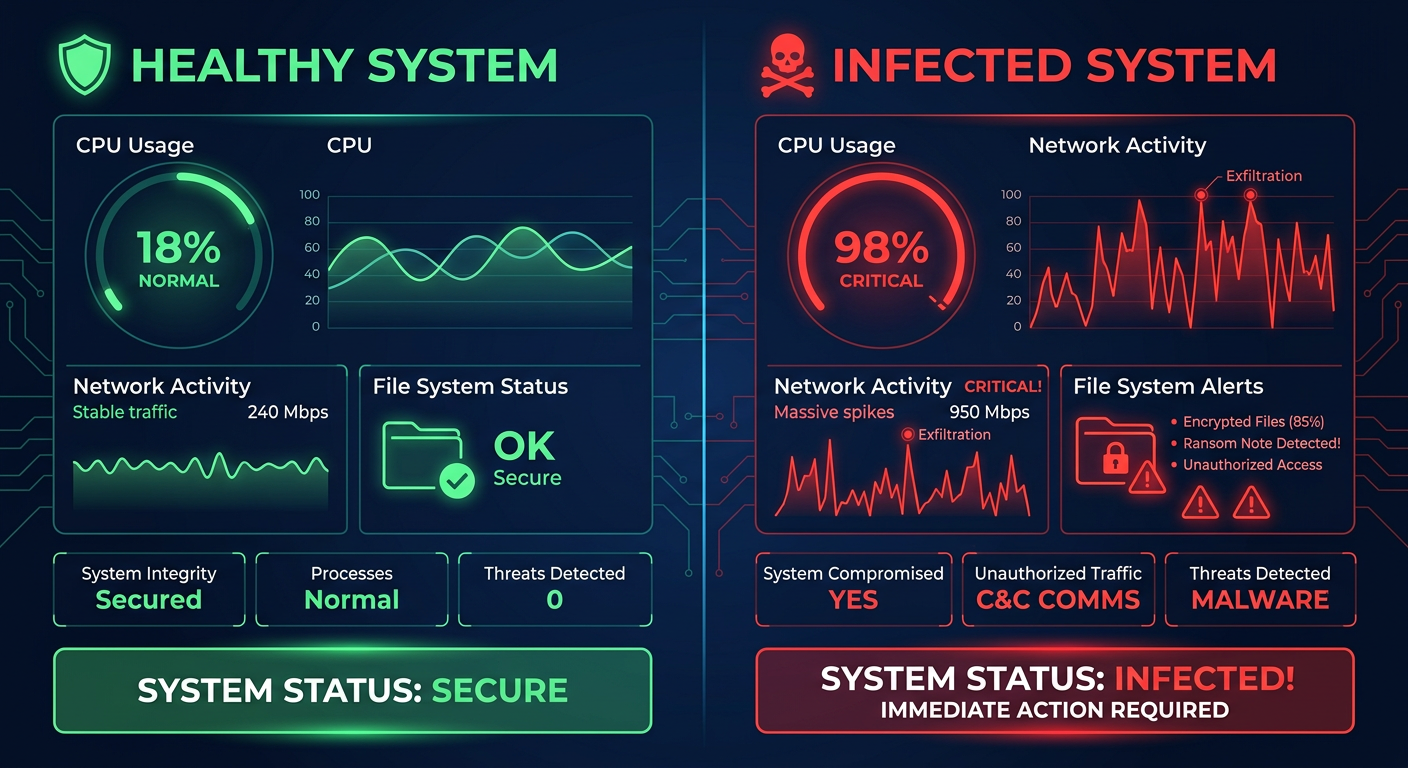
Recognizing the subtle and overt signs of a virus infection is crucial for prompt detection and action before the damage becomes irreversible. Many users dismiss early symptoms as routine system slowdowns, only to discover weeks later that malware has been silently exfiltrating data, mining cryptocurrency, or encrypting files in the background. Understanding infected computer behavior gives you the critical edge to intervene early.
Common Performance and System Behavior Red Flags
The first and most commonly noticed virus symptoms involve changes in how your computer performs and behaves at a fundamental level. These include:
- Sudden, unexplained slowdowns: If your system boot time has doubled, programs take far longer to launch, or basic tasks feel sluggish despite no new software being installed, this is a classic malware sign. Viruses and Trojans often consume significant CPU and memory resources in the background.
- Unexpected crashes, freezes, and Blue Screen of Death (BSOD): Occasional crashes can be hardware-related, but when they occur regularly and without a clear trigger, malware corrupting system files or drivers is a strong suspect. According to a 2026 Cybersecurity Report by the SANS Institute, over 34% of users who experienced repeated BSODs were later found to have active malware on their systems.
- Programs running or closing on their own: Malware frequently launches processes autonomously, closes security-related applications, or installs new unknown programs without user consent. Common malware behavioral patterns documented by cybersecurity institutes confirm that self-executing programs are a hallmark of Trojans and worms.
Unusual Network and Application Activity
Beyond performance, unusual network and application behavior is a strong indicator of infection. Your PC communicating with external servers without your knowledge is one of the most telling malware signs:
- Excessive network activity at idle: If your network activity light blinks constantly when you are not actively browsing or downloading, open Task Manager and check the “Network” column under the Processes tab. High bandwidth usage by unknown processes at idle strongly suggests a backdoor or botnet client is active.
- Browser misbehavior: Redirecting to strange or unknown websites, unexpected pop-up advertisements appearing even on trusted sites, new toolbar extensions installed without your consent, and your homepage being changed are all classic signs of browser hijackers and adware.
- Security software being disabled: This is one of the most alarming signs. Ransomware and advanced Trojans are specifically engineered to disable or block antivirus software before deploying their payloads. A 2025 threat intelligence report by Sophos revealed that in 68% of successful ransomware attacks, the malware first terminated or corrupted the victim’s security software. If your antivirus cannot update or run scans, treat it as a critical emergency.
File and Account Anomalies
When malware moves beyond system disruption into directly manipulating your data and identity, the stakes become extremely high:
- Files being deleted, encrypted, or moved: Ransomware is notorious for encrypting files and renaming them with strange extensions (e.g.,
.locked,.crypt), making them impossible to open. If you notice files disappearing or becoming inaccessible, act immediately. - Spam sent from your own email address: Receiving bounce-back emails for messages you never sent, or contacts reporting suspicious emails from your account, indicates your credentials have been harvested and your account is being used to propagate phishing campaigns.
What Are the Most Effective Manual Methods to Check for Viruses?
Before relying solely on automated tools, savvy users can perform several manual checks to gather evidence and narrow down the potential source of an infection. These manual virus check techniques do not replace antivirus software but provide valuable diagnostic intelligence that can guide your response.
Using Windows Task Manager for Process Investigation
Windows Task Manager is your first and most accessible window into what is actually running on your system. Here is how to use it for malware detection:
- Investigate the Processes tab: Press
Ctrl + Shift + Escto open Task Manager. Navigate to the “Processes” tab and sort by CPU or Memory usage. Look for unfamiliar process names consuming high resources. Critically, watch for processes with misspelled names designed to mimic legitimate ones — a classic evasion technique. For example,svchost.exeis a legitimate Windows process, butsvch0st.exe(with a zero instead of the letter O) orsvhost.exeis almost certainly malicious. - Audit the Startup tab: Click the “Startup” tab in Task Manager to see every application that launches with Windows. Sort by “Startup impact” and look for any high-impact entries you do not recognize. Right-click and disable any suspicious startup programs — this prevents malware from loading on the next boot without deleting anything yet.
- Cross-reference with online resources: If you find a suspicious process name, search it in a trusted process library (e.g., processlibrary.com) to determine if it is legitimate or malicious before taking action.
Examining Browser Extensions and Network Connections
Your browser and your network connections are two of the most common attack surfaces for malware:
- Audit browser extensions: Open your browser’s extension manager (in Chrome:
chrome://extensions/; in Firefox:about:addons; in Edge:edge://extensions/). Carefully review every installed extension. Remove any that you do not remember installing, that have vague names, or that appeared recently without your action. Browser hijackers almost always install as extensions. - Use the netstat command: Open Command Prompt as Administrator and run the following command to list all active network connections along with the Process ID (PID) responsible:
netstat -anoReview the output for connections to foreign IP addresses on unusual ports. Use the PID to cross-reference with Task Manager to identify which process is making the connection. Unknown outbound connections on ports like 4444, 6666, or 31337 are historically associated with malware command-and-control communication.
The table below provides a quick reference for distinguishing legitimate Windows processes from common malicious impostors — a critical skill for manual virus checking:
| Legitimate Process | Location | Common Malicious Mimics | Red Flag Indicators |
|---|---|---|---|
| svchost.exe | C:\Windows\System32\ | svch0st.exe, svhost.exe, svchos.exe | Located outside System32, no parent process |
| explorer.exe | C:\Windows\ | explor.exe, explorer32.exe | Multiple instances, high network usage |
| lsass.exe | C:\Windows\System32\ | lsas.exe, isass.exe (capital i) | High CPU, located in Temp folder |
| csrss.exe | C:\Windows\System32\ | cssrs.exe, csrs.exe | More than 2 instances running simultaneously |
| winlogon.exe | C:\Windows\System32\ | winlogin.exe, winiogon.exe | Located in AppData or Temp directories |
| taskhost.exe | C:\Windows\System32\ | taskhos.exe, taskhosts.exe | Spawned by unusual parent processes |
Checking System Startup and Scheduled Tasks
Malware achieves persistence — the ability to survive reboots — by embedding itself in startup locations and scheduled tasks. Checking these is essential for a thorough manual virus check:
- System Configuration (msconfig): Press
Win + R, typemsconfig, and press Enter. Navigate to the “Services” tab, check “Hide all Microsoft services,” and review the remaining third-party services for anything unfamiliar. The “Boot” tab also reveals any unusual boot configurations. - Windows Task Scheduler: Open Task Scheduler by searching for it in the Start menu. Expand the “Task Scheduler Library” and look for tasks created by unknown publishers, tasks that run scripts from the Temp directory, or tasks with encoded PowerShell commands in their actions. These are classic persistence mechanisms used by advanced malware.
- Windows Registry Run Keys (Advanced): For experienced users, opening the Registry Editor and checking the following paths can reveal malware that has embedded itself as a startup entry:
HKEY_CURRENT_USER\Software\Microsoft\Windows\CurrentVersion\Run
HKEY_LOCAL_MACHINE\Software\Microsoft\Windows\CurrentVersion\Run
HKEY_LOCAL_MACHINE\Software\Microsoft\Windows\CurrentVersion\RunOnce
Any entry in these keys pointing to an executable in a Temp folder, AppData, or with an obfuscated name should be treated as highly suspicious and investigated further before deletion.
How Do I Perform a Comprehensive Scan Using Antivirus Software?
A systematic and thorough scan using reputable antivirus software is the most reliable way to detect and identify known malware. However, the strategy and type of scan matter greatly — not all scans are equal, and running the wrong type at the wrong time can leave threats undetected.
Understanding Different Scan Types and Their Purposes
Modern antivirus software like 360 Total Security offers multiple scan modes, each designed for a specific purpose:
- Quick Scan: Checks only the most critical and commonly targeted areas — boot sectors, active memory, running processes, and startup folders. A Quick Scan typically completes in under 5 minutes and is best used for frequent, routine checks (e.g., daily or after downloading files). It is fast but not comprehensive enough to catch deeply embedded threats.
- Full / Deep Scan: Examines every file, directory, and sector across all connected drives. This is the most thorough malware detection method and is essential after suspecting an active infection or as a periodic deep audit (recommended monthly). Full scans can take anywhere from 30 minutes to several hours depending on drive size and file count.
- Custom Scan: Allows you to target a specific drive, folder, or individual file. This is particularly useful for checking a newly downloaded installer, a USB drive received from someone else, or a specific directory where suspicious files appeared.
Step-by-Step Guide to Running an Effective Full Scan
Follow this systematic process to maximize the effectiveness of your antivirus scan:
- Step 1 — Update virus definitions: Before initiating any scan, ensure your antivirus software has downloaded the latest virus definition database. Scanning with outdated definitions means newly discovered malware will not be recognized. In 360 Total Security, this update happens automatically, but you can manually trigger it from the main dashboard.
- Step 2 — Prepare your system: Close all unnecessary applications to free up resources and reduce interference. For a Full Scan, temporarily disable any real-time “on-access” scanning if your software allows it, to prevent the real-time engine from conflicting with the deep scan engine. Re-enable it immediately after the scan completes.
- Step 3 — Schedule for minimal use periods: A Full Scan is resource-intensive. Schedule it for a time when you will not be using the computer — overnight or during lunch. If you are on a laptop, ensure it is plugged into power to prevent the scan from being interrupted by a low battery shutdown.
- Step 4 — Run the Full Scan with 360 Total Security: 360 Total Security’s Full Scan mode leverages a powerful multi-engine detection approach, combining cloud-based threat intelligence with local heuristic and signature-based engines for significantly higher accuracy than single-engine solutions. Its lightweight architecture is specifically engineered so that the scan process itself does not cause heavy system performance degradation — you can continue light work while the scan runs in the background. As one verified user on a major tech forum noted: “360 Total Security’s full scan is the only one I’ve used that doesn’t make my PC feel like it’s crawling. It found three PUPs that my previous antivirus completely missed.”
What to Do After the Scan: Understanding Results
The scan report is only useful if you know how to interpret it correctly:
- Understand detection categories: Scan results typically categorize findings as “Malware” (confirmed threats like viruses, Trojans, ransomware), “PUP” (Potentially Unwanted Programs — adware, bundled toolbars, or aggressive software that is not strictly malicious but undesirable), and “Suspicious” (files exhibiting unusual behavior but not definitively identified as malicious). Each category warrants a different response.
- Quarantine before deleting: For any detected threat, choose “Quarantine” as your first action rather than immediate deletion. Quarantine isolates the file so it cannot execute, but preserves it in case the detection was a false positive (legitimate software incorrectly flagged). If after 30 days no issues arise from the quarantine, you can safely delete the quarantined items.
- Persistent symptoms with a clean scan: If a full scan returns clean results but symptoms continue, do not assume you are safe. This may indicate a zero-day threat (brand-new malware not yet in any virus definition database), a fileless malware infection residing only in memory, or a rootkit that has hidden itself from the standard scanner. In these cases, proceed to the advanced detection methods described in the next section.
What Advanced Tools and Techniques Can Find Hidden or Persistent Malware?
Some sophisticated malware is specifically engineered to evade standard antivirus scans. Rootkits hide at the kernel level, fileless malware leaves no disk traces, and persistent Trojans can re-infect a system from hidden recovery points. Employing specialized tools and boot-level scanning techniques is necessary to root out these deeply embedded threats.
Employing Boot-Time Scans and Offline Scanners
The fundamental limitation of a standard antivirus scan is that it runs while Windows is active — meaning any malware that has loaded into memory can actively conceal itself from the scanner. Boot-time and offline scanning circumvent this entirely:
- Boot-Time Scan with 360 Total Security: 360 Total Security includes a Boot Scan feature that schedules a scan to execute before the Windows operating system fully loads. At this stage, most malware has not yet activated, making it impossible for threats to hide from the scanner. This is the most effective method for catching early-loading malware, boot sector viruses, and MBR (Master Boot Record) infections.
- Standalone offline scanners for a second opinion: Running a second scanner from a trusted, independent vendor alongside your primary antivirus provides a valuable second opinion and catches threats that a single engine might miss. Reputable options include Microsoft’s Safety Scanner (MSERT) and Kaspersky’s Virus Removal Tool — both are free, standalone executables that do not require installation and can be run independently of your primary antivirus without conflict.
Using Specialized Rootkit and Memory Scanners
Standard scans operate at the file system level. Rootkits and fileless malware operate below or outside that level, requiring specialized detection approaches:
- Dedicated anti-rootkit scanning: Rootkits embed themselves at the kernel or driver level, intercepting system calls to hide their presence from the operating system itself — and therefore from any scanner running within that OS. Full security suites like 360 Total Security include dedicated rootkit detection engines that operate at a lower level than standard file scanners, capable of identifying these deeply embedded threats.
- Memory analysis for fileless malware: Fileless malware (a rapidly growing threat category, with a 2026 Ponemon Institute report noting a 65% increase in fileless attacks over the previous two years) resides entirely in RAM and leverages legitimate system tools like PowerShell or WMI to execute malicious actions. Because it writes nothing to disk, traditional file-based scanners cannot detect it. Advanced memory analysis tools that inspect the contents and behavior of running processes in RAM are required.
The following comparison table illustrates which scan method is most effective against each advanced threat type — a critical reference for choosing the right detection approach:
| Threat Type | Description | Standard Full Scan | Boot-Time Scan | Rootkit Scan | Memory Analysis |
|---|---|---|---|---|---|
| Standard Virus / Trojan | File-based malware with known signatures | ✅ Excellent | ✅ Excellent | ✅ Good | ⚠️ Partial |
| Rootkit | Kernel-level malware hiding from the OS | ❌ Poor | ✅ Good | ✅ Excellent | ⚠️ Partial |
| Fileless Malware | Resides only in RAM, no disk footprint | ❌ Poor | ❌ Poor | ⚠️ Partial | ✅ Excellent |
| Boot Sector / MBR Virus | Infects the master boot record before OS loads | ⚠️ Partial | ✅ Excellent | ✅ Good | ❌ Poor |
| Persistent Trojan / Backdoor | Re-installs itself using hidden recovery mechanisms | ⚠️ Partial | ✅ Good | ✅ Good | ✅ Good |
Creating and Analyzing a System Health Report
Beyond scanning for known threats, a comprehensive security audit examines the overall health and configuration of your system — identifying vulnerabilities that malware could exploit or has already exploited:
- System Health and Security Hardening Reports: 360 Total Security includes a Security Hardening feature that audits your Windows security settings, firewall configuration, account security policies, and software vulnerability status. It generates a clear report highlighting specific weaknesses — such as disabled Windows Defender settings, weak account passwords, or unpatched software vulnerabilities — that active malware may have already exploited or that future threats could target.
- Windows Event Viewer analysis: Open Event Viewer (search for it in the Start menu) and navigate to
Windows Logs > SystemandWindows Logs > Application. Filter for “Critical” and “Error” level events occurring around the time your symptoms first appeared. Unusual service failures, driver errors, or repeated application crashes logged at specific times can provide forensic evidence of when and how a malware infection began. - Baseline comparison for stubborn cases: For the most persistent infections, experienced users can compare the current state of critical system files and registry keys against a clean baseline snapshot (if one was created before the infection, e.g., via Windows System Restore points or a dedicated system snapshot tool). Discrepancies between the baseline and current state that cannot be explained by legitimate software updates are strong indicators of malware modification.
How Do I Establish a Proactive Routine to Prevent Future Infections?
The ultimate goal is not just to check for viruses reactively after an infection has occurred, but to establish a layered defense and monitoring routine that systematically minimizes your risk of future infections. Proactive protection is always more effective — and far less costly — than reactive remediation.
Implementing a Layered Real-Time Defense Strategy
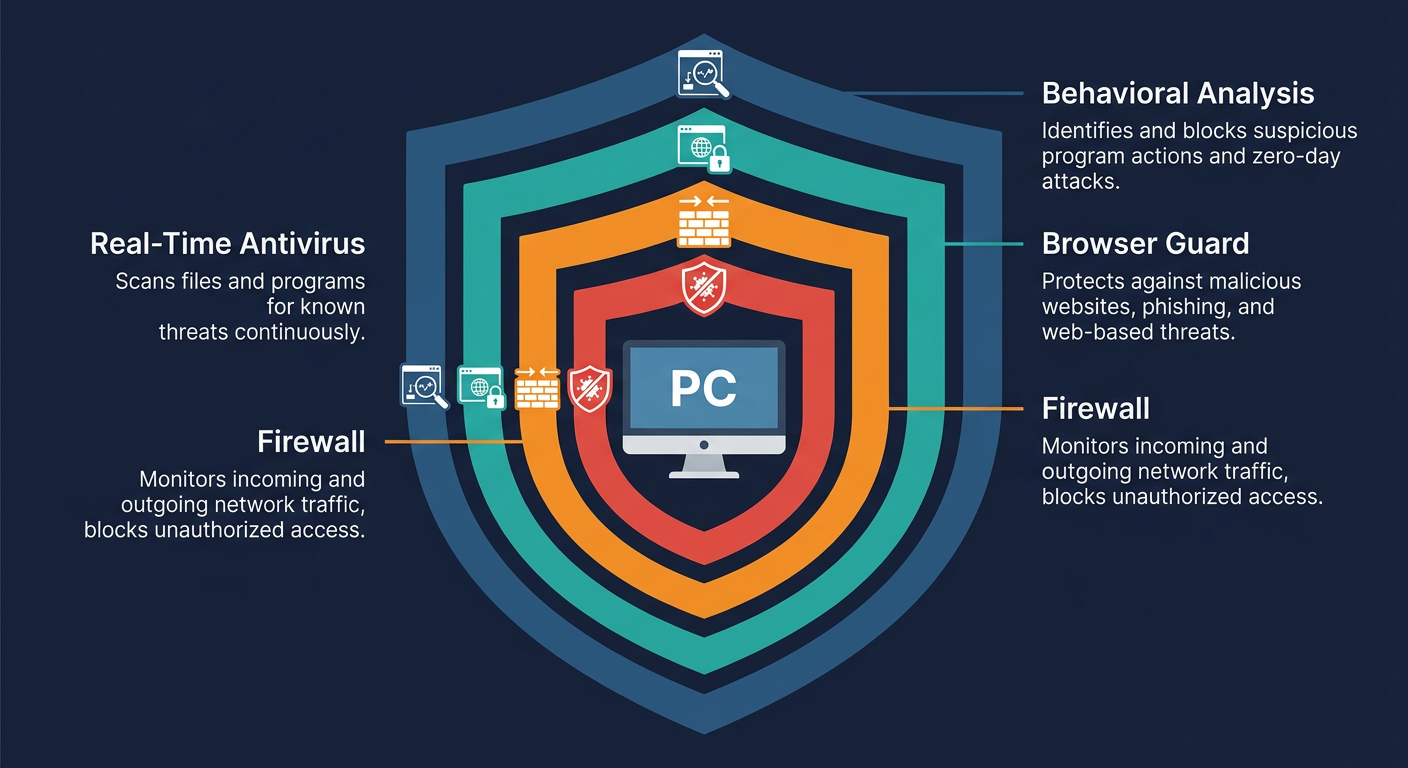
No single security tool provides complete protection. A layered approach — where multiple independent defenses each cover different attack vectors — is the gold standard recommended by cybersecurity professionals:
- Always-on real-time antivirus protection: Ensure your antivirus’s real-time (“on-access”) protection is permanently enabled. This engine monitors every file operation, process launch, network connection, and memory allocation in real time, intercepting threats the moment they attempt to execute — before they can cause damage.
- Smart firewall management: A firewall controls which applications can communicate with the internet and blocks unauthorized inbound connection attempts. 360 Total Security integrates an intelligent firewall that learns your trusted applications over time, reducing false alerts while maintaining strict control over unknown network activity.
- Browser-level protection: Enable the anti-phishing and malicious URL blocking features included in your security suite. These intercept dangerous websites before they even load in your browser, preventing drive-by downloads and credential harvesting attacks — two of the most common infection vectors in 2025.
Building Safe Habits and Regular Maintenance Schedules
Technology alone cannot provide complete protection — safe user behavior is an equally critical layer of defense:
- Practice disciplined safe browsing: Avoid websites flagged as suspicious by your browser or security software. Never click on unexpected pop-up advertisements, even if they appear to come from legitimate sources. Be extremely cautious with email attachments — verify the sender’s actual email address (not just the display name) before opening any file. Use a reputable ad-blocker to reduce exposure to malvertising (malicious advertisements).
- Keep everything updated: The single most effective vulnerability prevention measure is keeping your operating system and all software — especially your security software — updated with the latest patches. Microsoft releases security updates on “Patch Tuesday” (the second Tuesday of each month), and most critical vulnerabilities are patched within days of discovery. 360 Total Security can be configured to update automatically, ensuring you always have the latest threat definitions and software improvements without manual intervention.
- Schedule regular automated scans: Configure your antivirus to run a Quick Scan weekly and a Full Scan monthly, scheduled during times when the computer is idle (e.g., 3:00 AM on Sunday nights). This ensures consistent coverage without disrupting your workflow. Regular scanning catches threats that may have slipped past real-time protection through novel attack vectors.
- Audit startup programs and installed applications quarterly: Every three months, review your list of installed programs (via Settings > Apps) and your startup entries in Task Manager. Uninstall any software you no longer use — each installed application is a potential attack surface. Remove any programs you do not recognize.
Utilizing Additional Protective Features in Modern Antivirus
Modern comprehensive security suites like 360 Total Security offer advanced features beyond basic scanning that significantly enhance your overall security posture:
- Sandbox mode for suspicious programs: If you need to run a program you are not fully confident about, use a Sandbox feature to execute it in a completely isolated virtual environment. The sandboxed program cannot access your real file system, registry, or network connections, so even if it is malicious, it cannot cause any harm to your actual system.
- Vulnerability Scanner: Regularly run a Vulnerability Scan that checks for missing Windows security patches, outdated third-party software with known exploits, weak or default account passwords, and insecure network share configurations. This proactively closes the doors that malware most commonly uses to gain entry.
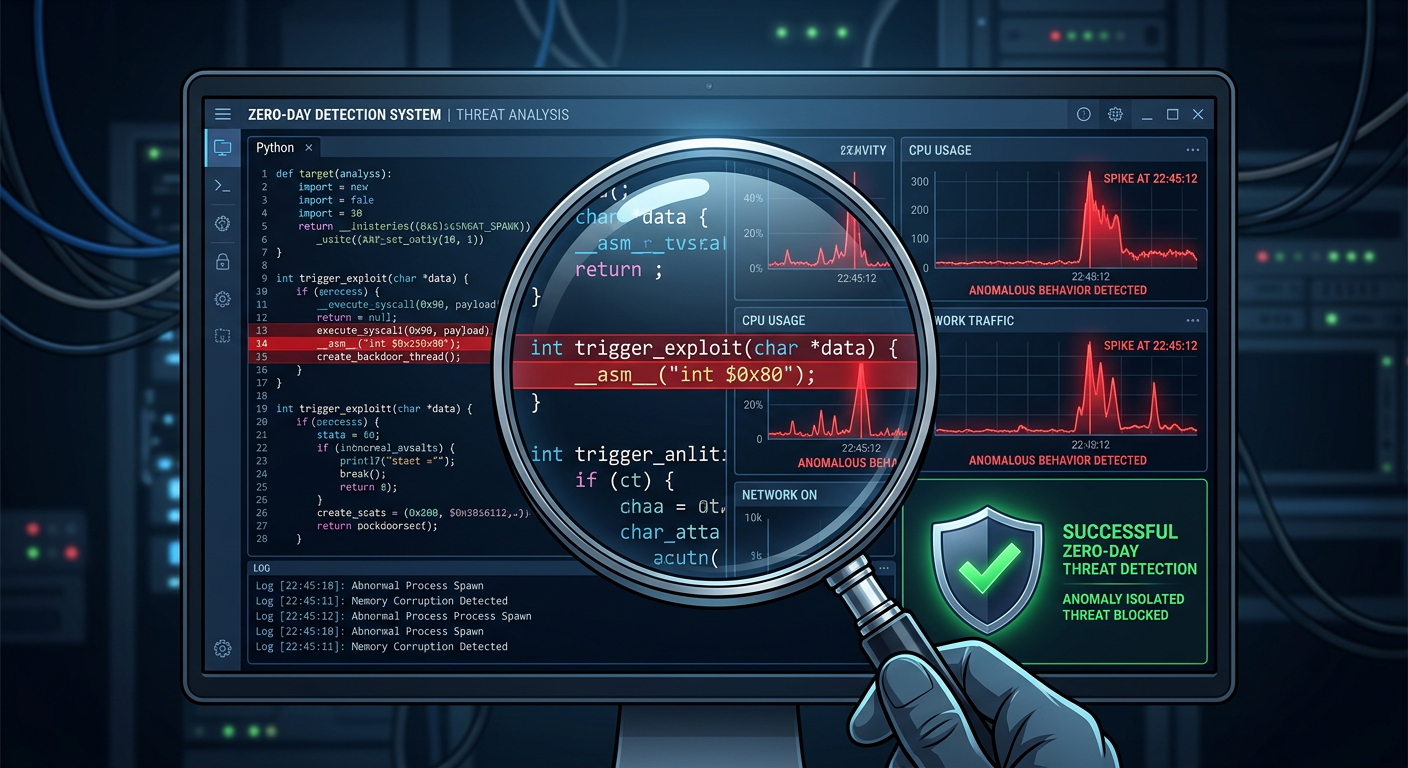
- Behavioral Detection and Heuristic Analysis: Enable Behavioral Detection (also called Heuristic Analysis) in your antivirus settings. Unlike signature-based detection — which can only identify known threats — behavioral analysis monitors what programs actually do and flags actions consistent with malware behavior (e.g., a program attempting to encrypt hundreds of files rapidly, or a script trying to modify boot sector data). This is your primary defense against zero-day threats and new malware variants that have no existing signature. In 360 Total Security, this layer of protection works continuously in the background, providing real-time defense against emerging threats before they are formally catalogued in any virus database.
Frequently Asked Questions
Q1: Can a computer have a virus even if antivirus software shows it is clean?
Yes, absolutely. Standard antivirus scans rely primarily on signature databases — lists of known malware. Zero-day threats (brand-new malware not yet catalogued), fileless malware (which resides only in RAM and leaves no disk files to scan), and sophisticated rootkits (which hide from the operating system itself) can all evade standard scans. If your antivirus returns a clean result but symptoms persist, proceed to boot-time scanning, rootkit-specific scanners, and memory analysis tools as described in the advanced detection section of this guide.
Q2: How often should I scan my computer for viruses?
For most users, a weekly Quick Scan and a monthly Full Scan represent a strong baseline routine. Additionally, run a Custom Scan on any external drive or downloaded file before opening it, and perform a Full Scan immediately after any security incident — such as clicking a suspicious link, installing software from an untrusted source, or noticing any of the infection symptoms described in this guide. With always-on real-time protection enabled (as provided by 360 Total Security), your system is continuously monitored between scheduled scans.
Q3: What is the difference between a virus, malware, and a PUP?
Malware is the broad umbrella term for all malicious software, including viruses, Trojans, ransomware, spyware, and worms. A virus is a specific type of malware that replicates itself by attaching to legitimate files. A PUP (Potentially Unwanted Program) is software that is not strictly malicious but is undesirable — such as aggressive adware, browser toolbars bundled with free software, or system optimizers that use deceptive practices. PUPs are often detected by antivirus software and should generally be removed, though they typically do not cause the same level of damage as true malware.
Q4: Is it safe to use my computer while a full scan is running?
For light tasks — reading documents, browsing the web, checking email — it is generally safe to use your computer during a full scan, though you may notice some performance slowdown as the scan consumes CPU and disk I/O resources. Avoid running resource-intensive applications (video editing, gaming, large file transfers) during a full scan, as this can significantly slow both the scan and your work. 360 Total Security is specifically designed with a lightweight scanning architecture that minimizes the performance impact on the host system during scans, making concurrent light use more comfortable.
Q5: What should I do if my antivirus detects ransomware?
If your antivirus detects active ransomware, act immediately: (1) Disconnect your computer from the internet and any local network (unplug the ethernet cable, disable Wi-Fi) to prevent the ransomware from communicating with its command-and-control server or spreading to other devices. (2) Do not restart the computer — some ransomware activates its encryption payload on reboot. (3) Allow your antivirus to quarantine the detected threat. (4) Boot into Safe Mode and run a full scan to ensure all components are removed. (5) Check if your files have already been encrypted — if so, do not pay the ransom (payment does not guarantee file recovery). Instead, check the No More Ransom project (nomoreransom.org) for free decryption tools, and restore your files from a clean backup if available. This is why maintaining regular, offline backups is an essential component of any proactive security strategy.
About the Author: James Harwell is a Senior Cybersecurity Analyst and Technical Writer with over 12 years of experience in endpoint security, malware forensics, and enterprise threat response. He holds certifications in CompTIA Security+, CEH (Certified Ethical Hacker), and has contributed to cybersecurity awareness programs for organizations across North America and Europe. James specializes in translating complex security concepts into actionable guidance for everyday users and IT professionals alike.
Ready to protect your PC with a trusted, multi-engine antivirus solution? Visit 360 Total Security to download comprehensive desktop protection for Windows and macOS — and take the first step toward a permanently secure computing environment.
Learn more about 360 Total Security