Executive Summary: Discovering that your computer may be infected with a virus is a stressful experience, but knowing exactly what to look for and how to respond can mean the difference between a quick recovery and a catastrophic data loss. This comprehensive guide walks you through every stage of the process—from recognizing the earliest warning signs of malware infection, to isolating the threat, performing deep system scans, applying advanced manual removal techniques, restoring your system to full health, and knowing when to call in professional help. Whether you are dealing with a sluggish PC, suspicious pop-ups, or encrypted files, this step-by-step resource provides the expert knowledge you need to protect your data and secure your digital life.
How Can You Tell If Your Computer Has a Virus?
Recognizing the subtle and overt signs of malware infection is the critical first step toward effective removal. The troubling reality is that many users unknowingly operate infected systems for weeks or even months, allowing malware to silently steal data, recruit the machine into botnets, or lay the groundwork for a devastating ransomware attack. Understanding the difference between normal hardware aging and active infection is essential knowledge for every PC user.
Common Behavioral Red Flags
The most immediately noticeable virus symptoms tend to be behavioral—changes in how your computer acts that feel “off” even if you cannot immediately explain why. These red flags should never be dismissed as random glitches.
- Unexpected slowdowns, crashes, and Blue Screens of Death (BSOD): While hardware issues and driver conflicts can also cause these problems, a sudden and unexplained increase in system instability—especially on a machine that was previously running well—is a classic computer infection indicator. Malware consuming system resources or corrupting system files frequently manifests as persistent freezing, application crashes, or repeated BSODs.
- Unfamiliar programs and unauthorized browser changes: If you notice new programs appearing in your installed applications list that you never downloaded, new toolbars cluttering your browser, or your homepage and default search engine changing without your consent, a browser hijacker or adware infection is almost certainly the cause. These programs are often bundled with free software and installed silently.
- Pop-up ads appearing outside of your web browser: Legitimate software does not generate pop-up advertisements on your desktop. If you are seeing urgent security warnings, fake prize notifications, or aggressive offers appearing even when no browser is open, this is a strong sign of adware or scareware installed on your system. These pop-ups are designed to manipulate you into clicking on them, which can worsen the infection.
Technical and Performance Indicators
Beyond obvious behavioral changes, there are several technical and performance indicators that can confirm a malware infection, particularly for more sophisticated threats that are designed to operate quietly in the background.
- Abnormally high CPU or hard drive activity at idle: Open Task Manager (Ctrl + Shift + Esc) and navigate to the Processes tab. If you see an unknown process consuming a significant percentage of your CPU or disk resources when you are not actively using the computer, this warrants immediate investigation. Cryptocurrency miners and data-exfiltration malware are notorious for this behavior.

- Corrupted, deleted, or encrypted files and slow internet speeds: Ransomware, one of the most destructive malware types, will systematically encrypt your files, often leaving a ransom note in affected folders. Even before full encryption, you may notice files becoming inaccessible or disappearing. Additionally, if your internet connection feels sluggish even when you are not actively browsing or downloading, malware may be using your bandwidth to communicate with command-and-control servers or to send spam.
- Friends receiving strange messages from your accounts: If contacts report receiving unusual emails, social media messages, or friend requests from you that you did not send, your credentials may have been stolen by a keylogger or your accounts may have been compromised as part of a botnet operation. This is a serious sign of malware infection that has already escalated to credential theft.
What Are the Immediate First Steps When You Suspect an Infection?
The moment you suspect your computer is infected, your instinct might be to immediately start scanning or deleting files. However, taking the right preparatory steps first is crucial. Before attempting removal, you must isolate the threat and secure your data to prevent further damage and enable a clean, reliable recovery. Acting hastily can spread the infection, destroy evidence, or result in permanent data loss.
Isolate and Contain the Threat
Your first priority is to cut off the malware’s connection to the outside world and prevent it from spreading further.
- Disconnect from the internet immediately: Whether you use Wi-Fi or a wired Ethernet connection, disconnect now. This single action can stop an ongoing data exfiltration attack in its tracks, prevent the malware from downloading additional payloads, and sever its communication with remote command-and-control (C2) servers. On a laptop, simply toggle airplane mode. On a desktop, unplug the Ethernet cable or disable the Wi-Fi adapter.
- Boot into Windows Safe Mode: Safe Mode starts Windows with a minimal set of drivers and startup programs, which means most malware will not load. This makes it significantly easier to detect and remove malicious software. To enter Safe Mode on Windows 10 or 11, hold the Shift key while clicking Restart, then navigate to Troubleshoot > Advanced Options > Startup Settings > Restart, and select option 4 (Enable Safe Mode) or option 5 (Enable Safe Mode with Networking) if you need internet access for your security tools.
- Avoid logging into sensitive accounts on the infected machine: Do not check your banking, email, or any other sensitive accounts on the compromised computer. If a keylogger is active, every keystroke you make—including passwords—is being recorded and potentially transmitted to an attacker. Use a different, trusted device for any sensitive activity until the infection is fully resolved.
Assess and Secure Your Data
Data preservation is a critical but nuanced step. The decisions you make here will determine how well you can recover after the infection is removed.
- Rely on your existing clean backup—do not create a new one now: If you have a recent backup made before the infection occurred, that is your lifeline. Do not create a new backup at this stage, as doing so risks overwriting your clean backup with infected files, or creating a new backup that itself contains malware. Your existing backup is your most valuable asset right now.
- If no backup exists, manually copy only critical personal files: If you have no existing backup, carefully copy only your most irreplaceable personal documents, photos, and non-executable files to an external hard drive or USB drive. Critically, avoid copying any
.exe,.dll,.bat, or.msifiles, as these are the most common carriers of infection. As cybersecurity professionals consistently emphasize, an isolated, offline backup strategy—where backups are stored on a drive that is disconnected from the network except during backup operations—is the single most effective defense against ransomware and catastrophic data loss. This lesson is learned the hard way by countless individuals and businesses every year.
How Do You Perform a Deep System Scan and Malware Removal?
With the threat contained and your data secured, you are ready to begin the actual removal process. A systematic, multi-layered scanning approach using reputable security software is the most reliable method to identify and eradicate deeply embedded malware. No single scan is guaranteed to catch everything, which is why a layered strategy is essential.
Choosing and Running a Primary Antivirus Scan
The foundation of any malware removal effort is a thorough scan with a trusted, up-to-date antivirus program.
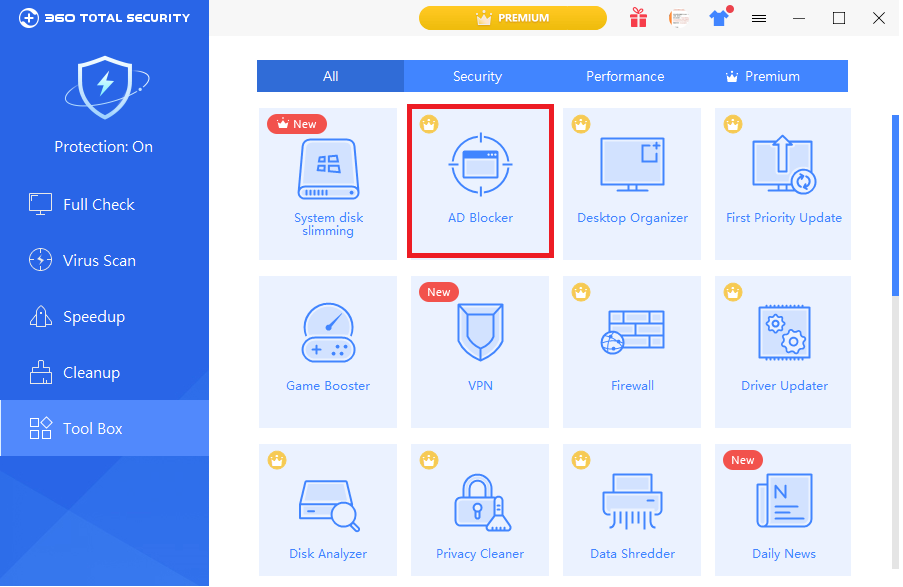
- Use a reputable, multi-engine antivirus solution: For a comprehensive and powerful free solution, 360 Total Security is an excellent choice for Windows and macOS desktop users. It combines its proprietary AI-powered detection engine with multiple leading antivirus cores, resulting in exceptionally high detection rates against both known and emerging threats. Its multi-engine architecture means that malware which evades one detection method is likely to be caught by another.
- Always perform a Full System Scan, not a Quick Scan: A quick scan only checks the most common malware locations and running processes. A full system scan examines every file on your hard drive, including hidden directories and system folders. This process can take anywhere from one to several hours depending on your drive size and system speed, but it is absolutely necessary to ensure no malware is hiding in obscure locations.
- Quarantine first, then delete: When your antivirus tool identifies threats, choose to quarantine them rather than immediately deleting them. Quarantine moves the suspicious files to a secure, isolated container where they cannot execute, but preserves them in case of a false positive—where a legitimate file is incorrectly flagged as malware. Review the quarantine list, confirm the detections are genuine threats, and then proceed with permanent deletion.
Employing Specialized Removal Tools for Stubborn Infections
Some malware is specifically engineered to resist standard antivirus removal. Rootkits, for example, embed themselves at the kernel level of the operating system, making them invisible to software running within Windows itself.
- Use a boot-time scanner or rescue disk for rootkits and APTs: For persistent malware like rootkits or advanced persistent threats (APTs) that survive standard scans, you need a tool that operates outside of the Windows environment. Boot-time scanners load before Windows starts, allowing them to detect and remove threats that hide from the operating system. 360 Total Security and other major security vendors offer this capability. A rescue disk—a bootable USB or CD with security tools—achieves the same result by running an entirely separate operating environment.
- Run a “second opinion” scan with an on-demand scanner: No single antivirus engine has a 100% detection rate. After your primary scan, run a secondary scan using a different on-demand scanner. This technique, known as a second opinion scan, leverages the different threat databases and detection algorithms of a second tool to catch anything the first may have missed. This two-pass approach dramatically increases your confidence that the system is clean.
Understanding which type of scan to use in a given situation is key to an efficient removal process. The following table provides a clear comparison:
| Scan Type | What It Checks | Typical Duration | Recommended Use Case |
|---|---|---|---|
| Quick Scan | Running processes, common startup locations, memory, and known malware hotspots | 5–15 minutes | Routine daily/weekly check; initial triage to confirm active infection |
| Full System Scan | Every file, folder, and drive on the system, including archives and hidden directories | 1–4+ hours | Suspected active infection; post-removal verification; periodic deep cleaning |
| Custom Scan | User-selected files, folders, or drives | Variable | Scanning a specific downloaded file, external drive, or suspect directory |
| Boot-Time Scan | All files before the operating system loads, bypassing malware self-protection | 30 minutes–2+ hours | Rootkits, persistent malware that survives standard scans, severe infections |
What Advanced Manual Techniques Can Remove the Most Stubborn Viruses?
Automated scanning tools are powerful, but they are not infallible. Sophisticated malware—particularly fileless malware that resides in memory or the registry rather than on disk, or custom-built threats not yet in any signature database—may evade even the best scanners. When automated tools fail, targeted manual intervention is required. This involves cleaning malware autostart entries, inspecting Windows services, removing malicious files from common hideouts, and purging rogue registry entries.
Cleaning Malware Autostart Entries and Services
Malware persists by ensuring it launches every time Windows starts. Identifying and disabling these autostart mechanisms is often the most effective way to neutralize a persistent infection.
- Use msconfig and Task Manager to disable suspicious startup programs: Press Win + R, type
msconfig, and press Enter to open the System Configuration tool. Navigate to the Startup tab (or open Task Manager and click the Startup tab directly in Windows 10/11). Look for entries with unfamiliar names, missing publishers, or file paths pointing to unusual locations like%AppData%or%Temp%. Right-click and disable any suspicious entries.
Steps to access Startup Manager:
1. Press Ctrl + Shift + Esc to open Task Manager
2. Click on the "Startup" tab
3. Right-click any suspicious entry and select "Disable"
4. Note the file path for further investigation
- Inspect Windows Services for rogue entries: Press Win + R, type
services.msc, and press Enter. Scroll through the list looking for services with blank or “Missing” descriptions, services with names that closely mimic legitimate system services (e.g., “Windows Update Service” instead of “Windows Update”), or services with startup types set to “Automatic” that you do not recognize. Right-click a suspicious service and select Properties to see its executable path—a path pointing outside ofC:\Windows\System32is a major red flag.

- Use 360 Total Security’s built-in Startup Manager for a safer approach: For users who are not comfortable manually parsing the services list, 360 Total Security includes a Startup Manager that provides a clear, safety-rated view of all startup items and services. Each entry is rated based on its reputation and behavior, making it significantly easier to identify malicious or unwanted items and disable them safely without risking accidentally disabling a critical system component.
Removing Malicious Files and Registry Entries
Once you have disabled the malware’s autostart mechanisms, you need to physically remove its files and erase its footprint from the Windows Registry. This step requires caution and precision.
- Search common malware hideout directories: Malware frequently drops its files in specific locations that are hidden from casual browsing. Open File Explorer, enable the display of hidden files (View > Hidden Items), and navigate to the following common locations, sorting contents by Date Modified to spot recently created suspicious files:
Common Malware File Locations:
%AppData%         (C:\Users\[Username]\AppData\Roaming)
%LocalAppData%    (C:\Users\[Username]\AppData\Local)
%Temp%            (C:\Users\[Username]\AppData\Local\Temp)
%ProgramData%     (C:\ProgramData)
C:\Windows\Temp
Look for recently created .exe, .dll, .bat, or .vbs files with random-looking names or names that mimic system files. Delete any confirmed malicious files.
- Clean malicious Registry entries with extreme caution: The Windows Registry is the central configuration database for the operating system, and malware commonly uses it to establish persistence. Press Win + R, type
regedit, and press Enter. Before making any changes, back up the entire registry by selecting File > Export and saving a copy. Then navigate to the following Run and RunOnce keys, which are the most common malware persistence locations, and delete any entries pointing to suspicious or unknown executables:
Registry Run Key Locations (Common Malware Persistence Points):
HKEY_CURRENT_USER\Software\Microsoft\Windows\CurrentVersion\Run
HKEY_CURRENT_USER\Software\Microsoft\Windows\CurrentVersion\RunOnce
HKEY_LOCAL_MACHINE\SOFTWARE\Microsoft\Windows\CurrentVersion\Run
HKEY_LOCAL_MACHINE\SOFTWARE\Microsoft\Windows\CurrentVersion\RunOnce
HKEY_LOCAL_MACHINE\SOFTWARE\WOW6432Node\Microsoft\Windows\CurrentVersion\Run
Warning: Deleting the wrong registry key can cause serious system instability. Only delete entries you have positively identified as malicious. When in doubt, consult official Microsoft documentation or use a dedicated security tool.
- Reset your web browsers to remove hijackers and malicious extensions: Browser hijackers and malicious extensions can survive a malware scan if they are treated as “potentially unwanted programs” rather than definitive threats. Manually reset each browser you use to its default settings. In Chrome, go to Settings > Reset Settings > Restore settings to their original defaults. In Firefox, go to Help > More Troubleshooting Information > Refresh Firefox. This will remove all extensions, reset your homepage and search engine, and clear any malicious proxy settings that may have been configured to route your traffic through an attacker’s server.
How Do You Recover and Fortify Your System After an Attack?
Successfully removing malware is a significant achievement, but it is not the end of the process. Post-infection recovery is not complete until the system’s integrity is fully restored, all compromised credentials are changed, vulnerabilities are patched, and proactive defenses are strengthened to prevent reinfection. A system that has been infected once is at elevated risk of reinfection if the underlying vulnerabilities are not addressed.
System Restoration and Password Security
The first priority after confirming the malware is gone is to address the immediate security consequences of the breach.
- Change all passwords immediately—from a different, clean device: Assume that any password you have typed on the infected machine may have been captured by a keylogger. This includes email, banking, social media, cloud storage, and any other online accounts. Change these passwords from a device you know is clean. Enable two-factor authentication (2FA) on every account that supports it, as this provides a critical additional layer of security even if a password is compromised in the future.
- Use System Restore or Windows Reset to return to a known-good state: 360 Total Security includes system optimization and restore capabilities that can help roll back certain system changes made by malware. Alternatively, Windows’ built-in System Restore feature (if a restore point was created before the infection) can revert system files and settings to a previous state. For severe infections where you cannot trust the integrity of the operating system, performing a Windows “Reset this PC” (Settings > Update & Security > Recovery > Reset this PC) with the option to keep or remove personal files is the most thorough software-level recovery option short of a full reinstall.
- Restore your personal files from your clean backup: Once you are confident the system is clean, restore your personal files from the pre-infection backup you identified in the containment phase. Verify that restored files open correctly and do not trigger any new antivirus alerts.
Implementing Proactive Defense and Maintenance
The best defense against future infections is a combination of up-to-date software, robust real-time protection, and informed user behavior.
- Update Windows and all installed software immediately: The vast majority of successful malware infections exploit known vulnerabilities in outdated software. Enable Windows Update and configure it to install updates automatically. Pay particular attention to updating high-risk applications that are frequent attack targets, including web browsers, browser plugins (Java, Adobe Flash, Adobe Reader), and Microsoft Office. According to a 2026 Cybersecurity Vulnerability Report, over 60% of successful enterprise breaches involved exploiting a vulnerability for which a patch had been available for more than 30 days—a sobering reminder of the critical importance of timely patching.
- Configure robust real-time antivirus protection: A reactive approach—scanning only when you suspect a problem—is insufficient in today’s threat landscape. 360 Total Security excels in this area, offering continuous real-time protection that monitors file system activity, network connections, and application behavior around the clock. Its proactive AI-based behavioral detection engine identifies and blocks threats based on their actions—not just their signatures—which is essential for catching zero-day malware and novel attack techniques. Beyond security, its built-in PC optimization tools help ensure your system runs at peak performance, so security never comes at the cost of speed.
- Cultivate safe digital habits as your last line of defense: Technology alone cannot protect you from social engineering. Adopt these essential habits to dramatically reduce your risk:
- Be deeply skeptical of unexpected email attachments and links, even from known senders (whose accounts may be compromised).
- Never download software from unofficial sources or use pirated applications, which are among the most common malware delivery vectors.
- Install a reputable ad-blocker in your browser to reduce exposure to malvertising—malicious advertisements that can trigger drive-by downloads.
- Be cautious with USB drives and external media from unknown sources.
Protecting your PC does not have to be complicated. Download 360 Total Security for free and take advantage of its multi-engine scanning, real-time protection, and system optimization tools to keep your Windows or macOS desktop secure and running smoothly every day.
When Is Professional Help or a Complete Reinstall Necessary?
Despite your best efforts, some infections are simply too severe, too deeply embedded, or too sophisticated to be resolved through DIY removal techniques. Knowing when to escalate—whether to a clean operating system reinstall or to professional cybersecurity assistance—is a critical judgment call that can save you enormous amounts of time, money, and stress. For severe infections like ransomware or deeply embedded rootkits, the most secure and time-efficient solution is often a complete OS reinstallation.
Scenarios That Warrant a Clean Windows Install
A clean reinstall of Windows is a drastic step, but it is sometimes the only way to guarantee a truly clean system. Consider it mandatory in the following scenarios:
- The system is unbootable or persistently unstable: If malware has corrupted boot records, critical system files, or drivers to the point where Windows cannot start reliably, a clean reinstall is the most practical path forward. Attempting to repair a severely corrupted Windows installation is often more time-consuming and less reliable than starting fresh.
- Ransomware has encrypted your files and no decryptor is available: If you have fallen victim to ransomware and no free decryption tool exists for that specific variant (check resources like the No More Ransom project first), paying the ransom is strongly discouraged by law enforcement and security experts—there is no guarantee you will receive a working decryption key. In this scenario, wipe the drive, perform a clean Windows install, and restore your files from a pre-infection backup. According to a 2025 Global Ransomware Threat Report, organizations that maintained clean, isolated backups recovered from ransomware attacks in an average of 4 days, compared to weeks or months for those without adequate backups.
- The infection is so pervasive that system integrity cannot be trusted: If malware has modified core system files, injected itself into the Windows kernel, or compromised drivers, you can never be fully certain that the system is clean even after running multiple scanners. In these cases, the only way to restore full confidence in the system’s integrity is a complete reinstall from trusted installation media.
Seeking Professional Data Recovery and Security Services
There are situations where professional expertise is not just helpful—it is essential.
- Irreplaceable data is encrypted or corrupted and no backup exists: If malware has destroyed or encrypted data that you have no backup of—family photos, critical business documents, years of work—a professional data recovery service may be your only recourse. These specialists have access to forensic-level tools and techniques that can sometimes recover data from damaged storage media or partially encrypted drives. This is expensive and success is not guaranteed, but it may be worth attempting for truly irreplaceable data.
- Business and enterprise environments require incident response teams: For organizations, a malware infection is not just a technical problem—it is a potential legal, regulatory, and reputational crisis. A professional cybersecurity incident response (IR) team will not only remove the malware but will also conduct a thorough forensic investigation to determine the initial attack vector, assess the full scope of the breach, identify what data was accessed or exfiltrated, and provide a detailed report for compliance and legal purposes. Attempting to handle a significant business breach without professional help often results in incomplete remediation and repeated attacks.
To help you make the right decision for your specific situation, the following decision matrix compares your three main options:
| Factor | DIY Removal | Professional Help | Clean Reinstall |
|---|---|---|---|
| Infection Severity | Low to moderate (adware, browser hijackers, common trojans) | High (APTs, complex rootkits, business network infections) | Severe (ransomware, unbootable system, pervasive corruption) |
| Technical Skill Required | Moderate (ability to use antivirus tools and follow guides) | None from user (handled by experts) | Basic to moderate (following reinstall wizard, restoring backup) |
| Data Criticality | Suitable when backup exists or data is not critical | Best when irreplaceable data is at risk and no backup exists | Suitable when backup exists; data restored from clean backup after reinstall |
| Time Required | Hours to a full day | Days to weeks (depending on complexity) | Several hours (reinstall) + time to restore data and reinstall applications |
| Cost | Free to low (cost of security software) | High (professional service fees) | Low (Windows license usually already owned) |
| Confidence in Clean Result | Moderate (depends on thoroughness) | High (expert verification) | Very High (fresh OS from trusted media) |
Frequently Asked Questions
Can a virus completely destroy my computer?
While most malware is designed to steal data, generate revenue through ads, or recruit your machine into a botnet rather than destroy it outright, some destructive malware variants—known as “wipers”—are specifically designed to overwrite or delete data, corrupt the Master Boot Record, or even damage firmware (like BIOS-level malware). Ransomware, while not permanently destructive, can make all your data inaccessible. In practice, the most common outcome of a malware infection is data theft, financial fraud, or system instability rather than physical hardware damage.
Is it possible to have a virus even if my antivirus says my computer is clean?
Yes, unfortunately. No antivirus solution has a 100% detection rate. Zero-day malware (exploiting vulnerabilities unknown to security vendors), highly sophisticated rootkits, and fileless malware that operates entirely in memory without writing files to disk can sometimes evade detection. If you have strong behavioral symptoms of infection but your scanner returns clean results, consider running a second opinion scan with a different engine, using a boot-time scanner, or consulting a professional. Behavioral indicators are sometimes more reliable than automated scan results for novel threats.
How long does a full virus removal process typically take?
The timeline varies significantly based on infection severity. A straightforward adware removal might take 30–60 minutes including the full scan. A moderate infection requiring multiple scan passes, manual registry cleaning, and browser resets could take 3–6 hours. A severe infection requiring a clean Windows reinstall, followed by software reinstallation and data restoration from backup, can take an entire day or longer. This is why maintaining regular, clean backups is so important—it dramatically reduces recovery time in worst-case scenarios.
Should I pay the ransom if my files are encrypted by ransomware?
Law enforcement agencies worldwide—including the FBI, Europol, and the UK’s NCSC—strongly advise against paying ransomware demands. Paying does not guarantee you will receive a working decryption key, it funds criminal organizations and incentivizes further attacks, and it may make you a target for repeat attacks (as paying signals willingness to pay again). Your first step should be to check the No More Ransom project (nomoreransom.org) for free decryption tools. If no tool is available, restore from a clean backup after wiping the system. If no backup exists, consult a professional data recovery service before considering payment.
How often should I run a full antivirus scan even if I have real-time protection?
Real-time protection monitors your system continuously and is your primary defense, but it is not a substitute for periodic deep scans. Security professionals recommend running a full system scan at least once a week for home users, and more frequently for high-risk users (those who frequently download files, use public networks, or handle sensitive data). Scheduling a weekly full scan during off-hours—such as overnight—ensures thorough coverage without impacting your productivity. Tools like 360 Total Security allow you to schedule automatic full scans so this critical maintenance task happens reliably without requiring manual intervention.
About the Author: This article was researched and written by a senior cybersecurity technical writer with over a decade of experience covering endpoint security, malware analysis, and digital forensics. Specializing in translating complex security concepts into actionable guidance for everyday users and IT professionals alike, the author has contributed to numerous industry publications and security awareness programs. All technical recommendations in this article are based on current best practices as recognized by leading cybersecurity organizations and reflect the evolving threat landscape of 2025 and beyond.
Learn more about 360 Total Security