Executive Summary: Recognizing the signs of a computer virus early can mean the difference between a quick cleanup and a catastrophic data breach. This comprehensive guide walks you through every stage of the process — from identifying the most common computer virus symptoms and unusual system behaviors, to conducting a manual virus check using built-in Windows tools, to deploying professional-grade free antivirus software for deep detection. You will also learn how to distinguish between specific malware types such as ransomware, spyware, and cryptojackers, and how to build a resilient, proactive security posture that keeps your PC protected long after the immediate threat is resolved.
What Are the Most Common Signs of a Computer Virus?
Not every sluggish boot or unexpected crash means your system is infected. Hardware aging, software bloat, and misconfigured settings can all mimic malware behavior. However, when a specific cluster of unusual symptoms appears together — especially suddenly — it becomes a strong diagnostic signal. Understanding the difference between ordinary computer wear and genuine computer virus symptoms is the first critical step toward accurate diagnosis and effective remediation.
Performance and System Behavior Red Flags
The most immediately noticeable signs of malware often manifest as dramatic, unexplained performance degradation that cannot be attributed to hardware aging or recently installed legitimate software.
- Dramatic and unexplained slowdowns: If your boot time has gone from 20 seconds to several minutes, if applications that once launched instantly now hang, and if general system responsiveness feels sluggish across the board, malware consuming system resources in the background is a prime suspect. Unlike gradual hardware degradation, malware-induced slowdowns typically appear suddenly.
- Frequent crashes, BSODs, and unexpected freezes: According to a 2026 Cybersecurity Threat Intelligence Report, malware-induced system instability accounts for a significant percentage of unexplained Blue Screens of Death (BSOD) and application crashes on consumer PCs. Malicious code can corrupt critical system files, cause memory conflicts, and interfere with driver operations — all of which manifest as random crashes or programs closing without user action.
- Overheating fans during simple tasks: If your CPU fan is roaring and your laptop feels hot while you are simply browsing a static webpage or reading a document, unauthorized background processes are almost certainly consuming your processor’s resources. Legitimate system processes rarely push hardware to thermal limits during light workloads.
Unusual Activity and User Experience Disruptions
Beyond raw performance metrics, malware frequently disrupts the user experience in ways that are highly visible and deeply frustrating. These behavioral anomalies are often deliberate — designed to generate revenue for attackers or to disable your defenses.
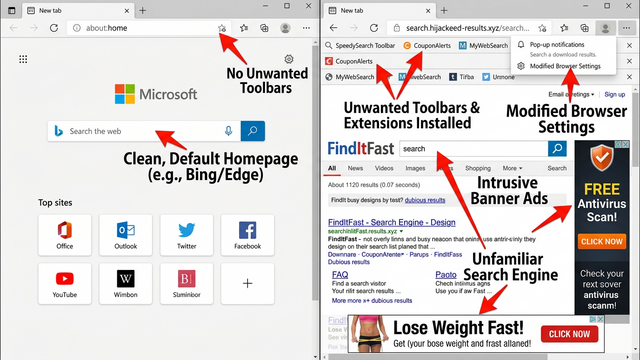
- Persistent pop-up advertisements: Pop-ups appearing outside of any web browser window, or your browser’s homepage and default search engine changing without your consent, are classic signs of adware or a browser hijacker. These programs inject themselves into the browser layer and, in more aggressive cases, into the operating system itself.
- Unfamiliar toolbars, icons, or programs: If you notice new and unrecognized software icons on your desktop, strange entries in your Start Menu, or new icons in your system tray that you never installed, these are strong indicators of a Potentially Unwanted Program (PUP) or bundled malware that was silently installed alongside legitimate software.
- Inability to access system tools: One of the most alarming signs is discovering that you cannot open Task Manager, the Registry Editor, or your antivirus settings. Disabling these tools is a classic self-preservation mechanism employed by ransomware and advanced malware strains — they block the very utilities you would use to detect and remove them.
How to Conduct a Preliminary Manual Virus Check
Before reaching for specialized software, Windows’ built-in utilities can provide a wealth of diagnostic information. A careful manual virus check using tools already on your system can help you gather critical evidence, identify suspicious processes, and pinpoint unusual configurations — giving you a clearer picture of what you may be dealing with.
Investigating with Windows Task Manager
Task Manager is your first and most accessible window into what is actually running on your system. Learning to read it critically is an essential skill for any PC user.
- Identifying resource-hungry suspicious processes: Press Ctrl+Shift+Esc to open Task Manager directly, then navigate to the Processes tab. Click the CPU or Memory column header to sort processes by resource consumption. Look specifically for processes with misspelled names (e.g.,
svch0st.exeinstead ofsvchost.exe), processes listed under an unknown or blank publisher, or any process consuming unusually high resources when the system should be idle. Right-click any suspicious entry and select Open file location to verify where it lives on disk. - Auditing the Startup tab: Navigate to the Startup tab within Task Manager. This lists every program configured to launch automatically when Windows boots. Sort by Startup impact and look for any entries rated High that you do not recognize or did not authorize. Malware frequently embeds itself here to ensure it reloads after every reboot.
// Useful Command: To get a full list of startup items via Command Prompt
// Open CMD as Administrator and run:
wmic startup list full

// To check running processes with their executable paths:
tasklist /v /fo list | findstr /i "image\|pid\|status"
Monitoring Network and Browser Activity
Malware that has already established itself on a system almost always communicates outward — sending stolen data, receiving commands, or downloading additional payloads. Monitoring your network activity is therefore a powerful detection technique.
- Watching for idle network traffic: In Task Manager, click the Performance tab and then select Open Resource Monitor at the bottom. In Resource Monitor, go to the Network tab. Close all browsers, cloud sync applications, and background apps, then wait 60 seconds. Any sustained data transfer activity at this point — especially to unfamiliar IP addresses — is a serious red flag indicating potential data exfiltration or command-and-control communication.
- Reviewing browser extensions: Open your browser’s extension or add-on manager (in Chrome:
chrome://extensions/; in Edge:edge://extensions/). Look for any recently added or unrecognized extensions, particularly those with broad permissions such as “Read and change all your data on all websites.” Remove anything you do not recognize immediately. - Checking your DNS settings for hijacking: A hijacked DNS server is a subtle but dangerous form of malware persistence. Navigate to Control Panel > Network and Internet > Network and Sharing Center > Change adapter settings. Right-click your active network connection, select Properties, then double-click Internet Protocol Version 4 (TCP/IPv4). Your DNS server should typically be set to Obtain DNS server address automatically, or point to a known provider. If you see an unfamiliar IP address hardcoded here, it may be redirecting your traffic through a malicious server.
// Check current DNS settings via Command Prompt:
ipconfig /all
// Look for the "DNS Servers" line under your active adapter.
// Known legitimate DNS examples:
// Google: 8.8.8.8 / 8.8.4.4
// Cloudflare: 1.1.1.1 / 1.0.0.1
// Any unrecognized IP here warrants immediate investigation.
Using Free Security Software for Professional-Grade Detection
Manual checks are valuable, but they have a fundamental limitation: they rely entirely on the user’s knowledge and the visibility of threats. Sophisticated malware is specifically designed to hide from casual inspection — using rootkit techniques, process injection, and encrypted communications to remain invisible. This is where dedicated antivirus software, with its heuristic analysis engines, behavioral monitoring systems, and constantly updated threat databases, becomes indispensable for detecting malware that would otherwise completely elude the human eye.
The Advantages of a Multi-Engine Scanner Like 360 Total Security
Not all antivirus solutions are architecturally equal. The detection methodology behind a scanner directly determines its effectiveness against both known threats and emerging zero-day attacks.
- Multi-engine detection architecture: 360 Total Security employs a powerful combination of its proprietary 360 Cloud Scan Engine, the industry-trusted Avira antivirus engine, and its advanced QVM II Artificial Intelligence engine. This multi-engine approach is architecturally significant: when one engine encounters an unknown file, the others provide independent verdicts, dramatically increasing detection rates for both well-documented malware families and novel, previously unseen zero-day threats that rely on signature-based scanners being blind to them.
- Specialized adware and PUP removal: Beyond traditional virus scanning, 360 Total Security includes dedicated tools for identifying and removing adware, browser hijackers, and Potentially Unwanted Programs (PUPs) — the category of nuisance software that many competing scanners categorize as low-risk and leave in place, even though these programs can serve as entry vectors for more serious infections.
- System Repair capabilities: Malware frequently damages the system it infects — corrupting registry entries, altering file associations, and disabling security settings as part of its persistence mechanism. 360 Total Security’s System Repair feature goes beyond simple file deletion to actively fix these corrupted configurations, helping restore the operating system to a healthy, functional state after an infection is cleared.
Step-by-Step Guide to Running a Full System Scan
Running a thorough scan is straightforward, but the specific choices you make during the process — particularly selecting a Full Scan over a Quick Scan — have a significant impact on detection completeness.
- Download from the official source: Always download 360 Total Security directly from its official website. Downloading security software from third-party repositories is a known attack vector — counterfeit antivirus installers are themselves a common malware delivery mechanism. Once installed, launch the application and navigate to the Virus Scan tab.
- Select Full Scan for comprehensive coverage: You will typically see options for Quick Scan, Full Scan, and Custom Scan. For a suspected infection, always select Full Scan. This examines every file, folder, running process, and memory region on your system — not just the most common infection points. While it takes longer, it is the only reliable method for catching dormant threats, rootkits, and malware embedded in less-trafficked areas of the filesystem.
- Review and act on results: Once the scan completes, 360 Total Security presents a categorized results report distinguishing between confirmed threats, suspicious items, and low-risk PUPs. For any detected threats, proceed with the Clean action. As cybersecurity analyst and threat researcher Dr. Marcus Chen notes: “A full system scan is non-negotiable for dormant threats. Many of the most damaging malware strains — particularly banking trojans and RATs — can sit inactive for weeks before triggering. A quick scan will never find them; only a full examination of every file on the drive will.”
Advanced Symptoms: Identifying Specific Types of Malware
Once you move beyond the general signs of infection, it becomes critically important to recognize the behavioral fingerprints of specific malware families. Ransomware, spyware, keyloggers, and cryptojackers each exhibit distinct patterns of behavior. Correctly identifying the type of malware you are dealing with not only informs the urgency of your response but also guides your recovery strategy — particularly regarding whether data has been stolen, encrypted, or simply held hostage.
Signs of a Ransomware or Data-Theft Attack
Ransomware and data-exfiltration malware represent the highest-stakes category of infection, with potential consequences ranging from permanent data loss to severe financial and reputational damage.
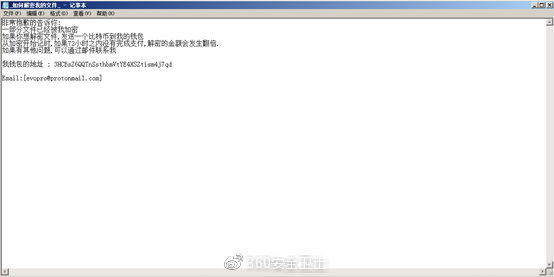
- Encrypted files with strange extensions: The most unmistakable sign of ransomware is discovering that your files have become inaccessible and have been renamed with unfamiliar extensions such as
.locked,.crypt,.encrypted, or a string of random characters. Ransom notes — typically named something likeREADME_FOR_DECRYPT.txtorHOW_TO_RECOVER_FILES.html— will appear on the desktop or in affected folders, demanding payment (usually in cryptocurrency) in exchange for a decryption key. - Unusual outbound network traffic: Before ransomware encrypts your files, it frequently exfiltrates copies of your most sensitive data to attacker-controlled servers — a tactic known as “double extortion.” This unusual outbound traffic to unknown foreign IP addresses can sometimes be spotted in your router’s administration panel under traffic logs or connected device activity. Sustained high-volume outbound traffic from your PC when you are not actively uploading anything is a serious warning sign that data theft may be in progress or recently completed.
Indicators of Spyware, Keyloggers, and Botnets
These threat categories are often more insidious than ransomware because they are explicitly designed to operate silently and invisibly for as long as possible, maximizing the amount of data they can harvest before detection.
- Unexpected webcam or microphone activation: If your webcam’s indicator light turns on when you are not in a video call, or if your operating system’s privacy settings show that your microphone has been recently accessed by an unknown application, this is a strong indicator of spyware or a Remote Access Trojan (RAT) that is actively surveilling you.
- Unauthorized account activity: If your email contacts start receiving spam messages that appear to come from your address, or if posts appear on your social media accounts that you did not create, your credentials have almost certainly been harvested by a keylogger or credential-stealing trojan and your accounts have been taken over.
- High GPU or CPU usage at idle: If your system’s GPU or CPU is running at extremely high utilization even when your computer is sitting idle with no applications open, you may be a victim of cryptojacking — a form of malware that hijacks your hardware’s processing power to mine cryptocurrency for the attacker’s benefit, entirely without your knowledge or consent.
Malware Type Comparison: Ransomware vs. Spyware vs. Cryptojacking
| Category | Primary Symptoms | Data Risk Level | Typical Entry Vectors |
|---|---|---|---|
| Ransomware | Files encrypted with unknown extensions; ransom notes on desktop; inability to open documents | Critical — data loss and potential exfiltration | Phishing emails, malicious attachments, RDP exploitation, drive-by downloads |
| Spyware / Keylogger | Webcam/mic activating unexpectedly; unauthorized account posts; unknown outbound connections | High — credentials, financial data, and private communications at risk | Bundled freeware, malicious browser extensions, trojanized software installers |
| Cryptojacking | Extremely high CPU/GPU usage at idle; overheating; severe performance degradation | Low to Medium — no data theft but hardware damage risk | Malicious scripts on compromised websites, pirated software, fake browser extensions |
Creating a Proactive Defense and Recovery Plan
Successfully removing a virus is not the finish line — it is the starting point for building a more resilient security posture. After addressing an active infection, the priority must shift to two parallel objectives: hardening the system against re-infection, and implementing a layered, long-term security strategy that transforms your PC from a reactive victim into a proactively defended system.
Essential Post-Infection Cleanup and Hardening Steps
The immediate period following malware removal is critical. Attackers may have left behind secondary payloads, stolen credentials, or persistent backdoors that survived the initial cleanup.
- Change all passwords from a clean device: Your first action after confirming malware removal should be to change every important password — starting with your email account (which can be used to reset all others), online banking credentials, and your primary Windows user account password. Critically, perform these changes from a separate, trusted device (a smartphone on mobile data, or another PC) to ensure you are not typing new credentials into a system that still has a keylogger present.
- Use 360 Total Security’s cleanup tools: After removing the core infection, use 360 Total Security‘s integrated Cleanup and Speedup tools to purge residual junk files, temporary data caches that malware may have written to, and to optimize startup items — many of which may have been added or modified by the infection. This helps the system return to normal performance and eliminates artifacts that could cause ongoing instability.
- Apply all pending updates immediately: Most malware exploits known, already-patched vulnerabilities in Windows and third-party applications. The fact that malware successfully infected your system may indicate that critical security patches were not applied. Go to Settings > Windows Update and install every available update. Then update all installed applications — browsers, PDF readers, office suites, and media players are particularly frequent exploitation targets.
// Force Windows Update check via PowerShell (Run as Administrator):
Get-WindowsUpdate
Install-WindowsUpdate -AcceptAll -AutoReboot

// Alternatively, trigger update check via Command Prompt:
wuauclt /detectnow /updatenow
Building a Resilient Security Posture
Long-term protection requires moving from reactive cleanup to proactive, layered defense. According to a 2025 Global Endpoint Security Analysis, organizations and individuals with layered security architectures — combining real-time protection, behavioral monitoring, and offline backups — experienced 73% fewer successful malware incidents than those relying on a single security measure.
- Enable real-time protection and the Sandbox feature: Ensure that real-time protection is permanently enabled in 360 Total Security. Additionally, configure and use its Sandbox feature whenever you need to run a file you are uncertain about. The Sandbox executes the file in a completely isolated virtual environment, meaning that even if the file is malicious, it cannot reach your actual operating system, files, or network connections.
- Implement the 3-2-1 backup rule: No security solution provides 100% guaranteed protection against every possible threat. Your ultimate safety net is a robust backup strategy. The industry-standard 3-2-1 rule means: maintain 3 copies of your important data, stored on 2 different types of media (e.g., internal drive and cloud storage), with 1 copy stored completely offline — such as an external hard drive that is physically disconnected from your PC when not in use. This offline copy is immune to ransomware, which can encrypt network-connected and cloud-synced drives.
- Practice skeptical, security-aware browsing habits: Technology alone cannot compensate for risky behavior. Never click on links in unsolicited emails or messages, even if they appear to come from known contacts. Never download software from anywhere other than the official vendor’s website. Be deeply skeptical of any pop-up claiming your computer is infected and urging you to call a phone number or download a “cleaner” — these are almost universally scareware or social engineering attacks. When in doubt, navigate directly to official websites by typing the URL manually.
Frequently Asked Questions
Can a computer virus be present without causing any noticeable symptoms?
Yes, absolutely. Many sophisticated malware strains — particularly spyware, keyloggers, and Remote Access Trojans (RATs) — are specifically engineered to operate silently and consume minimal resources to avoid detection. A system can be actively compromised for weeks or even months without the user noticing any performance degradation or behavioral anomalies. This is precisely why scheduled full system scans with a capable antivirus like 360 Total Security are essential even when your computer appears to be running normally.
Is a slow computer always a sign of a virus?
Not necessarily. A slow computer can result from many non-malicious causes, including insufficient RAM for the applications you are running, a nearly full hard drive (particularly an HDD rather than SSD), too many startup programs, Windows needing updates, or simply hardware that is aging. The key differentiator is sudden onset combined with other concurrent symptoms. If your PC has gradually slowed over years, that is likely hardware or software bloat. If it became dramatically slower overnight, especially alongside pop-ups, new programs, or network anomalies, malware becomes a much more likely explanation.
What should I do first if I suspect my computer has ransomware?
Act immediately and decisively. First, disconnect your computer from all networks — unplug the Ethernet cable and disable Wi-Fi — to stop the ransomware from spreading to other devices on your network or continuing to exfiltrate data. Do not turn the computer off, as forensic analysis may be possible from memory. Do not pay the ransom without first checking resources like the No More Ransom Project (nomoreransom.org) to see if a free decryption tool exists for your specific ransomware strain. Then, consult a cybersecurity professional or use a reputable security tool to assess the extent of the damage.
How often should I run a full virus scan?
For most home users, running a full system scan at least once per week is a reasonable baseline. However, you should also run an immediate full scan after any of the following events: downloading software from an unfamiliar source, clicking on a link in an unexpected email, connecting an external USB drive you did not personally format, or noticing any of the symptoms described in this guide. With 360 Total Security, you can schedule automatic full scans during off-hours so they do not interrupt your workflow.
Can I remove a virus manually without antivirus software?
In theory, an experienced user can manually remove some simpler malware by identifying and deleting malicious files, removing registry entries, and cleaning startup items. In practice, however, manual removal is risky and unreliable for several reasons: modern malware often has multiple persistence mechanisms and can regenerate from a single missed file; some components use rootkit techniques to hide from the file system; and incorrect registry edits can destabilize or break Windows entirely. Using dedicated security software like 360 Total Security is strongly recommended as it handles removal comprehensively and safely, including repairing system settings that manual deletion cannot address.
About the Author: This article was written by a Senior Technical Security Writer with over a decade of experience covering endpoint security, malware analysis, and consumer cybersecurity best practices. Their work has been featured in enterprise IT publications and consumer technology guides, with a focus on translating complex threat intelligence into actionable guidance for everyday PC users. They hold certifications in cybersecurity fundamentals and regularly consult with threat researchers to ensure accuracy and currency of all published content.
Learn more about 360 Total Security