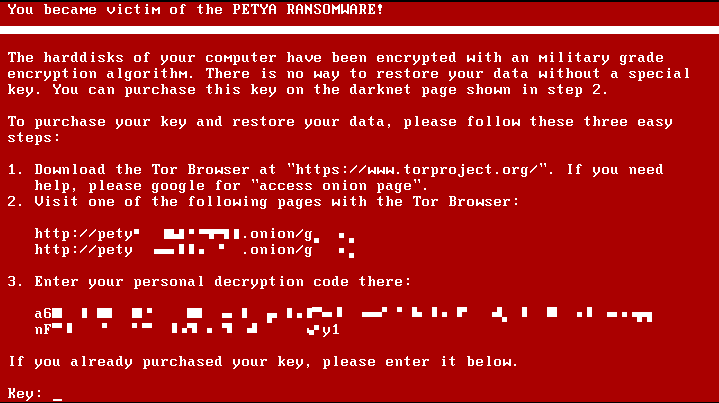
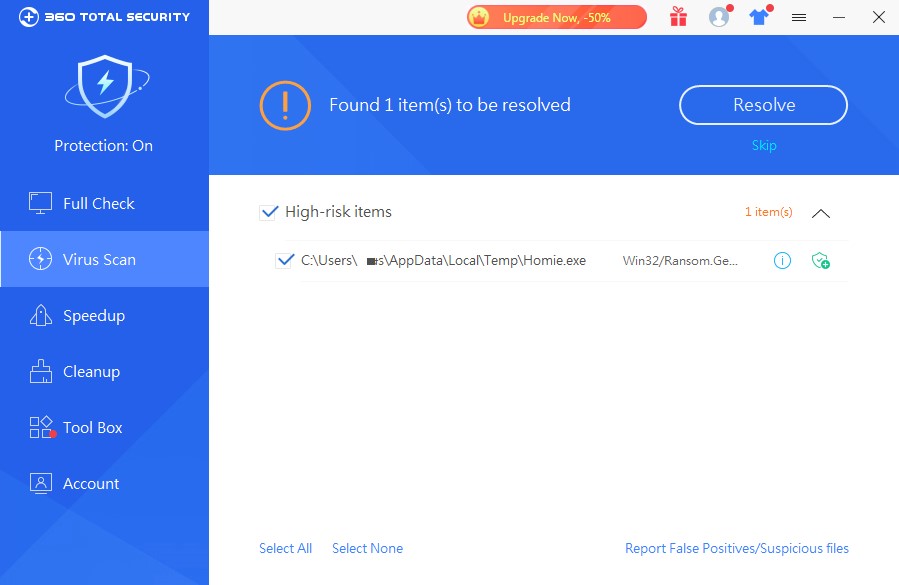
Executive Summary: Windows 11 ships with a genuinely capable security suite — Windows Security, powered by Microsoft Defender Antivirus — that offers real-time malware protection, a built-in firewall, and ransomware safeguards. For millions of careful, low-risk users, this baseline protection is entirely adequate. However, the modern threat landscape has evolved far beyond traditional viruses. Sophisticated phishing campaigns, zero-day exploits, privacy-invasive adware, and performance-degrading Potentially Unwanted Programs (PUPs) expose critical gaps in Windows’ built-in defenses. This guide delivers a comprehensive, honest assessment: evaluating Windows Security’s genuine strengths, mapping its limitations against today’s real-world threats, providing a personalized risk-assessment framework, and recommending the best free and premium solutions — including 360 Total Security — to help every Windows 11 user build the right protection stack for their needs.
Is Windows 11’s Built-in Security Enough for Most Users?
The question of whether Windows Security — Microsoft’s integrated suite built around Microsoft Defender Antivirus — is sufficient has never been more relevant. Windows 11 raised the hardware and security baseline significantly compared to its predecessors, and the built-in protection reflects that ambition. Yet “enough” is a deeply personal answer that depends on your online behavior, the data you store, and the threats you’re most likely to face. Let’s break it down objectively.
The Strengths of Windows Security (Defender)
Microsoft has invested heavily in transforming Windows Defender from a lightweight scanner into a genuinely competitive security platform. Its advantages are substantial and should not be dismissed:
- Deep OS Integration for Low-Impact Protection: Because Microsoft Defender Antivirus is woven directly into the Windows 11 kernel, it can perform real-time, low-level scanning and threat response with a system performance footprint that third-party solutions struggle to match. It intercepts threats at the file system, memory, and network layers simultaneously without requiring a separate background service to compete for resources.
- Automatic, Always-Current Threat Intelligence: Defender’s threat definition database is updated continuously through Windows Update and Microsoft’s cloud-based protection network. Users who keep Windows Update enabled are always protected against the latest known malware signatures without any manual intervention.
- A Surprisingly Comprehensive Suite: Windows Security is not just an antivirus scanner. It includes a bi-directional network firewall, Controlled Folder Access (ransomware protection that blocks unauthorized writes to protected directories), SmartScreen for filtering malicious downloads, exploit protection, and device health reporting. Critically, Microsoft Defender consistently earns high scores in independent laboratory evaluations — AV-TEST and AV-Comparatives have repeatedly awarded it top-tier ratings for protection, performance, and usability, placing it on par with many paid commercial products in raw malware detection.
The Critical Gaps and Limitations
Despite its strengths, Windows Security has measurable blind spots that matter enormously in the current threat environment:
- Weak Phishing and Malicious URL Defense: While SmartScreen provides some URL filtering, it lags behind dedicated security suites that offer real-time browser extensions with multi-source URL reputation databases, email scanning, and heuristic analysis of web page content. A sophisticated phishing page hosted on a newly registered domain — one not yet indexed by SmartScreen’s database — can pass through undetected. This is arguably the most dangerous gap, as phishing is now the leading initial attack vector according to 2025 cybersecurity incident reports.
- Virtually No System Optimization Tools: Windows Security is a security product, not a system maintenance platform. It offers no junk file cleaner, no startup program manager, no privacy scanner, no duplicate file finder, and no performance optimizer. Users who expect their security software to also keep their PC running smoothly will find Defender entirely silent on these fronts.
- Insufficient for High-Risk Online Behaviors: According to 2025 threat landscape analyses from leading cybersecurity research organizations, users who frequently download software from third-party repositories, regularly connect to public Wi-Fi networks, visit streaming or file-sharing sites, or click on links in unsolicited emails face a substantially elevated risk profile. For these users, Defender’s signature-based and cloud-heuristic approach may not react quickly enough to novel, targeted, or polymorphic threats. The protection model assumes a relatively conservative digital lifestyle.
When Built-in Protection Is Truly Sufficient
Honesty demands acknowledging that for a meaningful segment of the user population, Windows Security is genuinely adequate:
- The Digitally Disciplined User: Tech-savvy individuals who use a curated set of trusted applications, navigate only to well-established websites, never open unsolicited email attachments, and apply updates promptly are well-served by the built-in protection baseline.
- Managed Enterprise Environments: Organizations where IT departments enforce Group Policy restrictions, deploy Microsoft Defender for Endpoint (the enterprise-grade version), manage application whitelisting, and monitor network traffic centrally have a security posture that far exceeds what any consumer antivirus adds.
The table below provides a practical self-check to help you locate yourself on this spectrum:
| ✅ You May Be Fine with Windows Security If… | ⚠️ You Should Consider More Protection If… |
|---|---|
| You use only a handful of trusted, mainstream apps | You frequently download software from various third-party sites |
| You only visit well-known, established websites | You regularly use public Wi-Fi (cafés, airports, hotels) |
| You never open unsolicited email attachments or links | You or family members click links in promotional or unknown emails |
| You apply all Windows and software updates promptly | You have children or less tech-savvy users sharing the PC |
| You back up your data regularly to an offline or cloud location | You store sensitive financial, medical, or business data on this PC |
| You use strong, unique passwords and 2FA on all accounts | You reuse passwords or rely on simple, memorable credentials |
What Are the Key Threats That Require Additional Protection?
Understanding why additional protection may be necessary requires a clear-eyed look at the modern threat landscape. Today’s malware ecosystem is vastly more sophisticated, financially motivated, and socially engineered than the viruses of a decade ago. The threats most likely to bypass Windows Security’s baseline defenses fall into three broad, overlapping categories.
The Rise of Social Engineering: Phishing and Scams
Phishing attacks have become the dominant method by which cybercriminals gain initial access to victim systems and accounts. Their effectiveness lies in exploiting human psychology rather than software vulnerabilities, which makes signature-based antivirus detection largely irrelevant.
- How Phishing Works and Why Antivirus Misses It: A phishing attack typically delivers a convincing replica of a legitimate website — a bank login page, a Microsoft account portal, an e-commerce checkout — via a link in an email, SMS, or social media message. The page itself may contain no malware file for an antivirus to scan. Its sole purpose is to capture the credentials you type. Because no malicious executable is downloaded, Windows Defender has nothing to flag. The attack succeeds entirely at the social layer.
- The Need for Real-Time URL Analysis: Effective defense against phishing requires a dedicated browser extension or network-layer filter that checks URLs against continuously updated reputation databases, analyzes page content for credential-harvesting patterns, and warns the user before they interact with the page. This capability is a standard feature of dedicated security suites but is only partially addressed by Windows SmartScreen.
Advanced Persistent Threats and Zero-Day Exploits
At the more sophisticated end of the threat spectrum lie attacks that target software vulnerabilities that are either unknown to the vendor or unpatched on the victim’s system.
- What Zero-Day Exploits Are: A zero-day exploit targets a security vulnerability in software — a browser, a PDF reader, Windows itself — for which no patch yet exists. Because the vulnerability is unknown to the vendor, there is no signature for an antivirus to recognize. The attack exploits a flaw in the software’s execution logic to run arbitrary code on the victim’s machine, often without any user interaction beyond visiting a compromised webpage.
- Behavioral Analysis and AI/ML Heuristics as the Counter: Advanced security suites address zero-day threats not by recognizing the malware’s signature, but by recognizing its behavior. If a PDF reader suddenly attempts to spawn a PowerShell process, write to system directories, or establish an outbound network connection to an unknown IP address, a behavioral engine flags this as anomalous and intervenes — even if the underlying exploit has never been seen before. Modern suites augment this with machine learning models trained on millions of malware samples to identify statistical patterns of malicious behavior in real time. According to a 2026 cybersecurity industry report, behavioral detection and AI-driven heuristics now account for over 60% of novel threat detections in leading security products, underscoring their critical importance.
- Exploit Mitigation Technology: Premium security suites layer on top of Windows’ own exploit mitigation (EMET/Windows Defender Exploit Guard) with additional memory protection, return-oriented programming (ROP) attack prevention, and heap spray detection to make it significantly harder for exploit code to execute successfully even if a vulnerability exists.
Beyond Viruses: Privacy Threats and Performance Degradation
Not every threat aims to steal data or encrypt files. A large category of software exists in a gray zone that degrades your digital experience without crossing the threshold of what traditional antivirus classifies as malicious.
- PUPs, Adware, and Browser Hijackers: Potentially Unwanted Programs (PUPs) — including adware that injects advertisements into your browser, browser hijackers that redirect your searches, and toolbars that report your browsing habits to third parties — are frequently bundled with free software installers. Windows Defender’s detection of PUPs is configurable but disabled by default in many configurations, and its cleanup capabilities for already-installed PUPs are limited. A 2025 study by an independent security research firm found that the average Windows PC that has been in active use for 12 months harbors between 3 and 7 PUPs that were never explicitly installed by the user, collectively consuming measurable CPU and memory resources and transmitting behavioral telemetry to advertising networks.
- The Value of Integrated Optimization Tools: Security suites that include junk file cleaners, startup managers, browser extension auditors, and privacy cleaners address the performance and privacy degradation caused by PUPs and accumulated digital clutter. These tools restore system responsiveness and reduce the attack surface by eliminating unnecessary software and browser extensions that could themselves become vectors for future exploitation.
How to Evaluate If You Need a Third-Party Antivirus Solution
The decision to install a third-party security product should be deliberate, not reflexive. The right answer depends on a personalized risk assessment that honestly evaluates your online behavior, the sensitivity of the data on your PC, and your tolerance for managing additional software complexity. Here is a structured framework for making that decision.
Assessing Your Personal Risk Profile
Your daily digital habits are the single most important determinant of your actual risk level. Consider the following indicators honestly:
High-Risk Indicators (each one elevates your risk meaningfully):
- You conduct online banking, investing, or shopping regularly from this PC
- You connect to public Wi-Fi networks without using a VPN
- You download software, media, or files from a variety of sources, including unofficial repositories
- Children or less technically experienced family members use the same PC or user account
- You store sensitive documents — tax records, medical files, business contracts, passwords in plain text — on this machine
- You use the same password across multiple services
Low-Risk Indicators (each one reduces your effective risk):
- Your PC use is limited to a small set of trusted applications: Office suite, a major browser, streaming services
- You consistently apply all Windows and application updates within days of release
- You use a password manager and have unique, strong passwords for every account
- You have multi-factor authentication (MFA) enabled on all critical accounts
- You maintain regular, tested backups of your important data to an offline or cloud location
| Risk Factor | Low Risk (0 pts) | Medium Risk (1 pt) | High Risk (2 pts) |
|---|---|---|---|
| Software download sources | Only official stores/developer sites | Occasionally third-party sites | Frequently from various/unknown sources |
| Public Wi-Fi usage | Never | Occasionally, with VPN | Regularly, without VPN |
| Email habits | Never open unknown links/attachments | Occasionally open promotional emails | Regularly click links in various emails |
| Shared PC users | Only yourself (tech-savvy) | Shared with adults | Shared with children or non-tech users |
| Sensitive data stored | None / fully encrypted elsewhere | Some personal documents | Financial, medical, or business-critical data |
| Password practices | Unique passwords + MFA + password manager | Mostly unique, some reuse | Reused passwords, no MFA |
Scoring: 0–3 points: Windows Security is likely sufficient with good habits. 4–7 points: A free security suite upgrade is strongly recommended. 8–12 points: A comprehensive premium security suite is a worthwhile investment.
Understanding the Value-Adds of Premium Security Suites
When evaluating whether to pay for a security product, it helps to enumerate precisely what you are getting beyond basic antivirus detection:
- Enhanced Protection Layers: Advanced suites offer outbound firewall monitoring (detecting when malware already on your system tries to phone home), secure browser modes for banking and financial transactions, webcam and microphone access controls that alert you when applications attempt to use these devices, and integrated password managers that eliminate credential reuse risk.
- Convenience and Performance Tools: Automated system cleanup, startup program managers, driver update utilities, disk analyzers, and network monitoring dashboards transform a security product into a comprehensive PC health platform — saving time and maintaining system responsiveness over the long term.
- Family Safety and Parental Controls: For households with children, features like content filtering, screen time management, app blocking, and location awareness represent significant value that no standalone antivirus provides. As a leading cybersecurity advisor noted in a 2025 industry forum: “A single-layer security model is a single point of failure. The most resilient defenses layer behavioral controls, network monitoring, endpoint protection, and user education — because sophisticated attackers probe all four simultaneously.”
Considering the Trade-offs: Cost, Performance, and Complexity
Third-party security solutions are not without their own costs and considerations:
- Performance Impact and Software Conflicts: Poorly engineered or overly aggressive security suites can measurably slow boot times, increase application launch latency, and occasionally conflict with legitimate software through false positive detections. This is why independent lab performance testing (not just detection rate scores) should be a key criterion when selecting a product.
- Cost and Value Proposition: Free security products have matured enormously and offer genuine protection without subscription fees. Premium suites typically range from $30–$100 per year and justify their cost through identity theft protection, unlimited VPN access, multi-device licensing, and dedicated customer support. The value calculation depends entirely on what features you will actually use.
- Configuration Complexity: A security suite you do not understand is a security suite you cannot use effectively. Factor in the learning curve of a new application’s interface and alert system. A product with an intuitive dashboard and sensible defaults is worth more in practice than a feature-rich suite that generates alert fatigue through poorly tuned notifications.
Top Recommended Security Solutions: From Free to Comprehensive
For users who have determined that additional protection is warranted, the market offers an excellent spectrum of solutions. The following recommendations are based on independent laboratory performance data, feature sets, system impact assessments, and real-world usability — spanning from powerful free options to comprehensive premium suites for Windows 11.
The Power of Free: 360 Total Security as a Leading Choice
360 Total Security occupies a uniquely valuable position in the security software market: it delivers a feature set that rivals many paid products at absolutely no cost, making it an exceptionally compelling upgrade from Windows Security alone for the vast majority of home users.
- Multi-Engine Detection Architecture: 360 Total Security’s most technically distinctive advantage is its integration of multiple antivirus engines — including industry-leading engines from Bitdefender and Avira alongside 360’s own QVM AI engine and cloud-based threat intelligence. This multi-engine approach means that a threat missed by one detection methodology is caught by another, delivering detection rates that consistently outperform single-engine solutions. In recent independent lab evaluations, 360 Total Security has achieved high marks for malware detection while maintaining a commendably low false positive rate.
- Key Features Purpose-Built for Windows 11 Users: Beyond antivirus scanning, 360 Total Security includes a Sandbox environment for safely executing suspicious files in an isolated virtual container without risk to the host system, a Patch Up module that scans for and applies missing Windows and third-party application security patches (directly addressing the zero-day vulnerability window), a network firewall, and system optimization tools including a one-click cleanup engine and startup manager.
- Directly Addressing Windows Security’s Gaps: 360 Total Security’s Safe Shopping feature provides browser-level protection against phishing sites and malicious URLs — precisely the area where Windows Security’s SmartScreen is weakest. Combined with its system cleanup and optimization suite, it transforms the security experience from pure threat detection into comprehensive PC health management. All of this is available without a subscription fee, making it an outstanding value proposition for users who scored in the medium-risk range on the assessment above.
Ready to upgrade your Windows 11 protection? Download 360 Total Security for free and experience the difference a multi-engine, optimization-integrated security suite makes on your PC.
Other Notable Free and Paid Contenders
360 Total Security is not the only strong option. Depending on your priorities, the following solutions are also worth serious consideration:
- Bitdefender Antivirus Free: Bitdefender’s free offering is the gold standard for users who want maximum protection with absolute minimum configuration and system impact. It operates almost entirely in the background — no interface to navigate, no decisions to make — while delivering Bitdefender’s world-class detection engine. It is the ideal choice for users who want a “set and forget” upgrade to Windows Defender with no additional features or complexity.
- Kaspersky Standard (formerly Security Cloud Free): Kaspersky continues to deliver exceptional malware detection rates with a polished interface and useful bonus features. Users should review their organization’s or government’s current guidance on Kaspersky products before installing, as regulatory considerations vary by jurisdiction.
- Premium Suite Powerhouses — Norton 360 and Bitdefender Total Security: For users who scored high on the risk assessment, premium suites justify their annual cost through features that free products cannot match: dark web monitoring and identity theft alerts, unlimited VPN access for secure public Wi-Fi use, comprehensive parental controls, multi-device licensing covering smartphones and tablets, and dedicated customer support. Norton 360 and Bitdefender Total Security are consistently the top-rated options in this category based on 2025–2026 independent testing cycles.
Making the Right Choice for Your Situation
Use this decision framework to match your needs to the right solution:
- For Maximum Free Protection + System Optimization: 360 Total Security is the ideal balanced choice. It addresses every major gap in Windows Security — phishing defense, system optimization, multi-engine detection, vulnerability patching — without costing a cent. It is the recommended upgrade for the majority of home users who fall into the medium-risk category.
- For Pure, Lightweight Antivirus Only: Bitdefender Antivirus Free is the best-in-class option for users who want better detection rates than Windows Defender with zero additional features or interface overhead.
- For a Full-Service, Paid Security Ecosystem: High-risk users — those who bank online frequently, use public Wi-Fi, have children using the PC, or store sensitive business data — should invest in a premium suite like Norton 360 or Bitdefender Total Security. The comprehensive identity protection, VPN, and parental controls deliver value that justifies the annual subscription cost many times over.
Best Practices for a Secure Windows 11 Experience
No antivirus product — however sophisticated — can fully compensate for unsafe user behavior. The most robust security posture combines a capable security solution with disciplined security best practices. The following habits are the foundation upon which all technical defenses rest, and they are entirely free to implement.
The Non-Negotiable Fundamentals
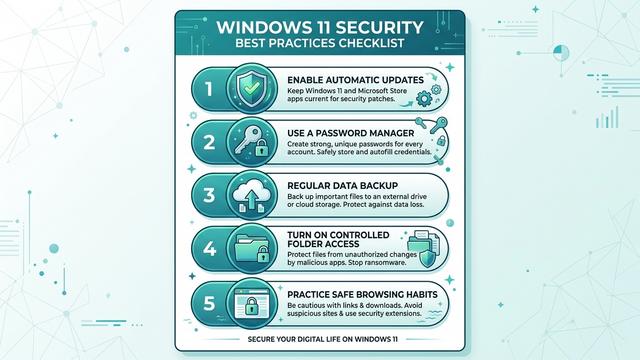
- Enable Automatic Updates Universally: The single most impactful security action you can take is ensuring that Windows Update is set to automatic, that your browser updates automatically, and that your chosen antivirus solution receives continuous definition and engine updates. According to 2025 vulnerability exploitation data, the majority of successful malware infections exploit vulnerabilities for which a patch was already available — meaning the attack was entirely preventable with timely updates. Extend this discipline to all installed applications: PDF readers, media players, Java, and browser extensions are frequently exploited through known, unpatched vulnerabilities.
- Strong, Unique Passwords and Multi-Factor Authentication: Credential theft through phishing and data breaches is the leading cause of account compromise. A password manager (Bitwarden, 1Password, or the password manager integrated into your security suite) eliminates the cognitive burden of maintaining unique, complex passwords for every service. More importantly, enable multi-factor authentication (MFA) on every account that supports it — especially email, banking, cloud storage, and social media. Even if a password is stolen, MFA prevents account takeover in the vast majority of attack scenarios.
- Regular, Tested Data Backups: A comprehensive backup strategy is your ultimate defense against ransomware — the most financially devastating threat facing home users today. Follow the 3-2-1 rule: maintain 3 copies of important data, on 2 different media types, with 1 copy stored off-site (cloud or physical off-site storage). Windows 11’s built-in File History provides an accessible starting point for automated local backups, while cloud services like OneDrive, Google Drive, or Backblaze provide off-site redundancy. Critically, test your backups periodically by actually restoring a file — a backup you have never tested is a backup you cannot trust.
Smart Online and Download Habits
- Cultivate Healthy Skepticism Toward Unsolicited Communication: Email remains the primary delivery vector for malware and phishing attacks. Before clicking any link or opening any attachment in an email, verify the sender’s actual email address (not just the display name), hover over links to inspect the destination URL, and when in doubt, navigate directly to the website in question rather than clicking the link. This single habit prevents the majority of successful phishing attacks.
- Download Software Only from Official, Verified Sources: Install applications exclusively from the developer’s official website, the Microsoft Store, or well-established software repositories. Avoid downloading software from search engine advertisements (which are increasingly used to distribute malware through malvertising), file-sharing sites, or “cracked” software repositories. Pirated software is one of the most reliable delivery mechanisms for trojans, ransomware, and cryptominers — the “free” software frequently costs far more than its legitimate price in compromised data and system damage.
- Use a Standard User Account for Daily Computing: Running Windows as an administrator account for everyday tasks means that any malware that executes under your session inherits administrator privileges — allowing it to install system services, modify the registry, disable security software, and spread across the network. Create a standard user account for daily use and reserve the administrator account for explicit software installation and system configuration tasks. This simple architectural change dramatically limits the damage any successful malware infection can cause.
Leveraging Windows 11’s Built-in Security Features
Windows 11 includes several advanced security features that are either disabled by default or require explicit configuration. Taking five minutes to verify these settings provides meaningful additional protection at no cost:
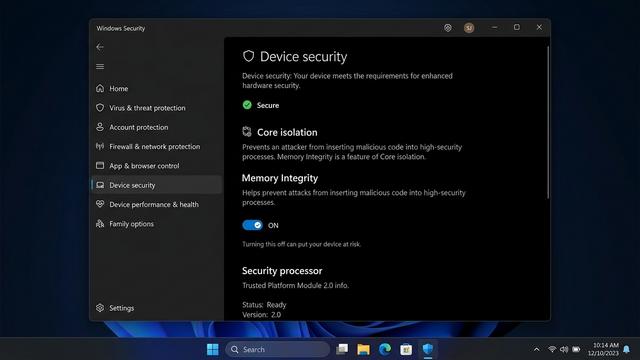
- Enable Core Isolation and Memory Integrity: Navigate to Windows Security → Device Security → Core Isolation Details and ensure Memory Integrity (also known as Hypervisor-Protected Code Integrity, or HVCI) is enabled. This feature uses hardware virtualization to isolate critical Windows processes in a secure memory environment, making it dramatically harder for malware to inject malicious code into the Windows kernel. On compatible hardware, this provides hardware-level protection against some of the most sophisticated attack techniques used by advanced persistent threats.
- Configure Controlled Folder Access: Navigate to Windows Security → Virus & Threat Protection → Ransomware Protection and enable Controlled Folder Access. This feature restricts which applications can write to designated protected folders (Documents, Pictures, Desktop, etc.), blocking ransomware’s core behavior — unauthorized file encryption — even if the ransomware executable itself evades detection. Add your most important data directories to the protected list.
- Use Windows Sandbox for Untrusted Applications: Windows 11 Pro and Enterprise users can enable Windows Sandbox (via Windows Features) to run suspicious or unfamiliar applications in a completely isolated, disposable virtual environment. Any changes the application makes — including malware installation — are completely discarded when the Sandbox window is closed, leaving your main system entirely unaffected. This is an invaluable tool for safely evaluating software before committing to a full installation.
Frequently Asked Questions
Is Windows Defender (Microsoft Defender Antivirus) good enough in Windows 11 for everyday use?
For users with low-risk online habits — those who use a limited set of trusted applications, apply updates promptly, use strong unique passwords, and avoid downloading software from unofficial sources — Windows Defender provides a solid, continuously updated security baseline that is genuinely sufficient. However, it has notable gaps in phishing protection, system optimization, and defense against high-risk online behaviors. Users who fall into the medium-to-high risk categories should consider supplementing it with a dedicated security suite like 360 Total Security.
What does Windows Defender NOT protect against effectively?
Windows Defender’s most significant gaps include: (1) sophisticated phishing attacks and malicious websites not yet indexed by SmartScreen, (2) Potentially Unwanted Programs (PUPs) and adware that degrade performance and privacy without meeting the threshold of malware classification, (3) zero-day exploits targeting unknown vulnerabilities before patches are available, and (4) system performance degradation from accumulated junk files and unnecessary startup programs. Dedicated security suites address all four of these gaps with specialized tools.
Will installing a third-party antivirus slow down my Windows 11 PC?
The performance impact of modern security suites varies significantly by product and system configuration. Well-engineered solutions like 360 Total Security are designed to minimize resource usage through efficient scanning schedules, cloud-based analysis offloading, and lightweight background processes. Independent lab performance tests (available from AV-TEST and AV-Comparatives) provide objective benchmarks for system impact. In many cases, a good security suite that includes system optimization tools will actually result in a faster PC over time by removing junk files, disabling unnecessary startup programs, and eliminating performance-degrading PUPs.
Is 360 Total Security genuinely free, and what does the free version include?
Yes, 360 Total Security offers a fully functional free version for Windows PCs that includes multi-engine antivirus protection (incorporating Bitdefender and Avira engines), real-time protection, a sandbox for testing suspicious files, a patch-up module for system vulnerability fixes, a system cleanup and optimization suite, and a network firewall. A premium subscription unlocks additional features, but the free tier provides substantially more protection and utility than Windows Security alone.
What is the single most important security action I can take right now?
If you can only do one thing, enable automatic updates for Windows and all your installed applications immediately. The majority of successful malware infections in 2025 exploited vulnerabilities for which patches were already available — meaning they were entirely preventable. After that, enable multi-factor authentication on your email account, as email account compromise is the master key that attackers use to reset passwords on all your other accounts. These two actions, combined with a capable security suite, address the vast majority of real-world threat scenarios facing home users.
About the Author: This article was researched and written by a Senior Technical Security Writer with over a decade of experience covering endpoint security, threat intelligence, and consumer cybersecurity for enterprise and general audiences. Their work draws on continuous analysis of independent laboratory test results from AV-TEST and AV-Comparatives, annual threat landscape reports from leading cybersecurity research organizations, and direct evaluation of security software across Windows platforms. They specialize in translating complex security concepts into actionable guidance for users of all technical backgrounds.
Learn more about 360 Total Security