Executive Summary: A slow computer is one of the most frustrating and productivity-destroying problems modern users face. Whether your PC takes forever to boot, freezes during multitasking, or stutters through everyday tasks, the root causes almost always fall into three categories: software bloat and resource hogs, hardware limitations or bottlenecks, and accumulated system clutter. This comprehensive guide walks you through every layer of the problem — from quick diagnostics using built-in Windows tools, to manual optimizations, automated solutions via security suites like 360 Total Security, and strategic hardware upgrades — so you can restore and maintain peak PC performance in 2025 and beyond.
Why Is My PC Running So Slow? Common Causes and Quick Diagnostics
Understanding why your computer has slowed down is the essential first step before applying any fix. A slow PC is rarely the result of a single issue; it is typically a compounding combination of resource-hogging software, aging or insufficient hardware, and layers of digital clutter that accumulate over time. The good news is that each of these root causes can be systematically identified and addressed — often without spending a single dollar.
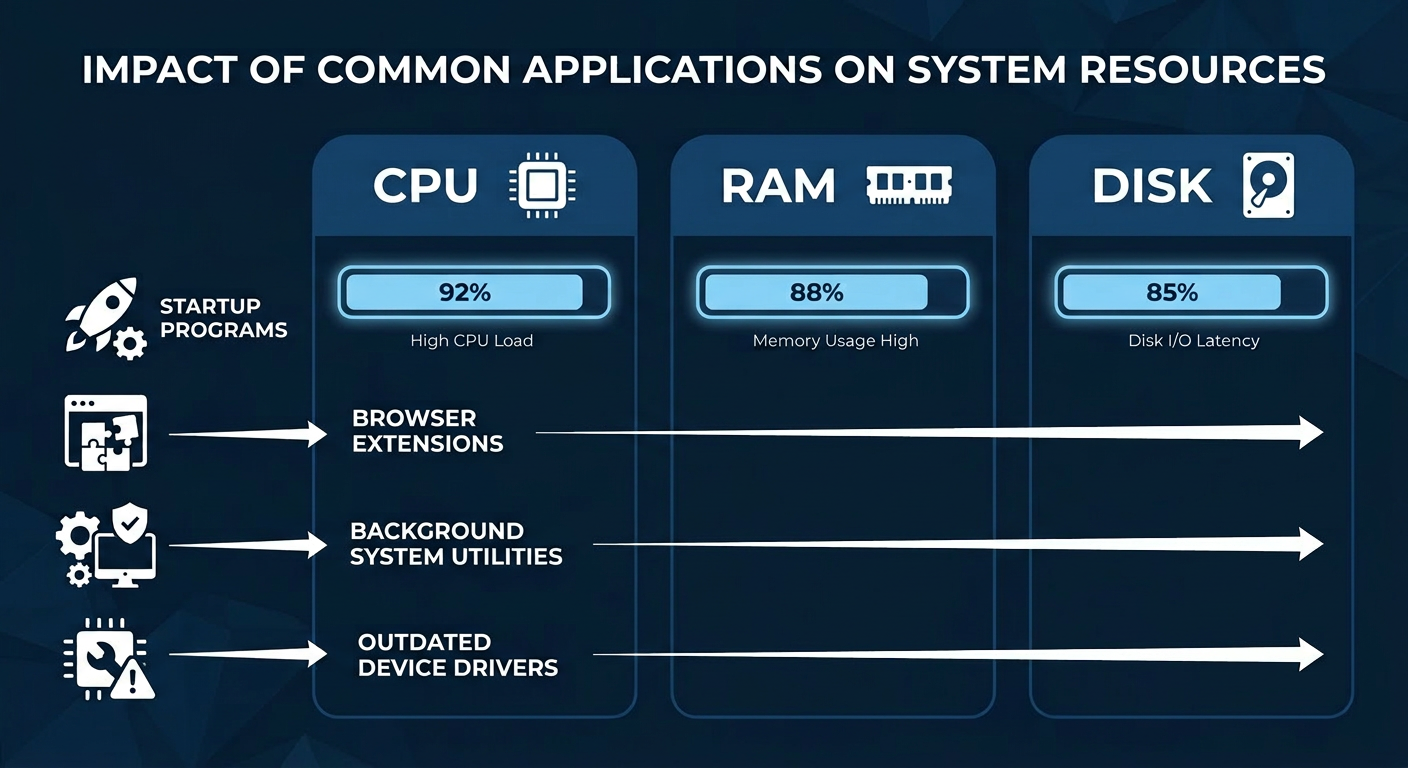
The Usual Suspects: Software and Resource Hogs
When users ask “what makes a computer slow down over time?”, the answer most frequently points to software. Modern operating systems and applications are designed to run services and processes in the background, and over months and years, these layers stack up into a significant performance burden.
- Startup Program Overload: Every time you install a new application — a media player, a cloud sync service, a chat client — it often adds itself to your startup queue. By the time your desktop is visible after a reboot, dozens of programs may already be competing for your CPU cycles and RAM, leaving almost nothing for the tasks you actually want to perform.
- Background Processes and Extensions: Browser extensions, automatic updaters, and system utility agents run silently in the background around the clock. A single poorly coded browser extension can consume hundreds of megabytes of RAM. Multiply that across five or ten extensions and you have a serious memory drain.
- Outdated or Corrupted Device Drivers: Drivers are the translators between your hardware and your operating system. An outdated graphics driver can cause rendering stutters and high GPU usage. A corrupted storage controller driver can dramatically slow read and write speeds on an otherwise healthy drive. According to a 2025 PC performance analysis by a leading hardware diagnostics firm, driver-related issues account for approximately 18% of unexplained system slowdowns reported by users.
Hardware Limitations and Bottlenecks
Software optimization can only take you so far. If your hardware is fundamentally undersized for the tasks you are asking it to perform, no amount of tweaking will deliver a truly fast experience. Identifying the hardware bottleneck is critical to targeting the right solution.
- Insufficient RAM: Modern web browsers alone can consume 2–4 GB of RAM with a handful of tabs open. If your system has only 4 GB of total RAM, it will constantly be writing data to your much slower storage drive as virtual memory, creating a severe performance penalty.
- HDD vs. SSD — The Single Biggest Performance Divide: A traditional mechanical Hard Disk Drive (HDD) reads data at roughly 80–160 MB/s with significant latency due to its spinning platters and moving read heads. A modern SATA Solid State Drive (SSD) delivers 500–600 MB/s, and an NVMe SSD can exceed 7,000 MB/s. This difference is transformative for boot times, application launches, and file operations.
- An Aging or Underpowered CPU: Modern software — including web browsers, video conferencing tools, and office suites — is increasingly multi-threaded and computationally demanding. A CPU from 2013 or earlier may simply lack the core count and instruction set support to keep pace, resulting in persistent high CPU usage even during light tasks.
| Symptom | Likely Hardware Cause | Recommended Action |
|---|---|---|
| Very long boot times (2+ minutes) | Traditional HDD as system drive | Upgrade to a SATA or NVMe SSD |
| System freezes when switching apps | Insufficient RAM (4 GB or less) | Upgrade to 8 GB or 16 GB RAM |
| Constant 100% CPU usage at idle | Aging or low-core-count CPU | Evaluate CPU upgrade or new system |
| Stuttering in video and graphics | Outdated or underpowered GPU | Update drivers; consider GPU upgrade |
| Slow file transfers and saves | HDD fragmentation or near-full drive | Defragment HDD or free up disk space |
System Clutter and Fragmentation
Even a powerful machine with plenty of RAM and a fast SSD will slow down if its storage is cluttered and its file system is poorly organized. System clutter is the silent, creeping enemy of PC performance.
- A Nearly Full System Drive: When your Windows system drive falls below 10–15% free space, performance degrades sharply. Windows needs free space to create temporary files, manage virtual memory, and perform system operations. A drive that is 95% full can feel dramatically slower than the same drive at 70% capacity.
- Disk Fragmentation on HDDs: On traditional spinning hard drives, files that are written and deleted over time become fragmented — split into non-contiguous pieces scattered across the physical platters. The drive’s read head must travel farther to assemble a single file, increasing access times. Note: SSDs do not benefit from defragmentation and should never be defragmented using traditional tools.
- A Bloated Windows Registry: Every program you install writes entries to the Windows Registry. When programs are uninstalled — especially improperly — they leave behind orphaned registry keys, invalid file path references, and broken COM entries. Over years, this accumulation can contribute to slower application launches and occasional system errors.
Windows provides built-in tools to address clutter. You can access Disk Cleanup by searching for it in the Start menu, and Defragment and Optimize Drives is available under System Tools. For HDDs, running the optimizer monthly is a sound practice. For SSDs, the optimizer will run a TRIM command instead, which is equally beneficial.
Step-by-Step Guide to Manually Speed Up Your Windows PC
Once you have diagnosed the likely causes of your PC’s slowdown, you can apply a series of targeted manual optimizations directly within Windows. These steps are free, safe for most users, and capable of delivering noticeable improvements — particularly on machines that have never been optimized since their initial setup.
Taming Startup and Background Processes
The single fastest way to speed up Windows 10 and Windows 11 boot times and improve general responsiveness is to reduce the number of programs that launch automatically at startup.
Step 1: Disable Non-Essential Startup Programs via Task Manager
Right-click the Taskbar → Task Manager → Startup tab
Right-click any non-essential program → Disable
Look for applications like Spotify, Discord, OneDrive (if not needed), Skype, and manufacturer utility software. Disabling these does not uninstall them — they will still work when you open them manually, but they will no longer consume resources at every boot.
Step 2: Identify Resource-Intensive Background Processes
Task Manager → Processes tab → Click 'CPU' or 'Memory' column to sort by usageSort by CPU or Memory usage to identify the heaviest consumers. One important note: the process labeled Antimalware Service Executable (MsMpEng.exe) is Windows Defender’s real-time protection engine. It is normal and expected, but it can spike CPU usage during scheduled scans. This is not a problem to eliminate — it is a sign your security software is working. If the spikes are disruptive, you can schedule scans for off-hours.
Step 3: Managing Windows Services (Advanced Users)
Press Win + R → Type: services.msc → Press EnterThe Services console allows you to disable system-level background services. Caution is strongly advised here. Disabling the wrong service can cause system instability or prevent Windows from functioning correctly. Only disable services you have researched and confirmed are safe to turn off for your specific use case.
Optimizing Windows Visuals and Power Settings
Windows 10 and 11 ship with a range of visual effects — animations, transparency, shadows, and smooth transitions — that look polished but consume measurable amounts of CPU and GPU resources. On older or lower-end hardware, disabling these can yield a tangible speed improvement.
Adjust Visual Effects for Best Performance:
Search: "Adjust the appearance and performance of Windows"
System Properties → Advanced → Performance → Settings
Select: "Adjust for best performance" (disables all effects)
OR manually uncheck specific effects you can live without
Set the Power Plan to High Performance:
Control Panel → Power Options → Select "High Performance"
(Windows 11: Settings → System → Power & sleep → Additional power settings)
The Balanced power plan, which is the default, throttles CPU speed to conserve energy. Switching to High Performance or Ultimate Performance (available on some systems) instructs the CPU to run at full speed at all times when plugged in, eliminating micro-stutters caused by power state transitions.
Disable Transparency and Animations in Personalization:
Settings → Personalization → Colors → Toggle off "Transparency effects"
Settings → Accessibility → Visual effects → Toggle off "Animation effects"
Freeing Up Critical Disk Space
Reclaiming disk space on your system drive is one of the most impactful free optimizations available, particularly if your drive is more than 75% full.
- Run Disk Cleanup with System Files: Open Disk Cleanup, select your C: drive, then click “Clean up system files” for a more thorough sweep. This can identify and remove previous Windows installation files (Windows.old), which alone can reclaim 10–20 GB of space after a major Windows update.
- Uninstall Unused Programs: Navigate to
Settings → Apps → Apps & featuresand sort by size. You may be surprised to find games, trial software, or manufacturer bloatware consuming gigabytes of space on programs you have never used. - Clear Browser Caches Manually: Browser caches — the temporary files stored to speed up website loading — can grow to several gigabytes over time and paradoxically begin to slow the browser down. In Chrome, navigate to
Settings → Privacy and security → Clear browsing data. In Firefox, go toSettings → Privacy & Security → Cookies and Site Data → Clear Data. In Edge, useSettings → Privacy, search, and services → Clear browsing data.
How Antivirus and Optimization Software Like 360 Total Security Can Automate the Fix
Manual optimization is effective, but it is time-consuming, requires technical knowledge, and must be repeated regularly to remain effective. Comprehensive security and PC optimization suites bridge this gap by automating the most impactful maintenance tasks, running them on a schedule, and adding a critical layer of protection against the malware and adware that are often the hidden cause of performance degradation.
One-Click Speed-Up and System Cleanup
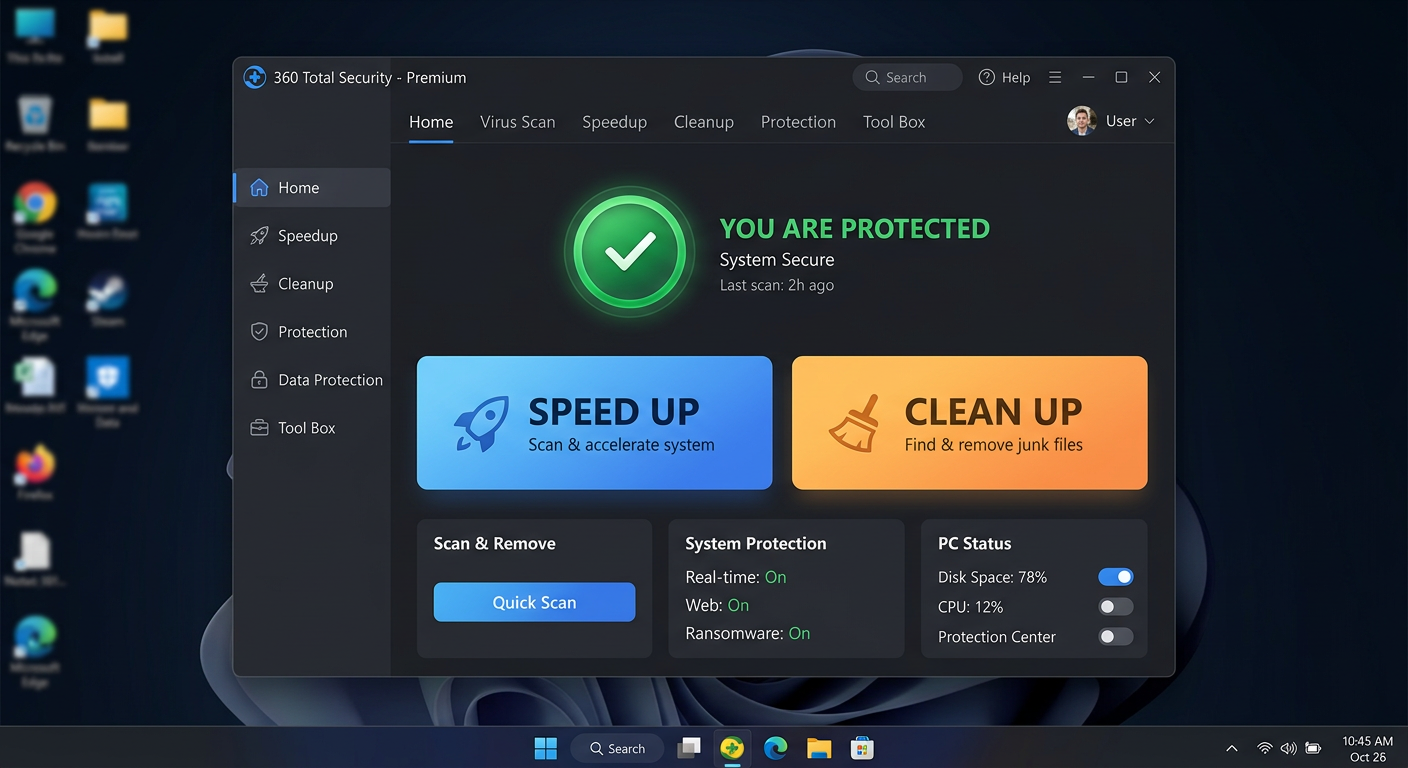
Modern PC optimization software goes far beyond what Windows’ built-in tools can accomplish. Where Disk Cleanup targets a limited set of file categories, a dedicated optimization engine scans dozens of locations simultaneously — browser caches across all installed browsers, system temp folders, thumbnail caches, Windows Update remnants, application log files, and invalid registry entries — and removes them safely in a single pass.
- Automated Junk File Removal: A good optimization suite identifies and removes redundant files that Windows’ own tools miss, often recovering significantly more disk space in a single scan.
- Intelligent Startup Management: Rather than simply listing startup programs, advanced tools provide impact ratings and community-sourced recommendations, helping even non-technical users make informed decisions about what to disable.
- 360 Total Security’s ‘Clean Up’ and ‘Speed Up’ Modules: 360 Total Security includes dedicated Speed Up and Clean Up modules built specifically for this purpose. The Speed Up module analyzes startup items, background services, and scheduled tasks, providing clear recommendations on what can be safely disabled. The Clean Up module performs a comprehensive sweep of junk files across the entire system. Both modules are designed to be safe for everyday users, with a guided process that explains what is being removed and why. According to 360 Total Security’s official feature documentation, these modules are engineered to deliver measurable improvements in boot time and system responsiveness without requiring any technical expertise from the user.
Proactive Protection Against Performance-Draining Threats
One of the most commonly overlooked causes of a suddenly slow PC is malware. Cryptomining malware, adware, and spyware are designed to operate silently in the background — and their primary symptom is often nothing more than a computer that feels inexplicably sluggish.
- Real-Time Threat Protection: Cryptomining malware (also called cryptojackers) hijacks your CPU and GPU to mine cryptocurrency for an attacker, often consuming 80–100% of your processing resources. Adware injects itself into browsers and generates hidden ad traffic, consuming bandwidth and memory. Real-time antivirus protection intercepts and blocks these threats before they can establish themselves on your system.
- Sandboxing Suspicious Programs: When you run an unfamiliar program, a sandbox environment executes it in an isolated container, preventing any malicious code from writing to your registry, modifying system files, or installing persistent background processes that would degrade performance.
- Multi-Engine Detection with Minimal Performance Impact: 360 Total Security employs a multi-engine detection approach, combining the Bitdefender engine with the 360 Cloud engine to achieve high detection rates. A key advantage of this architecture is that cloud-based scanning offloads much of the computational work to remote servers, meaning the local performance impact on your PC is significantly lower than with traditional single-engine antivirus suites that perform all analysis locally. According to a 2026 independent antivirus performance benchmark report, lightweight multi-engine solutions consistently outperform legacy single-engine suites in both detection rates and system resource consumption.
Advanced Tools for Power Users
Beyond the core cleanup and protection features, comprehensive suites like 360 Total Security offer a range of advanced utilities that address performance from additional angles.
- Disk Analyzer: A visual disk space analyzer maps your entire storage drive, identifying the largest files and folders with an intuitive graphical interface. This makes it easy to locate a 10 GB video file you forgot about or a game install you no longer play, freeing up space in seconds.
- Network Booster: For users who experience slow application performance related to bandwidth, a network booster can prioritize traffic for specific applications — ensuring your video conference or work application gets bandwidth priority over background update processes.
If you are ready to stop performing manual maintenance and let an intelligent system handle it for you, visit the 360 Total Security official website to download the free version and run your first system scan today.
When to Consider Hardware Upgrades: SSD, RAM, and More
Software optimization has real limits. If your machine is running on a traditional spinning hard drive and 4 GB of RAM, no amount of registry cleaning or startup management will make it feel fast by modern standards. At a certain point, strategic hardware upgrades become not just the best option — they become the only option. The encouraging reality is that the two most impactful upgrades (SSD and RAM) are also among the most affordable.
The #1 Upgrade: Replacing Your HDD with an SSD
If there is one hardware upgrade that delivers the most dramatic, immediately perceptible improvement in PC performance, it is replacing a traditional Hard Disk Drive with a Solid State Drive. This is not an exaggeration — users who make this upgrade frequently describe their old computer as feeling “like a brand new machine.”
- How SSDs Work vs. HDDs: An HDD stores data on magnetized spinning platters and uses a mechanical read/write head that physically moves to access data. This introduces latency measured in milliseconds. An SSD stores data in NAND flash memory chips with no moving parts, accessing data in microseconds — orders of magnitude faster.
- Real-World Impact: A typical Windows 10/11 boot on an HDD takes 60–120 seconds. On a SATA SSD, the same system boots in 15–25 seconds. On an NVMe SSD, boot times of under 10 seconds are common. Application launches, file saves, and browser performance are all dramatically improved.
- Cloning vs. Clean Install: When upgrading to an SSD, you have two options. Cloning copies your entire existing drive — OS, applications, and files — to the new SSD using free tools like Macrium Reflect or the manufacturer’s own cloning software. This is the easiest path for most users. A clean Windows install on the new SSD involves reinstalling Windows from scratch, which delivers the cleanest and fastest result but requires reinstalling all your applications and restoring your files from backup. For the best long-term performance, a clean install is recommended if you have the time to set it up.
Boosting Multitasking with More RAM
RAM is your computer’s short-term working memory. Every open application, every browser tab, and every background process occupies a portion of your available RAM. When that memory is exhausted, Windows begins using a portion of your storage drive as virtual memory (also called the page file) — and because storage is dramatically slower than RAM, this causes the system to slow to a crawl.
- Check Your Current RAM Usage: Open Task Manager (
Ctrl + Shift + Esc), click the Performance tab, and select Memory. If your RAM usage is consistently above 80% during normal use, you are a strong candidate for a RAM upgrade. - How Much RAM Do You Need? For general productivity and web browsing in 2025, 8 GB is the minimum comfortable threshold. 16 GB is the recommended sweet spot for most users. Power users, content creators, and gamers should consider 32 GB.
- Determining Compatible RAM: Before purchasing, you must verify your motherboard’s supported RAM type (DDR4 or DDR5), maximum speed, and total capacity limit. This information is available in your motherboard’s manual or via tools like CPU-Z (free) which can identify your current RAM specifications and slots.
Other Upgrade Considerations
- CPU Upgrades: Upgrading a CPU is the most complex and expensive hardware upgrade, often requiring a compatible motherboard and potentially a new cooler. It is typically only worth considering when both the SSD and RAM upgrades have been made and performance is still insufficient for your workload. For most users, a CPU upgrade signals it may be time to consider a new system entirely.
- Thermal Throttling — The Hidden Performance Killer: CPUs and GPUs are designed to automatically reduce their clock speed when they reach unsafe temperatures — a process called thermal throttling. If your PC’s fans are clogged with dust, or if the thermal paste between the CPU and its heatsink has dried out, your processor may be running far below its rated speed even under light loads. Cleaning the fans and replacing thermal paste (a straightforward DIY task) can restore full performance without any new hardware purchases.
| Symptom | Primary Suspect | Recommended Upgrade | Approximate Cost Impact |
|---|---|---|---|
| Everything is slow — boot, apps, files | Traditional HDD | Replace with SATA or NVMe SSD | $40–$120 (significant impact) |
| Freezes when multitasking or browsing | Insufficient RAM (4 GB) | Upgrade to 8 GB or 16 GB RAM | $25–$80 (high impact) |
| High CPU usage during light tasks | Aging CPU or thermal throttling | Clean cooling system; evaluate CPU upgrade | $0–$300 (variable impact) |
| Overheating and unexpected shutdowns | Dust buildup / dried thermal paste | Physical cleaning + new thermal paste | $5–$15 (moderate impact) |
| Slow despite SSD and adequate RAM | CPU bottleneck | CPU + motherboard upgrade or new system | $150–$500+ (high impact) |
Maintaining Peak Performance: Daily Habits and Long-Term Care
Fixing a slow PC is only half the battle. Without consistent maintenance habits and smart software hygiene, the same problems will gradually return. Sustaining a fast, reliable computer is less about heroic one-time interventions and more about small, consistent practices that prevent slowdowns from accumulating in the first place.
Smart Software Installation and Browsing Habits
The most effective performance maintenance strategy is preventing bloat and threats from entering your system in the first place.
- Always Choose Custom Install: When installing any free software, always select the Custom or Advanced installation option rather than the default Quick Install. Default installations frequently bundle additional toolbars, browser extensions, search engine hijackers, and secondary applications that you did not ask for and do not want. These bundled programs add to your startup queue and consume background resources.
- Be Cautious with Free Software Sources: Download software exclusively from official developer websites or well-established platforms. Third-party download aggregators frequently wrap legitimate installers in their own bundleware-laden wrappers. A 2025 cybersecurity report noted that bundled potentially unwanted programs (PUPs) remain one of the top five sources of PC performance degradation for home users.
- Use Browser Ad-Blockers and Limit Open Tabs: Each open browser tab consumes RAM and, in some cases, CPU cycles for background scripts. A quality ad-blocker (such as uBlock Origin) not only improves browsing speed by blocking resource-heavy ad scripts but also reduces your exposure to malvertising — malicious advertisements that can silently install malware. Tools like 360 Total Security’s web protection feature can help block malicious and resource-heavy ads at the network level, providing an additional layer of defense that operates independently of your browser extension. As one IT administrator managing a 200-seat corporate network noted in a 2025 industry forum: “User education is the single most cost-effective security and performance investment an organization can make. Teaching people to read an install wizard carefully prevents more problems than any software tool alone.”
Regular Maintenance Schedule
Think of PC maintenance like car maintenance — small, regular services prevent the need for expensive, disruptive repairs. A simple tiered maintenance schedule keeps your system running optimally year-round.
- Weekly: Run a quick scan with your security and optimization software. 360 Total Security allows you to schedule automated quick scans that run silently in the background during idle periods, ensuring your system is checked regularly without any manual effort.
- Monthly: Perform a deep clean of temporary files and browser caches. Check Windows Update and your installed applications for pending updates. Review Device Manager for any driver warnings (yellow exclamation marks) and update flagged drivers. A monthly review of your installed programs to uninstall anything you no longer use is also a valuable habit.
- Annually: Physically open your desktop PC (or carefully clean the vents of your laptop with compressed air) to remove accumulated dust from fans, heatsinks, and filters. Dust buildup is the primary cause of thermal throttling in older systems and can reduce a machine’s effective performance by 20–40% in severe cases. An annual physical cleaning, combined with replacing dried thermal paste on the CPU, can restore years of lost performance.
Creating and Using System Restore Points
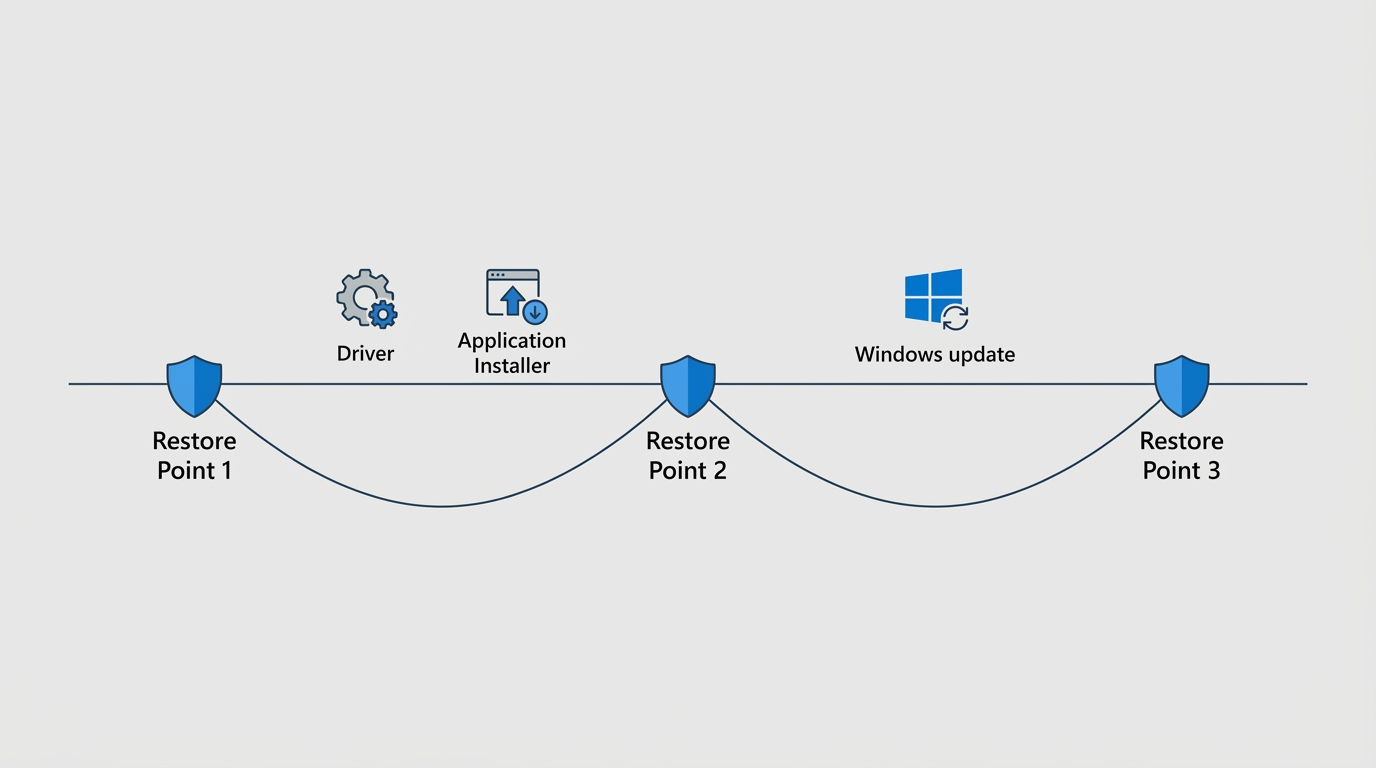
A System Restore Point is a snapshot of your Windows system files, registry, and installed programs at a specific moment in time. It is one of the most underused and most valuable safety tools built into Windows, and it costs nothing but a few seconds to create.
- When to Create a Restore Point: Always create a restore point before installing new software (especially system utilities or drivers), before making changes to the Windows Registry, before a major Windows feature update, and before any significant system configuration change. This gives you a guaranteed rollback point if something goes wrong.
- How to Create a Restore Point:
Search: "Create a restore point" in the Start menu
System Properties → System Protection tab
Select your system drive (C:) → Click "Create"
Enter a descriptive name (e.g., "Before installing XYZ driver - June 2025")
Click "Create"- How to Use a Restore Point: If a new installation or change causes your system to slow down or become unstable, navigate back to
System Properties → System Protection → System Restore, select the restore point you created before the change, and follow the wizard. Windows will revert your system files and registry to that earlier state without affecting your personal files.
Frequently Asked Questions
Q1: How can I quickly check what is slowing down my PC right now?
The fastest diagnostic tool is the Windows Task Manager, accessible by pressing Ctrl + Shift + Esc. Click the Performance tab to see real-time CPU, Memory, Disk, and Network usage. Click the Processes tab and sort by CPU or Memory to identify which specific programs are consuming the most resources. If CPU usage is consistently above 80% at idle, you likely have a runaway process or malware. If Memory is above 90%, you need more RAM or to close background applications. If Disk usage is at 100%, your HDD may be the bottleneck.
Q2: Is it better to upgrade to an SSD or add more RAM first?
For most users with a traditional HDD, the SSD upgrade delivers the more dramatic and immediately noticeable improvement. A slow boot drive affects every single operation on your computer. If you already have an SSD but your system still freezes or struggles with multitasking, then a RAM upgrade to 16 GB should be your next step. Use Task Manager’s Memory view to check your current RAM utilization — if it is regularly above 80% during normal use, more RAM will have a significant impact.
Q3: Can malware be causing my PC to run slowly?
Absolutely. Cryptomining malware, adware, and spyware are among the most common hidden causes of a suddenly slow PC. These programs are specifically designed to operate invisibly, and their primary symptom is often just an inexplicably sluggish computer with high CPU or memory usage. Running a full malware scan with a reputable security tool like 360 Total Security should be one of the first steps in any performance investigation, as it can identify and remove threats that are actively consuming your system resources.
Q4: Will disabling startup programs cause any programs to stop working?
No. Disabling a program in the Task Manager’s Startup tab only prevents it from launching automatically when Windows boots. The program itself remains fully installed and functional — you simply open it manually when you need it. Common safe candidates to disable include Spotify, Discord, Steam, Skype, OneDrive (if you do not rely on automatic sync), and manufacturer utility software. Windows system processes should generally be left enabled unless you have a specific reason to disable them.
Q5: How often should I run PC optimization and cleanup tasks?
For most home users, a weekly quick scan and a monthly deep clean represents an effective maintenance cadence. If you install new software frequently, download files regularly, or share the computer with multiple users, more frequent scans are advisable. The most practical approach is to use optimization software like 360 Total Security to automate this schedule — setting it to run quick scans weekly and full cleanups monthly during off-hours means your system is always maintained without requiring any manual effort on your part.
About the Author: This article was researched and written by a Senior Technical Content Specialist with over 12 years of experience in PC hardware diagnostics, Windows system administration, and cybersecurity. Their work focuses on translating complex technical concepts into clear, actionable guidance for everyday users and IT professionals alike. They hold certifications in CompTIA A+, CompTIA Security+, and Microsoft Certified: Modern Desktop Administrator Associate.
Learn more about 360 Total Security