Executive Summary: Windows laptops face a relentless barrage of cyber threats — from phishing emails and drive-by downloads to ransomware and zero-day exploits. This comprehensive guide covers everything you need to know: how viruses infiltrate your system, the warning signs of infection, a step-by-step removal process, essential prevention habits, and how to choose the right security solution. Whether you rely on Windows’ built-in defenses or a full-featured suite like 360 Total Security, understanding these layers of protection is the foundation of keeping your laptop safe, fast, and private.
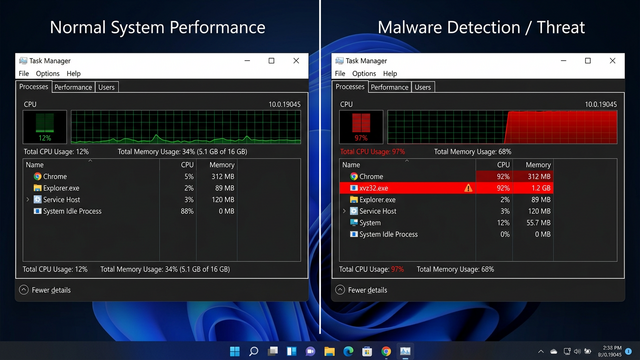
How Do Viruses Infiltrate Windows Laptops and What Are the Warning Signs?
Understanding how malware enters your system — and recognizing the earliest symptoms — is the first and most critical step toward protecting your Windows laptop. Many infections are preventable once users understand the common attack vectors and know what behavioral red flags to watch for. The faster you detect a compromise, the less damage it can do.
Common Virus Entry Points You Should Know
Cybercriminals are creative and persistent. They exploit both technical vulnerabilities and human psychology to gain access to your machine. Here are the three most prevalent entry points:
- Phishing Emails with Malicious Attachments or Links: Attackers craft convincing emails that impersonate banks, shipping companies, or even your IT department. A single click on a malicious link or a double-click on an infected
.docxor.exeattachment can silently install malware. These emails are increasingly sophisticated, often bypassing spam filters with legitimate-looking domains. - Unofficial and Pirated Software Downloads: Downloading cracked games, pirated software, or media from unverified third-party portals is one of the most dangerous habits a user can have. According to cybersecurity guidance from the Cybersecurity and Infrastructure Security Agency (CISA), bundled malware within unofficial installers is a leading cause of consumer-level infections. The “free” software often comes at the hidden cost of a keylogger or adware.
- Infected External Drives: USB sticks and external hard drives can carry autorun malware that executes the moment they are connected to your laptop. This is especially common in shared environments like offices, schools, or libraries. Always scan any external media before opening files from it.
Early Warning Signs of a Compromised System
Viruses rarely announce themselves. Instead, they reveal their presence through subtle — and sometimes not-so-subtle — changes in system behavior. Knowing these signs can save you from significant data loss or financial harm.
- Performance Degradation and Crashes: A sudden, unexplained slowdown in your laptop’s speed, frequent application crashes, or the dreaded Blue Screen of Death (BSOD) can all indicate that a malicious process is consuming system resources or corrupting core files. While hardware issues can cause similar symptoms, a pattern of instability that appeared suddenly warrants a security scan immediately.
- Unauthorized Program Changes: If unfamiliar programs appear in your startup list, new toolbars materialize in your browser, or your homepage and default search engine have changed without your input, a browser hijacker or adware has likely taken hold. These programs are designed to monetize your browsing activity or redirect you to malicious sites.
- Anomalous System Activity: Pop-up advertisements appearing outside of any web browser window, unusually high network activity when your laptop should be idle, or finding that your antivirus or Windows Defender has been mysteriously disabled are serious red flags. Many sophisticated malware strains specifically target security software to disable it upon installation.
What Are the Most Critical Security Features for Protecting Your Windows Laptop?
Effective laptop security is not a single product or a single action — it is a multi-layered architecture. A robust defense combines real-time threat detection at the file level, network-level gatekeeping via a firewall, advanced shields against modern attack types like ransomware, and intelligent behavioral analysis capable of catching threats that have never been seen before. Understanding what each layer does helps you evaluate whether your current setup has any gaps.
The Non-Negotiable Core: Real-Time Antivirus and Firewall
These two components form the absolute foundation of any security strategy. Without them, your laptop is essentially an open door.
- On-Access Real-Time Scanning: A real-time antivirus engine monitors every file that is opened, downloaded, or executed. It intercepts threats before they can run and cause damage. This is fundamentally different from an on-demand scan, which only checks files when you manually initiate it — by which point an active threat may have already taken root.
- Firewall as a Network Gatekeeper: A properly configured firewall inspects incoming and outgoing network traffic, blocking unauthorized connections. It prevents malware that has somehow gotten onto your system from “phoning home” to a command-and-control server, and it blocks external intrusion attempts from reaching your open ports.
The table below illustrates how built-in Windows Security compares to a comprehensive third-party solution like 360 Total Security:
| Security Feature | Windows Security (Defender) | 360 Total Security |
|---|---|---|
| Real-Time Malware Protection | ✅ Yes | ✅ Yes (Multi-Engine: Cloud + Bitdefender + Avira) |
| Built-in Firewall | ✅ Yes (Basic) | ✅ Yes (Enhanced with alerts) |
| Ransomware / Controlled Folder Access | ✅ Yes (Manual setup required) | ✅ Yes (Automated Ransomware Shield) |
| Browser / Phishing Protection | ⚠️ Limited (SmartScreen only) | ✅ Yes (Dedicated secure browsing layer) |
| System Optimization Tools | ❌ No | ✅ Yes (Startup manager, disk cleaner, speed-up) |
| Sandbox / Isolated Execution | ⚠️ Limited (Windows Sandbox, separate feature) | ✅ Yes (Integrated sandbox) |
| Webcam / Privacy Protection | ❌ No | ✅ Yes |
| Performance Impact | Low | Low to Moderate (optimizable) |
Advanced Shields: Ransomware and Exploit Protection
Modern threats have evolved far beyond simple viruses. Ransomware and exploit-based attacks require dedicated countermeasures.
- Controlled Folder Access and Ransomware Shields: Ransomware works by encrypting your personal files and demanding payment for the decryption key. Features like Windows’ Controlled Folder Access — or the dedicated ransomware shields found in comprehensive suites — create a whitelist of trusted applications that are allowed to modify protected folders. Any unauthorized process attempting to encrypt or modify your documents, photos, or financial files is immediately blocked and flagged.
- Exploit Mitigation: Many of the most damaging attacks in recent years have not relied on you downloading a virus file at all. Instead, they exploit vulnerabilities in legitimate software — your browser, PDF reader, or even Windows itself. Exploit mitigation technologies apply memory protection techniques (like DEP and ASLR enforcement) to make it significantly harder for attackers to leverage these software flaws, even on unpatched systems.
Proactive Defense: Sandboxing and Behavioral Analysis
Signature-based detection — matching files against a database of known malware — is necessary but no longer sufficient on its own. Proactive technologies are essential for catching new and unknown threats.
- Sandbox Execution: A sandbox is an isolated, virtualized environment where a suspicious file can be executed and observed without any risk to your real system. If the file attempts to modify registry keys, disable security software, or establish network connections to known malicious IPs, the sandbox catches this behavior and the file is quarantined. This is particularly effective against novel threats that have no existing signature.
- Heuristic and AI-Based Behavioral Analysis: Rather than asking “does this file match a known bad file?”, behavioral analysis asks “is this program acting like malware?” By monitoring real-time behavior — process injection, unauthorized privilege escalation, bulk file modifications — AI-driven engines can detect zero-day threats that have never been catalogued in any database. According to a 2026 Cybersecurity Trends Report, AI-powered behavioral detection is projected to become the primary line of defense against advanced persistent threats targeting consumer devices.
Step-by-Step Guide: How to Remove a Virus from Your Windows Laptop
Discovering that your laptop is infected can be alarming, but a calm, methodical approach to removal is highly effective in the vast majority of cases. The key is to follow a specific sequence: isolate the machine, clean it in a minimal environment, verify the cleanup, and restore system integrity. Skipping steps or acting out of order can allow malware to re-entrench itself.
Immediate First Response: Isolate and Assess
- Disconnect from All Networks Immediately: The moment you suspect an active infection, disable your Wi-Fi and unplug any Ethernet cable. Many modern malware strains — particularly banking trojans and ransomware — communicate with remote command-and-control (C2) servers to receive instructions, exfiltrate data, or download additional payloads. Cutting the network connection stops this communication channel cold and can prevent an infection from escalating.
- Boot into Safe Mode with Networking: Safe Mode loads Windows with only the most essential drivers and services, which means the vast majority of malware — which is designed to run as a startup process or service — will not load. “Safe Mode with Networking” retains internet access, which you will need to update your security tools or download removal utilities. To enter Safe Mode on Windows 10/11, hold Shift while clicking Restart, then navigate to Troubleshoot > Advanced Options > Startup Settings > Restart, and press F5.
- Do Not Log Into Sensitive Accounts: While the system is potentially compromised, avoid logging into your bank, email, or any account containing sensitive information. A keylogger may still be active, capturing your credentials in real time.
Deep Cleaning with Specialized Scanners
With the system isolated and in a clean boot state, you can now run your removal tools effectively.
- Run a Full System Scan with Your Primary Antivirus: A full scan — not a quick scan — examines every file on your hard drive. For a powerful and free option, 360 Total Security is particularly effective here because it employs a multi-engine approach, combining its own proprietary Cloud Scan engine with the respected Bitdefender and Avira engines simultaneously. This multi-engine architecture dramatically increases detection rates, catching threats that any single engine might miss.
- Use a Second-Opinion Scanner: No single tool catches everything. After your primary scan, run a dedicated second-opinion malware removal tool to sweep for anything that was missed. This layered approach is standard practice in professional incident response and is highly recommended for thorough cleanup.
- Audit Startup Programs and Services: Many malware strains establish persistence by adding themselves to the system startup. Use the built-in Windows tools to find and disable these entries:
# Method 1: Using MSConfig
# Press Win + R, type the following, and press Enter:
msconfig
# Navigate to the "Startup" tab (Windows 7) or open Task Manager for Windows 10/11

# Method 2: Using Task Manager (Windows 10/11)
# Press Ctrl + Shift + Esc
# Click the "Startup" tab
# Right-click any suspicious or unknown entry and select "Disable"

# Method 3: Using Autoruns (Sysinternals - Advanced)
# Download from Microsoft's official Sysinternals suite
# Provides the most comprehensive view of all auto-starting locations
Post-Removal Verification and System Restoration
Removing the malware itself is only part of the job. You must also repair any damage it left behind and verify the system is truly clean.
- Clean and Reset Your Browsers: Browser hijackers often leave behind malicious extensions even after the core malware is removed. Go into each browser’s extension/add-on manager, remove anything you do not recognize, and then perform a full browser settings reset to restore your default homepage, search engine, and new tab page to their original state.
- Restore System File Integrity: Malware sometimes corrupts or replaces core Windows system files. The System File Checker (SFC) tool scans for and restores corrupted protected system files. Run it from an elevated Command Prompt:
# Open Command Prompt as Administrator
# Press Win + S, type "cmd", right-click and select "Run as administrator"

# Run the System File Checker
sfc /scannow

# If SFC finds errors it cannot fix, run DISM first:
DISM /Online /Cleanup-Image /RestoreHealth

# Then run SFC again:
sfc /scannow- Use System Restore as a Last Resort: If the infection was severe and residual issues persist after scanning and file repair, Windows System Restore can roll back your system configuration to a state that existed before the infection occurred. According to Microsoft support guidance on malware recovery, System Restore does not remove personal files but does revert system settings, installed programs, and registry configurations — effectively undoing much of what the malware may have altered. Access it via Control Panel > Recovery > Open System Restore and select a restore point dated before the infection began.
Beyond Antivirus: Essential Habits to Keep Your Laptop Virus-Free
Technology alone cannot make you fully secure. The most sophisticated antivirus suite in the world can be circumvented if a user clicks a malicious link or installs unverified software. The strongest security layer is an informed, disciplined user. Adopting consistent digital hygiene habits dramatically reduces your attack surface and makes you a far harder target for cybercriminals.
Digital Hygiene 101: Updates, Backups, and Downloads
- Enable Automatic Updates — For Everything: The majority of successful cyberattacks exploit known vulnerabilities for which patches already exist. Enabling automatic updates for Windows, your browser, browser plugins (especially Java and Flash, if still in use), PDF readers, and all other software ensures these vulnerabilities are closed as quickly as possible. According to a 2025 Vulnerability Exploitation Report, over 60% of successful enterprise breaches involved vulnerabilities where a patch had been available for more than 30 days. The same principle applies to home users.
- Follow the 3-2-1 Backup Rule: This is the single most effective defense against ransomware. The rule is simple: maintain 3 copies of your important data, stored on 2 different types of media (e.g., internal drive and external HDD), with 1 copy stored offsite or in the cloud. If ransomware encrypts your local files, you simply restore from your clean backup and pay nothing. Without a backup, you face a terrible choice between paying criminals or losing your data permanently.
- Download Only from Official Sources: Make it a firm rule to only download software directly from the official developer’s website or a trusted platform. Third-party download portals frequently bundle adware, toolbars, or worse alongside the legitimate software. When in doubt, search for the official website directly rather than clicking the first search result, which may be a sponsored ad for a fake download site.
Smart Browsing and Email Practices
- Develop a Phishing-Detection Mindset: Before clicking any link in an email, hover over it to preview the actual destination URL in your browser’s status bar. Check the sender’s actual email address (not just the display name) for subtle misspellings like “support@paypa1.com” instead of “paypal.com”. Be deeply skeptical of any email that creates urgency — “Your account will be suspended in 24 hours!” — as urgency is the primary psychological lever used in phishing attacks.
- Use Ad-Blocking Browser Extensions: Malvertising — the delivery of malware through online advertising networks — is a significant and underappreciated threat vector. A reputable ad-blocking extension not only improves your browsing experience but also eliminates an entire category of malware delivery. Tracker-blocking extensions provide an additional layer of privacy by preventing data brokers from profiling your online behavior.
- Leverage 360 Total Security’s Privacy Features: 360 Total Security extends protection beyond just scanning for malware. Its secure DNS service helps prevent DNS hijacking attacks that can redirect you to fake websites even when you type the correct address. Its webcam protector ensures that no unauthorized application can silently activate your laptop’s camera — a critical privacy safeguard against spyware and RATs (Remote Access Trojans).
Strengthening Your Account Security
- Use a Password Manager: Reusing passwords across multiple accounts is one of the most dangerous habits in digital security. When one service is breached and your credentials are leaked, attackers use automated tools to try those same credentials on hundreds of other services — a technique called credential stuffing. A password manager generates and stores a unique, complex password for every single account, so a breach on one site never compromises any other.
- Enable Multi-Factor Authentication (MFA) Everywhere: MFA requires a second form of verification — typically a code from an authenticator app or a text message — in addition to your password. Even if an attacker steals your password through a phishing attack or data breach, they cannot access your account without this second factor. Prioritize enabling MFA on your email account first, as email is the master key to resetting passwords on virtually every other service you use.
Choosing Your Defense: Evaluating Built-in vs. Third-Party Windows Security Solutions
A common question among Windows users is whether the security tools that come pre-installed with the operating system are sufficient, or whether investing time in a third-party solution provides meaningful additional value. The honest answer depends on your technical sophistication, your usage patterns, and how much you value features beyond pure malware detection. Here is an objective breakdown.
Analyzing the Capabilities of Windows Security (Defender)
Windows Security — previously known as Windows Defender — has come a remarkably long way from its early days as a basic antispyware tool. It is now a legitimate security product that deserves respect.
- Genuine Strengths: Windows Security is deeply integrated into the operating system, which gives it unique advantages in detecting threats that attempt to manipulate the OS itself. It is lightweight, has minimal performance impact, and consistently achieves competitive scores in independent laboratory tests from organizations like AV-TEST and AV-Comparatives for core malware detection rates. Crucially, it is always on and always up to date via Windows Update, meaning there is zero configuration required for the average user.
- Meaningful Limitations: Where Windows Security falls short is in the breadth of its feature set. It lacks a dedicated firewall tuner with intuitive application-level controls, a secure browser or browser hardening tools, system cleanup and optimization utilities, a startup manager, a disk cleaner, or a game/performance booster. Its interface, while functional, can be unintuitive for less technical users who want a clear, at-a-glance security dashboard. It also lacks privacy-specific tools like webcam protection or a VPN.
The Value-Added Proposition of Comprehensive Suites
This is where third-party security suites differentiate themselves — not necessarily by being dramatically better at detecting malware, but by offering a far more complete security and system management ecosystem.
- All-in-One Protection and Management: Suites like 360 Total Security bundle antivirus protection, firewall management, system optimization tools, privacy cleaners, and additional security features like webcam protection and secure DNS into a single, unified interface. For users who want to manage their laptop’s health and security from one dashboard, this is a significant quality-of-life improvement over juggling multiple separate tools.
- Proactive Performance Management: A frequently overlooked aspect of security suites is their system optimization capability. Many users cannot distinguish between a slow laptop caused by malware and one caused by bloated startup programs or a fragmented disk. 360 Total Security’s built-in startup manager, disk cleaner, and process monitor address this directly — helping users maintain peak performance while simultaneously ensuring that performance issues are not security-related. This dual-purpose value is something Windows Security simply does not offer.
The following feature matrix provides a detailed comparison to help you make an informed decision:
| Feature Category | Windows Security (Defender) | 360 Total Security (Free) | Typical Paid Premium Suite |
|---|---|---|---|
| Core Protection | |||
| Real-Time Malware Detection | ✅ Strong | ✅ Very Strong (Multi-Engine) | ✅ Very Strong |
| Ransomware Protection | ✅ (Manual setup) | ✅ (Automated) | ✅ (Automated) |
| Exploit / Zero-Day Protection | ⚠️ Basic | ✅ Behavioral + AI | ✅ Advanced |
| System Tools | |||
| Startup Manager | ❌ No | ✅ Yes | ✅ Yes |
| Disk / Junk Cleaner | ❌ No | ✅ Yes | ✅ Yes |
| Performance Booster | ❌ No | ✅ Yes | ✅ Yes |
| Privacy Features | |||
| Webcam Protection | ❌ No | ✅ Yes | ✅ Yes |
| Secure DNS | ❌ No | ✅ Yes | ✅ Yes |
| VPN | ❌ No | ❌ No (Premium only) | ✅ Often included |
| Performance Impact | Very Low | Low | Low to Moderate |
| Cost | Free (Built-in) | Free | $30–$100/year |
Making the Right Choice for Your Needs
- For Minimalist, Tech-Savvy Users: If you are an experienced user who religiously follows security best practices, updates software promptly, never downloads from unofficial sources, and is comfortable manually configuring Windows’ built-in tools, Windows Defender coupled with disciplined habits may indeed be sufficient for your needs. You understand the risks and actively manage them.
- For Most Users Seeking Ease and Comprehensiveness: For the vast majority of Windows laptop users — those who want strong protection without having to think deeply about it — a free, reputable suite like 360 Total Security provides substantial additional value at zero cost. Its multi-engine detection, automated ransomware protection, system optimization tools, and privacy features collectively deliver a more holistic and user-friendly security experience than Defender alone. As noted in multiple PC security reviews, 360 Total Security’s particular strength lies in combining robust, multi-layered security with genuinely useful performance management tools — addressing the two most common concerns of everyday Windows laptop users in a single, free package.
Frequently Asked Questions
Q1: Can a virus permanently damage my Windows laptop?
Yes, in some cases. While most viruses are designed to steal data or generate revenue for attackers rather than destroy hardware, certain types of malware can cause lasting damage. Ransomware can permanently encrypt files if no backup exists and no decryption key is obtained. Some malware overwrites firmware or the Master Boot Record (MBR), requiring a full OS reinstallation to recover. Rootkits can become so deeply embedded that the only reliable fix is a clean Windows reinstall. This is why early detection and regular backups are so critical.
Q2: How often should I run a full virus scan on my Windows laptop?
With real-time protection enabled, your antivirus is continuously monitoring for threats, so you do not need to run manual full scans daily. However, scheduling a full system scan once a week is a good practice for catching anything that may have slipped through. You should also run an immediate full scan any time you notice suspicious behavior, after connecting an unfamiliar external drive, or after downloading software from a source you are not entirely certain about.
Q3: Is Windows Defender enough protection on its own in 2025?
Windows Defender (Windows Security) provides a solid baseline of protection and performs well in independent lab tests for core malware detection. For a technically proficient user who follows strict security habits, it can be sufficient. However, it lacks several features that many users find valuable: system optimization tools, webcam protection, secure DNS, an intuitive security dashboard, and the multi-engine detection redundancy offered by suites like 360 Total Security. For most everyday users, supplementing or replacing Defender with a comprehensive free suite provides meaningful additional protection and usability without any added cost.
Q4: What should I do if my antivirus cannot remove a detected virus?
If your primary antivirus detects but cannot remove a threat, it usually means the malware is actively running and protecting itself. The best approach is to reboot into Safe Mode (which prevents most malware from loading) and run the scan again from that environment. You can also try a second-opinion scanner for an independent removal attempt. If the infection is still persistent, use the sfc /scannow command to repair corrupted system files, and consider using System Restore to roll back to a pre-infection state. In extreme cases where the system is severely compromised, a clean reinstallation of Windows — after backing up personal files — is the most reliable solution.
Q5: Can I get a virus just by visiting a website, without downloading anything?
Yes. This is known as a “drive-by download” attack. Malicious websites — or legitimate websites that have been compromised — can exploit vulnerabilities in your browser or browser plugins (like outdated JavaScript engines or PDF viewers) to silently install malware without any user interaction beyond visiting the page. This is why keeping your browser and all its plugins fully updated is non-negotiable, and why browser-level protection features (like those offered in comprehensive security suites) add meaningful value beyond what antivirus scanning alone can provide.
About the Author: This article was researched and written by a Senior Technical Security Writer with over a decade of experience covering Windows security, malware analysis, and consumer cybersecurity best practices. Their work synthesizes guidance from authoritative sources including CISA, Microsoft Security Intelligence, and independent antivirus testing laboratories to deliver actionable, accurate advice for everyday Windows users. They specialize in translating complex security concepts into clear, practical guidance that empowers users to protect their devices and data effectively.
Learn more about 360 Total Security