Executive Summary: A virus-infected computer can silently steal your data, cripple your performance, and expose your personal accounts to criminal exploitation — often before you notice a single warning sign. This comprehensive guide walks you through every critical stage of computer virus management: recognizing the early symptoms of infection, performing manual checks using built-in Windows tools, running deep scans with powerful free antivirus software, eliminating stubborn malware that resists standard removal, and building a proactive defense strategy that keeps your PC secure long-term. Whether you are a casual home user or a small business owner, the actionable steps outlined here will help you take full control of your system’s security.
What Are the Common Signs Your Computer Might Have a Virus?
Recognizing the subtle and overt symptoms of a computer virus is the crucial first step in taking action. Many users do not realize their system is compromised until significant damage has already occurred. Viruses and malware are engineered to operate quietly, siphoning resources and data while evading detection. Understanding the warning signs — from sluggish performance to hijacked browser behavior — empowers you to respond quickly and decisively before the situation escalates.
Performance and System Anomalies
One of the most universally reported virus symptoms is a sudden, unexplained drop in computer performance. If your machine has become noticeably slower, crashes more frequently, or displays the dreaded Blue Screen of Death (BSOD) without a clear hardware reason, malware may be consuming your system resources in the background.
- Unusually slow performance and frequent crashes: Malware processes running in the background compete with legitimate applications for CPU and memory, causing system-wide slowdowns and instability.
- High CPU, memory, or disk activity at idle: Open your Windows Task Manager (
Ctrl+Shift+Esc) and check the Performance and Processes tabs. If resource usage is consistently high when no applications are open, an unauthorized process may be the culprit. - Programs failing to load or taking excessively long: Malware can corrupt executable files or intercept program launches, causing applications to freeze, crash on startup, or simply refuse to open.

Unwanted Browser and Software Behavior
Browser-based symptoms are among the most visible and disruptive signs of infection. Browser hijackers and adware are specifically designed to monetize your browsing activity by redirecting your traffic and injecting advertisements.
- Persistent pop-up ads and browser redirects: If your browser is constantly redirecting you to unfamiliar websites, displaying aggressive pop-up advertisements, or your homepage and default search engine have changed without your input, a browser hijacker is almost certainly present.
- Unknown toolbars, extensions, or installed software: Malware frequently bundles itself with legitimate software downloads. Check your installed programs list and browser extensions regularly. According to cybersecurity advisories reviewed in 2025, browser hijackers are increasingly distributed through fake software update prompts and bundled freeware installers.
- Disabled security tools: A particularly alarming sign is when your antivirus software, Windows Firewall, or Task Manager becomes inaccessible or is forcibly disabled. Many advanced viruses specifically target these tools to prevent their own detection and removal.
Network and Account-Related Red Flags
Some of the most dangerous malware operates at the network level, exfiltrating your data or enrolling your machine in a criminal botnet — all without producing obvious on-screen symptoms.
- Unexplained spikes in data usage: Monitor your network activity. Unusual outbound data transfers, especially during idle periods, can indicate that malware is sending your files, keystrokes, or credentials to a remote server.
- Strange messages sent from your accounts: If friends or colleagues report receiving odd emails or social media messages from your accounts that you did not send, your credentials may have been stolen by a keylogger or credential-harvesting trojan.
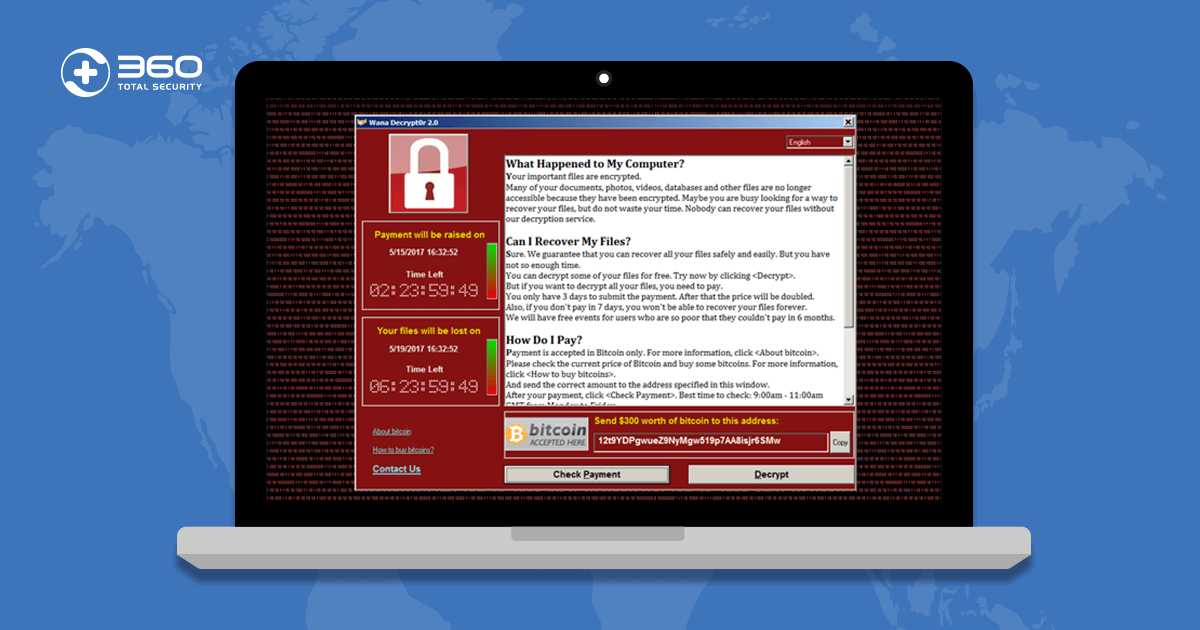
- Inaccessible or encrypted files: If you suddenly cannot open your own files, or they display strange extensions and a ransom note appears on your screen, you are almost certainly dealing with ransomware — one of the most destructive forms of malware in circulation today.
How to Perform a Manual Virus Check Without Antivirus Software
While dedicated security software is always the recommended solution, Windows provides several powerful built-in tools that allow you to perform meaningful initial triage. Manual checks using Task Manager, system configuration utilities, and the Command Prompt can help you identify suspicious activity, isolate potentially malicious processes, and gather intelligence before running a full automated scan. These techniques are especially valuable when your antivirus software has been disabled by malware or is not yet installed.
Using Windows Task Manager for Process Investigation
Task Manager is your first and most accessible window into what is actually running on your system. Learning to read it critically is an essential skill for any PC user concerned about security.
- Open Task Manager and scrutinize the Processes tab: Press
Ctrl+Shift+Escto launch Task Manager directly. Look for processes with unfamiliar names, unusually high CPU or memory consumption, missing or suspicious publisher information, or processes with names that mimic legitimate Windows services (e.g.,svch0st.exeinstead ofsvchost.exe). - Research suspicious processes and trace their file location: Right-click any suspicious process and select “Open file location.” Legitimate Windows processes typically reside in
C:\Windows\System32. A process running from a temporary folder, the Downloads directory, or an obscure AppData subfolder is a serious red flag. Search the process name online using a trusted source like the Microsoft Process Library or VirusTotal — but be cautious of fake “fix” websites that may themselves be malicious. - End suspicious processes as a temporary measure: If you identify a clearly malicious process, you can right-click and select “End Task” to stop it temporarily. However, this is not a permanent fix — the malware will likely restart on the next reboot unless properly removed.

Checking Startup Programs and System Configuration
Malware almost always establishes persistence by adding itself to the system startup sequence, ensuring it reloads every time Windows boots. Auditing your startup entries is therefore a critical manual check.
- Review startup programs via Task Manager or msconfig: In Task Manager, navigate to the Startup tab to see every program that launches at boot. Alternatively, press
Win+R, typemsconfig, and press Enter to open the System Configuration utility. Disable any entries that look unfamiliar, have no publisher information, or that you do not remember installing. Note: disabling a startup entry does not delete the program — it simply prevents it from auto-launching. - Audit your browser extensions: Open your browser’s settings and navigate to the Extensions or Add-ons manager. Remove any extension you do not recognize or did not deliberately install. Even extensions that appear legitimate can be compromised or sold to malicious actors after initial installation.
- Run Windows Security (Windows Defender) as a first-line scan: Windows Security, built into Windows 10 and 11, provides a capable baseline scan. Open it by searching “Windows Security” in the Start menu, navigate to Virus & threat protection, and run a Full Scan. This should be your immediate first step even if you plan to install a more comprehensive third-party solution afterward.
Advanced Manual Checks with Command Prompt
For users comfortable with the command line, two specific commands provide powerful diagnostic capabilities that go beyond what the graphical interface offers.
- System File Checker (
sfc /scannow): Open Command Prompt as Administrator (search “cmd,” right-click, select “Run as administrator”) and execute the following command. This tool scans all protected Windows system files and replaces corrupted versions — a common tactic used by malware to disable security features or gain elevated privileges.
sfc /scannow- Network connection audit with
netstat -ano: This command lists all active TCP and UDP network connections along with their associated Process IDs (PIDs). By cross-referencing suspicious PIDs with the processes visible in Task Manager, you can identify unauthorized outbound communications to remote servers — a hallmark of spyware, trojans, and botnet malware.
netstat -ano

-- Example Output (Simplified) --
Proto  Local Address          Foreign Address        State           PID
TCP    192.168.1.5:52341      185.220.101.47:443     ESTABLISHED     4872

-- Analysis --
-- PID 4872 should be looked up in Task Manager.
-- The foreign IP 185.220.101.47 can be checked on threat intelligence
-- platforms like AbuseIPDB or VirusTotal.
-- An ESTABLISHED connection to an unknown foreign IP from an
-- unrecognized process is a strong indicator of malicious activity.
What Are the Best Free Antivirus Tools for a Comprehensive Virus Scan?
Manual checks are valuable for initial triage, but they cannot match the detection depth and automation of dedicated antivirus software. Fortunately, several powerful free antivirus solutions are available that provide enterprise-grade protection without any cost. For the average user, leveraging a robust free antivirus tool is the single most impactful action they can take to secure their PC. The key is choosing a solution that combines high detection rates, low system impact, and additional protective features beyond basic scanning.
Introducing 360 Total Security: A Free All-in-One Solution
360 Total Security is a world-leading free antivirus solution trusted by hundreds of millions of users globally. Its architecture is built around a multi-engine detection framework that sets it apart from single-engine competitors.
- Multi-engine detection for maximum accuracy: 360 Total Security integrates the renowned Bitdefender and Avira antivirus engines alongside its proprietary AI-powered QVMII engine and a cloud-based threat intelligence system. This layered approach dramatically increases the probability of detecting both known malware signatures and previously unseen zero-day threats.
- Beyond antivirus — a complete PC health platform: Unlike bare-bones scanners, 360 Total Security includes a suite of PC optimization tools: a junk file cleaner, boot-time optimizer, disk analyzer, and vulnerability patch manager. These tools directly address the performance degradation that malware causes, restoring your system to peak condition after a threat is removed. As noted by IT administrators in enterprise environments, the combination of lightweight footprint and multi-engine detection makes it an exceptionally practical choice for both personal and professional use.
- Flexible scan modes and Sandbox isolation: The Virus Scan module offers Quick, Full, and Custom scan options to suit different needs and time constraints. The innovative Sandbox feature allows you to execute suspicious files in a completely isolated virtual environment, observing their behavior without any risk to your actual system — a capability typically found only in premium security suites.
How to Use 360 Total Security for a Deep System Scan
Getting started with 360 Total Security is straightforward, and its intuitive interface makes running a comprehensive scan accessible to users of all technical levels.
- Step 1 — Download and install: Visit the official 360 Total Security website and download the free installer. The installation process is quick and will automatically prompt you to update the virus database to the latest definitions upon first launch — always accept this update before scanning.
- Step 2 — Run a Full Scan: Navigate to the “Virus Scan” tab in the main dashboard and select “Full Scan.” This option performs the most thorough examination of your entire system, including active memory processes, all startup items, the Windows registry, and every file on your hard drive. While it takes longer than a Quick Scan, it is the recommended option when you suspect an active infection.
- Step 3 — Review results and take action: Once the scan completes, 360 Total Security presents a categorized results report. Identified threats are classified by severity and type. For any detected malware, always choose Quarantine (which isolates the threat without immediately deleting it, allowing recovery if a false positive occurs) or Delete for confirmed threats. Never select “Ignore” for items flagged as high-severity threats.
Comparison of Top Free Antivirus Scanning Capabilities
To help you make an informed decision, the table below compares the key features of the leading free antivirus solutions available for Windows PCs.
| Feature | 360 Total Security | Avast Free Antivirus | AVG AntiVirus Free |
|---|---|---|---|
| Real-Time Protection | ✅ Yes (Multi-Engine) | ✅ Yes | ✅ Yes |
| Scan Types | Quick / Full / Custom / Sandbox | Quick / Full / Custom | Quick / Full / Custom |
| Detection Engines | 5 (Bitdefender, Avira, QVMII, Cloud, 360) | 1 (Avast Engine) | 1 (AVG Engine) |
| Built-in PC Cleanup | ✅ Yes (Advanced) | ⚠️ Limited (Free tier) | ⚠️ Limited (Free tier) |
| Firewall (Free Tier) | ✅ Yes | ❌ No (Premium only) | ❌ No (Premium only) |
| System Impact | Light | Medium | Medium |
| Sandbox Mode | ✅ Yes | ❌ No (Free tier) | ❌ No |
The data above highlights 360 Total Security‘s unique competitive advantage: it is the only solution in this comparison that offers multi-engine detection, a built-in firewall, advanced PC cleanup tools, and a Sandbox mode — all completely free. This holistic approach makes it a genuinely comprehensive security and performance platform rather than a simple scanner.
How to Remove Stubborn Viruses and Malware That Won’t Go Away
Standard antivirus scans are highly effective against the vast majority of threats, but a subset of advanced malware is specifically engineered to resist removal. Rootkits embed themselves deep within the operating system kernel, ransomware encrypts files before security software can intervene, and certain trojans actively fight back against removal attempts by reinstalling themselves. Eliminating these persistent threats requires a strategic, multi-layered approach that goes beyond a single scan.
Booting into Safe Mode for Effective Removal
Safe Mode is one of the most powerful and underutilized tools in the malware removal arsenal. By loading Windows with only the minimum required drivers and services, Safe Mode prevents the vast majority of malware from auto-loading — effectively disarming the threat before you attempt to remove it.
- How to access Safe Mode in Windows 10/11: Go to Settings > System > Recovery > Advanced Startup > Restart Now. From the blue recovery screen, navigate to Troubleshoot > Advanced Options > Startup Settings > Restart, then press F5 to select Safe Mode with Networking. The “with Networking” option is important as it allows your antivirus to download updated definitions.
- Run a full scan in Safe Mode: Once in Safe Mode, launch 360 Total Security and run a Full Scan. Because the malware is not actively running in memory, the antivirus can access, quarantine, and delete files that would otherwise be locked or actively defended by the malware process. This approach consistently yields higher removal success rates for persistent threats.
- Delete temporary files before scanning: In Safe Mode, also clear your temporary files by pressing
Win+R, typing%temp%, and deleting all contents. Many malware installers and dropper components hide in temporary directories.
Using Dedicated Malware Removal Tools as a Second Opinion
No single security tool catches every threat. Using a second-opinion scanner alongside your primary antivirus is a best practice endorsed by cybersecurity professionals worldwide.
- On-demand specialized scanners: Tools like Malwarebytes Free and Emsisoft Emergency Kit are specifically optimized for detecting and removing Potentially Unwanted Programs (PUPs), adware, browser hijackers, and trojans that traditional antivirus engines may classify differently or miss entirely. These tools do not conflict with your primary antivirus because they operate on-demand rather than in real-time. Run them after your primary scan for a comprehensive sweep.
- 360 Total Security’s System Repair feature: After removing malware, the damage it caused to your system often persists. Malware frequently modifies Windows registry entries, alters system settings, and corrupts configuration files. The System Repair feature within 360 Total Security is specifically designed to detect and restore these post-infection system alterations, returning your PC to a clean, stable state.
- The value of multi-engine complementarity: According to independent antivirus laboratory testing data compiled in 2025, multi-engine security solutions demonstrate a statistically significant improvement in overall threat detection coverage compared to single-engine alternatives. When combined with a specialized on-demand scanner, the cumulative detection rate for even advanced persistent threats approaches near-complete coverage.
Creating and Using a Bootable Antivirus Rescue Disk
For the most extreme cases — deeply embedded rootkits that modify the Master Boot Record, or ransomware that prevents Windows from loading entirely — a bootable antivirus rescue disk is the definitive solution.
- What is a rescue disk and why does it work: A bootable rescue disk is a USB drive containing a minimal operating system and antivirus scanner. By booting your computer directly from this USB drive, you bypass the infected Windows installation entirely. The scanner can then examine all files on your hard drive from a completely clean, external environment — the malware has no opportunity to defend itself or interfere with the scan.
- Creating a rescue disk: Both Kaspersky Rescue Disk and Bitdefender Rescue Environment offer free, downloadable ISO images that can be written to a USB drive using tools like Rufus. Download the ISO on a clean, uninfected computer, write it to a USB drive, then boot the infected machine from that drive by accessing the BIOS/UEFI boot menu (typically by pressing F2, F12, or Del during startup).
- When to use this approach: Reserve the rescue disk method for situations where Windows cannot boot normally due to the infection, where all in-Windows removal attempts have failed, or where a rootkit is suspected. This is considered a professional-level, last-resort technique, but it is entirely accessible to determined home users following the tool’s built-in instructions.
How to Prevent Future Virus Infections and Maintain a Secure PC
The most effective security strategy is one that prevents infections from occurring in the first place. Reactive cleaning, while necessary, is always more costly in time, stress, and potential data loss than proactive prevention. Building a robust, layered security posture — combining software tools, safe behavioral habits, and a reliable backup strategy — dramatically reduces your attack surface and ensures that even if a threat does penetrate your defenses, its impact is minimized and recoverable.
Building Your Proactive Security Foundation
The vast majority of successful malware infections exploit known vulnerabilities in outdated software or rely on social engineering to trick users into taking unsafe actions. Addressing both vectors is the foundation of effective prevention.
- Keep everything updated: Enable automatic updates for Windows, your web browser, browser plugins (Java, Adobe Reader, Flash), and your antivirus software. According to a 2026 cybersecurity industry report, over 60% of successful malware infections exploit vulnerabilities for which a patch was already publicly available at the time of the attack. Keeping 360 Total Security‘s virus definitions current ensures it can recognize the latest threats as they emerge.
- Practice rigorous safe browsing habits: Never click on links in unsolicited emails, even if they appear to come from known contacts. Verify the sender’s actual email address, not just the display name. Download software exclusively from official vendor websites or reputable app stores. Be especially cautious of websites offering free versions of paid software, as these are a primary distribution channel for malware.
- Use a standard user account for daily tasks: Running Windows as an Administrator account means that any malware you accidentally execute also runs with full administrative privileges, giving it unrestricted access to your system. Create a standard user account for everyday use and reserve the administrator account for software installation and system configuration. This simple step can contain the damage of many malware types.
Leveraging Advanced Features of Your Security Suite
A security suite is only as effective as the features you actually have enabled and configured. Taking full advantage of your antivirus software’s capabilities transforms it from a passive scanner into an active, multi-layered defense system.
- Enable all real-time protection layers: In 360 Total Security, ensure that real-time protection, the built-in firewall, and behavior-based detection (QVMII engine) are all active. Behavior-based detection is particularly valuable for catching zero-day threats that have not yet been added to signature databases, as it identifies malicious behavior patterns rather than relying solely on known malware signatures.
- Use Cleanup and Speed Up tools regularly: The Cleanup and Speed Up modules in 360 Total Security serve a dual security purpose. By removing junk files, clearing browser caches, and managing startup programs, they reduce the clutter in which malware often hides and minimize the number of auto-starting programs that could potentially be exploited. A leaner, faster system is also a more secure one.
- Schedule regular automated scans: Configure 360 Total Security to run an automatic Full Scan on a weekly schedule, ideally during a period when you are not actively using the computer. Consistent, scheduled scanning ensures that any threats that slip past real-time protection are detected and removed promptly, before they can cause significant damage or establish deep persistence.
The Non-Negotiable: Regular Backups
No security solution, regardless of how sophisticated, can guarantee 100% protection against every possible threat. A robust backup strategy is the ultimate safety net — the one measure that ensures you can fully recover from even the worst-case scenario, including a devastating ransomware attack.
- Implement the 3-2-1 backup rule: This industry-standard framework recommends maintaining 3 total copies of your important data, stored on 2 different types of media (e.g., internal hard drive and external USB drive), with 1 copy stored offsite or in the cloud (e.g., OneDrive, Google Drive, or Backblaze). This redundancy ensures that no single failure — hardware, malware, or physical disaster — can destroy all copies of your data simultaneously.
- Use automated, versioned backup tools: Windows’ built-in File History feature can automatically back up your personal files to an external drive at regular intervals, maintaining multiple historical versions. This versioning capability is critical for ransomware recovery, as it allows you to restore files from a point in time before the encryption occurred.
- Backups are your ransomware insurance policy: The FBI’s official guidance on ransomware, consistently reinforced in advisories through 2025 and 2026, is unequivocal: do not pay the ransom. Payment does not guarantee file recovery, funds criminal organizations, and encourages further attacks. The only reliable, guaranteed method of recovering your data after a ransomware attack without paying the ransom is restoring from a clean, recent backup. This makes regular backups not merely a best practice, but an absolute non-negotiable component of any serious security strategy.
Frequently Asked Questions
Q1: How do I know for certain if my computer has a virus?
The most reliable way to confirm a virus infection is to run a full system scan with a reputable antivirus tool such as 360 Total Security. While symptoms like slow performance, pop-up ads, and high CPU usage are strong indicators, they can also be caused by non-malicious issues like outdated drivers or insufficient RAM. A comprehensive antivirus scan provides definitive, evidence-based confirmation of whether malware is present.
Q2: Can a virus hide from antivirus software?
Yes. Advanced threats like rootkits are specifically designed to conceal themselves from operating system-level detection, including some antivirus scans. This is why multi-engine solutions like 360 Total Security (which uses five detection engines simultaneously) are more effective than single-engine alternatives. For rootkits suspected of hiding from in-Windows scans, a bootable antivirus rescue disk — which scans the system from outside the infected OS — is the most reliable detection and removal method.
Q3: Is it safe to use my computer while running a virus scan?
You can generally continue light tasks during a Quick Scan, but it is best to avoid heavy applications during a Full Scan, as the scanning process is resource-intensive. More importantly, if you strongly suspect an active infection, minimize your computer use entirely until the scan is complete — avoid online banking, entering passwords, or accessing sensitive accounts, as active malware may be logging your keystrokes or intercepting your data in real time.
Q4: How often should I scan my computer for viruses?
With real-time protection enabled in a tool like 360 Total Security, your system is continuously monitored for threats. However, scheduling a Full Scan on a weekly basis is strongly recommended as a supplementary measure. Real-time protection excels at blocking threats as they arrive, while periodic full scans catch anything that may have slipped through, particularly dormant threats that activate only under specific conditions.
Q5: What should I do if my antivirus cannot remove a detected virus?
If your antivirus detects but cannot remove a threat, follow this escalation path: (1) Reboot into Safe Mode with Networking and run the scan again — this prevents the malware from actively defending itself. (2) Run a second-opinion scanner such as Malwarebytes Free alongside your primary tool. (3) Use the System Repair feature in 360 Total Security to fix registry and system setting alterations. (4) If the threat persists, create and boot from a bootable antivirus rescue disk (Kaspersky or Bitdefender) to scan and remove the threat from outside the Windows environment entirely.
About the Author: This article was researched and written by a Senior Cybersecurity Technical Writer with over a decade of experience covering endpoint security, malware analysis, and consumer PC protection strategies. Their work draws on hands-on testing of security software, analysis of independent antivirus laboratory reports, and synthesis of guidance from leading cybersecurity organizations including CISA, the FBI’s Cyber Division, and NIST. They specialize in translating complex security concepts into actionable guidance for home users and small business owners.
Stay Protected: Download 360 Total Security for free today and give your Windows PC the multi-layered, real-time protection it deserves.
Learn more about 360 Total Security