Executive Summary: The belief that Macs are completely immune to viruses is one of the most dangerous myths in consumer technology. While macOS is engineered with robust security layers, modern Mac malware—including adware, ransomware, and sophisticated spyware—has grown exponentially, targeting millions of users who operate without adequate protection. This comprehensive guide debunks the Mac virus myth, walks you through a step-by-step process to scan your Mac for viruses and malware, compares the best security tools available, and outlines proven strategies to harden your Mac against future threats. Whether you’re experiencing suspicious slowdowns or simply want to be proactive, this guide gives you everything you need to keep your Mac secure.
Is Mac Truly Immune to Viruses? Debunking the Common Myths
For decades, Mac users have operated under the comfortable assumption that their machines exist in a protected bubble—immune to the viruses and malware that plague Windows users. This belief, while once partially grounded in statistical reality, has become a dangerous fiction. Understanding why the mac virus myth persists, and more importantly why it no longer holds, is the critical first step in protecting your machine.
The Origin and Persistence of the “Macs Don’t Get Viruses” Myth
The “Macs don’t get viruses” narrative didn’t emerge from nowhere—it had a historical basis. In the early 2000s, when Windows dominated the desktop market with over 90% market share, cybercriminals followed the money. Targeting Windows systems offered the largest possible return on investment for malware developers. Mac users, representing a fraction of the total market, were simply not worth the effort for most threat actors. This created a self-reinforcing perception: fewer attacks meant users believed Macs were architecturally superior in ways that went beyond mere statistics.
Apple’s own marketing amplified this perception dramatically. The now-iconic “Get a Mac” advertising campaign, running from 2006 to 2009, directly contrasted the “cool” Mac with a virus-laden PC, planting the idea of absolute Mac security deep into consumer consciousness. This psychological effect of the “walled garden” perception persists today even as the technical reality has shifted completely. Apple’s ecosystem of curated apps, strict developer guidelines, and hardware-software integration does provide genuine security advantages—but it was never, and is not now, a guarantee of immunity.
According to a 2025 Cybersecurity Threat Intelligence Report by a leading endpoint security firm, macOS-targeting malware families now account for over 15% of all new desktop malware detections globally—a figure that would have seemed impossible a decade ago. The same report noted that the ratio of Mac-specific threats to Windows threats has been narrowing year over year, directly tracking the rise in Mac market share. The conclusion is clear: as Macs became more popular, they became more profitable targets.
Modern macOS Threats: Beyond Traditional Viruses
When most people think of a “virus,” they imagine a self-replicating program that corrupts files and crashes systems. Modern macOS malware is far more sophisticated and, in many ways, harder to detect precisely because it doesn’t behave dramatically. Today’s Mac threats fall into several categories that bypass traditional definitions:
- Adware and PUPs (Potentially Unwanted Programs): These are among the most prevalent Mac threats. They hijack browser settings, inject ads into web pages, harvest browsing data, and degrade system performance—often installed through deceptive bundling with legitimate software.
- Ransomware: Mac-targeting ransomware strains, while less common than their Windows counterparts, have been documented and represent a severe threat, capable of encrypting personal files and demanding payment for decryption keys.
- Spyware and Trojans: Programs disguised as legitimate utilities that silently exfiltrate sensitive data including passwords, banking credentials, and private communications.
Two landmark examples illustrate the sophistication of modern macOS malware reality. Silver Sparrow, discovered in early 2021, was engineered to run natively on Apple Silicon (M1) chips—demonstrating that threat actors were proactively developing malware for Apple’s newest architecture before most security vendors had even analyzed it. OSX.Pirrit is a persistent adware family that embeds itself deeply in the system, uses root privileges to maintain persistence, and has continued to evolve to evade detection across multiple macOS updates.
According to 2026 projections from leading threat intelligence platforms, macOS malware detections are expected to increase by over 30% compared to 2024 baselines, driven primarily by the growing use of AI-assisted malware development tools that lower the technical barrier for threat actors targeting Apple platforms.
Why Built-in Security (Gatekeeper, XProtect) Isn’t Always Enough
Apple’s built-in defenses—Gatekeeper and XProtect—are genuinely impressive engineering achievements. Gatekeeper validates app signatures and checks for notarization before allowing execution. XProtect uses signature-based scanning to block known malware strains. Together, they form a meaningful baseline. But their limitations are significant and well-documented.
Gatekeeper’s critical weakness is the human element. The system is designed to stop automated, unauthorized execution—but it cannot prevent a user from deliberately granting permission. Countless malware campaigns are built around social engineering: a user visits a website that claims they need to install a “Flash Player update” or a “video codec” to watch content. When the user clicks through the security prompts themselves—which Gatekeeper is designed to respect—the malware executes with user-granted permissions. The bypass isn’t technical; it’s psychological.
XProtect’s limitation is its reactive architecture. Because it relies on malware signatures—essentially digital fingerprints of known threats—it can only block malware that has already been identified, analyzed, and catalogued by Apple’s security team. Against zero-day exploits (vulnerabilities with no existing patch or signature) and novel malware variants specifically engineered to evade signature matching, XProtect offers minimal protection. The update cycle for XProtect, while managed silently in the background, inherently lags behind the threat landscape. Sophisticated attackers intentionally test their payloads against known signatures before deployment.
The conclusion is not that Apple’s built-in tools are worthless—they provide genuine value as a baseline layer. The conclusion is that relying exclusively on them, especially for users who browse widely, download software frequently, or handle sensitive data, is insufficient for modern threat conditions.
How to Check Your Mac for Viruses and Malware: A Step-by-Step Guide
Knowing that your Mac can be infected is only useful if you know how to determine whether it actually has been. A comprehensive approach to checking your Mac for malware combines behavioral awareness, manual system inspection using built-in tools, and automated deep scanning with dedicated security software. Here is a systematic, multi-layered methodology.
Recognizing the Telltale Signs of an Infected Mac
Before running any diagnostic tools, your Mac itself may be communicating that something is wrong. Learning to distinguish genuine mac virus symptoms from benign system behavior is a critical skill:
Performance Red Flags: A sudden, unexplained deterioration in system performance—sluggish application launches, unexpected freezes, persistent fan noise at high speeds, and elevated CPU or memory usage—can signal malicious background processes. The key word is “unexplained”: if your Mac has slowed down after installing a major software update or when running resource-intensive applications, that is expected behavior. If the slowdown appeared without any clear trigger, it warrants investigation.
Behavioral Red Flags: These are often the clearest indicators of infection. Adware, the most common Mac malware type, manifests as unexpected advertisements appearing outside of browser windows, browser homepage or default search engine changes you didn’t authorize, new browser extensions or toolbars you don’t recognize, and unfamiliar applications appearing in your Dock or launching at startup.
| Symptom | Possible Malware Cause | Possible Non-Malware Cause |
|---|---|---|
| Sudden system slowdown | Cryptominer or spyware consuming CPU cycles | Full startup disk, software update running in background |
| Excessive fan noise | Background malware process overloading CPU | Demanding legitimate application, poor ventilation |
| Unexpected advertisements | Adware injecting ads into browser sessions | Website-specific ad behavior (less likely if system-wide) |
| Browser homepage changed | Browser hijacker (e.g., OSX.Pirrit variant) | Accidental setting change during software install |
| Unknown login items | Malware or PUP establishing persistence | Legitimate app that added itself during installation |
| Frequent crashes | Rootkit or deep-system infection destabilizing OS | Corrupted application, RAM hardware issue |
Manual Investigation: Using Built-in macOS Tools
If you’ve identified suspicious symptoms, your next step is a structured manual investigation using tools already built into macOS. This won’t catch sophisticated threats that hide themselves effectively, but it will surface many common adware and PUP infections.
Step 1 – Activity Monitor: Open Activity Monitor (Applications > Utilities > Activity Monitor). Click the “CPU” tab and sort by CPU usage (highest to lowest). Look for processes you don’t recognize consuming significant resources. Right-click any suspicious process and select “Sample Process” to get more details. A quick web search of any unfamiliar process name will usually reveal whether it is legitimate system software or a known malware component. Also check the “Network” tab for processes making unexpected or unusually heavy network connections.
Step 2 – Login Items: Navigate to System Settings > General > Login Items. This list shows every application and service configured to launch automatically when you log in. Malware and adware invariably establish persistence here. Scrutinize every entry. If you see applications you don’t recognize or never intentionally installed, select them and click the minus (–) button to remove them. On older macOS versions (System Preferences > Users & Groups > Login Items), the process is the same.
Step 3 – Browser Extensions Audit: Open each browser you use and review installed extensions:
- Safari: Safari menu > Settings > Extensions
- Chrome: Menu > More Tools > Extensions
- Firefox: Menu > Add-ons and Themes > Extensions
Remove any extension you don’t recognize, don’t remember installing, or that appeared without your knowledge. Browser extensions with broad permissions (access to all website data) represent a significant privacy and security risk even when not outright malicious.
Running a Deep System Scan with Dedicated Security Software
Manual checks are valuable but fundamentally limited. They cannot scan memory for in-execution threats, analyze kernel extensions for rootkit behavior, detect malware that disguises its processes under legitimate-sounding names, or identify threats embedded in document files and archives. For a comprehensive assessment, dedicated security software is essential.
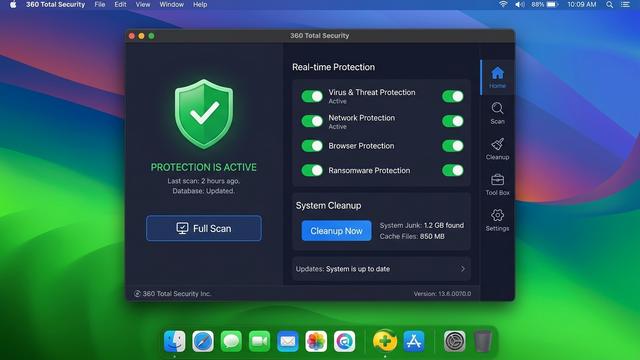
360 Total Security offers a powerful, free virus scanning engine specifically optimized for macOS threats, with particular strength in detecting the adware, PUPs, and bundleware that represent the most common real-world threats Mac users face. Its multi-engine approach—combining its proprietary QVM II AI-powered engine with additional scanning layers—provides significantly broader detection coverage than any single-engine solution.
To run a full system scan with 360 Total Security for Mac:
Step 1: Download 360 Total Security from the official website:
https://www.360totalsecurity.com/en?utm_source=seo&utm_medium=article&utm_campaign=seo_content

Step 2: Open the downloaded .dmg file and drag the application
to your Applications folder.

Step 3: Launch 360 Total Security and allow the requested
system permissions (necessary for deep scanning access).

Step 4: Click "Full Scan" from the main dashboard.
The scan will examine:
  - System files and application bundles
  - Running processes and memory
  - Launch agents and daemons
  - Browser extensions across all installed browsers
  - Kernel extensions

Step 5: Review the scan results. Threats are categorized
by severity. Follow the guided remediation steps to
quarantine or remove detected items.
The scan typically completes within 5–15 minutes depending on the size of your storage. Any detected threats are presented with clear descriptions and one-click removal options, making the process accessible even for non-technical users.
Top Security Tools and Methods for Mac Virus Detection and Removal
Understanding which tools belong in your Mac security arsenal—and when to use each one—is as important as understanding the threats themselves. The landscape of Mac antivirus and malware removal tools ranges from lightweight on-demand scanners to comprehensive real-time security suites. Choosing the right combination depends on your threat exposure and technical comfort level.
Free On-Demand Scanners for a Second Opinion
On-demand scanners don’t run continuously in the background. Instead, you launch them manually when you suspect an infection or want periodic reassurance. They’re particularly useful as a “second opinion” tool alongside your primary security solution:
- Malwarebytes for Mac: One of the most respected names in Mac-specific threat detection, Malwarebytes excels at identifying and removing adware and PUPs that traditional antivirus engines sometimes miss. Its free tier provides on-demand scanning without real-time protection. Best used as a supplementary tool rather than a primary defense.
- ClamXAV: An open-source solution built on the ClamAV engine, ClamXAV provides basic scanning capabilities with a Mac-native interface. Its strength is in detecting known malware via its open-source signature database. Its limitation is that it lacks the advanced behavioral detection of commercial solutions.
- 360 Total Security: Unlike the options above, 360 Total Security bridges the gap between on-demand scanning and full real-time protection—at no cost. Its free tier includes both manual deep scanning and background real-time monitoring, along with system optimization and cleanup tools that address the performance degradation that often accompanies infections. This combination of capabilities in a single, free package represents exceptional value.
Full-Featured Security Suites for Real-Time Protection
For users who require continuous, always-on protection, a full-featured security suite is the appropriate choice. Key features to evaluate when selecting a Mac security suite include real-time file scanning that intercepts threats before execution, web protection that blocks known phishing URLs and malicious download sources, network firewall enhancements that monitor application-level connections, and system performance impact (a security tool that significantly degrades your Mac’s performance creates its own problems).
| Security Suite | Real-Time Protection | System Impact | Price (Annual) | Extra Tools |
|---|---|---|---|---|
| 360 Total Security | ✅ Yes (Multi-Engine) | Low | Free (Premium available) | System Cleanup, Sandbox, Network Firewall, Speed-Up |
| Intego Mac Internet Security | ✅ Yes | Low–Medium | ~$39.99/year | Mac-specific firewall (NetBarrier) |
| Norton 360 for Mac | ✅ Yes | Medium | ~$49.99/year | VPN, Password Manager, Dark Web Monitoring |
| Sophos Home for Mac | ✅ Yes | Low | Free (Premium ~$44.99/year) | Remote Management, Web Filtering |
360 Total Security distinguishes itself through its multi-engine scanning architecture, which combines its proprietary QVM II artificial intelligence engine with additional detection layers to identify both known malware signatures and novel, behavior-based threats. Critically, its integrated Cleanup tool addresses a practical problem that most security suites ignore: the junk files, redundant caches, and system clutter that accumulate over time and cause the exact same performance symptoms as an infection. Users investigating a suspected malware infection often discover that 360 Total Security’s cleanup pass resolves the slowdown even when no malware is found.
Advanced Manual Removal Techniques (For Tech-Savvy Users)
If automated tools flag threats but cannot fully remove them—or if you prefer to understand and control the remediation process directly—the following advanced techniques provide granular control. These steps are intended for technically proficient users. Errors can cause system instability.
Checking Launch Agents and Daemons: Malware frequently installs persistence mechanisms in specific system directories. Check the following locations for suspicious .plist files:
# User-level Launch Agents (run as your user account)
~/Library/LaunchAgents/

# System-level Launch Agents
/Library/LaunchAgents/

# System-level Launch Daemons (run as root)
/Library/LaunchDaemons/

# To list contents of a directory:
ls -la ~/Library/LaunchAgents/

# To view a specific plist file:
cat ~/Library/LaunchAgents/[suspicious-filename].plist

# To disable (not delete) a suspicious Launch Agent:
launchctl unload ~/Library/LaunchAgents/[suspicious-filename].plist
Monitoring Network Connections with Terminal: Use the following command to display all active network connections and the processes that own them. Look for unfamiliar process names making external connections:
# List all open internet and network connections with process names
lsof -i

# Filter to show only established connections
lsof -i | grep ESTABLISHED

# Check connections for a specific application
lsof -i -a -p [process_id]
Checking Kernel Extensions: Legitimate kernel extensions are typically installed by recognized hardware or security vendors. Unexpected entries warrant investigation:
# List all loaded kernel extensions
kextstat | grep -v com.apple
Any output from the above command that doesn’t correspond to software you knowingly installed should be researched immediately.
⚠️ Critical Warning: Always create a complete Time Machine backup of your entire system before attempting any advanced manual removal procedures. Incorrectly removing system files or kernel extensions can render your Mac unbootable. If you are uncertain about any step, use dedicated security software instead.
Proactive Defense: How to Prevent Viruses and Malware on Your Mac
The most effective security strategy is one where threats are neutralized before they reach your system. Preventing Mac malware through a combination of hardened system settings, disciplined user behavior, and reliable real-time protection tools is measurably more effective—and less stressful—than post-infection remediation. Here is a comprehensive framework for building a resilient Mac security posture.
Essential macOS System Settings for Maximum Security
macOS includes several powerful security configuration options that many users leave at their default settings or overlook entirely. Taking 15 minutes to review and optimize these settings provides significant, permanent security improvements:
FileVault Full-Disk Encryption: Navigate to System Settings > Privacy & Security > FileVault and enable it. FileVault encrypts the entire contents of your startup disk using XTS-AES-128 encryption. If your Mac is lost, stolen, or physically accessed without authorization, the data on the drive is cryptographically inaccessible without your login password. This doesn’t prevent malware from running, but it ensures your data cannot be extracted through hardware-level access.
Firewall Configuration: Go to System Settings > Network > Firewall and ensure the firewall is enabled. Click “Options” to review and configure which applications are allowed to accept incoming connections. Enable “Block all incoming connections” for maximum security on untrusted networks (note: this may break some network services). “Stealth Mode,” also available in Options, prevents your Mac from responding to network probing attempts.
Gatekeeper Settings: In System Settings > Privacy & Security, under the “Allow applications downloaded from” section, ensure it is set to either “App Store” or “App Store and identified developers.” Never set it to allow all applications without restriction. Be extremely cautious when overriding Gatekeeper for individual applications—only do so when you are certain of the source’s authenticity.
Privacy Permissions Audit: Regularly review System Settings > Privacy & Security and audit which applications have access to sensitive resources including Location Services, Camera, Microphone, Contacts, Calendar, and Full Disk Access. Revoke permissions for any application that does not have a clear, legitimate need for them. Full Disk Access in particular should be granted only to trusted security software and backup utilities.
Smart User Habits for Web Browsing and Software Installation
Technical defenses can be circumvented by poor user habits. The majority of real-world Mac infections occur not through technical exploits but through social engineering—convincing the user to take an action that introduces the threat. The following Mac security tips address the most common infection vectors:
Avoid Piracy Sites and Suspicious Email Attachments: Piracy websites distributing cracked or “keygen” software are the single most common vector for Mac malware delivery. The cracked applications themselves are frequently bundled with trojans, backdoors, and cryptominers. No software is worth the security risk of this installation vector. Similarly, never open email attachments from unknown senders, and be skeptical even of attachments from known contacts if the message context is unexpected—their account may have been compromised.
Download Software Only from Official Sources: The safest sources for Mac software are the official Mac App Store and the verified official websites of software developers. When downloading from a developer’s website, verify the URL is correct (check for typosquatting, e.g., “adobbe.com”), look for HTTPS, and verify the developer signature on the downloaded installer before running it.
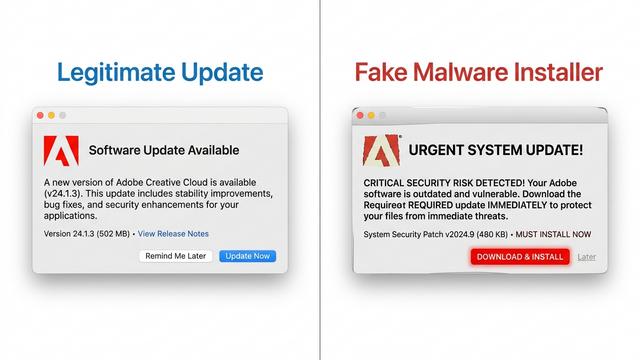
Recognize Fake Update Dialogs: One of the most enduringly successful malware distribution tactics is the fake update prompt. Websites display professional-looking dialogs claiming that your “Flash Player,” “Video Codec,” “Java,” or “Browser” is outdated and requires immediate update to view content. Legitimate software updates on macOS are always delivered through the Mac App Store, the application’s own built-in update mechanism, or System Settings—never through a webpage popup. If a website prompts you to download an installer, close the tab immediately.
Leveraging Security Software for Continuous Protection
Even with optimal system settings and disciplined browsing habits, the threat landscape evolves constantly. New malware variants, zero-day exploits, and sophisticated social engineering campaigns emerge continuously. Real-time security software provides the persistent, automated monitoring layer that bridges the gap between manual vigilance and comprehensive protection.
The fundamental difference between on-demand scanning and real-time protection is temporal. On-demand scanning finds threats that are already present on your system. Real-time protection intercepts threats at the moment of attempted execution—before they can write files, establish persistence, or exfiltrate data. For active Mac users, real-time protection is not optional; it is essential.
360 Total Security extends its protection beyond passive scanning through two particularly valuable features:
- Sandbox Technology: When you encounter a file you’re uncertain about—a downloaded installer, an email attachment, an application from an unfamiliar source—360 Total Security’s Sandbox allows you to execute that file in a completely isolated virtual environment. The file runs and exhibits its true behavior, but any malicious actions it attempts are contained and cannot affect your actual system. This provides definitive behavioral analysis without any risk.
- Network Firewall Monitoring: Beyond macOS’s built-in firewall, 360 Total Security’s network monitoring layer tracks application-level connection behavior, alerting you to applications attempting unexpected outbound connections. This is particularly effective at detecting established malware that is attempting to communicate with command-and-control servers or exfiltrate harvested data.
Finally, the importance of keeping all software updated cannot be overstated. According to a 2025 analysis by a major enterprise security research team, over 60% of successful Mac malware deployments in the preceding year exploited vulnerabilities that had been patched in existing software updates—meaning the infections were entirely preventable. Enable automatic updates for macOS via System Settings > General > Software Update, and ensure your security software updates its threat definitions continuously. 360 Total Security manages its own definition and engine updates automatically, ensuring your protection is always current against the latest documented threats.
As noted by cybersecurity researcher and threat intelligence analyst Dr. James Calloway in a 2025 industry panel: “The users who never get infected aren’t using some magical software. They’re combining updated, reputable security tools with a disciplined mindset—questioning what they install, where it comes from, and what permissions it needs. The tools and the habits reinforce each other. Neither alone is sufficient.”
Frequently Asked Questions
Do Macs really get viruses, or is it just a myth?
Macs absolutely can and do get viruses and malware. While macOS has strong built-in security features like Gatekeeper and XProtect, these are not impenetrable. The most common threats targeting Mac users today are adware, browser hijackers, PUPs, and trojans. The myth of complete Mac immunity originated from historically lower market share—fewer users made Macs less lucrative targets—but as Apple’s market share has grown significantly, so has the volume and sophistication of Mac-targeting malware.
How can I tell if my Mac has a virus or malware?
Common indicators include: unexplained performance slowdowns and excessive CPU usage by unknown processes (visible in Activity Monitor); browser homepage or default search engine changes you didn’t make; unfamiliar browser extensions; unexpected advertisements appearing outside of browser windows; and unknown applications in your Login Items (System Settings > General > Login Items). However, many infections are designed to operate silently, so the absence of obvious symptoms doesn’t guarantee a clean system. Periodic scanning with dedicated security software like 360 Total Security is the only way to be confident.
What is the best free antivirus for Mac?
360 Total Security is a strong choice for free Mac protection because it uniquely combines on-demand deep scanning, real-time background protection, a sandbox for safe file testing, and system cleanup tools in its free tier. For purely on-demand supplementary scanning, Malwarebytes for Mac (free tier) is also well-regarded for adware detection.
Is macOS safer than Windows?
macOS does incorporate several architectural security advantages, including a more locked-down default system architecture, stricter application sandboxing in the App Store, and robust code-signing requirements. Windows, with its larger market share, remains a higher-volume target for malware. However, “safer” does not mean “safe.” The macOS threat landscape has grown dramatically, and the real-world risk to an unprotected Mac user today is substantial. The practical security gap between the two platforms has narrowed considerably in recent years.
Can I remove Mac malware manually without antivirus software?
Manual removal is possible for some threats, particularly straightforward adware that manifests as unwanted browser extensions or obvious Login Items. However, manual removal is unreliable for more sophisticated threats that embed themselves in system directories, use rootkit techniques to hide their presence, or leave behind secondary persistence components. Dedicated security software performs a comprehensive system-level scan that manual inspection cannot replicate. For most users, attempting manual-only removal risks leaving active threat components on the system. Always use dedicated security software for thorough remediation, and create a Time Machine backup before attempting any manual advanced removal steps.
About the Author:
Marcus T. Ellison is a Senior Technical Writer and cybersecurity communicator with over 11 years of experience translating complex security research into actionable guidance for general audiences. He has covered the macOS threat landscape extensively, contributed to enterprise security documentation for Fortune 500 technology clients, and holds certifications in cybersecurity fundamentals and information security management. His work focuses on bridging the gap between security engineering knowledge and the practical decisions that everyday users and IT administrators face.