Executive Summary
Chrome bookmarks are one of the most overlooked attack surfaces in everyday computing. While a bookmark itself cannot execute malicious code or infect your system directly, it functions as a persistent shortcut to potentially dangerous destinations — phishing pages, drive-by download sites, and malware-hosting domains. This comprehensive guide examines the technical reality of bookmark security, explores how compromised browser profiles and Chrome Sync can amplify threats across devices, and delivers actionable strategies for auditing, cleaning, and protecting your browsing environment. Whether you are a casual user or a security-conscious professional, understanding the indirect risks of Chrome bookmark security is essential for maintaining a safe PC in today’s threat landscape.
Can Bookmarks in Chrome Actually Infect Your Computer?
The short answer is: not directly — but that distinction matters less than most people assume. Bookmarks themselves are inert text references stored locally on your machine. They cannot run code, modify registry entries, or download files on their own. The genuine danger, however, lies not in the bookmark file but in the destination it points to. A single click on a malicious bookmark can expose your system to credential theft, drive-by malware downloads, or sophisticated exploit kits. Understanding this distinction is the first step toward meaningful browser security.
The Technical Anatomy of a Chrome Bookmark
To understand why bookmarks are inherently safe as data objects — yet dangerous as navigational tools — it helps to examine how Chrome stores them at a technical level.
- Storage Format: Chrome stores all bookmarks as a structured JSON file named
Bookmarks(with no file extension) located inside the user’s profile directory. On Windows, this is typically found atC:\Users\[Username]\AppData\Local\Google\Chrome\User Data\Default\Bookmarks. Each entry contains a URL string, a title, a unique ID, and a timestamp — nothing more. - No Executable Capability: Unlike files with extensions such as
.exe,.bat,.js, or.vbs, a bookmark entry has zero capacity to execute code, spawn processes, or interact with the operating system independently. - The Real Risk Is the Destination: The bookmark is merely a shortcut — a pointer. The danger activates the moment a user clicks it and Chrome navigates to the target URL. At that point, the security of the destination website, the browser’s own vulnerability status, and the presence of real-time protection all become decisive factors.
// Example: Chrome Bookmarks JSON structure (simplified)
{
  "roots": {
    "bookmark_bar": {
      "children": [
        {
          "date_added": "13000000000000000",
          "id": "6",
          "name": "Example Site",
          "type": "url",
          "url": "https://example.com"
        }
      ],
      "name": "Bookmarks bar",
      "type": "folder"
    }
  }
}
How a ‘Safe’ Bookmark Can Lead to Infection
The mechanics of how a seemingly harmless bookmark becomes a threat vector are well-documented in cybersecurity research. Three primary pathways dominate the threat landscape:
- Social Engineering Bookmarks: Attackers craft convincing fake login pages — mimicking Facebook, Gmail, or banking portals — and persuade users to bookmark them through phishing emails, forum posts, or pop-up prompts. According to a 2026 FBI Internet Crime Report analysis, phishing-related credential theft remains one of the top three cybercrime categories, with browser-based lures playing a significant role. Once bookmarked, the fraudulent page becomes a trusted, frequently visited destination.
- Drive-by Download Bookmarks: A compromised website can silently exploit unpatched browser vulnerabilities to auto-download and execute malware without any user interaction beyond page load. As noted by cybersecurity researchers studying exploit kit behavior in 2025, “the most effective drive-by campaigns rely on victims returning to the same compromised URL repeatedly — a behavior that bookmarking directly enables.” A single bookmarked compromised domain can serve as a recurring infection point every time the user opens it.
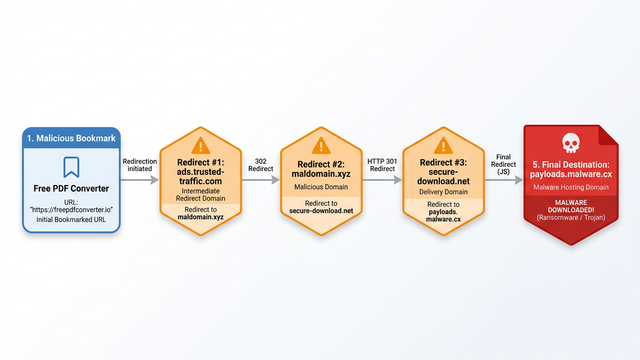
- Redirect Chains: A bookmark labeled something innocuous like ‘Free PDF Converter’ or ‘Online Image Editor’ may initially point to a legitimate-looking landing page. Behind the scenes, a chain of redirects — sometimes passing through three to five intermediate domains — routes the user to a final malware-hosting destination. Each intermediate domain in the chain may appear clean to basic URL scanners, making detection difficult.
Real-World Examples of Malicious Bookmark Use
Abstract threats become more tangible when viewed through documented case patterns observed across the cybersecurity community:
- Crypto Wallet Helper Scams: Users searching for browser-based cryptocurrency wallet management tools are frequently directed — through search ads, forums, or social media — to sites that mimic legitimate wallet interfaces. These sites harvest seed phrases and private keys. Users who bookmark these pages for “convenient future access” unknowingly create a persistent gateway to financial theft.
- Free Software Download Portals: Bookmarks pointing to unofficial software download aggregators are among the most common vectors for adware and spyware distribution. These sites bundle legitimate applications with hidden payloads, and because users return repeatedly to download new software, the bookmarked URL becomes a recurring infection source.
| Characteristic | Benign Bookmark | Malicious Bookmark |
|---|---|---|
| URL Structure | Clean domain, HTTPS, recognizable TLD | Misspelled domain, HTTP only, unusual TLD (.xyz, .tk) |
| Site Reputation | High trust score, long domain age | Newly registered domain, poor or no reputation data |
| User Intent | Consciously bookmarked after verification | Added without user knowledge or through deception |
| Content Behavior | Stable, consistent content | Redirects, pop-ups, unsolicited download prompts |
| HTTPS Certificate | Valid, issued to known organization | Self-signed, expired, or absent |
What Are the Indirect Risks from Compromised Browser Bookmarks?
The threat model extends well beyond a single user clicking a bad link. When malware gains access to a system or when a Google account is compromised, the bookmark file transforms from a personal convenience tool into a multi-device attack infrastructure. Understanding the indirect risks of Chrome Sync and browser profile hijacking is critical for anyone who uses Chrome across multiple devices.
Browser Profile Hijacking and Bookmark Manipulation
Once malware establishes a foothold on a Windows PC, one of its most persistent and least-detected tactics is the silent modification of browser data files — including the Chrome Bookmarks JSON file.
- Direct File Modification: Because the Bookmarks file is a plain-text JSON document with no inherent access controls beyond standard user permissions, any process running under the infected user’s account can read, write, and modify it without triggering Windows security alerts. Malware can append new malicious entries or silently overwrite existing legitimate bookmarks with attacker-controlled URLs.
- Persistent Re-infection Vector: This creates a particularly insidious persistence mechanism. A user may successfully remove the initial malware infection using antivirus software, yet the modified bookmarks remain untouched. The next time the user clicks one of those altered bookmarks, they are routed back to an attacker-controlled domain — potentially triggering re-infection or credential harvesting.
# Conceptual example: How malware might append a malicious bookmark entry
# (Illustrative Python pseudocode — for educational awareness only)

import json, os

profile_path = os.path.expandvars(
    r'%LOCALAPPDATA%\Google\Chrome\User Data\Default\Bookmarks'
)

with open(profile_path, 'r', encoding='utf-8') as f:
    bookmarks = json.load(f)

malicious_entry = {
    "date_added": "13300000000000000",
    "id": "9999",
    "name": "Account Settings",  # Disguised as a legitimate bookmark
    "type": "url",
    "url": "https://malicious-attacker-domain.xyz/steal"
}

# Append to bookmark bar children
bookmarks['roots']['bookmark_bar']['children'].append(malicious_entry)

with open(profile_path, 'w', encoding='utf-8') as f:
    json.dump(bookmarks, f, indent=3)
The Threat Amplified by Chrome Sync
Chrome Sync is one of Google’s most convenient features — and one of its most significant security force multipliers when exploited by attackers.
- Automatic Cross-Device Propagation: When Chrome Sync is enabled and linked to a Google account, any change to bookmarks on one device — including malicious additions made by malware — is automatically synchronized to every other device logged into that account. A compromised desktop PC can therefore silently push malicious bookmarks to a work laptop or secondary home computer within minutes.
- Expanding the Attack Surface: What begins as a localized compromise on a single machine transforms into a network-wide issue. Every synced device now carries the malicious bookmark, and every user of those devices becomes a potential victim of the attacker’s destination site.
- Account-Level Compromise Risk: If an attacker gains access to the Google account itself (through credential theft or session hijacking), they can manipulate synced bookmarks directly from Google’s servers — without ever touching the victim’s local machine. This makes the attack vector entirely remote and exceptionally difficult to detect through traditional endpoint security alone.
Bookmarks as Part of a Larger Attack Chain
Sophisticated threat actors rarely rely on a single browser manipulation technique. Bookmarks are most dangerous when deployed as one component within a coordinated browser attack chain.
- Combined with Malicious Extensions: A malicious browser extension can monitor which bookmarks a user visits, inject content into those pages, or modify the bookmark file programmatically. When used together, the extension and the manipulated bookmarks create a self-reinforcing attack loop.
- Reliable Callback Mechanism: From an attacker’s perspective, a bookmark is an ideal callback mechanism. Unlike a phishing email that a user might delete, or a malicious ad that disappears after a campaign ends, a bookmark persists indefinitely in the browser. It survives browser restarts, system reboots, and even some antivirus scans — ensuring the victim returns to the attacker’s domain repeatedly.
- Layered with Changed Browser Settings: Attackers may simultaneously alter the browser’s default homepage, startup pages, and new tab URL alongside bookmark manipulation. This multi-vector approach ensures that even if a user notices and removes suspicious bookmarks, other entry points remain active.
How Can You Identify and Remove Dangerous Bookmarks?
Proactive bookmark hygiene is a straightforward but frequently neglected security practice. Most users accumulate hundreds of bookmarks over years of browsing, creating an ideal hiding place for malicious entries. A systematic audit approach, combined with the right security tools, can dramatically reduce your exposure to bookmark-based threats.
Manual Audit: Signs of a Suspicious Bookmark
Training yourself to recognize the hallmarks of a malicious bookmark is the foundation of effective bookmark security. Watch for these specific warning signs:
- Unfamiliar or Generic Titles: Bookmarks with vague, action-oriented names such as “Click Here,” “Login Page,” “Download Now,” “Account Verification,” or “Free Access” that you have no memory of creating are immediate red flags. Legitimate bookmarks typically carry the name of the website or a specific page you intentionally saved.
- Suspicious URL Patterns: Examine the actual URL of each bookmark carefully. Warning signs include: misspelled brand names (e.g.,
g00gle.com,paypa1.com), excessive subdomain nesting (e.g.,login.secure.account.verify.randomdomain.xyz), non-standard port numbers in the URL (e.g.,http://legitimate-bank.com:8080/login), and URL shorteners that obscure the true destination. - Context Disconnect: A bookmark appearing in a folder that has no logical relationship to its purported content is a strong indicator of unauthorized addition. For example, a bookmark titled “Bank Statement” appearing in your “Gaming” folder, or a “Software Download” link nested inside your “Recipes” folder, suggests the entry was added programmatically rather than by you.
Step-by-Step Guide to Cleaning Your Bookmarks
Follow this structured process to thoroughly audit and clean your Chrome bookmark library:
- Step 1 — Access Chrome Bookmark Manager: Type
chrome://bookmarksdirectly into your address bar and press Enter. This opens Chrome’s built-in Bookmark Manager, which displays all bookmarks organized by folder in a searchable interface. - Step 2 — Systematic Folder-by-Folder Review: Work through every folder methodically — Bookmarks Bar, Other Bookmarks, and Mobile Bookmarks. Do not skip folders you rarely use; these are precisely where malicious entries are most likely to hide undetected.
- Step 3 — Delete Suspicious Entries: Right-click any bookmark you do not recognize or that matches the suspicious criteria listed above, and select “Delete.” When in doubt, delete it — you can always re-bookmark a legitimate site later.
- Step 4 — The Nuclear Option for Severe Cases: If your bookmark library is heavily compromised or you cannot reliably distinguish safe from malicious entries, use this approach: (a) Export all bookmarks via the three-dot menu in Bookmark Manager → “Export bookmarks” to save an HTML file. (b) Open the exported HTML file in a text editor and manually review and remove any suspicious URLs. (c) Delete all bookmarks from Chrome. (d) Re-import only the verified clean entries from your edited HTML file.
| Audit Step | What to Look For | Action |
|---|---|---|
| Review bookmark titles | Generic, action-oriented, or unrecognized names | Flag for further URL inspection |
| Inspect URLs | Misspellings, unusual TLDs, excessive subdomains | Delete immediately |
| Check folder placement | Bookmarks in logically unrelated folders | Investigate context; delete if unexplained |
| Verify unfamiliar sites | Sites you have no memory of visiting | Search domain reputation before visiting |
| Cross-reference sync | Entries that appeared after a specific date | Correlate with known infection timeline |
Using Security Software for Enhanced Detection
Manual auditing is valuable but inherently limited — a human reviewer cannot know the current threat status of every URL in a large bookmark library. This is where dedicated security software provides measurable advantages.
- 360 Total Security’s Browser Protection Module: 360 Total Security includes a browser protection module capable of cross-referencing bookmark URLs against its continuously updated threat intelligence database. When a bookmarked URL matches a known malicious domain, phishing site, or malware distribution point, the software alerts the user before any navigation occurs — eliminating the risk of accidental clicks on dangerous saved links.
- Real-Time Link Safety Evaluation: Beyond static database matching, advanced security tools evaluate the real-time safety of a bookmark’s destination URL at the moment of access. This is critical because a domain that was legitimate when bookmarked may have been compromised weeks or months later — a scenario that purely historical threat databases cannot address.
- Unified Defense Architecture: The core advantage of using a comprehensive solution like 360 Total Security in this context is architectural. Rather than relying on a browser-only tool that addresses bookmarks in isolation, 360 Total Security integrates browser protection with system-wide antivirus, real-time behavioral monitoring, and cleanup utilities. This means it can simultaneously prevent the initial malware infection that might hijack your bookmark file, detect malicious URLs within your bookmarks, and clean up residual threats after an incident — all within a single lightweight application available for free on Windows and macOS.
Best Practices to Prevent Malicious Bookmarks and Enhance Browser Security
Prevention is always more effective than remediation in cybersecurity. Adopting a multi-layered security posture — combining disciplined browsing habits, hardened browser configuration, and proactive system protection — creates compounding defense layers that dramatically reduce your vulnerability to bookmark-based threats and the broader attack chains they enable.
Cultivating Safe Browsing and Bookmarking Habits
User behavior remains the most influential variable in browser security. Technical controls are most effective when paired with informed, deliberate habits:
- Verify Before You Bookmark: Before saving any site to your bookmarks, invest thirty seconds in verification. Confirm the presence of a valid HTTPS certificate, check that the domain spelling is exactly correct, look for professional design and legitimate contact information, and — for high-value sites like banking or cryptocurrency platforms — cross-reference the URL with the organization’s official communications.
- Organize and Schedule Regular Reviews: Maintain a well-structured bookmark hierarchy with clearly labeled folders. A disorganized bookmark library makes it significantly harder to spot anomalous entries. Set a recurring calendar reminder — monthly or quarterly — to review your bookmarks systematically.
- Avoid Bookmarking Ephemeral or Unverified Links: Exercise particular caution with links encountered on social media platforms, in unsolicited emails, or on temporary promotional pages. These sources are disproportionately associated with malicious redirect chains and phishing campaigns. If a link seems valuable enough to save, verify the destination domain independently before bookmarking it.
Configuring Chrome for Maximum Security
Chrome provides several built-in security mechanisms that significantly reduce your exposure to the threats that malicious bookmarks can direct you toward:
- Enable Enhanced Safe Browsing: Navigate to
chrome://settings/securityand select “Enhanced protection” under Safe Browsing. This mode provides real-time, proactive protection against dangerous sites and downloads — including sites that a malicious bookmark might point to — by sharing browsing data with Google for analysis. It represents a substantial security upgrade over the standard protection mode. - Manage Chrome Sync Strategically: If you have elevated security concerns — particularly following a suspected malware infection — consider temporarily disabling bookmark sync. Go to
chrome://settings/syncSetupand toggle off bookmark synchronization. This prevents a compromised local bookmark file from propagating malicious entries to your other devices. Review your synced data regularly atmyaccount.google.com/data-and-privacy. - Enable Site Isolation: Chrome’s Site Isolation feature (
chrome://flags/#enable-site-per-process) ensures that each website runs in its own isolated renderer process. This contains the impact of visiting a compromised site via a malicious bookmark, preventing cross-site data theft and reducing the effectiveness of exploit kits that attempt to escape the browser sandbox. - Audit Browser Extensions Regularly: Visit
chrome://extensionsand remove any extension you do not actively use or did not intentionally install. Malicious extensions are frequently deployed alongside bookmark manipulation as part of coordinated browser attacks.
Employing Comprehensive System Protection with 360 Total Security
While browser-level settings provide meaningful protection, they operate within the browser’s own security model. A system-level security solution addresses threats that originate outside the browser and that browser settings alone cannot intercept:
- Real-Time Web Protection: 360 Total Security monitors network traffic and outbound browser connections in real time, automatically blocking access to known malicious domains before the page even begins loading. This means that even if a malicious bookmark is clicked accidentally, the connection to the dangerous destination is intercepted at the network level.
- System-Wide Malware Defense: The most effective protection against bookmark hijacking is preventing the initial malware infection that enables it. 360 Total Security’s multi-engine detection architecture — combining cloud-based threat intelligence, heuristic analysis, and behavioral monitoring — identifies and neutralizes malware before it can access and modify your Chrome profile data.
- Integrated Browser Cleanup Tools: 360 Total Security includes dedicated browser cleanup functionality that scans for and removes unwanted browser modifications — including suspicious entries in startup pages, homepage settings, and browser extensions. Combined with its URL threat database, this creates a comprehensive defense against the full spectrum of browser-targeted attacks that malicious bookmarks represent.
- Accessibility and Efficiency: A key practical advantage of 360 Total Security is its free availability combined with a lightweight system footprint. It delivers enterprise-grade browser and system protection without the performance overhead that deters many users from maintaining active real-time security software — making it an ideal solution for everyday users on both Windows and macOS desktops.
Beyond Bookmarks: A Holistic Approach to PC and Browser Safety
Bookmark security, while important, is one component within a broader ecosystem of PC and browser hygiene. The most resilient security posture treats every potential attack surface — software versions, system patches, security tool configuration, and user behavior — as part of an integrated whole. Isolated fixes address symptoms; holistic security addresses root causes.
The Role of Regular System Maintenance and Updates
Many of the most severe browser-based attacks — including drive-by downloads triggered by visiting a bookmarked compromised site — depend on exploiting unpatched vulnerabilities. Consistent maintenance eliminates these opportunities:
- Keep Chrome Updated: Chrome updates frequently, often patching critical security vulnerabilities within days of discovery. Enable automatic updates and verify your current version at
chrome://settings/help. Running an outdated browser version significantly increases your risk when visiting any website, including those reached via bookmarks. - Maintain Current Operating System Patches: Browser exploits frequently chain with OS-level vulnerabilities to achieve full system compromise. Windows Update and macOS Software Update should be configured for automatic installation of security patches. According to 2026 cybersecurity infrastructure reports, a significant proportion of successful endpoint compromises involve vulnerabilities for which patches had been available for more than 30 days.
- Update All Installed Software: Outdated PDF readers, media players, Java installations, and other auxiliary software can serve as alternative attack vectors when a user visits a malicious site via a bookmark. Maintain a minimal software footprint and keep all installed applications current.
Choosing and Using a Robust Security Solution
Not all antivirus solutions offer equivalent protection against browser-focused threats. When evaluating security software for comprehensive browser and system defense, consider these criteria:
- Multi-Engine Detection Architecture: 360 Total Security employs multiple detection engines simultaneously — including cloud-based threat intelligence, heuristic pattern analysis, and behavioral monitoring. This layered approach is particularly effective against the polymorphic malware that is commonly distributed through compromised sites linked from malicious bookmarks, where signature-only detection would fail.
- Browser-Specific Protection Modules: Look for security solutions that include dedicated browser protection features — not just generic file scanning. Effective browser security requires URL reputation checking, extension auditing, and the ability to detect browser profile modifications.
- Consistent Scanning Discipline: Schedule weekly full system scans in addition to maintaining always-on real-time protection. Real-time monitoring catches active threats; scheduled scans identify dormant or previously undetected infections that may have modified browser data files without triggering immediate alerts.
| Feature | Basic Antivirus | 360 Total Security (Comprehensive Suite) |
|---|---|---|
| File-Based Virus Scanning | ✓ | ✓ (Multi-engine) |
| Real-Time Web Protection | Limited or absent | ✓ Full network traffic monitoring |
| Browser Bookmark URL Checking | ✗ | ✓ Threat database cross-referencing |
| Browser Cleanup Module | ✗ | ✓ Removes unwanted browser modifications |
| Behavioral/Heuristic Detection | Basic | ✓ Advanced behavioral monitoring |
| Sandbox Isolation | ✗ | ✓ Safe run environment for suspicious files |
| System Performance Impact | Variable | Lightweight, optimized design |
| Cost | Varies | Free core version available |
Developing a Security-Minded User Mindset
Technology is a powerful enabler of security, but it cannot substitute for informed, critical user judgment. The final and most durable layer of defense is a security-conscious mindset:
- Question Everything That Asks for Your Attention: Be inherently skeptical of unsolicited pop-ups, browser notifications, social media posts, or forum recommendations that encourage you to visit and bookmark a specific page. Legitimate services do not need to aggressively direct you to bookmark their pages. This skepticism is particularly important for links promising free software, exclusive access, or urgent account actions.
- Invest in Continuous Security Education: The threat landscape evolves constantly. Dedicate time each month to reading cybersecurity news from reputable sources. Understanding current attack trends — including how bookmark manipulation fits within broader browser attack campaigns — makes you a significantly harder target.
- Use Tools as Allies, Not Substitutes: Security software like 360 Total Security is a powerful and essential component of your defense architecture. However, it performs best when paired with intelligent user behavior. An antivirus cannot prevent a determined user from clicking a suspicious link they were warned about, or from bookmarking a site they chose to visit despite clear warning signs. The combination of robust tools and informed behavior creates a defense that is genuinely greater than the sum of its parts.
Frequently Asked Questions
Can a Chrome bookmark directly install a virus on my PC?
No. A Chrome bookmark is a plain text entry containing only a URL, title, and timestamp. It has no capability to execute code or install software on its own. However, clicking a bookmark that points to a malicious website can expose your system to drive-by downloads, phishing attacks, or exploit kits — making the destination of the bookmark the actual threat, not the bookmark data itself.
How can I tell if my bookmarks have been tampered with by malware?
Look for bookmarks you do not remember creating, entries with generic or action-oriented titles (“Login Here,” “Download Now”), URLs with misspelled domain names or unusual top-level domains, and bookmarks appearing in folders where they do not logically belong. If you suspect compromise, run a full system scan with a comprehensive security tool like 360 Total Security and audit your bookmark library using the steps outlined in this guide.
Does Chrome Sync make bookmark-based threats worse?
Yes, significantly. When Chrome Sync is enabled, malicious bookmarks added to your profile by malware on one device are automatically propagated to all other devices linked to the same Google account. This turns a localized infection into a multi-device compromise. If you suspect your browser profile has been tampered with, temporarily disable bookmark sync at chrome://settings/syncSetup while you investigate and clean the affected device.
Will antivirus software protect me from clicking a malicious bookmark?
A comprehensive security suite with real-time web protection — such as 360 Total Security — can intercept and block access to malicious URLs at the network level, even when they are triggered by clicking a bookmark. This means the connection to the dangerous destination is blocked before any malicious content loads. However, basic antivirus tools focused solely on file scanning may not provide this URL-level protection, making the choice of security software critically important.
What is the safest way to transfer bookmarks to a new device or browser?
The safest approach is to export your bookmarks as an HTML file, open the file in a text editor to manually review all URLs for anything suspicious, edit out any entries you do not recognize or trust, and then import the verified clean file into your new browser or device. Avoid relying solely on automatic sync for bookmark transfers following a suspected infection, as sync will faithfully replicate both legitimate and malicious entries across devices.
About the Author
This article was authored by a Senior Cybersecurity Technical Writer with over a decade of experience covering browser security, endpoint protection, and consumer threat intelligence. Specializing in translating complex security concepts into actionable guidance for everyday users, the author has contributed to cybersecurity awareness initiatives across multiple platforms. All technical claims in this article are grounded in publicly documented browser architecture, established security research, and current threat intelligence as of 2025–2026.