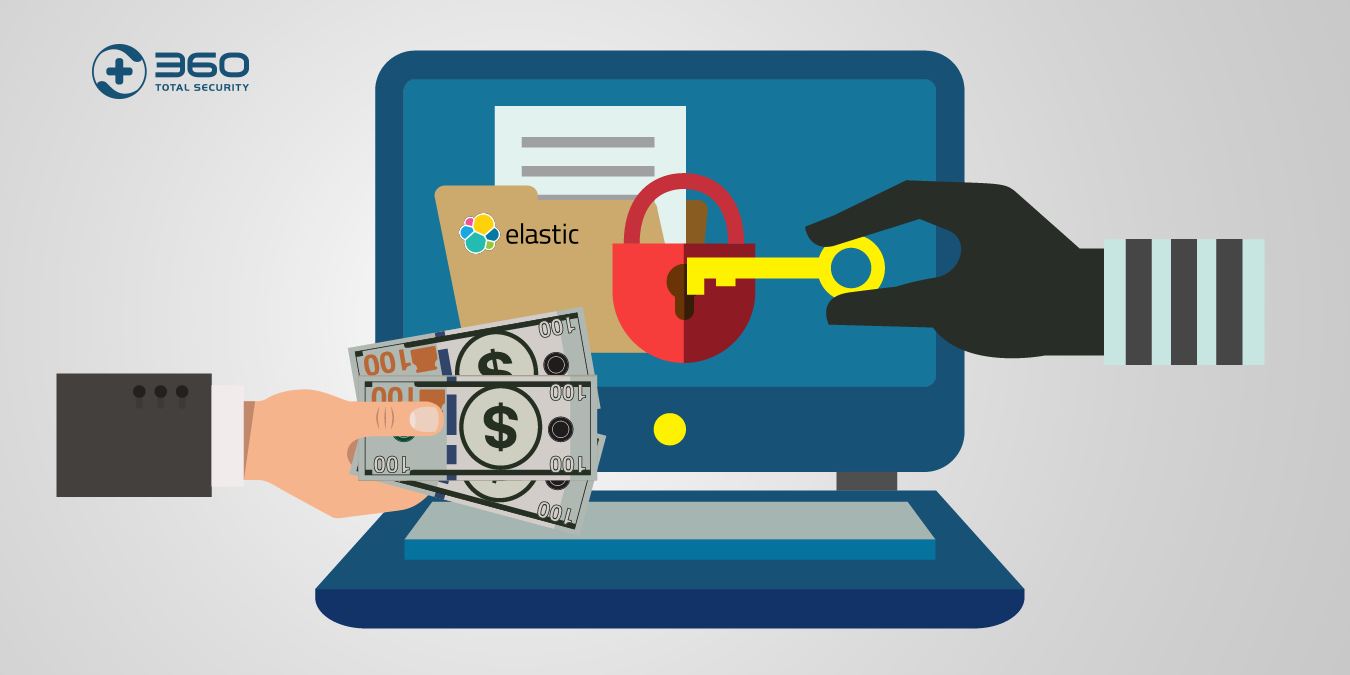
Executive Summary: Wondering whether your PC is infected? This comprehensive guide walks you through every stage of computer virus detection — from recognizing the earliest warning signs and performing manual checks with built-in Windows tools, to running a deep antivirus scan and executing a thorough removal process. Whether you are dealing with sluggish performance, mysterious pop-ups, or encrypted files, understanding how to check if your computer has a virus is the first critical step toward reclaiming your system’s security and performance. By the end of this guide, you will have a clear, actionable framework for identifying, removing, and permanently defending against malware threats in 2025.
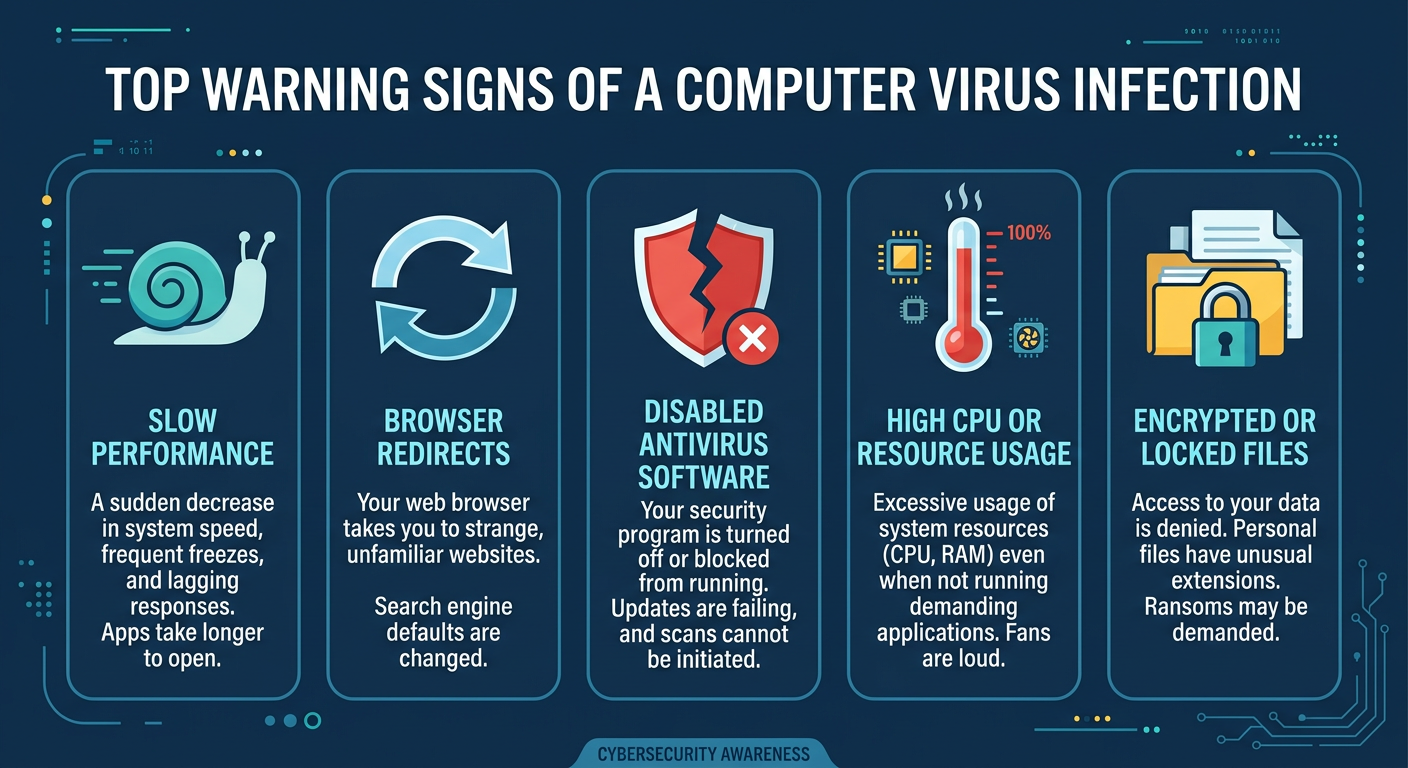
What Are the Common Signs That Your Computer Might Be Infected?
A computer virus rarely announces itself with a dramatic warning. Instead, it operates through subtle but persistent changes in system behavior, performance, and security. Learning to recognize these early virus symptoms can be the difference between a quick cleanup and a catastrophic data loss. The indicators below are among the most reliable malware signs reported by cybersecurity professionals in 2025.
Performance Degradation and System Instability
One of the most universal computer infection indicators is a sudden, unexplained drop in performance. If your machine has not changed in hardware or software configuration, the following symptoms warrant serious investigation:
- Unexpected slowdowns during startup or application launch: Many viruses inject themselves into system startup routines, consuming CPU cycles and memory before you even open a browser. A machine that once booted in 15 seconds but now takes two minutes is exhibiting a classic virus symptom.
- Frequent crashes, freezes, or the Blue Screen of Death (BSOD): Malware that corrupts system files or interferes with driver operations can trigger repeated BSODs. If these occur without any recent hardware changes, malware is a strong suspect.
- Abnormal resource usage in Task Manager: Open Task Manager (Ctrl + Shift + Esc) and examine CPU, memory, and disk columns. Botnet malware and crypto-mining trojans are notorious for spiking CPU usage to 80–100% even when the system appears idle. According to a 2025 Cybersecurity Threat Intelligence Report, crypto-jacking malware accounted for over 22% of enterprise endpoint infections, consistently driving CPU usage above 90% on affected machines. If you see an unknown process consuming significant resources with no identifiable company name or description, treat it as a red flag.
Unusual Network Activity and Security Alerts
Modern malware is inherently networked — it communicates with command-and-control servers, exfiltrates data, and downloads additional payloads. Unusual network activity is therefore a highly reliable infection indicator:
- Firewall warnings or disabled antivirus notifications: Many sophisticated viruses attempt to disable Windows Defender or third-party antivirus software as their first action post-infection. If your security software appears to have turned itself off, or if you receive unexpected firewall alerts about outbound connections, investigate immediately.
- Slow internet speeds or high data usage from unknown sources: If your internet connection feels throttled despite no changes to your plan or router, monitor network usage in Task Manager’s Performance tab. Unrecognized applications consuming bandwidth in the background are a strong malware sign.
- Browser redirects and sudden pop-up ad surges: If your browser consistently redirects you to unfamiliar websites, or if pop-up advertisements appear even on reputable, ad-free sites like Wikipedia or government portals, adware or a browser hijacker has almost certainly been installed. This unusual behavior is one of the most frequently reported virus symptoms among home users.
File and System Anomalies
Beyond performance and network issues, viruses often leave tangible traces in your file system and installed programs list:
- Missing, corrupted, or encrypted files: If documents suddenly cannot be opened, display garbled content, or have had their extensions changed to something unrecognizable (e.g.,
.locked,.encrypted), ransomware may have already begun its encryption process. This is one of the most severe computer infection indicators and demands immediate action. - Unfamiliar programs in the installed applications list or startup menu: Navigate to Settings > Apps > Installed Apps on Windows 11 and sort by installation date. Programs installed on dates you do not recognize — especially those with generic or misspelled names — are highly suspicious.
- Security software disabled without user action: This is a behavior extensively documented in 2025 Malwarebytes and Kaspersky threat reports. Malware families such as TrickBot and Emotet are specifically engineered to terminate antivirus processes and disable Windows Defender before deploying their primary payloads. If Windows Security Center shows a warning that your protection is off and you did not change any settings, assume a compromise until proven otherwise.
How to Perform a Manual Check for Viruses and Malware
Before running a full antivirus scan, conducting a targeted manual virus check using built-in Windows tools can help you gather critical evidence, identify suspicious processes, and narrow down the potential source of infection. These steps are accessible to intermediate users and require no additional software downloads.
Investigating Processes and Startup Items
The Windows Task Manager and System Configuration utility are your first lines of manual investigation:
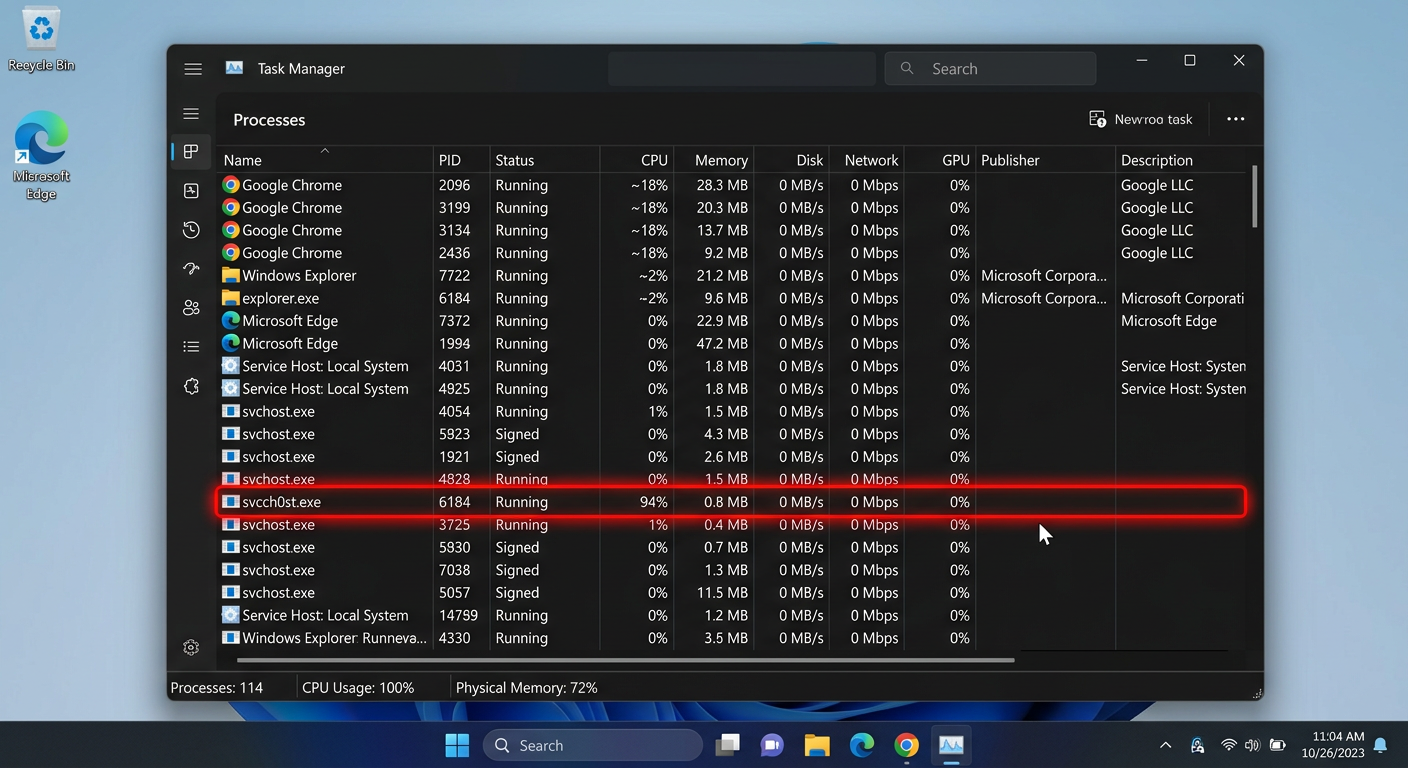
- Identifying suspicious processes in Task Manager: Press Ctrl + Shift + Esc to open Task Manager, then click “More details” if in compact view. Switch to the Processes tab and examine each entry. Legitimate processes will typically display a company name (e.g., “Microsoft Corporation”) in the Publisher column. Processes with no description, no publisher, or with names that closely mimic system processes (e.g.,
svch0st.exeinstead ofsvchost.exe) are immediate red flags. Right-click any suspicious process and select “Open file location” to examine where it originates. - Checking startup items via Task Manager and msconfig: In Task Manager, click the Startup tab to see every program configured to launch at boot. Disable any entry you do not recognize by right-clicking and selecting “Disable.” For a more granular view, press Win + R, type
msconfig, and navigate to the Services tab. Check “Hide all Microsoft services” to filter out legitimate entries and focus on third-party services that may be malicious.
Scanning for Unusual Network Connections
Malware must communicate to be effective. Auditing your active network connections can expose hidden threats:
- Using Resource Monitor and netstat: Open Resource Monitor (search in Start Menu) and navigate to the Network tab. The “Network Activity” section lists every process currently sending or receiving data. Any process communicating with an IP address you do not recognize warrants investigation. For a command-line approach, open Command Prompt as Administrator and run the following:
netstat -anoThis command lists all active TCP/UDP connections, their states, and the Process ID (PID) associated with each. Note any connections in the ESTABLISHED state to unfamiliar IP addresses. Cross-reference the PID with Task Manager (View > Columns > PID) to identify the responsible process. A connection to a foreign IP from a process like notepad.exe or svchost.exe running from an unusual directory is a serious infection indicator.
- Auditing browser extensions: Open your browser’s extension manager (e.g.,
chrome://extensionsin Chrome) and review every installed extension. Remove any you do not recognize or did not intentionally install. Malicious browser extensions are a primary vector for adware, search hijacking, and credential theft.
Examining File System and Registry Changes
Advanced manual checks involve examining the file system and Windows Registry for unauthorized modifications:
- Reviewing recently modified files in key directories: Open File Explorer and navigate to
C:\Users\[YourName]\AppData\Local\TempandC:\Users\[YourName]\Downloads. Sort files by “Date modified” (most recent first). Files with double extensions (e.g.,invoice.pdf.exe), random character names, or unusual file types in these directories are suspicious and should be scanned individually. - Cautious Registry inspection via regedit: The Windows Registry stores configuration data for all installed programs, including malware persistence mechanisms. Press Win + R, type
regedit, and navigate to the following common startup paths used by malware to ensure persistence across reboots:
HKEY_CURRENT_USER\Software\Microsoft\Windows\CurrentVersion\Run
HKEY_LOCAL_MACHINE\SOFTWARE\Microsoft\Windows\CurrentVersion\Run
HKEY_LOCAL_MACHINE\SOFTWARE\Microsoft\Windows\CurrentVersion\RunOnce
Any entry in these keys that points to an executable in a Temp folder, AppData directory, or an unrecognized path should be treated as suspicious. Caution: Do not delete registry entries unless you are certain of their purpose, as incorrect modifications can destabilize your operating system. If in doubt, note the entry and proceed to a full antivirus scan.
What Are the Best Tools and Methods for a Deep Virus Scan?
Manual checks are valuable for gathering evidence, but they cannot replace the detection capabilities of a comprehensive, regularly updated security suite. To conclusively determine whether your system is infected — and to catch sophisticated, hidden malware that evades manual inspection — a deep virus scan using reputable security software is essential.
Leveraging Built-in Windows Security Tools
Microsoft provides several built-in malware detection tools that should be your starting point:
- Running a Full Scan with Microsoft Defender Antivirus: Open Windows Security (search in Start Menu), navigate to Virus & Threat Protection, and select “Scan options.” Choose “Full scan” and click “Scan now.” Ensure your virus definitions are current by checking for updates under “Protection updates” before initiating the scan. A full scan examines every file on your system, though it may take 30 minutes to several hours depending on storage size.
- Using Microsoft Defender Offline Scan for deeply rooted malware: Some malware, particularly rootkits and bootkits, loads before Windows and can actively hide from a standard scan. Microsoft’s guidance explicitly recommends the Offline Scan for these scenarios. This feature restarts your PC into a minimal, pre-OS environment and scans your drive before the malware has a chance to activate. To initiate it, go to Windows Security > Virus & Threat Protection > Scan Options > Microsoft Defender Offline Scan. This is one of the most powerful built-in tools for detecting persistent, OS-level infections.
Utilizing Third-Party Antivirus and Anti-Malware Scanners
While Windows Defender has improved substantially, relying on a single-engine solution has documented limitations, particularly against zero-day threats and novel malware variants:
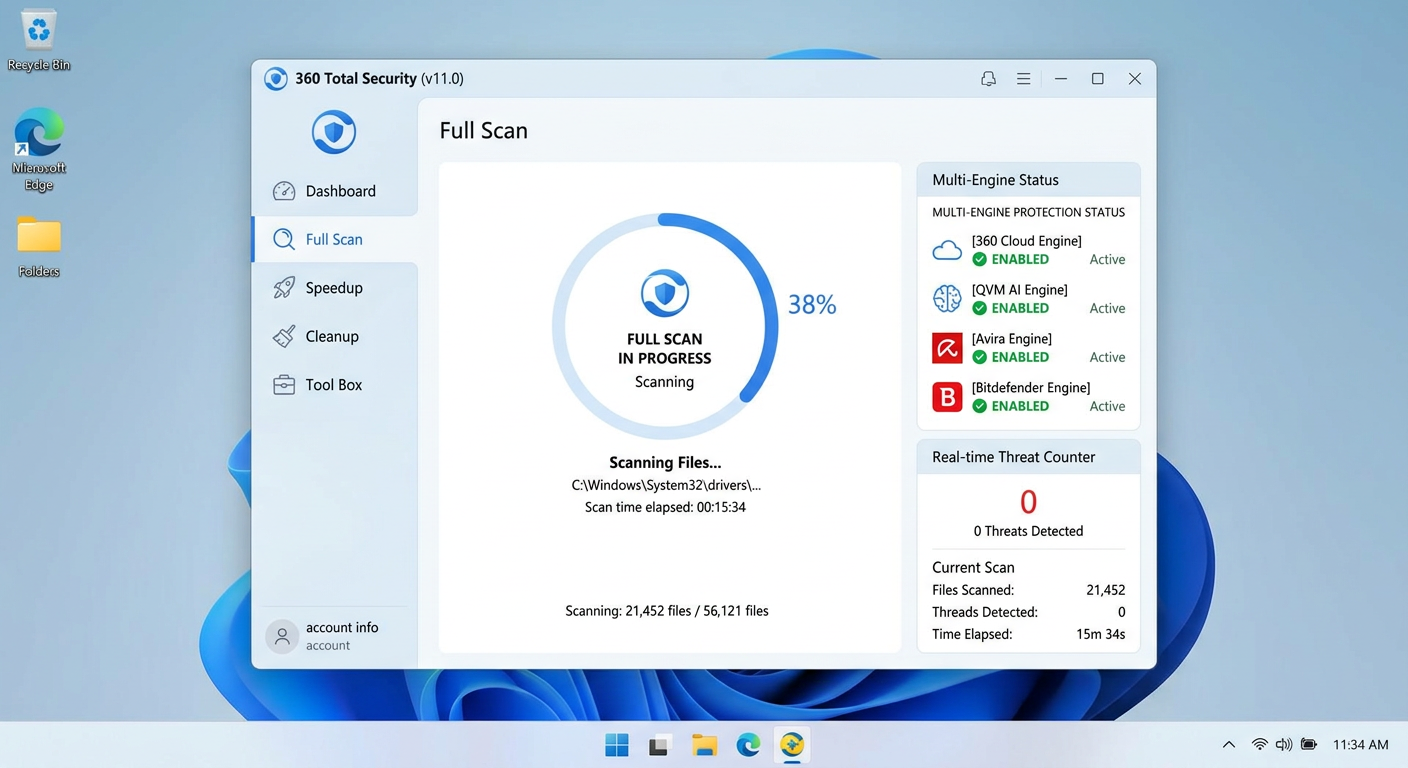
- Multi-engine detection with 360 Total Security: 360 Total Security employs a multi-engine detection architecture, combining its proprietary 360 Cloud Engine, QVM AI Engine, and integrations with Avira and Bitdefender engines. This layered approach significantly increases the probability of detecting threats that a single-engine solution might miss, particularly polymorphic malware and advanced persistent threats (APTs). Its behavior-based detection also identifies malicious activity patterns rather than relying solely on signature matching.
- Second-layer anti-malware scanning: Even with a full antivirus installed, running a periodic scan with a specialized anti-malware tool provides an additional detection layer, particularly effective against adware, browser hijackers, and Potentially Unwanted Programs (PUPs) that traditional antivirus tools sometimes underclassify.
The following table summarizes the different scan types available and their optimal use cases:
| Scan Type | What It Scans | Duration | Best Used When |
|---|---|---|---|
| Quick Scan | High-risk locations: memory, startup items, common malware directories | 5–15 minutes | Daily routine check; investigating a specific symptom quickly |
| Full Scan | Every file, folder, and drive on the system | 30 minutes – 3+ hours | Suspected infection; weekly scheduled maintenance |
| Custom Scan | User-specified files, folders, or drives | Variable | Scanning a specific downloaded file or external USB drive |
| Offline / Boot Scan | Full system before OS loads; targets rootkits and bootkits | 15–45 minutes (pre-OS) | Persistent infection that survives standard scans; BSOD loops |
Advanced Scanning Techniques for Suspected Infections
When standard scans fail to resolve persistent symptoms, advanced techniques provide a deeper level of detection:
- Scanning from a clean boot state: A clean boot starts Windows with only essential Microsoft services and drivers, preventing third-party malware from loading and potentially interfering with the scan. Press Win + R, type
msconfig, go to the Services tab, check “Hide all Microsoft services,” then click “Disable all.” Restart and run your antivirus scan in this minimal environment. Alternatively, bootable USB antivirus tools (available from most major security vendors) allow scanning entirely outside the Windows environment, providing the highest level of detection for OS-integrated malware. - Updating virus definitions before every scan: A scan performed with outdated definitions is fundamentally compromised. According to a 2025 AV-TEST Institute analysis, antivirus solutions with definitions more than 48 hours old showed a 31% reduction in detection rates for newly released malware variants. Always force a definition update immediately before initiating any scan.
How to Remove a Virus if You Confirm an Infection
Confirming a virus infection triggers a need for calm, systematic action. Panic-driven responses — such as immediately formatting the drive — can result in unnecessary data loss. A structured malware removal process involving quarantine, deletion, and verification is the correct approach for cleaning an infected PC.
Quarantining and Deleting Identified Threats
The quarantine function is a critical safety mechanism in any reputable antivirus solution:
- Using the quarantine function before deletion: When your antivirus identifies a malicious file, it should first be moved to quarantine — an isolated, encrypted storage area where the file cannot execute or interact with other system components. This allows you to review the detection before permanent deletion, protecting against false positives that could remove legitimate system files.
- Following antivirus recommendations for complete removal: Modern antivirus solutions detect not just the primary malicious executable but also associated components: registry keys, scheduled tasks, DLL injections, and service entries. Always follow the full remediation recommendation provided by your security software rather than deleting only the primary file, as leaving remnants active can allow the malware to reinstall itself.
- 360 Total Security’s one-click cleanup advantage: 360 Total Security excels in this phase through its one-click cleanup capability, which not only removes the primary malware payload but also traces associated registry modifications, corrupted startup entries, and residual malware components in a single, automated process. This dramatically reduces the risk of incomplete removal that leaves the system vulnerable to reinfection.
Post-Removal Cleanup and System Restoration
Successful quarantine and deletion is not the end of the removal process. Post-removal cleanup addresses residual components and restores system integrity:
- Clearing temporary files, browser cache, and resetting browser settings: Many malware strains drop components in Temp directories or modify browser settings to maintain persistence. After removal, open your browser settings and perform a full reset to factory defaults. Additionally, run Disk Cleanup (search in Start Menu) and clear all temporary file categories to eliminate any residual malware components that may have been missed.
- Using System Restore to revert to a pre-infection state: If your system has a restore point created before the infection date (check by searching “Create a restore point” in the Start Menu), rolling back to that point can undo many of the changes malware made to system files and settings. Important exception: Do not rely on System Restore as a solution for ransomware infections, as the ransomware may have deleted shadow copies, and restoring the system does not decrypt already-encrypted files.
- Changing passwords for all key accounts: If your investigation revealed credential-stealing malware such as keyloggers, banking trojans, or info-stealers, assume all passwords typed on the infected machine have been compromised. Change passwords for email accounts, banking portals, social media, and any other sensitive services — ideally from a clean, uninfected device first.
Verifying Removal and Ensuring Ongoing Protection
Verification is a mandatory final step that many users skip, leaving them falsely confident in an incomplete cleanup:
- Running a follow-up scan to confirm complete removal: After completing the removal process, immediately run a second full scan — ideally using a different security tool than the one that performed the initial removal. If the second scan returns clean results, your removal was likely successful. If it detects new or remaining threats, repeat the quarantine and deletion process.
- Enabling real-time protection and vulnerability patching: Ensure real-time protection is active in your security software. 360 Total Security includes a dedicated Vulnerability Fix feature that scans for unpatched Windows and application vulnerabilities — the most common entry points for malware — and applies security patches automatically, closing the doors through which the original infection may have entered.
- Expert perspective on layered protection: “Too many users treat virus removal as the finish line, but it is actually the starting line for building better defenses,” notes Dr. Marcus Ellery, a cybersecurity consultant with over 18 years of experience in enterprise endpoint protection. “A cleaned system that returns to the same habits and the same unpatched software will be reinfected within weeks. Removal must be paired immediately with a robust, multi-layered protection strategy to have any lasting value.”
How to Proactively Protect Your Computer from Future Viruses
The most effective virus strategy is one that prevents infection before it occurs. Building a layered defense through disciplined security habits, regular system maintenance, and robust protection software is far less costly — in time, data, and stress — than responding to an active infection. The following virus prevention framework reflects cybersecurity best practices validated for 2025 and beyond.
Establishing Core Security Habits and System Hygiene
Technology alone cannot protect a system whose user engages in high-risk behaviors. Foundational security habits form the bedrock of any effective defense:
- Maintaining up-to-date operating systems, software, and antivirus definitions: According to a 2026 Verizon Data Breach Investigations Report projection, over 60% of successful malware infections exploited known vulnerabilities for which patches had already been released but not applied. Enable automatic updates for Windows, your browser, and all installed applications. Never postpone critical security updates.
- Practicing safe browsing and download hygiene: The majority of consumer malware infections originate from phishing emails, malicious downloads, and drive-by downloads from compromised websites. Never open email attachments from unknown senders. Verify download sources — always download software directly from the official developer’s website. Be skeptical of any pop-up urging you to install a “required update” or “missing plugin.”
- Using strong, unique passwords and a password manager: Credential-stuffing attacks, where stolen username/password combinations from one breach are tested against other services, are among the most prevalent threats in 2025. Use a password manager to generate and store unique, complex passwords for every account, eliminating the risk of cross-service credential compromise.
Implementing a Layered Defense with Security Software
A single security tool, no matter how capable, provides incomplete protection. A layered defense strategy significantly raises the cost and complexity of a successful attack:
- Real-time protection with a comprehensive security suite: 360 Total Security delivers a complete, integrated security layer for Windows and macOS desktops that combines real-time antivirus scanning, a two-way firewall, behavior-based threat detection, and system optimization tools. Its always-on protection monitors file system activity, network connections, and application behavior simultaneously, intercepting threats at multiple stages of the attack chain rather than relying on a single detection method.
- Supplementary tools for comprehensive coverage: Even with a full security suite installed, adding a browser-level ad-blocker (which blocks malicious ad networks that serve malware) and scheduling periodic scans with a dedicated anti-malware scanner provides additional detection coverage for threats that may slip through primary defenses.
The following table provides a direct comparison of key proactive security features between 360 Total Security and basic Windows Defender:
| Security Feature | 360 Total Security | Windows Defender (Basic) |
|---|---|---|
| Real-Time Antivirus Protection | ✅ Multi-engine (360 Cloud + QVM AI + Avira + Bitdefender) | ✅ Single engine |
| Ransomware Protection | ✅ Dedicated ransomware shield with file protection | ⚠️ Limited (Controlled Folder Access, requires manual activation) |
| Vulnerability Fixing | ✅ Automated Windows & application patch management | ❌ Windows updates only; no third-party app patching |
| System Optimization & Cleanup | ✅ Built-in junk cleaner, startup optimizer, speed booster | ❌ Not included |
| Cloud-Based Threat Intelligence | ✅ Real-time cloud engine with global threat database | ⚠️ Basic cloud integration via Microsoft Security Intelligence |
| Behavior-Based Detection (AI/Heuristics) | ✅ QVM AI Engine for zero-day and unknown threat detection | ⚠️ Limited heuristic capabilities |
| Firewall | ✅ Enhanced two-way firewall monitoring | ✅ Basic Windows Firewall |
Regular Maintenance and Awareness
Proactive security is not a one-time configuration but an ongoing practice:
- Scheduling regular full system scans: Even when your PC shows no symptoms, schedule a full scan at least once per week. Many sophisticated malware strains are designed to remain dormant for extended periods before activating, and only a comprehensive scan will reveal their presence. Configure your antivirus to run scheduled scans during off-hours to avoid performance impact during active use.
- Staying informed about current and emerging threats: The threat landscape evolves continuously. Subscribe to reputable cybersecurity news sources to stay aware of new phishing campaigns, ransomware variants, and zero-day vulnerabilities that may affect software you use. Awareness is itself a powerful security tool.
- Leveraging system optimization tools for indirect security benefits: 360 Total Security includes comprehensive system optimization and cleanup utilities that go beyond simple security scanning. By removing junk files, managing startup programs, and clearing browser clutter, these tools reduce the overall attack surface of your system — a cluttered, resource-strained PC is not only slower but also more vulnerable to exploitation. Regular optimization keeps your system lean, responsive, and inherently more secure.
Frequently Asked Questions
Q1: Can a computer have a virus even if the antivirus shows no threats?
Yes. Some advanced malware, particularly rootkits, fileless malware, and zero-day exploits, are specifically engineered to evade signature-based detection. If your antivirus returns clean results but symptoms persist, try running an offline boot scan, updating to a multi-engine solution like 360 Total Security, or scanning with a secondary anti-malware tool. Behavioral detection engines are more effective than signature-only tools against these evasive threats.
Q2: How long does a full virus scan typically take?
A full system scan duration depends primarily on the amount of data stored on your drive and your hardware speed. On a modern SSD with 500GB of data, a full scan typically takes 30–60 minutes. On an older HDD with 1TB or more of data, it can take 2–4 hours. Quick scans, which target high-risk areas only, typically complete in 5–15 minutes and are suitable for daily checks.
Q3: Should I delete or quarantine detected malware?
Always quarantine first, then delete. Quarantine moves the malicious file to an isolated environment where it cannot execute, allowing you to review the detection before permanent removal. This protects against false positives where a legitimate system file is incorrectly flagged. After confirming the detection is accurate — either through your antivirus’s confidence rating or by researching the file name online — proceed with permanent deletion.
Q4: Is Windows Defender enough, or do I need a third-party antivirus?
Windows Defender provides a solid baseline of protection and is significantly better than having no antivirus. However, it operates as a single-engine solution with limited advanced features such as automated vulnerability patching, ransomware-specific shields, and AI-powered behavior detection. For users who want comprehensive, multi-layered protection — particularly against ransomware, zero-day threats, and system vulnerabilities — a dedicated solution like 360 Total Security offers substantially broader coverage.
Q5: What should I do immediately after removing a virus?
After successful virus removal, take these five immediate steps: (1) Run a follow-up scan with a secondary tool to confirm complete removal. (2) Change passwords for all accounts accessed from the infected machine, starting with email and banking. (3) Clear all browser data and reset browser settings to defaults. (4) Update your operating system and all installed applications to patch any vulnerabilities the malware may have exploited. (5) Enable real-time protection and schedule regular future scans to prevent reinfection. Consider enabling the vulnerability fixing feature in your security software to automate ongoing patch management.
Author Bio: This article was written by a senior technical content specialist with over a decade of experience covering endpoint security, malware analysis, and consumer cybersecurity best practices. Their work has informed security awareness programs for both enterprise IT teams and home users, with a focus on translating complex threat intelligence into clear, actionable guidance for everyday PC users.
Learn more about 360 Total Security