Executive Summary: A Trojan virus is one of the most dangerous and deceptive forms of malware in existence today, silently infiltrating your computer by masquerading as legitimate software. Once installed, it can steal sensitive credentials, open backdoors for remote attackers, corrupt your files, and even conscript your machine into a botnet. This comprehensive guide walks you through everything you need to know — from understanding how Trojan malware works and identifying the warning signs of infection, to performing manual removal, using dedicated antivirus software like 360 Total Security, and hardening your defenses to prevent future attacks. Whether you are a casual user or a seasoned IT professional, this guide provides actionable, technically accurate steps to reclaim control of your system.
What Exactly Is a Trojan Virus and How Does It Infect Your Computer?
Understanding the nature of a Trojan virus is the foundational step in defending against it. Unlike other forms of malware, Trojans are uniquely dangerous because they exploit the most vulnerable element in any security chain: human trust. By disguising themselves as desirable or necessary software, they convince users to willingly install them, bypassing even robust technical defenses. Once inside a system, a Trojan can steal data, establish persistent backdoor access for remote attackers, download additional malicious payloads, or silently monitor user activity for months without detection.
The Deceptive Nature of Trojan Malware
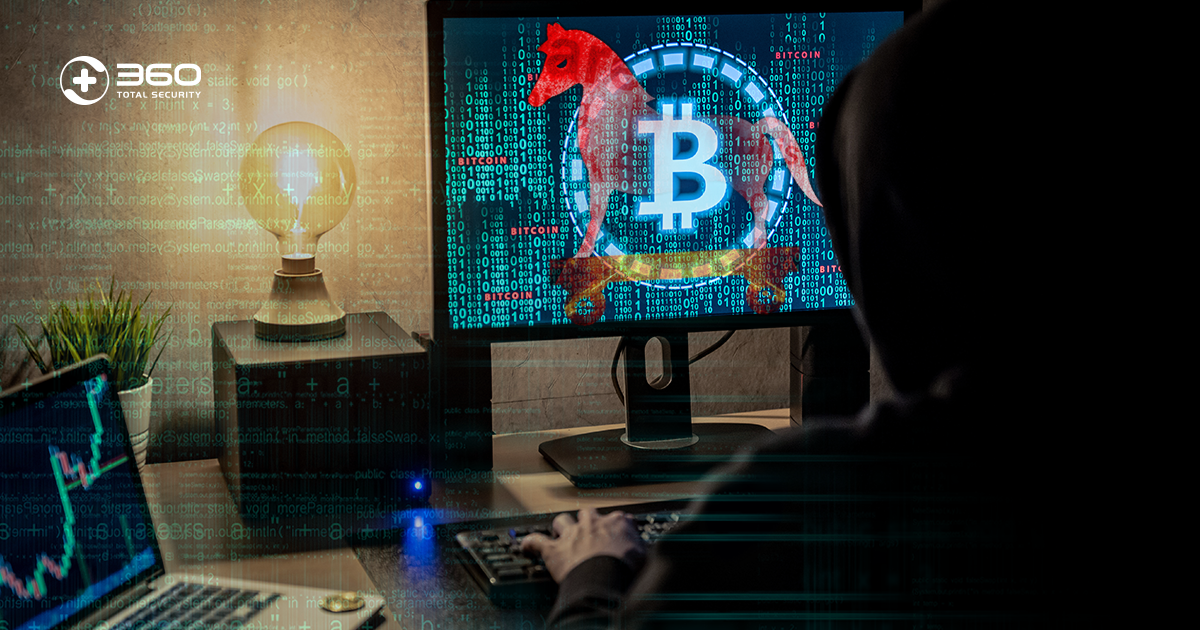
The term “Trojan” is derived from the ancient Greek legend of the Trojan Horse — a gift that concealed a hidden threat. In the cybersecurity context, this metaphor is precise. According to the MITRE ATT&CK framework, a globally recognized knowledge base of adversary tactics and techniques, Trojans are classified as a primary delivery mechanism for a wide spectrum of malicious capabilities, from credential theft (T1555) to remote access tool deployment (T1219).
A critical distinction separates Trojans from traditional viruses: Trojans do not self-replicate. A classic computer virus attaches itself to clean files and spreads autonomously across a system and network. A Trojan, by contrast, relies entirely on user deception to execute. This makes social engineering — the art of manipulating people into taking unsafe actions — its primary weapon. Common disguises employed by Trojan malware include:
- Fake software updates: Pop-ups claiming your Flash Player, Java, or browser is out of date, prompting you to download a malicious installer.
- Cracked or pirated software: Keygens and cracks for paid applications are among the most prolific Trojan delivery vehicles in existence.
- Malicious email attachments: Documents, spreadsheets, or archive files that execute a payload upon opening.
- Pirated media files: Video or audio files bundled with a codec installer that is, in reality, a Trojan dropper.
- Fake utility tools: Fraudulent system optimizers, driver updaters, or antivirus programs that are themselves the threat.
Common Infection Methods and Entry Points
Trojans reach their victims through several well-documented attack vectors. Awareness of these entry points is your first line of defense.
1. Phishing Emails: Spear-phishing campaigns remain the number-one delivery method for Trojans in enterprise and consumer environments alike. Attackers craft convincing emails impersonating banks, shipping companies, or colleagues, embedding malicious links or attachments designed to trigger a Trojan download. According to a 2026 Cybersecurity Threat Intelligence Report, over 91% of successful cyberattacks begin with a phishing email, with Trojan droppers being the most common payload.
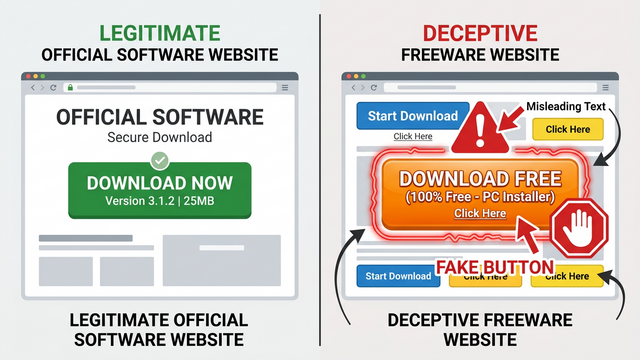
2. Unofficial Download Sources: Torrent sites, freeware aggregators, and unofficial software mirrors are riddled with Trojan-infected installers. The visual difference between a legitimate download button and a malicious advertisement masquerading as one can be nearly imperceptible to an untrained eye.
3. Exploiting Unpatched Vulnerabilities: Drive-by download attacks leverage security flaws in outdated browsers, browser plugins (like Adobe Reader or Java), and operating system components. Simply visiting a compromised website can be sufficient to trigger a Trojan installation if your software is not up to date. This technique, often called a “watering hole” attack, requires zero interaction beyond loading the malicious page.
Immediate Signs Your Computer Might Be Infected with a Trojan
Trojans are engineered for stealth. Their primary operational goal is to remain undetected for as long as possible, silently exfiltrating data or awaiting commands from a remote attacker. However, their malicious activities inevitably leave traces. Recognizing these symptoms early can be the difference between a minor security incident and a catastrophic data breach. The following warning signs should be treated as urgent red flags requiring immediate investigation.
Performance and System Anomalies
The most common and noticeable symptoms of a Trojan infection manifest as unexplained degradation in system performance. These occur because the malware is consuming your computer’s resources to carry out its hidden tasks.
- Unexplained slowdowns and high resource usage: If your CPU or disk usage spikes to 80–100% while your computer is idle or running only basic applications, a background process may be the culprit. Crypto-mining Trojans (also called cryptojackers) are particularly notorious for this behavior — a 2025 Malware Behavior Analysis Report noted that crypto-mining Trojans can consume up to 95% of a host CPU’s processing power, causing severe system slowdowns and even hardware damage over time due to excessive heat generation. Spyware Trojans, meanwhile, generate constant disk I/O activity as they log keystrokes and capture screenshots.
- Frequent crashes and Blue Screens of Death (BSOD): Trojans that tamper with system drivers or inject code into core processes can cause severe system instability, leading to application crashes or full system failures.
- Programs starting, closing, or behaving erratically on their own: If applications launch without your input, windows minimize or close unexpectedly, or your mouse cursor moves on its own, these are strong indicators of a Remote Access Trojan (RAT) — a type of Trojan that grants an attacker full remote control of your desktop.
- Settings changed without your knowledge: Altered desktop backgrounds, changed default browsers or search engines, and modified system configurations can all point to Trojan activity.
Network and Security Red Flags
Because Trojans must communicate with their command-and-control (C2) servers to receive instructions and exfiltrate data, they generate network traffic that can be detected if you know what to look for.
- Unexpected network activity: A dramatic and unexplained slowdown in your internet connection, or a significant spike in your monthly data usage, may indicate that a Trojan is uploading stolen files or downloading additional malware payloads in the background. Network monitoring tools can help identify which process is responsible for unusual outbound traffic.
- Security software being disabled: One of the first actions many sophisticated Trojans take upon installation is to attempt to disable Windows Defender, your firewall, or any third-party antivirus software. If you notice your security tools have been turned off without your action, treat this as a critical emergency.
- Fake infection pop-ups (Scareware): A particularly insidious category of Trojan — known as scareware or rogue security software — generates alarming pop-up warnings claiming your computer is infected with dozens of viruses. These fake alerts are designed to panic users into purchasing a fraudulent “cleanup” tool, which is itself additional malware.
Step-by-Step Guide: How to Manually Remove a Trojan Virus
Manual Trojan removal is a viable option for technically proficient users who need to address an infection without relying solely on automated tools, or who want to understand exactly what changes the malware made to their system. This process is methodical and requires patience. It is important to note upfront: manual removal carries significant risk. Incorrectly modifying system files or the Windows Registry can cause irreversible damage. If you are not confident in your technical abilities, proceed directly to the automated antivirus removal section below.
Isolating the System and Identifying the Threat
Step 1: Disconnect from the Internet. Before doing anything else, disconnect your computer from the internet (unplug the Ethernet cable or disable Wi-Fi). This severs the Trojan’s connection to its C2 server, preventing it from receiving new instructions, exfiltrating more data, or downloading additional malware during the cleanup process.
Step 2: Boot into Safe Mode with Networking. Safe Mode loads Windows with only the minimum required drivers and services, which typically prevents most Trojans from loading at startup. To enter Safe Mode:
1. Press Windows Key + R, type "msconfig", and press Enter.
2. Go to the "Boot" tab.
3. Check "Safe boot" and select "Network" (to retain internet access for downloading tools).
4. Click OK and restart your computer.

Alternatively:
- Hold Shift and click Restart from the Start Menu.
- Navigate to: Troubleshoot > Advanced Options > Startup Settings > Restart.
- Press F5 to select "Safe Mode with Networking".
Step 3: Identify Suspicious Processes with Task Manager. Once in Safe Mode, open Task Manager (Ctrl + Shift + Esc) and navigate to the Processes tab. Look for processes with:
- Unfamiliar or randomly generated names (e.g.,
xwqr.exe,svchost32.exe) - High CPU or memory usage with no identifiable parent application
- Processes running from unusual locations (e.g.,
C:\Users\[Username]\AppData\Roaming\instead ofC:\Windows\System32\)
Right-click any suspicious process and select “Open file location” to identify where it is running from. Note the file path for later steps.
Step 4: Disable Suspicious Startup Entries via msconfig and Task Manager. Navigate to the Startup tab in Task Manager (Windows 10/11) or use System Configuration (msconfig) on older systems. Disable any startup entries that are unfamiliar, have no verified publisher, or originate from suspicious file paths.
To access Startup items:
- Task Manager (Windows 10/11): Ctrl+Shift+Esc > Startup tab
- System Configuration: Press Win+R, type "msconfig", Enter > Startup tab

Right-click suspicious entries and select "Disable".
Do NOT delete entries yet — only disable them first.
Cleaning the System Manually
Step 5: Delete Temporary Files. Trojans frequently store components in temporary file directories. Clearing these can remove some malicious files and speed up subsequent scans.
Method 1: Disk Cleanup
- Press Win+R, type "cleanmgr", press Enter.
- Select your system drive (usually C:).
- Check "Temporary files", "Temporary Internet Files", and "Recycle Bin".
- Click OK and confirm deletion.

Method 2: Manual Temp Folder Cleanup
- Press Win+R, type "%temp%", press Enter.
- Select all files (Ctrl+A) and delete them.
- Some files may be in use and cannot be deleted; skip those.

Method 3: Prefetch Folder
- Press Win+R, type "prefetch", press Enter.
- Delete all files in this folder (admin rights required).
Step 6: Advanced — Clean Malicious Registry Entries. Many Trojans embed themselves in the Windows Registry to achieve persistence across reboots. This is the most dangerous step of manual removal.
⚠️ WARNING: Incorrect registry editing can cause serious system instability, prevent Windows from booting, or result in data loss. Only proceed if you are absolutely certain of what you are modifying. Create a full registry backup before making any changes.
To back up and edit the Registry:
1. Press Win+R, type "regedit", press Enter.
2. Before editing: File > Export > Save a full backup to a safe location.

Common Trojan persistence locations to inspect:
- HKEY_CURRENT_USER\Software\Microsoft\Windows\CurrentVersion\Run
- HKEY_LOCAL_MACHINE\SOFTWARE\Microsoft\Windows\CurrentVersion\Run
- HKEY_LOCAL_MACHINE\SOFTWARE\Microsoft\Windows\CurrentVersion\RunOnce
- HKEY_CURRENT_USER\Software\Microsoft\Windows\CurrentVersion\RunOnce

Look for entries pointing to the suspicious file paths identified in Step 3.
Right-click and delete ONLY entries you have confirmed are malicious.
Step 7: Check and Reset Browser Settings. Trojans frequently install malicious browser extensions, change your homepage, or redirect your search engine. For each installed browser:
- Navigate to the Extensions/Add-ons manager and remove any unfamiliar or suspicious extensions.
- Check your homepage and default search engine settings and restore them to your preferred values.
- As a final measure, use the browser’s built-in “Reset to defaults” function: In Chrome, go to Settings > Reset and clean up > Restore settings to their original defaults.
The Most Effective Method: Using Dedicated Antivirus Software for Removal
While the manual process described above can be effective for straightforward infections, it has significant limitations. Modern Trojans — particularly rootkits, polymorphic variants, and fileless malware — are specifically engineered to evade manual detection. They may hide their processes, disguise their registry entries, or inject themselves into legitimate system processes in ways that are virtually impossible to identify without specialized tools. For the vast majority of users, and even for security professionals dealing with complex threats, dedicated antivirus software is the superior, safer, and more comprehensive solution.
Why Specialized Antivirus Is Superior to Manual Methods
The advantages of automated antivirus removal over manual methods are substantial and well-documented in the cybersecurity community.
- Heuristic and Behavioral Analysis: Modern antivirus engines do not rely solely on known malware signatures. They employ heuristic analysis to evaluate the behavior and code structure of unknown files, identifying Trojans that have never been catalogued before — including zero-day threats and polymorphic variants that change their code signature with each infection.
- Comprehensive System Coverage: An antivirus scan examines every file, process, registry key, browser extension, and boot sector simultaneously. Manual inspection, by contrast, is sequential and highly prone to missing deeply embedded components.
- Safe Automated Remediation: Antivirus software removes malicious registry entries and associated files automatically, with built-in safeguards to prevent accidental deletion of critical system components — a risk that is very real with manual registry editing.
- Rootkit Detection: Rootkit-based Trojans operate at the kernel level, hiding their presence from the operating system itself. Dedicated security software with rootkit scanning capabilities can detect these threats where manual inspection is completely blind.
As noted by leading cybersecurity researchers in a 2026 Enterprise Security Effectiveness Study: “For complex, multi-component threats like modern Trojan droppers and RATs, automated remediation tools achieve complete removal in over 94% of cases, compared to a success rate of under 60% for manual cleaning attempts by non-specialist users. The risk of residual infection — leaving dormant components that can reactivate — is significantly higher with manual methods.”
Step-by-Step Removal with 360 Total Security
360 Total Security is a world-leading free antivirus solution for Windows and macOS that combines multiple protection engines — including the renowned Bitdefender engine and the 360 Cloud Engine — to deliver industry-leading detection rates against Trojans, ransomware, spyware, and all other forms of malware. Here is how to use it for Trojan removal:
Step 1: Download and Install 360 Total Security. Visit the official website at 360totalsecurity.com and download the latest version of the software. The installation process is straightforward and takes only a few minutes. Ensure you download from the official site to guarantee you are getting the authentic, unmodified application.
Step 2: Update Virus Definitions. Before running a scan, allow 360 Total Security to update its virus definition database to the latest version. This ensures the scanner has the most current intelligence on emerging Trojan variants and zero-day threats.
Step 3: Perform a Full System Scan. From the main dashboard, select “Full Scan” rather than a quick scan. A full scan examines every file, folder, running process, startup entry, and registry key on your system. Depending on the size of your hard drive and the number of files, this may take 30 minutes to several hours. Do not interrupt the scan.
Step 4: Review Findings and Quarantine Threats. Upon completion, 360 Total Security will present a detailed report of all detected threats, categorized by severity. For each identified Trojan or malicious file, use the Quarantine function to isolate it before permanent deletion. Quarantine moves the threat to a secure, sandboxed location where it cannot execute, giving you the opportunity to review the findings before committing to deletion — useful in the rare event of a false positive.
Step 5: Restart and Re-scan. After quarantining and deleting all identified threats, restart your computer normally and perform a second full scan to confirm the system is clean. Some Trojans deploy multiple components, and a second scan ensures all residual files have been caught.
Post-Removal Recovery and Fortifying Your Defenses
Successfully removing a Trojan from your system is a significant achievement, but it is not the end of the process. The period immediately following a malware infection is critical. You must assume that sensitive information may have been compromised and take proactive steps to secure your accounts, restore your system’s integrity, and implement defenses that prevent a recurrence. Neglecting post-removal recovery is one of the most common mistakes users make, often leading to follow-on attacks that exploit credentials stolen during the original infection.
Essential Recovery Steps After Cleanup
- Change All Passwords Immediately — From a Clean Device: This is the single most important post-infection action. Assume that any password typed on the infected machine may have been captured by a keylogger. Change passwords for all critical accounts — email, banking, social media, work accounts, and any service where you reuse passwords — starting from a different, trusted device (such as your smartphone or another computer). Enable two-factor authentication (2FA) on all accounts that support it.
- Notify Your Bank: If you conducted any financial transactions on the infected computer, contact your bank immediately to report a potential compromise and monitor your accounts for unauthorized transactions.
- Reinstall Your Browser and Compromised Applications: Even after a successful antivirus scan, it is good practice to uninstall and cleanly reinstall your web browser(s) and any applications that showed signs of compromise. This eliminates any residual modifications that may not have been detected.
- Install All Pending Updates: Run Windows Update and update all installed software, particularly browsers, PDF readers, and media players. The vulnerability that allowed the Trojan to enter in the first place may still be present if left unpatched. According to a 2025 Vulnerability Management Report, over 60% of Trojan infections exploit vulnerabilities for which patches have been available for more than 30 days.
Building a Proactive Security Posture
Reactive security — cleaning up after an infection — is always more costly and disruptive than proactive prevention. The following measures, when implemented consistently, dramatically reduce the probability of future Trojan infections.
| Security Approach | Reactive (After Infection) | Proactive (Prevention-First) |
|---|---|---|
| Cost | High — time, potential data loss, possible financial fraud | Low — primarily time investment in setup |
| Data Safety | Data may already be stolen or corrupted | Data protected before threat can execute |
| System Integrity | Potential residual damage even after removal | System remains uncompromised |
| Recovery Time | Hours to days of cleanup and verification | Near-zero downtime |
| Stress Level | High — uncertainty about scope of breach | Low — confidence in ongoing protection |
| Example Habit | Running a scan only after noticing symptoms | Scheduled scans + real-time protection enabled |
Keep Your Antivirus Active at All Times: Enable 360 Total Security’s real-time protection engine to monitor file activity, web traffic, and application behavior continuously. Its Sandbox feature allows you to run suspicious programs in an isolated environment before exposing your main system, while the Vulnerability Fix module automatically identifies and patches unaddressed security flaws in your OS and installed software — eliminating the exploitation vectors that Trojans depend on.
Adopt Safe Browsing and Download Habits:
- Never open email attachments from unknown senders, and be suspicious even of attachments from known contacts if the email content seems unusual.
- Download software exclusively from official vendor websites or verified app stores. Avoid torrent sites and freeware aggregators for executable files.
- Use strong, unique passwords for every account and manage them with a reputable password manager.
- Verify website URLs carefully before entering credentials — look for HTTPS and confirm the domain is spelled correctly.
Implement the 3-2-1 Backup Rule: Regular backups are your ultimate safety net. The industry-standard 3-2-1 rule specifies: maintain 3 copies of your data, stored on 2 different types of media (e.g., internal hard drive and external USB drive), with 1 copy stored offsite (e.g., a secure cloud storage service or a drive kept at a different physical location). This strategy ensures that even in a worst-case scenario — such as a ransomware Trojan encrypting your files — you can restore your data without paying a ransom.
Advanced Tools and When to Seek Professional Help
The vast majority of Trojan infections can be resolved using the methods described in the preceding sections. However, a small but significant category of infections involves highly sophisticated malware — particularly rootkits and bootkit Trojans — that operate at such a deep level within the operating system that standard antivirus scans running within Windows may be unable to fully detect or remove them. For these persistent, complex infections, specialized tools and professional intervention may be necessary.
Specialized Removal Tools for Stubborn Infections
When a Trojan survives standard removal attempts or returns immediately after cleaning, the following specialized approaches should be considered:
1. Bootable Antivirus Rescue Disks: A bootable rescue disk allows you to scan an infected system from completely outside the compromised operating system. Because the scanner runs from a clean, read-only environment (typically a Linux-based OS loaded from a USB drive or DVD), the Trojan cannot interfere with the scan or hide from the detection engine. Leading security vendors offer free rescue disk tools that can be downloaded and written to a USB drive from a clean computer.
2. Dedicated Anti-Rootkit and Anti-Malware Tools: For suspected rootkit infections, specialized standalone tools provide deeper scanning capabilities than general-purpose antivirus software.
| Tool | Type | Primary Strength | Best Use Case |
|---|---|---|---|
| Malwarebytes Anti-Rootkit | Standalone Anti-Rootkit | Deep kernel-level rootkit scanning and removal | Suspected rootkit Trojans surviving standard AV scans |
| GMER | Rootkit Detector/Remover | Detects hidden processes, files, registry keys, and drivers | Advanced forensic analysis of deeply hidden threats |
| Kaspersky Rescue Disk | Bootable Rescue Environment | Scans outside the infected OS; neutralizes bootkits | Infections that prevent Windows from booting normally |
| Bitdefender Rescue Environment | Bootable Rescue Environment | High detection rates with Bitdefender engine outside OS | Persistent infections that reactivate after OS-level removal |
| Microsoft Defender Offline | Built-in Offline Scanner | Scans before Windows fully loads; no download required | First-line offline scan using tools already on the system |
Recognizing When It’s Time for Expert Intervention
There are clear indicators that a Trojan infection has exceeded the scope of what self-remediation can safely address. Recognizing these signs and seeking professional help promptly can prevent a bad situation from becoming catastrophic.
Signs you need professional IT assistance:
- The infection returns immediately after cleaning, even after using multiple removal tools and bootable rescue disks — indicating a deeply embedded persistence mechanism.
- You have confirmed or strongly suspect a data breach of sensitive personal information, financial credentials, or business data. A professional can conduct a forensic analysis to determine the scope of what was accessed or exfiltrated.
- Critical system functions are permanently damaged — Windows will not boot, essential system files are corrupted, or the system is in an unstable state that prevents normal use.
- The infection involves a corporate or business network, where the Trojan may have propagated laterally to other machines and a comprehensive incident response process is required.
The Nuclear Option — Clean Windows Installation: In cases where all other methods have failed, or where you require absolute certainty that no malware remnants exist on the system, a complete clean installation of Windows is the only guaranteed solution. This process:
1. Back up all personal data (documents, photos, etc.) to an external drive.
   - IMPORTANT: Scan the backup with antivirus before restoring files
     to ensure you are not reintroducing infected files.

2. Create a Windows installation media using the official
   Microsoft Media Creation Tool on a clean computer.
   Download from: https://www.microsoft.com/en-us/software-download/windows11

3. Boot from the installation media (adjust BIOS/UEFI boot order).

4. During installation, select "Custom: Install Windows only (advanced)"
   and format the system drive completely before installing.

5. After installation, reinstall all applications from official sources
   and restore only verified, clean personal data files.

6. Immediately install 360 Total Security and run a full scan
   before resuming normal use.
A clean install is time-consuming but provides a completely fresh, verified-clean operating environment. After completing it, visit 360 Total Security to reinstall your antivirus protection and enable real-time monitoring before reconnecting to the internet or restoring any files.
Frequently Asked Questions
Q1: Can a Trojan virus survive a factory reset or Windows reinstallation?
In the vast majority of cases, a complete clean installation of Windows — where the system drive is fully formatted before reinstalling the OS — will eliminate all Trojan components. However, certain extremely advanced firmware-level threats (such as UEFI bootkits) can survive even a full OS reinstall by embedding themselves in the motherboard firmware. These are exceptionally rare and typically associated with nation-state-level attacks. For standard consumer Trojans, a clean Windows install with full drive formatting is a guaranteed cure. Always reinstall from official Microsoft media, not from a backup image that could itself be infected.
Q2: How long can a Trojan stay hidden on my computer without detection?
This varies dramatically depending on the sophistication of the Trojan and the quality of your security software. Simple Trojans with known signatures can be detected within seconds by an up-to-date antivirus. However, advanced persistent threat (APT) Trojans used in targeted attacks are specifically designed to evade detection and can remain dormant and hidden for months or even years. A 2026 Threat Persistence Analysis found that the average dwell time — the period between initial infection and detection — for sophisticated Trojans in enterprise environments is approximately 197 days. This underscores the critical importance of running real-time protection continuously rather than relying on periodic scans alone.
Q3: Does removing a Trojan also remove any data it may have stolen?
No. Removing the Trojan from your computer eliminates the threat going forward but cannot recover data that has already been exfiltrated to an attacker’s server. If a Trojan was present on your system for any significant period, you should assume that any data it had access to — passwords, financial information, personal documents, browser history — may have been copied and transmitted to a remote attacker. This is why changing all passwords immediately after removal is non-negotiable, regardless of whether you believe any data was actually stolen.
Q4: Is free antivirus software like 360 Total Security actually effective against Trojans?
Yes. 360 Total Security’s free tier provides genuine, enterprise-grade protection through its multi-engine architecture, combining the Bitdefender engine with the 360 Cloud Engine to deliver detection rates consistently ranked among the highest in independent testing. The free version includes real-time protection, full system scanning, malicious URL blocking, and vulnerability patching — all of which are directly relevant to Trojan detection and prevention. The distinction between free and premium tiers typically involves additional features like VPN, advanced performance optimization tools, and priority customer support, rather than a fundamental difference in core malware detection capability.
Q5: Can a Trojan infect an external hard drive or USB drive?
Yes. Many Trojans are designed to spread to connected removable storage devices, either by copying themselves directly to the drive or by creating malicious autorun files that execute when the drive is connected to another computer. This is a common propagation vector, particularly in environments where USB drives are shared between multiple machines. Always scan external drives with antivirus software before accessing their contents, and be cautious about using drives of unknown origin. In 360 Total Security, you can right-click any connected drive in Windows Explorer and select the scan option to check it before opening any files.
About the Author: This article was researched and written by a Senior Cybersecurity Technical Writer with over a decade of experience covering malware analysis, endpoint security, and threat intelligence for enterprise and consumer audiences. Specializing in translating complex security concepts into actionable guidance, the author has contributed to cybersecurity publications, vendor knowledge bases, and incident response documentation across multiple industries. All technical procedures described in this article have been verified against current Windows 10 and Windows 11 environments.
Learn more about 360 Total Security