Executive Summary: Discovering that your phone may be infected with malware is alarming, but it is a solvable problem. This comprehensive guide walks you through every stage of the process — from identifying the telltale signs of a phone virus, to isolating the threat, executing targeted removal steps for both Android and iPhone, and finally hardening your device against future attacks. Whether you are dealing with aggressive adware, spyware stealing your personal data, or a deeply embedded trojan, the systematic approach outlined here will help you reclaim control of your device and protect your digital life.
What Are the Signs Your Phone Has a Virus?
Recognizing the symptoms of a mobile virus infection is the critical first step before taking any remediation action. One of the most common mistakes users make is dismissing early warning signs as normal phone aging or poor battery health. In reality, many of these symptoms are the direct result of malicious software running silently in the background. Understanding the difference between a sluggish phone and an infected one can save you from significant financial and privacy harm.
Unusual Performance and Battery Drain
One of the earliest and most consistent indicators of a phone virus is a sudden, unexplained degradation in performance. This can manifest as:
- Unexplained slowdowns: Apps take longer to open, the interface stutters, or simple tasks like scrolling through a contact list feel labored. This happens because malware consumes processor cycles running its own operations in the background.
- Excessive heat during simple tasks: If your phone becomes noticeably warm while you are only reading a text message or browsing a static webpage, background processes — potentially malicious ones — are likely taxing the CPU.
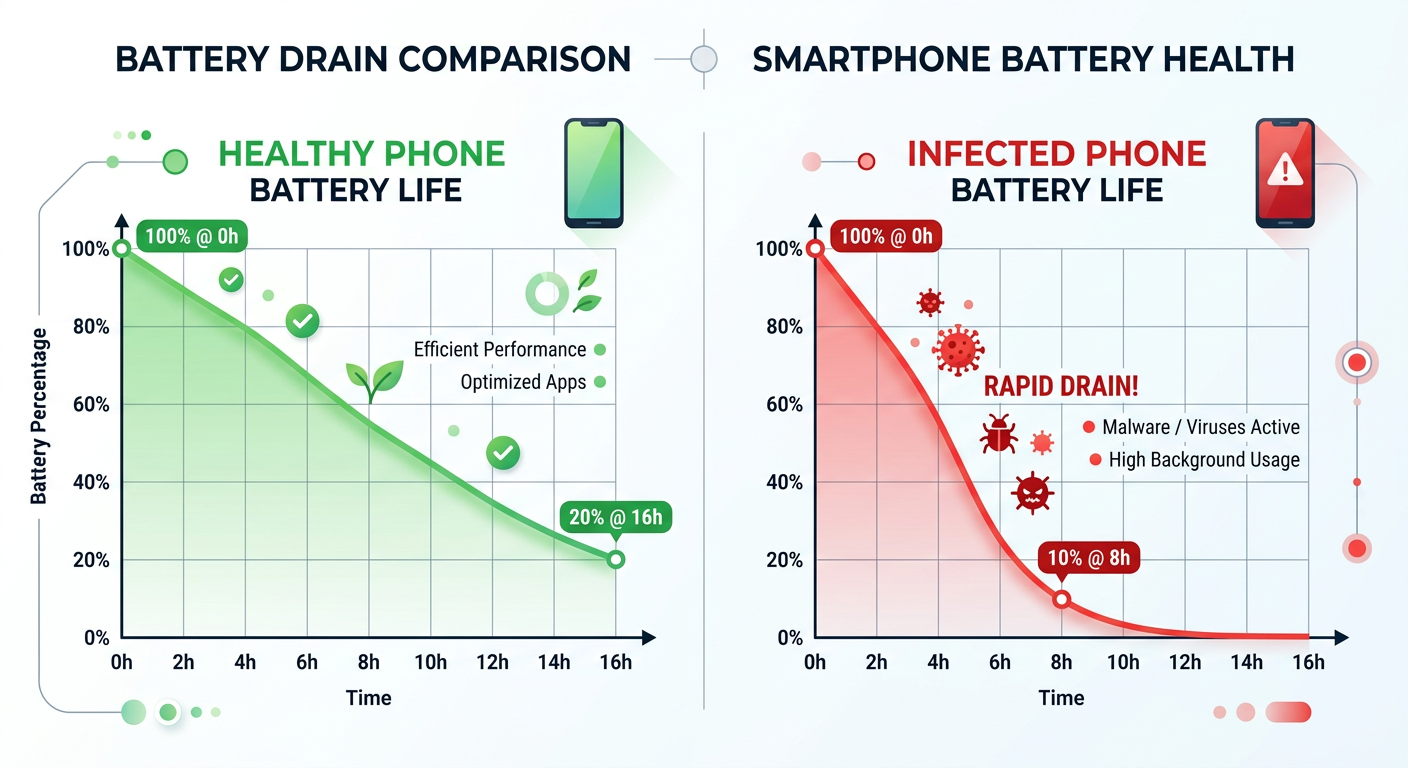
- Accelerated battery drain: According to a 2026 Cybersecurity Threat Report by a leading mobile security research firm, devices infected with spyware and adware can experience battery life reductions of up to 30–40% compared to a clean baseline. Malware that continuously transmits data, records audio, or displays hidden ads is a significant power consumer. If your battery, which was previously lasting a full day, now dies by mid-afternoon without a change in your usage habits, this is a serious red flag.
Suspicious Network Activity and Pop-ups
Malware almost always needs to communicate — whether to receive commands, exfiltrate stolen data, or serve advertisements. This communication leaves traces you can detect:
- Unexpected data usage spikes: Check your mobile data usage statistics regularly. If an app you rarely use — or one you do not recognize — is consuming hundreds of megabytes of background data, it warrants immediate investigation. Spyware, in particular, constantly uploads captured screenshots, keystrokes, and location data to remote servers.
- Persistent, intrusive pop-up ads: Adware is designed to generate revenue for its operators by displaying advertisements. If you are seeing pop-up ads on your home screen, lock screen, or within apps that never showed ads before, adware is almost certainly the culprit. These ads often appear even when you are not actively using your phone.
- Unauthorized app installations: Apps appearing on your device that you never downloaded are a severe warning sign. Some malware families are designed to silently download and install additional malicious payloads. Similarly, if a calculator app suddenly requests access to your camera and microphone, that app has almost certainly been compromised or replaced with a malicious clone.
Financial and Privacy Red Flags
The most damaging consequences of a phone virus are financial and privacy-related. These signs indicate the infection has progressed to a dangerous stage:
- Unauthorized premium SMS charges: A class of malware known as “SMS trojans” silently subscribes victims to premium-rate text message services, generating charges of several dollars per message. Review your phone bill carefully for any services you did not authorize.
- Strange messages sent from your number: If your contacts report receiving spam, phishing links, or bizarre messages from your phone number, your device may be under the control of a botnet, using your identity to spread the malware further.
- Personal data appearing in unexpected places: According to a 2025 Mobile Threat Landscape Report published by a major mobile security vendor, data-stealing trojans are among the fastest-growing malware categories on mobile platforms. Signs include photos you did not share appearing online, credentials being used in unauthorized logins, or receiving alerts from your bank about suspicious activity shortly after using your phone on an unfamiliar network.
Immediate First Steps: Isolate and Diagnose the Infection
Once you suspect your phone is infected, your instinct may be to immediately start deleting things or running a scan. However, the most strategically sound first move is containment and diagnosis. Rushing into removal without understanding what you are dealing with can sometimes make the situation worse — for example, by alerting the malware to initiate a data exfiltration burst before it is removed. A methodical approach protects your data and increases the likelihood of complete eradication.
Disconnect and Go into Safe Mode
The moment you suspect an infection, your first priority is to sever the malware’s lifeline:
- Disable all wireless connections immediately: Turn off Wi-Fi, Bluetooth, and mobile data (enable Airplane Mode for the quickest method). This cuts off the malware from its command-and-control (C2) servers, preventing it from receiving new instructions, exfiltrating your data, or downloading additional malicious components.
- Boot into Safe Mode (Android): Safe Mode loads only the core operating system and pre-installed system apps, disabling all third-party applications. This is an invaluable diagnostic tool. If the suspicious symptoms (slowdowns, pop-ups, excessive heat) disappear in Safe Mode, you have confirmed that a third-party app is responsible. To enter Safe Mode on most Android devices, press and hold the power button, then press and hold the “Power off” option until a “Reboot to safe mode” prompt appears.
- iOS equivalent: iPhones do not have a traditional Safe Mode, but you can achieve a similar diagnostic state by restarting the device and observing whether symptoms persist before any third-party apps have loaded in the background.
Review App Permissions and Data Usage
With the device isolated and in Safe Mode, you can now conduct a thorough audit without the risk of active malware interfering:
- Audit your installed applications: Go through every app on your device. Look for apps with generic names (“System Service”, “Phone Manager”), unfamiliar developer names, or apps you have no memory of installing. Pay close attention to installation dates — did a suspicious app appear around the same time your problems started?
- Scrutinize app permissions: Navigate to your device’s permission manager and review what each app has access to. The principle is simple: if an app’s permissions do not logically align with its stated function, it is suspicious.
| App Type | Legitimate Permissions | Suspicious / Red Flag Permissions |
|---|---|---|
| Flashlight App | Camera (for the flash LED) | Contacts, Microphone, Location, SMS |
| Calculator App | None required | Camera, Microphone, Storage, Call Logs |
| Simple Game | Storage (for save files), Internet (for ads) | Contacts, SMS, Phone calls, Device Admin |
| Weather App | Location (for local forecast) | Contacts, Microphone, Read/Send SMS |
| QR Code Scanner | Camera | Full Storage Access, Accessibility Services, Device Admin |
- Check background data usage: In your device’s network settings, review data usage per app. Sort by highest usage and look for anomalies. An app that has consumed 500MB of data in the background while you have never actively opened it is a strong indicator of malicious activity.
Use a Trusted Security Scanner for Initial Assessment
A preliminary scan can confirm your suspicions and identify specific threat names before you begin manual removal:
- Use a pre-installed or previously downloaded scanner: Since your device is disconnected from the internet, you should use a security app that is already installed. If you do not have one, you can use a trusted computer to download the APK (Android) from a verified source and transfer it via a cable — avoid re-enabling Wi-Fi for this step if possible.
- Benchmark your expectations: The gold standard for desktop security — the kind of deep, multi-engine scanning and real-time behavioral analysis offered by solutions like 360 Total Security for Windows and macOS — represents the philosophy of layered, comprehensive protection you should seek in any security tool. 360 Total Security’s approach of combining multiple scanning engines with proactive threat detection is a benchmark for what effective security software should deliver. Look for mobile security apps that mirror this multi-layered approach.
- Record your findings: Note the names of any flagged apps or files. This information will guide your manual removal steps in the next phase.
How to Remove a Virus from Your Android Phone
Android’s open ecosystem — its greatest strength as a platform — is also what makes it the primary target for mobile malware. The ability to sideload apps, install from third-party sources, and grant deep system permissions creates attack vectors that iOS simply does not have. Fortunately, this same openness also gives you powerful tools to combat infections. The removal process is methodical: manual cleanup first, then automated scanning, and factory reset as a last resort.
Manual Removal via Settings and Safe Mode
Manual removal is the most direct approach and should be your first line of action after diagnosis:
- Uninstall suspicious apps in Safe Mode: While in Safe Mode (which prevents the malware from running and potentially fighting back), navigate to Settings > Apps > See All Apps. Locate the suspicious applications you identified during the diagnosis phase and tap Uninstall. Start with the most recently installed and most suspicious-looking apps.
- Revoke Device Administrator Permissions: Some sophisticated malware grants itself Device Administrator status, which prevents it from being uninstalled through normal means. If you attempt to uninstall an app and the button is greyed out, navigate to Settings > Security > Device Admin Apps (the exact path varies by manufacturer). Find the suspicious app, revoke its administrator privileges, and then return to the Apps menu to uninstall it.
- Clear cache and browser data: After removing malicious apps, clear the cache and stored data for your web browser and any other apps that showed suspicious behavior. Navigate to Settings > Apps, select the browser (e.g., Chrome), and tap Clear Cache and Clear Data. This removes any malicious scripts, tracking cookies, or cached adware content that may have been stored.
Employ a Dedicated Mobile Antivirus Solution
Manual removal addresses what you can see, but sophisticated malware often leaves behind residual components, modified system files, or secondary payloads that are invisible to the naked eye. A dedicated security app is essential for thorough eradication:
- Reconnect carefully and install a reputable security app: After manual cleanup, reconnect to a trusted, secure network (your home Wi-Fi, not a public hotspot). Download a full-featured mobile antivirus application from the official Google Play Store — never from a link in an email or pop-up ad, as these are frequently malware distribution vectors themselves. Look for apps with millions of verified downloads, strong review scores, and a transparent developer history.
- What to look for in a mobile security app: The comprehensive, proactive defense philosophy championed by 360 Total Security on the desktop — combining real-time protection, deep system scanning, web threat blocking, and performance optimization — defines the benchmark for effective security software. Seek mobile solutions that offer: real-time app scanning, web protection and anti-phishing, privacy audits, and Wi-Fi security checks.
- Run a full deep scan: Do not settle for a quick scan. Run the deepest, most comprehensive scan the application offers. Follow all recommendations to quarantine or permanently delete flagged items. Review the scan report carefully, as it will often provide the specific names and locations of any threats found.
The Nuclear Option: Factory Reset
If malware symptoms persist after both manual removal and a full antivirus scan, the infection may have rooted itself too deeply into the system to be removed by conventional means. A factory reset is the definitive, guaranteed solution:
- Back up your data first — but selectively: Before resetting, back up your photos, contacts, and essential documents. However, be cautious: do not back up and restore APK files or app data from the period of infection, as these may reintroduce the malware. Back up to a computer or a trusted cloud service, and review the backup contents before restoring them.
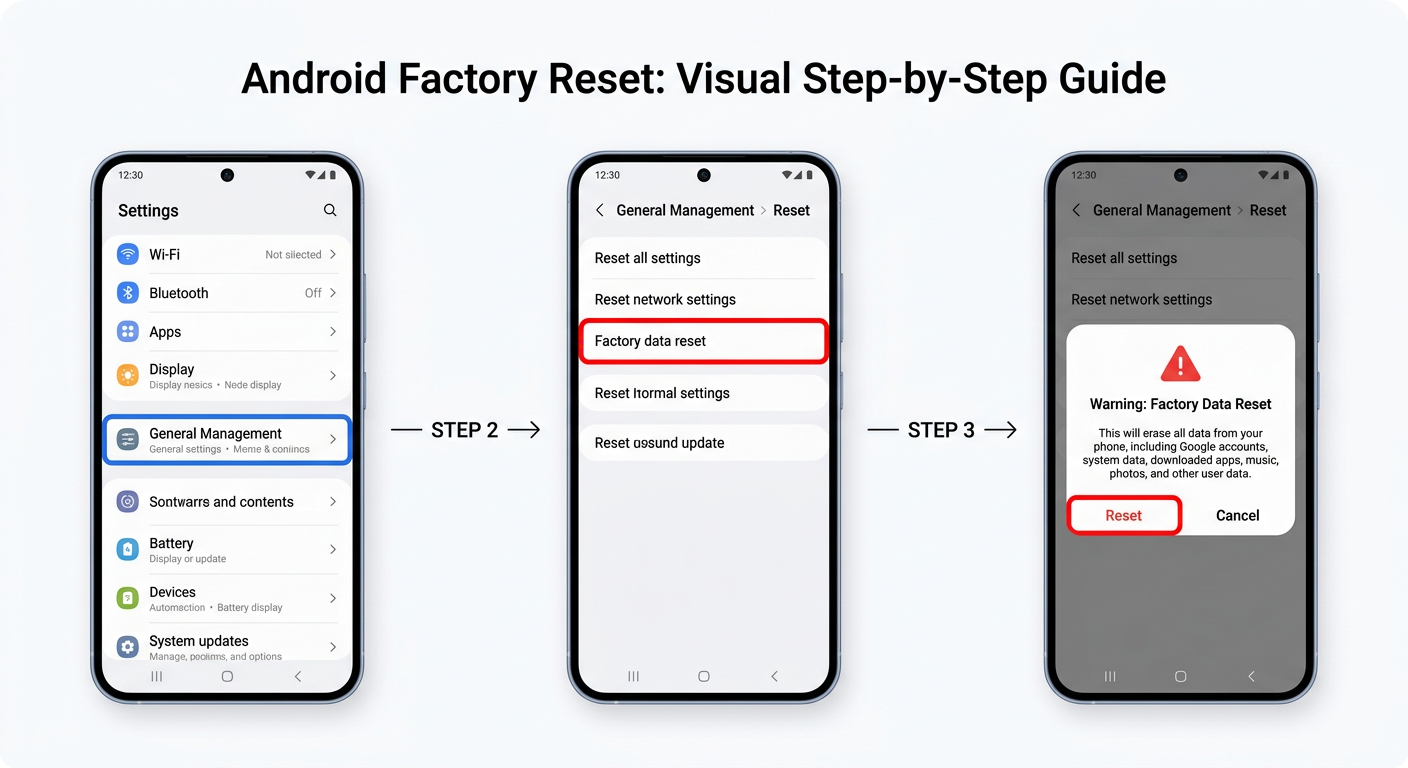
- Execute the factory reset: Navigate to Settings > General Management > Reset > Factory Data Reset (paths vary by manufacturer and Android version). Confirm the action. The device will erase all data and return to its out-of-the-box state.
- Set up as new, not from backup: When the device restarts, resist the temptation to restore from a full backup taken during the infection period. Instead, set up the device as new and manually reinstall only the apps you know are legitimate. This is the only way to guarantee a clean slate.
How to Remove a Virus from Your iPhone (iOS)
The question “Can iPhones get viruses?” is one of the most common in mobile security, and the answer requires nuance. True self-replicating viruses that spread between iOS devices are extraordinarily rare in the wild, thanks to iOS’s robust sandboxing architecture, which prevents apps from accessing each other’s data or the core operating system. However, iPhones are absolutely not immune to malware, adware, spyware (particularly through zero-day exploits), and privacy-invasive applications. Understanding the iOS threat landscape is key to effective remediation.
Identifying and Removing Problematic Apps
The primary attack vector on iOS is malicious apps, particularly those installed outside of Apple’s official App Store:
- Review apps installed via enterprise certificates or sideloading: Some malicious apps are distributed through enterprise developer certificates, which allow installation outside the App Store. Navigate to Settings > General > VPN & Device Management. If you see any configuration profiles or enterprise apps from organizations you do not recognize or work for, delete them immediately. This will also remove any apps associated with that certificate.
- Audit your App Store apps: Even legitimate App Store apps can sometimes engage in privacy-violating behavior. Check the permissions of all your apps via Settings > Privacy & Security. Review each permission category (Location, Microphone, Camera, Contacts) and revoke access for any app where it seems unnecessary.
- Delete suspicious or recently installed apps: If symptoms began after installing a specific app, delete it immediately. Press and hold the app icon, select Remove App, and then Delete App. Also consider resetting app permissions globally via Settings > Privacy & Security to revoke all previously granted permissions and start fresh.
Clearing Browser Hijacks and Persistent Ads
The most common “virus” symptom reported by iPhone users is persistent pop-up ads or browser redirects, which are almost always caused by adware or browser hijacking rather than a true virus:
- Clear Safari history and website data: Navigate to Settings > Safari > Clear History and Website Data. This removes cached malicious scripts, tracking cookies, and any stored browser data that may be generating pop-ups. Confirm the action. Note that this will also log you out of websites.
- Review Safari website permissions: In Settings > Safari > Advanced > Website Data, you can see a list of websites that have stored data on your device. Scroll through and remove data from any sites you do not recognize or trust.
- Reset all settings without erasing content: For a more thorough resolution that does not delete your personal data, navigate to Settings > General > Transfer or Reset iPhone > Reset > Reset All Settings. This resets all system settings (Wi-Fi passwords, display settings, privacy permissions) to their defaults without touching your photos, messages, or apps. It is an effective middle ground between targeted fixes and a full erase.
Understanding iOS Security and When to Seek Help
iOS’s security architecture provides meaningful protection that Android’s more open model does not inherently offer by default:
- The iOS security model: Apple’s security framework rests on three pillars: app sandboxing (each app runs in an isolated container and cannot access other apps’ data), mandatory App Store review (all apps must pass Apple’s security review before distribution), and system integrity protection (the core OS is cryptographically signed and protected from modification). As Apple states in its Platform Security documentation, “iOS and iPadOS devices use a file encryption methodology… to protect user data.” These protections make traditional virus-style infections nearly impossible on non-jailbroken devices.
- Managed devices and configuration profiles: If your iPhone is a work device managed by an organization, your IT department may have installed Mobile Device Management (MDM) profiles that control certain device behaviors. If you believe an MDM profile is causing unwanted behavior, contact your IT administrator — do not attempt to remove work-managed profiles yourself, as this may violate company policy and could result in data being wiped remotely.
- The last resort — full erase and restore: In the extremely rare case of a persistent compromise (such as a sophisticated zero-click spyware infection), a complete erase and restore is the only guaranteed solution. Navigate to Settings > General > Transfer or Reset iPhone > Erase All Content and Settings. When restoring, restore from a backup that predates the suspected infection, or set up as a new device for maximum security.
Post-Cleanup: Securing Your Phone Against Future Attacks
Successfully removing a virus from your phone is only half the battle. Without addressing the behaviors and vulnerabilities that allowed the infection in the first place, reinfection is not just possible — it is likely. Building a proactive security posture requires cultivating better habits, hardening your device’s defenses, and implementing ongoing monitoring. Think of it as transitioning from reactive firefighting to preventive security architecture.
Cultivating Safe App Installation Habits
The vast majority of mobile malware infections originate from a single point of failure: installing an untrustworthy application. Fixing this habit eliminates the most significant risk vector:
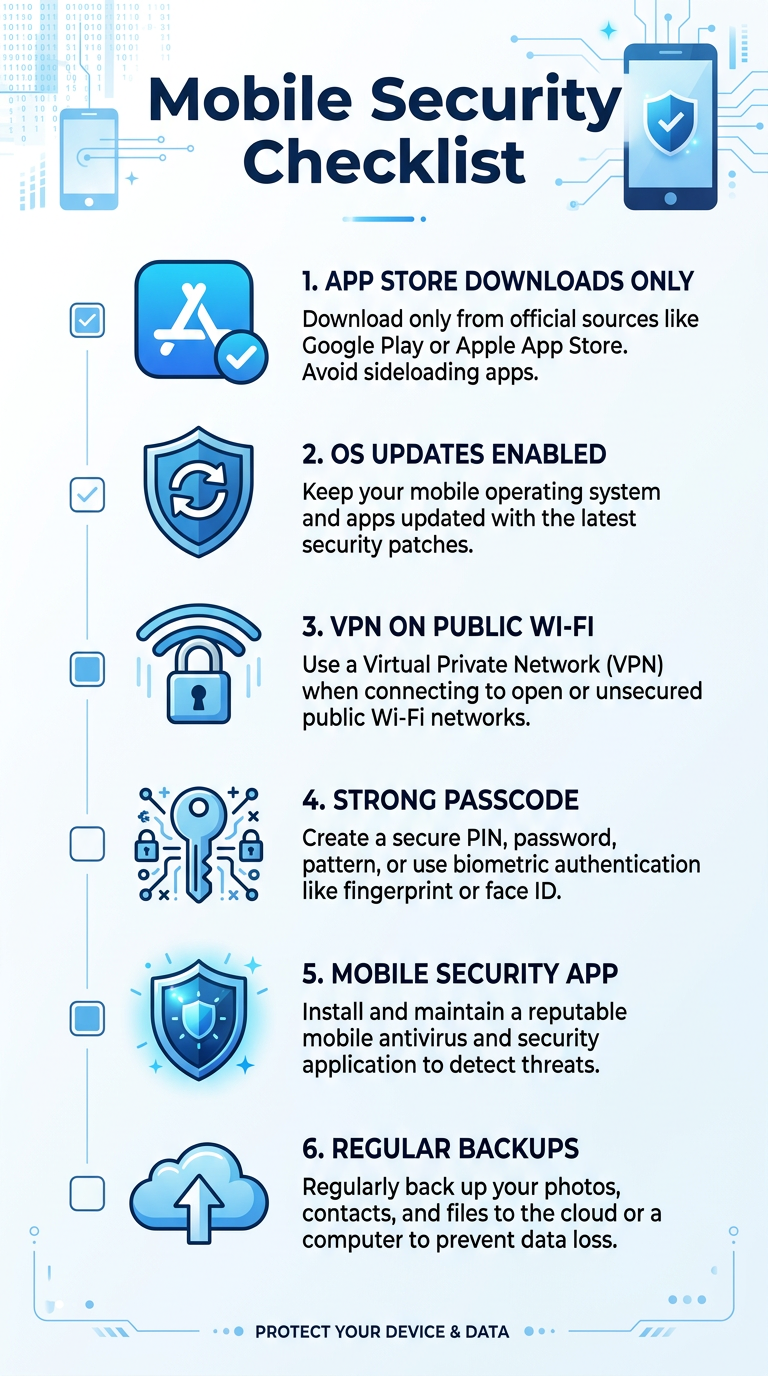
- Stick exclusively to official app stores: Install apps only from the Google Play Store or Apple App Store. While neither is perfectly immune to hosting malicious apps, both employ automated and manual review processes that filter out the overwhelming majority of threats. Third-party app stores and sideloaded APKs carry exponentially higher risk.
- Perform due diligence before installing: Before downloading any app, check the developer’s name and verify it matches the legitimate company (malicious apps often use names nearly identical to popular apps), read recent reviews (look for complaints about unexpected charges, ads, or battery drain), and check the download count (very low counts for apps claiming to be from major brands are a red flag).
- Keep your operating system updated: Security patches are among the most critical updates your phone receives. A 2025 analysis of major mobile malware campaigns found that a significant percentage exploited vulnerabilities that had already been patched in the latest OS version — meaning users running outdated software were the primary victims. Enable automatic OS updates to ensure you receive patches as soon as they are available.
Enhancing Network and Browser Security
Your network connection is a frequent attack surface that many users overlook entirely:
- Use a VPN on public Wi-Fi: Public Wi-Fi networks in cafes, airports, and hotels are prime hunting grounds for attackers conducting man-in-the-middle (MitM) attacks. A reputable VPN encrypts all traffic between your device and the VPN server, rendering intercepted data unreadable. This is especially important when accessing banking apps, email, or any service requiring login credentials on public networks.
- Enable safe browsing and use privacy-focused browsers: Most major browsers offer a “Safe Browsing” or “Dangerous Site” warning feature — ensure it is enabled. Consider using browsers with built-in tracker blocking and privacy protections for day-to-day browsing.
- Treat all unsolicited links with extreme suspicion: Phishing via SMS (smishing) and social media direct messages is one of the most effective malware delivery mechanisms. Never click links in unsolicited messages, even if they appear to come from a known contact. If a friend sends you an unexpected link, verify with them through a separate channel before clicking.
Implementing Ongoing Protective Measures
A truly secure mobile device requires layered, continuous protection rather than one-time fixes:
- Deploy continuous mobile security monitoring: A reputable mobile security app running in the background provides real-time protection against newly discovered threats, web-based attacks, and malicious Wi-Fi networks. Just as 360 Total Security provides continuous, multi-layered defense for Windows and macOS desktops — combining real-time threat detection, vulnerability scanning, and system optimization in a single platform — your mobile security strategy should aspire to the same level of comprehensive, always-on protection.
- Enforce strong authentication: Enable full device encryption (standard on all modern Android and iOS devices), use a strong alphanumeric passcode (not just a 4-digit PIN), and enable biometric authentication (fingerprint or Face ID) as a convenient but secure second factor. Use a password manager to generate and store unique, complex passwords for every account.
- Maintain regular, verified backups: Your backup strategy is your ultimate safety net. Back up your device regularly to both a local computer and a trusted cloud service. Verify that your backups are actually completing successfully and that you can restore from them. In the event of a severe infection requiring a factory reset, a clean, recent backup is the difference between a minor inconvenience and a catastrophic data loss.
| Security Measure | Cost | Protection Level | Effort Required |
|---|---|---|---|
| OS and App Updates | Free | High (patches known vulnerabilities) | Low (enable auto-update) |
| Official App Store Only | Free | High (eliminates primary infection vector) | Low (habit change) |
| Strong Passcode + Biometrics | Free | High (prevents physical access attacks) | Low (one-time setup) |
| VPN on Public Wi-Fi | Free–$10/month | High (protects against network interception) | Low (toggle on/off) |
| Mobile Security App | Free–$30/year | Very High (real-time, multi-threat protection) | Low (runs in background) |
| Regular Data Backups | Free–$3/month | Critical (recovery from any scenario) | Low (enable auto-backup) |
| Password Manager | Free–$5/month | High (prevents credential compromise) | Medium (initial setup) |
Frequently Asked Questions
Can I remove a phone virus without doing a factory reset?
Yes, in most cases. The majority of mobile malware — including adware, spyware, and trojans — can be removed through a combination of Safe Mode diagnosis, manual app uninstallation (including revoking Device Administrator permissions if needed), clearing browser and app cache data, and running a full scan with a reputable mobile antivirus application. A factory reset is only necessary when the malware has embedded itself at a system level and cannot be removed by these conventional means, or when persistent symptoms continue despite thorough manual and automated cleanup.
How do I know if my phone is truly clean after virus removal?
After completing the removal steps, monitor your device closely for 48–72 hours. Key indicators that your phone is clean include: battery life returning to its normal baseline, no unexplained data usage spikes in background app activity, absence of pop-up ads outside of apps, no new unrecognized apps appearing, and your phone no longer running hot during light use. Running a second full scan with your security app after a day or two provides additional confirmation. If all these checks pass, your device is almost certainly clean.
Is it possible for an iPhone to get a virus?
True self-replicating viruses on non-jailbroken iPhones are extremely rare due to iOS’s sandboxed architecture and mandatory App Store review process. However, iPhones are not immune to all threats. They can be affected by adware (causing browser pop-ups), stalkerware installed by someone with physical access to the device, phishing attacks, and in rare, high-profile cases, sophisticated spyware like Pegasus that exploits zero-day vulnerabilities. The risk is substantially lower than Android, but the assumption that iPhones cannot be compromised is dangerously incorrect.
What is Safe Mode and why is it important for virus removal?
Safe Mode is a diagnostic boot state available on Android devices that loads only the core operating system and pre-installed system applications, disabling all third-party apps. Its importance for virus removal is twofold: first, it allows you to confirm whether a third-party app is causing your symptoms (if problems disappear in Safe Mode, a downloaded app is the culprit); second, it prevents the malware from actively running while you attempt to uninstall it, making removal more likely to succeed. Some malware is specifically designed to resist uninstallation while it is running, making Safe Mode an essential tool.
How can I protect my phone from viruses in the future?
The most effective long-term protection strategy combines behavioral habits with technical safeguards. On the behavioral side: install apps only from official stores, scrutinize app permissions before granting them, keep your OS updated, and never click unsolicited links. On the technical side: use a reputable mobile security app for real-time protection, enable a VPN when using public Wi-Fi, use strong unique passwords managed by a password manager, and maintain regular backups. For your desktop and laptop devices, comprehensive security solutions like 360 Total Security provide the kind of multi-layered, always-on protection that should be the standard across all your devices.
About the Author: This article was written by a Senior Technical Security Writer with over a decade of experience covering mobile security, malware analysis, and consumer cybersecurity best practices. Their work focuses on translating complex threat intelligence and technical remediation procedures into clear, actionable guidance for everyday users. They have contributed to cybersecurity awareness initiatives and hold expertise in both Android and iOS security architectures.
Learn more about 360 Total Security