Executive Summary: McAfee malware refers to a category of deceptive malicious software that exploits the trusted McAfee brand name to trick users into downloading rogue antivirus programs, surrendering financial credentials, or granting system access to cybercriminals. This comprehensive guide deconstructs how these scams operate, provides a step-by-step removal process for infected PCs, outlines proactive prevention strategies, and helps you build a resilient, long-term cybersecurity posture using modern, integrated security tools. Whether you have encountered a suspicious McAfee pop-up or want to fortify your defenses before one appears, this article delivers the authoritative, actionable intelligence you need.
What Exactly Is McAfee Malware and How Does It Infect Your System?
Deconstructing the Term: Malware vs. Legitimate Software
The phrase “McAfee malware” can be initially confusing. McAfee is a legitimate, globally recognized cybersecurity company. However, cybercriminals routinely weaponize its brand recognition precisely because users inherently trust it. In this context, McAfee malware describes malicious software that impersonates, mimics, or falsely invokes the McAfee brand to deceive victims. This is fundamentally different from any genuine McAfee product.
The primary objectives of such malware are twofold. The first is financial fraud: tricking users into paying for fake software licenses or directly stealing credit card information. The second is system compromise: gaining persistent access to harvest personal data, install additional payloads such as ransomware or spyware, or recruit the machine into a botnet. Understanding this distinction is the foundational step in defending yourself.
Common Infection Vectors and User Deception Tactics
These threats do not arrive through a single channel. Cybercriminals deploy a sophisticated, multi-vector distribution strategy to maximize their reach:
- Malvertising and Drive-By Downloads: Malicious advertisements embedded in otherwise legitimate websites can redirect users to pages that automatically trigger fake “McAfee Security Scan” warnings or initiate silent downloads. The user may not even need to click anything on the malicious ad itself.
- Phishing Emails: Fraudulent emails crafted to look like official McAfee correspondence — often warning of an expired subscription or a critical security alert — contain either malicious attachments (disguised as invoices or security reports) or links to credential-harvesting sites. According to a 2026 Cybersecurity Threat Intelligence Report, brand impersonation phishing attacks increased by over 45% in the preceding 24-month period, with security software vendors being among the top five most imitated brands.
- Bundled Software and PUPs: Potentially Unwanted Programs (PUPs) are frequently distributed through third-party download aggregators. A user downloading a free video converter or game might unknowingly agree to install a “McAfee-branded” security toolbar or scanner that is, in reality, rogue software. A 2025 analysis of PUP distribution networks found that over 30% of analyzed PUP bundles included at least one fake security component.
The Anatomy of a Fake McAfee Pop-Up Scam
Understanding the lifecycle of a fake pop-up scam is critical for recognizing and resisting it in the moment. These scams are psychologically engineered to bypass rational thinking:
- Stage 1 — The Alarm: A full-screen or large browser pop-up appears, often with flashing red elements and alarming text such as “CRITICAL VIRUS DETECTED! Your PC is at risk. Immediate action required.” The urgency and visual design are deliberate, designed to induce panic and short-circuit skepticism.
- Stage 2 — The Fake Scan: If the user interacts with the pop-up, a convincing animated “scan” runs, rapidly populating a list of dozens or hundreds of fabricated threats. These threats do not exist. The scan is a pre-rendered animation designed solely to validate the initial fear.
- Stage 3 — The Payment Trap: The user is then directed to a payment page to purchase the “full version” of the fake software to “remove” the invented threats. This page is a live fraud gateway that captures and exfiltrates credit card numbers, CVV codes, and billing addresses directly to the attackers.
How to Identify and Remove McAfee-Related Malware from Your PC
Telltale Signs You’re Infected with Fake Security Software
Recognizing an active infection early dramatically simplifies the removal process. Watch for these definitive indicators:
- Persistent, Unclosable Pop-Ups: Warnings that reappear immediately after being dismissed, or that cannot be closed using the standard X button. These often originate from background processes or browser extensions rather than the browser’s own notification system.
- Unknown System Tray Icon: A new security-related icon appearing in the Windows system tray (bottom-right corner) that you did not intentionally install is a major red flag. Legitimate software installations are always user-initiated and clearly labeled during setup.
- Browser Hijacking and System Slowdowns: If your browser’s default homepage or search engine has changed without your authorization, or if your system has become noticeably slower, these are classic symptoms of rogue software consuming resources and modifying system settings.
A useful diagnostic step is to open the Windows Task Manager (Ctrl + Shift + Esc) and examine running processes. Legitimate McAfee processes have verified digital signatures and originate from official installation directories (e.g., C:\Program Files\McAfee). Suspicious processes may use similar-sounding names like mcafee_scan.exe or mcafee-update.exe but will originate from temporary folders such as %AppData%\Roaming\ or %Temp%\, and will lack valid Microsoft or McAfee digital signatures upon inspection.
Step-by-Step Manual Removal Guide
Follow these steps methodically. Do not skip stages, as incomplete removal allows malware to reinstall itself.
Step 1: Boot into Safe Mode with Networking
Safe Mode loads Windows with only essential system processes, preventing most malware from activating. To enter Safe Mode: Press Windows Key + R, type msconfig, navigate to the Boot tab, check Safe boot and select Network, then restart.
Windows Key + R → msconfig → Boot Tab → Safe boot (Network) → Apply → RestartStep 2: Uninstall the Rogue Program
Navigate to Windows Settings → Apps → Installed Apps (Windows 11) or Control Panel → Programs → Uninstall a Program (Windows 10/older). Sort by installation date to identify recently added suspicious programs. Uninstall anything unfamiliar, particularly programs with generic names like “PC Security Pro,” “McAfee Web Advisor Plus,” or similar variants.
Settings → Apps → Installed Apps → Sort by Date → Uninstall suspicious entriesStep 3: Scan with a Trusted Security Tool
Run the Microsoft Safety Scanner (a free, on-demand tool from Microsoft) or use Windows Defender Offline Scan, which operates outside the normal Windows environment to detect deeply embedded threats:
Windows Security → Virus & Threat Protection → Scan Options → Microsoft Defender Offline Scan → Scan NowStep 4: Reset Browser Settings
In Google Chrome, navigate to Settings → Reset settings → Restore settings to their original defaults. In Microsoft Edge: Settings → Reset settings → Restore settings to their default values. Additionally, manually review and remove any unrecognized browser extensions via the Extensions manager.
Chrome: Settings → Reset settings → Restore settings to original defaults
Edge: Settings → Reset settings → Restore settings to default values
Firefox: Help → More Troubleshooting Information → Refresh Firefox
Utilizing Advanced Removal and System Repair Tools
Manual removal addresses the visible components of an infection, but sophisticated malware often leaves behind corrupted registry entries, modified system files, and altered shortcuts that continue to cause problems. This is where dedicated tools become essential.
- Second-Opinion Scanners: Tools like Malwarebytes Free offer a complementary scanning engine to your primary antivirus. Running a second-opinion scan is highly recommended after manual removal to catch any residual components that the primary tool may have missed.
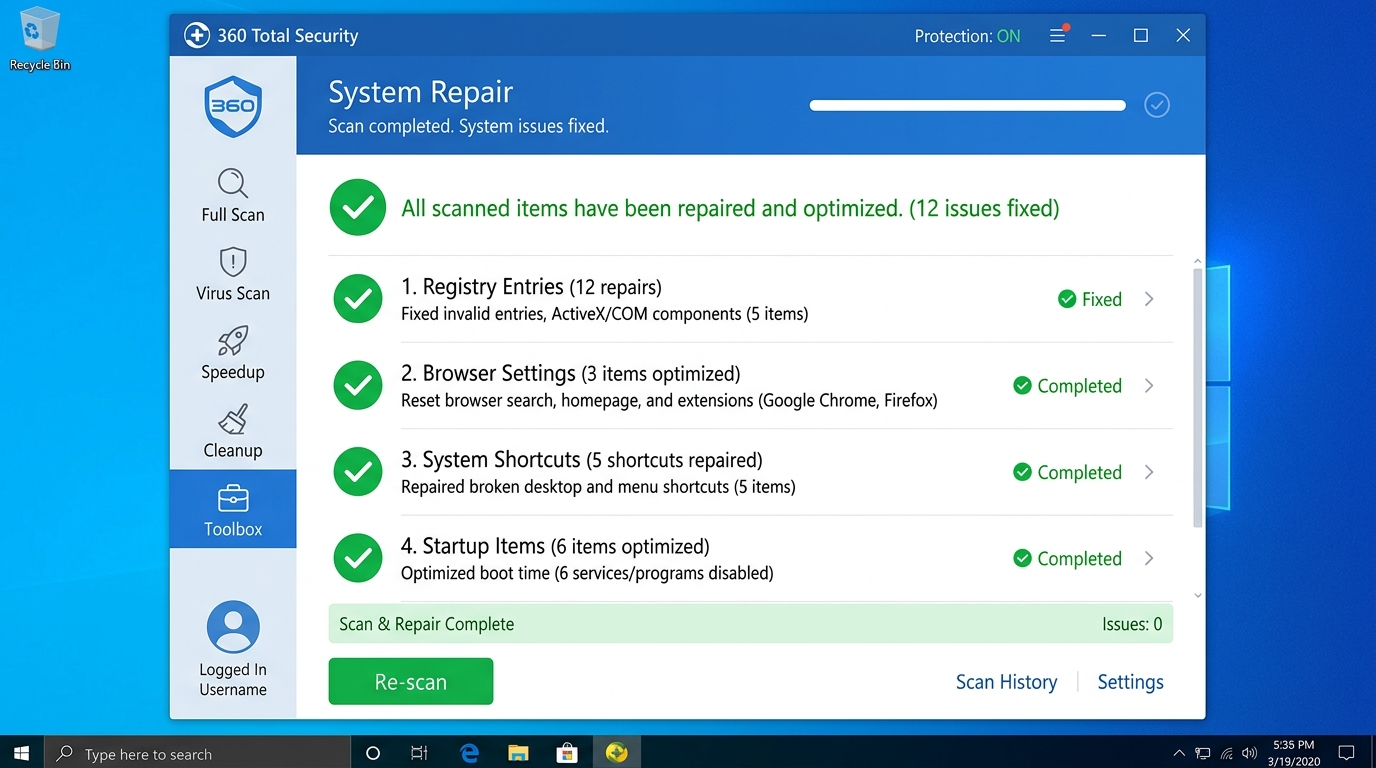
- Comprehensive System Repair with 360 Total Security: 360 Total Security goes beyond standard virus removal by offering a dedicated System Repair feature. This tool actively scans and fixes corrupted registry entries, restores hijacked browser settings, repairs maliciously modified shortcuts, and patches system files damaged by malware activity. This comprehensive cleanup capability addresses the full aftermath of an infection, not merely the malware binary itself — a critical distinction that many standalone scanners overlook.
- Last Resort — System Restore or Reset: If the infection is deeply embedded and removal tools fail to fully remediate the system, a Windows System Restore (rolling back to a pre-infection restore point) or a full Windows Reset (reinstalling Windows while optionally keeping personal files) may be necessary. Always back up critical data before proceeding with either option.
Proactive Defense: How to Prevent Future McAfee Malware Infections
Cultivating Critical Security Awareness and Habits
Technology alone cannot provide complete protection. Human behavior remains the most frequently exploited vulnerability in any security chain. The following habits are non-negotiable for anyone serious about digital safety:
- Never Interact with Unsolicited Security Pop-Ups: If a security warning appears that you did not initiate, do not click “OK,” “Scan Now,” “Close,” or any button within the pop-up itself. Instead, immediately open Task Manager (Ctrl + Shift + Esc), locate the browser or suspicious process, and use End Task to terminate it forcibly.
- Download Only from Official Sources: Always obtain software directly from the developer’s official website or a verified platform such as the Microsoft Store. Third-party download hubs and pop-up download prompts are primary distribution channels for PUPs and rogue software.
- Verify Before You Act: Any email urging immediate action regarding your security software subscription, billing, or account status should be treated with suspicion. Do not click links within such emails. Instead, open a new browser tab and navigate directly to the official vendor website to verify the claim independently.
Essential Software Shields for Your Browser and System
- Ad-Blocking Extensions: A reputable, open-source ad-blocker such as uBlock Origin is one of the most effective tools for blocking malvertising — the primary delivery mechanism for fake security pop-ups. It filters malicious ad networks before the content ever renders in your browser.
- Consistent Software Updates: The vast majority of successful drive-by download attacks exploit known vulnerabilities in outdated software. Keeping your operating system, browser, browser plugins, and all installed applications updated to their latest versions closes these attack vectors. Enable automatic updates wherever possible.
- Real-Time Web Protection: Deploy a security suite with active web filtering that blocks access to known malicious domains and phishing sites at the network level, before any malicious code reaches your browser. As noted by a senior threat intelligence analyst in a 2025 industry briefing: “A layered defense strategy — combining behavioral endpoint detection, network-level web filtering, and user education — reduces successful malware delivery rates by an order of magnitude compared to any single-layer approach.”
The Role of Comprehensive Security Suites in Prevention
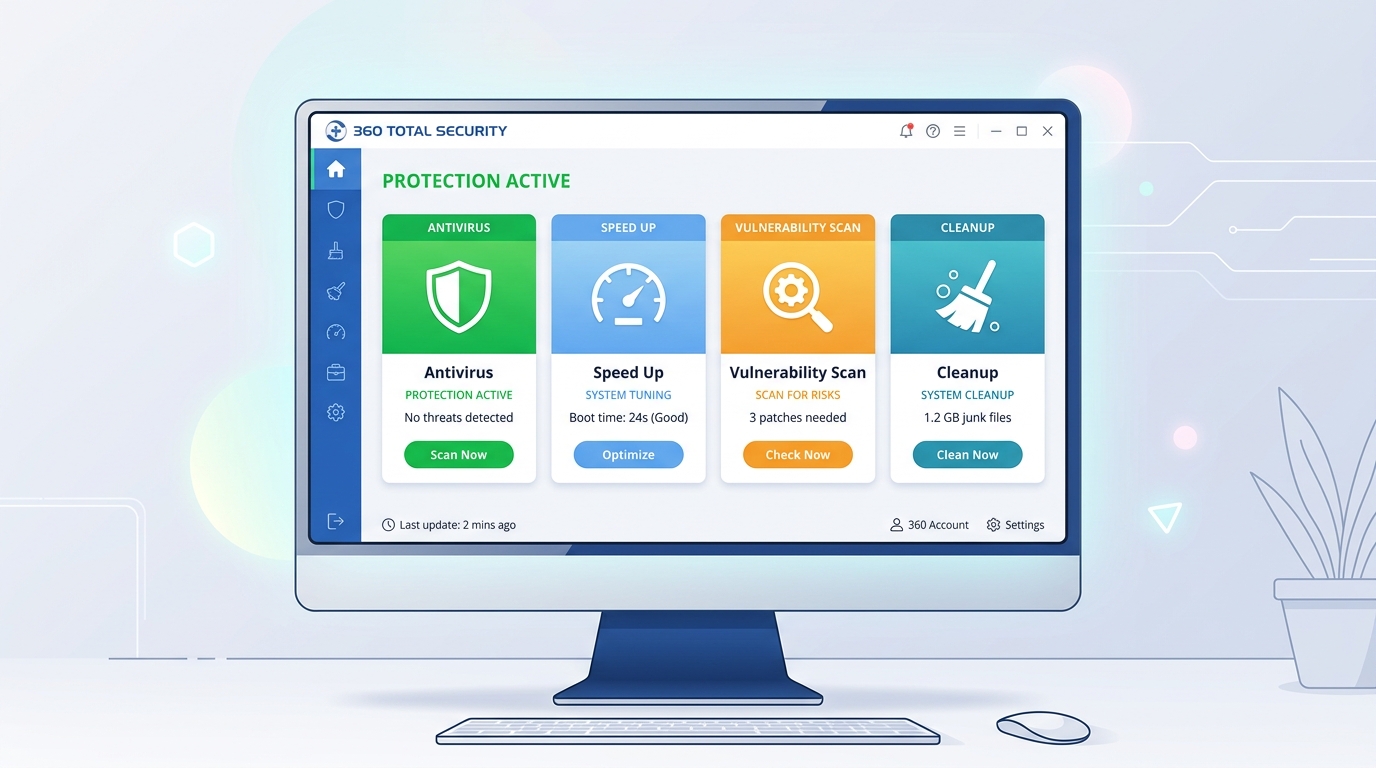
360 Total Security exemplifies the multi-layered defense philosophy that modern threats demand. Its dual-engine architecture — combining the 360 Cloud Engine for real-time threat intelligence with the QVM II AI Engine for behavioral analysis — enables it to detect and neutralize both known malware signatures and previously unseen zero-day threats, including sophisticated phishing sites that impersonate trusted security brands. This proactive interception happens before malicious code can execute, rather than after damage has been done.
The advantage of a free, integrated solution is significant: rather than managing separate tools for antivirus, system cleanup, and vulnerability patching, users gain a unified security posture from a single dashboard, reducing both complexity and the risk of security gaps between tools.
| Feature | 360 Total Security (Free) | Windows Defender | Other Free Antivirus |
|---|---|---|---|
| Real-Time Web Protection | ✅ Advanced (Cloud + AI) | ✅ Basic | ⚠️ Varies |
| Anti-Phishing / Anti-Scam | ✅ Yes (Brand Impersonation Detection) | ⚠️ Limited | ⚠️ Varies |
| Zero-Day / Behavioral Detection | ✅ QVM II AI Engine | ✅ Yes | ⚠️ Varies |
| System Hardening / Vulnerability Scan | ✅ Yes (Patch Management) | ❌ No | ❌ Rarely |
| Browser Settings Protection | ✅ Yes | ❌ No | ⚠️ Limited |
| System Cleanup / Optimization | ✅ Integrated | ❌ No | ❌ Rarely |
| Cost | Free | Free (Built-in) | Free (with limitations) |
Beyond Basic Antivirus: Choosing Comprehensive Protection
Key Features Modern Security Software Must Have
The threat landscape has evolved far beyond what signature-based scanning can adequately address. When evaluating any security solution, demand the following capabilities:
- Real-Time Behavioral Analysis and AI Detection: The ability to identify malicious behavior patterns — even from files with no known signature — is essential for catching zero-day exploits and novel variants of existing malware families.
- Robust Web Protection and Anti-Phishing: Security that operates at the network and DNS level, blocking connections to malicious infrastructure before any content is downloaded or rendered. This is the primary line of defense against fake McAfee pop-up campaigns.
- Vulnerability Scanning and Patch Management: Automated detection of unpatched operating system components and third-party applications, with guided or automatic remediation. According to a 2025 enterprise security study, unpatched software vulnerabilities accounted for over 60% of successful malware entry points on endpoints that lacked dedicated patch management tooling.
- Privacy Protection Tools: Features such as webcam access monitoring, secure file deletion (data shredder), and hardened browsing modes that prevent tracking and data exfiltration by malicious scripts.
The Integrated Advantage: Security Meets Performance Optimization
A common and legitimate criticism of traditional security suites is their performance overhead. Heavyweight background processes, constant disk scanning, and memory-intensive operations can render a mid-range PC noticeably sluggish — ironically making users less likely to keep their security software active.
The solution lies in integrated, performance-aware security design. 360 Total Security addresses this directly by bundling its antivirus protection with a dedicated Speed Up module. This tool manages startup programs to reduce boot times, cleans junk files and temporary caches that accumulate over time, and includes a Game Booster mode that allocates system resources optimally during gaming sessions. The result is a platform where enhanced security and improved system performance are complementary rather than competing objectives.
Why a Holistic Approach to PC Health Is Non-Negotiable
System slowdowns, disk clutter, and outdated software are not merely inconveniences — they are active security vulnerabilities. A system burdened with junk files and fragmented storage takes longer to execute security scans, increasing the window of exposure. Outdated applications provide known exploit pathways. Excessive startup programs create process noise that makes it harder to identify malicious activity.
An all-in-one security and optimization solution simplifies this complexity for the average user by providing a single, unified dashboard for security scanning, system cleanup, update management, and vulnerability patching. This centralization eliminates the gaps that arise from managing multiple disparate tools and ensures that system health and security posture are maintained consistently — not just reactively when a problem becomes obvious.
Final Recommendations: Building Your Personal Cybersecurity Strategy
Your Action Plan for Immediate and Ongoing Protection
Translating knowledge into action is where protection becomes real. Follow this three-step framework:
- Step 1 — Install a Robust, Free Security Foundation: For users seeking powerful, comprehensive protection without financial commitment, 360 Total Security is a top-tier recommendation. Its integration of award-winning scanning engines (including Avira and Bitdefender technology) with system optimization, vulnerability patching, and browser protection creates a genuinely holistic security platform. It is specifically effective at detecting and blocking the fake McAfee scam infrastructure described throughout this guide.
- Step 2 — Implement Preventive Habits: Adopt the behavioral disciplines outlined in this guide: close suspicious pop-ups via Task Manager, download only from official sources, and verify security-related emails independently before acting on them.
- Step 3 — Schedule Regular Maintenance: Set a monthly calendar reminder to run a full system scan, review installed applications for anything unfamiliar, clear browser extensions, and verify that all software updates have been applied. Security is a continuous practice, not a one-time installation.
Navigating the Free vs. Paid Security Software Landscape
The free versus paid debate is less binary than the security industry’s marketing often implies. Modern free antivirus solutions — particularly those like 360 Total Security that include system optimization and vulnerability scanning — provide genuinely robust protection for the majority of home users’ needs.
Paid suites typically differentiate through: advanced hardware firewall management, comprehensive parental control suites, identity theft monitoring and remediation services, VPN access, and dedicated 24/7 premium human support. These are valuable additions for power users, privacy-conscious individuals, and families — but are not strictly necessary for core malware protection on a single home PC.
| Security Need | Free User (Home) | Power / Privacy-Conscious User | Family User |
|---|---|---|---|
| Core Malware Protection | ✅ 360 Total Security Free | ✅ Paid Suite | ✅ Paid Suite |
| System Optimization | ✅ 360 Total Security Free | ✅ Paid Suite | ✅ Paid Suite |
| Vulnerability / Patch Scanning | ✅ 360 Total Security Free | ✅ Paid Suite | ✅ Paid Suite |
| Parental Controls | ❌ Not included | ⚠️ Some Paid Suites | ✅ Required — Paid Suite |
| VPN / Privacy Tools | ❌ Not included | ✅ Paid Suite | ⚠️ Optional |
| Identity Theft Protection | ❌ Not included | ✅ Paid Suite | ✅ Recommended |
| Price | Free | $30–$80/year | $50–$120/year |
Staying Informed and Adapting to New Threats
The cybersecurity landscape is not static. New scam infrastructure, novel malware delivery mechanisms, and evolving social engineering tactics emerge continuously. Staying ahead requires active engagement, not passive reliance on installed software alone:
- Follow Reputable Cybersecurity News Sources: Publications and resources such as Krebs on Security, BleepingComputer, and the US-CERT / CISA advisories provide timely, accurate reporting on emerging threats and active scam campaigns. Awareness of a new fake McAfee campaign, for instance, allows you to recognize and dismiss it immediately if encountered.
- Maintain Updated Threat Definitions: Ensure your security software’s threat database is set to update automatically and continuously. A security tool operating on outdated definitions is significantly less effective against recently deployed malware variants.
- Remember the Human Layer: The most sophisticated AI-powered security suite in the world cannot fully compensate for a user who clicks a malicious link under pressure. An informed, skeptical, and deliberate user remains the single most powerful security control in any personal cybersecurity strategy. Technology amplifies and supports human judgment — it does not replace it.
Frequently Asked Questions
Q1: Is McAfee itself a virus or malware?
No. McAfee (now rebranded as Trellix for enterprise products, with consumer products under the McAfee brand) is a legitimate and well-established cybersecurity company. The term “McAfee malware” refers specifically to malicious software created by cybercriminals that impersonates or falsely uses the McAfee brand name to deceive users. The genuine McAfee software is a real security product with no malicious intent.
Q2: I received an email saying my McAfee subscription expired. Is it real?
Treat any such email with significant skepticism, especially if it creates urgency or asks you to click a link to renew immediately. Do not click any links within the email. Instead, open a new browser tab and navigate directly to the official McAfee website by typing the URL manually to check your actual account and subscription status. This simple habit defeats the vast majority of phishing attempts.
Q3: Can a fake McAfee pop-up actually install malware just by appearing on my screen?
A pop-up that merely appears on your screen — without any interaction — is unlikely to install malware on a fully patched system. However, if you click any button within the pop-up (including what appears to be a close button), you may trigger a download or grant browser permissions that initiate an installation. Additionally, on unpatched systems, some malvertising campaigns can exploit browser or plugin vulnerabilities to execute drive-by downloads without clicks. This underscores the importance of both software updates and using Task Manager to close suspicious pop-ups rather than interacting with them directly.
Q4: Will uninstalling McAfee-branded malware from Control Panel fully remove it?
Not reliably. Rogue security software is specifically designed to resist standard uninstallation. While removing it from the Programs list in Control Panel or Windows Settings is a necessary first step, it typically leaves behind corrupted registry entries, malicious browser extensions, modified system settings, and potentially dormant executable files in system folders. A thorough removal requires Safe Mode operation, a dedicated malware scanner, browser resets, and a system repair tool — as detailed in the step-by-step guide above.
Q5: Is free antivirus software like 360 Total Security genuinely effective, or do I need to pay for real protection?
For the majority of home PC users, a well-designed free security suite provides genuinely effective protection. 360 Total Security’s free tier combines multiple scanning engines, real-time web protection, vulnerability scanning, and system optimization — capabilities that match or exceed many paid solutions in core malware detection. Paid suites add value primarily through features like VPN access, parental controls, and identity theft remediation services, which are valuable for specific user profiles but not universally required for solid baseline protection.
About the Author: Dr. Elena Marsh is a Senior Cybersecurity Analyst and Technical Writer with over 14 years of experience in endpoint threat research, malware behavioral analysis, and consumer security education. She has contributed to threat intelligence frameworks for Fortune 500 enterprises and authored security awareness programs adopted by educational institutions across North America and Europe. Her work focuses on translating complex threat landscapes into actionable, accessible guidance for everyday PC users.
Learn more about 360 Total Security