Executive Summary: A Trojan virus is one of the most dangerous and deceptive forms of malware in existence today, silently infiltrating systems by disguising itself as legitimate software while creating hidden backdoors for cybercriminals. According to a 2026 Cybersecurity Threats Report, Trojan-based attacks accounted for over 58% of all malware-related financial losses globally, underscoring the urgent need for effective, accessible removal strategies. This comprehensive guide walks you through exactly how Trojan horse malware works, how to identify an active infection, and how to completely remove it from your Windows PC using free tools—most notably 360 Total Security—without spending a single dollar. You will also learn proven system hardening techniques and advanced escalation strategies for the most stubborn infections.
What Exactly Is a Trojan Virus and How Does It Infiltrate Your System?
Understanding the deceptive nature of Trojan horse malware is the first critical step in effectively identifying and removing it. Unlike self-replicating viruses, Trojans rely entirely on social engineering—tricking you into installing them willingly—before unleashing devastating payloads that can range from credential theft to complete system hijacking.
The Deceptive Nature of Trojan Malware
The defining characteristic of a Trojan is its masquerade. It presents itself as something desirable—a free game, a software crack, a PDF reader update, or even a fake antivirus program—while concealing malicious code beneath a legitimate-looking surface. This is fundamentally different from how traditional viruses operate.
- No self-replication: Unlike worms or viruses, Trojans do not copy themselves across systems. They depend entirely on the victim’s action—a download, a double-click, an email attachment opened—to execute their payload.
- Backdoor creation: Once installed, their primary function is to establish a covert communication channel—a “backdoor”—between your system and a remote command-and-control (C2) server controlled by cybercriminals. As defined by the Cybersecurity and Infrastructure Security Agency (CISA), this backdoor grants attackers persistent, unauthorized remote access to your machine, often without any visible symptoms for days or weeks.
Common Infection Vectors and Signs
Trojans reach victims through a surprisingly wide variety of channels. Knowing these vectors is essential for both removal context and future prevention.
Primary infection methods include:
- Malicious email attachments: ZIP files, Office documents with macros, or executable files disguised with document icons.
- Fake software cracks and keygens: Piracy sites are among the single most concentrated sources of Trojan distribution globally.
- Drive-by downloads from compromised websites: Visiting a legitimate but hacked website can trigger an automatic download without any user interaction.
- Bundled freeware: Legitimate-looking free software that bundles a Trojan during installation, often hidden in the “custom install” options.
- Fake software updates: Pop-ups claiming your Flash Player or Java is outdated, redirecting you to a malicious download.
Key warning signs of an active Trojan infection:
- Sudden, unexplained system slowdown even during idle periods
- Unusual network activity (high upload/download traffic with no active applications)
- Security software becoming disabled or unable to update
- Strange pop-up windows or browser redirects
- Programs appearing or disappearing without your action
- Webcam or microphone indicator lights activating spontaneously
The Risks: From Data Theft to Ransomware
The payload a Trojan delivers depends entirely on the attacker’s objective—and the range is alarming.
- Spyware and keyloggers: Silently record every keystroke, capturing banking credentials, email passwords, and personal communications.
- Ransomware lockers: Encrypt all files on your system and demand payment for decryption keys.
- Banking Trojans: Intercept financial transactions in real-time, redirecting funds to attacker-controlled accounts.
- Botnet recruitment: Turn your PC into a zombie node in a larger network used for DDoS attacks, spam campaigns, or cryptocurrency mining.
- RATs (Remote Access Trojans): Grant attackers full visual and operational control of your desktop.
According to the FBI’s Internet Crime Complaint Center (IC3) 2025 Annual Report, malware-facilitated financial fraud—much of it Trojan-driven—resulted in losses exceeding $4.2 billion in the United States alone. Identity theft stemming from Trojan keylogger activity affected an estimated 1 in 14 internet users in 2025, making this threat category one of the most financially damaging in the cybersecurity landscape.
Can Free Antivirus Software Truly Remove Complex Trojans?
The short answer is: it depends entirely on which free antivirus you use and how advanced the Trojan is. While many free security tools offer adequate protection against common, known threats, effectively removing deeply embedded or advanced Trojans—particularly rootkit-level infections—requires sophisticated, multi-layered scanning engines and behavioral analysis. This is precisely where premium-grade technologies, offered completely free by solutions like 360 Total Security, make a decisive difference.
Limitations of Basic Signature-Based Scanning
The majority of lightweight or outdated free antivirus tools rely primarily on signature-based detection—a method that compares files against a database of known malware fingerprints. This approach has two critical, exploitable weaknesses:
- Zero-day blindness: A brand-new Trojan variant, not yet catalogued in any virus definition database, passes through signature-based scanners completely undetected. Cybercriminals routinely release new Trojan variants specifically to exploit this lag window between discovery and signature update.
- Polymorphic malware evasion: Advanced Trojans use polymorphic or metamorphic techniques to continuously mutate their code signature while preserving their malicious function, rendering static signature matching useless.
- Rootkit invisibility: Many free tools lack the deep OS-level integration required to detect and remove rootkit Trojans that embed themselves within the Windows kernel, making them invisible to standard file system scans.
The Advanced Technologies Needed for Modern Trojan Removal
Effective modern Trojan removal requires a layered technological approach that goes far beyond simple signature matching:
- Heuristic Analysis: Rather than matching known signatures, heuristic engines analyze the structural and behavioral characteristics of a file—looking for code patterns, obfuscation techniques, and functional attributes common to malware families. This allows detection of previously unseen Trojan variants before any signature exists.
- Behavioral Detection (HIPS — Host Intrusion Prevention System): This technology monitors running programs in real-time, flagging and blocking actions that match malicious behavioral profiles—such as unauthorized registry modifications, attempts to disable security software, or covert network connections to unknown external servers.
- Sandboxing: Suspicious files are executed within a completely isolated virtual environment—a “sandbox”—where they cannot affect the real system. The sandbox observes the file’s true behavior, revealing malicious intent that static analysis would miss entirely. This is particularly effective against Trojans that only activate under specific conditions.
- Cloud-Based AI Analysis: Real-time threat intelligence from millions of global endpoints, processed by machine learning models, enables near-instant identification of emerging threats before local definitions are updated.
Why 360 Total Security Stands Out as a Free Solution
360 Total Security occupies a genuinely unique position in the free security landscape by combining multiple award-winning third-party engines with its own proprietary AI technology—all at no cost:
- Multi-engine architecture: Integrates the Bitdefender and Avira scanning engines—both consistently top-rated in independent AV-TEST and AV-Comparatives evaluations—alongside 360’s proprietary Cloud QVM II AI engine and a system repair engine, providing overlapping layers of detection that no single-engine free tool can match.
- Proactive defense system: Goes beyond detection to actively block malicious behaviors in real-time, including unauthorized startup modifications, suspicious process injections, and covert network activity.
- Anti-ransomware protection: Dedicated module specifically designed to detect and block ransomware Trojans before they can begin encrypting files.
- Vulnerability patcher: Automatically identifies and patches unpatched Windows vulnerabilities—the exact security holes Trojans exploit for initial access—a feature typically locked behind paid tiers in competing products.
| Feature | Typical Free Antivirus | 360 Total Security (Free) |
|---|---|---|
| Behavioral Detection (HIPS) | ❌ Usually absent or limited | ✅ Full real-time HIPS module |
| Rootkit Detection & Removal | ⚠️ Basic or unreliable | ✅ Deep kernel-level scanning |
| Multiple Scan Engines | ❌ Single engine only | ✅ 5 engines (Bitdefender, Avira, QVM II, Cloud, System) |
| Built-in Firewall | ❌ Relies on Windows Firewall | ✅ Enhanced network protection layer |
| Vulnerability / Patch Fixing | ❌ Not included in free tier | ✅ Included free — auto-patches Windows |
| Anti-Ransomware Module | ❌ Typically paid feature | ✅ Dedicated module included free |
| Sandboxing Capability | ❌ Absent in most free tools | ✅ Cloud-based sandbox analysis |
| System Repair After Infection | ❌ Manual only | ✅ Automated system repair tool |
Step-by-Step Guide to Removing a Trojan for Free Using 360 Total Security
A systematic, methodical approach is essential for complete Trojan eradication. Rushing the process or skipping steps—particularly the isolation and post-removal verification phases—frequently results in incomplete removal, leaving residual components that re-establish the infection. Follow these steps precisely for the most reliable outcome.
Step 1: Isolate the System and Boot into Safe Mode
Immediate isolation is non-negotiable. An active Trojan with a live internet connection can continue receiving commands, exfiltrating data, downloading additional payloads, or even self-updating to evade your removal attempts.
- Disconnect immediately: Physically unplug your Ethernet cable AND disable Wi-Fi (toggle the hardware switch if available, or use Airplane Mode). Do not simply close your browser—the Trojan’s network connection operates independently of user-facing applications.
- Boot into Safe Mode with Networking: Safe Mode loads only essential Windows components, preventing most Trojans from loading their core processes and self-protection mechanisms—making them significantly easier to detect and remove.
How to access Safe Mode on Windows 10 and Windows 11:
METHOD 1: Via System Configuration (msconfig)
1. Press Windows Key + R, type "msconfig", press Enter.
2. Click the "Boot" tab.
3. Check "Safe boot" and select "Network" (for Safe Mode with Networking).
4. Click OK, then Restart.
5. Your PC will boot into Safe Mode with Networking automatically.
   To exit: repeat the steps and uncheck "Safe boot".

METHOD 2: Via Shift + Restart (Recommended if system is unstable)
1. Click Start > Power.
2. Hold the Shift key and click "Restart".
3. Navigate to: Troubleshoot > Advanced Options > Startup Settings.
4. Click "Restart".
5. When the Startup Settings screen appears, press F5 to select
   "Enable Safe Mode with Networking".

METHOD 3: Via Windows Recovery Environment (if Windows won't boot normally)
1. Force-restart your PC 3 times during boot (hold power button).
2. Windows will automatically enter the Recovery Environment.
3. Navigate to: Troubleshoot > Advanced Options > Startup Settings > Restart.
4. Press F5 for Safe Mode with Networking.
Step 2: Perform a Deep Scan with 360 Total Security
With the system isolated and running in Safe Mode, you are now in the optimal position to run a comprehensive scan. If 360 Total Security is not yet installed, download it from the official 360 Total Security website on a clean device, transfer it via USB, and install it on the infected machine.
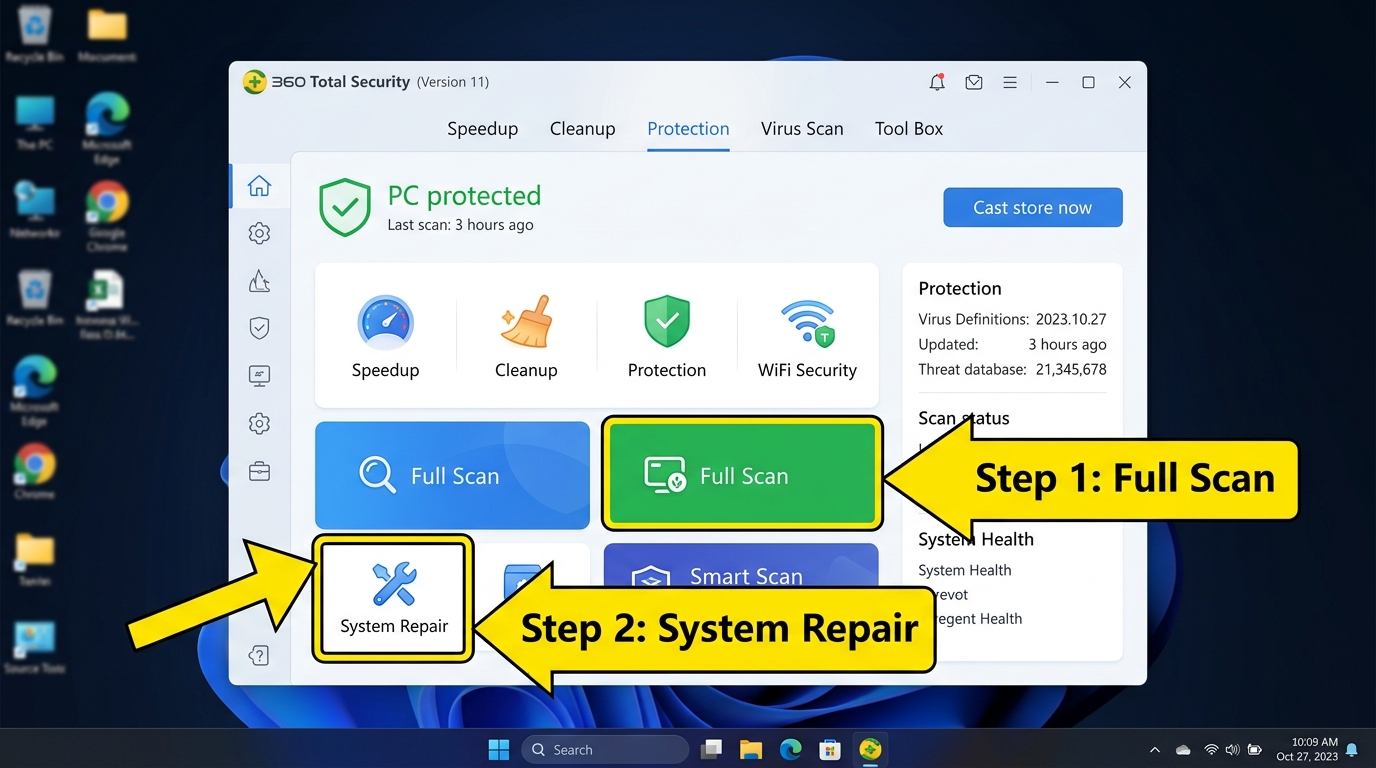
- Launch 360 Total Security and navigate to the main scan dashboard. Select Full Scan—not the Quick Scan. A Full Scan examines every file on all drives, all active memory processes, boot sectors, and system registry entries. This is critical for detecting Trojans that embed themselves in non-standard locations.
- Ensure all engines are enabled: Before scanning, verify that the Bitdefender, Avira, and QVM II engines are all active in the settings panel for maximum detection coverage.
- Quarantine all detected threats rather than deleting immediately—quarantine preserves the files in an isolated state in case a false positive needs to be reviewed.
- Run the System Repair tool immediately after the scan completes. Trojans routinely alter critical system settings during their operation: they modify the Windows HOSTS file to redirect legitimate security websites, corrupt registry entries to disable security tools, and alter browser settings. The System Repair feature in 360 Total Security automatically identifies and restores these tampered configurations to their legitimate defaults.
Step 3: Manual Verification and Post-Removal Actions
Even after a successful scan, performing manual verification ensures no remnants have been overlooked and that your system is fully secured against reinfection.
- Check Task Manager for residual processes: Press Ctrl+Shift+Esc to open Task Manager. Look for processes with random character names, processes consuming unusual CPU or network resources, or processes running from temporary directories (e.g., %AppData%, %Temp%). Right-click any suspicious process and select “Open File Location” to investigate.
- Use 360’s Startup Optimizer: Navigate to the Speedup section in 360 Total Security and review all startup items. Disable any entries you do not recognize or that were not present before the infection. Trojans frequently establish startup persistence to survive reboots.
- CRITICAL — Change all passwords from a clean device: Assume that any password entered on the infected machine during the Trojan’s active period has been compromised. This includes email accounts, banking credentials, social media, cloud storage, and any saved browser passwords. Change these passwords from a verified clean device—not the one you just cleaned—and enable two-factor authentication wherever possible.
- Run the Vulnerability Fixer: Navigate to the Fix section in 360 Total Security and run a full vulnerability scan. This identifies all unpatched Windows security updates and software vulnerabilities. Patch everything identified. Closing these security holes is essential—if the Trojan exploited a specific vulnerability to gain initial access, leaving it unpatched guarantees the possibility of reinfection through the same vector.
How to Prevent Future Trojan Infections and Harden Your System
Proactive defense is exponentially more effective—and far less stressful—than reactive removal. A single successful Trojan infection can cause weeks of damage and remediation effort. The combination of robust, always-on security software with disciplined user habits and regular system maintenance creates a resilient security posture that makes successful Trojan infiltration dramatically less likely.
Cultivating Safe Digital Habits: The First Line of Defense
Technology alone cannot protect a system if the user’s behavior creates exploitable opportunities. Human behavior remains the most frequently targeted attack surface in Trojan distribution campaigns.
- Treat email attachments with extreme suspicion: Even emails from known contacts can be spoofed or sent from a compromised account. Never open unexpected attachments without first verifying with the sender through a separate communication channel. Be especially wary of ZIP files, Office documents requesting macro activation, and any executable file (.exe, .bat, .vbs, .js).
- Download software exclusively from official sources: Always go directly to the software vendor’s official website. Avoid third-party download aggregators, torrent sites, and any site offering “free” versions of paid software, game cracks, or license key generators—these are among the most densely Trojan-seeded locations on the internet.
- Keep 360 Total Security’s real-time protection permanently enabled: Its web threat protection module actively evaluates URLs in real-time, blocking access to known malicious and phishing websites before your browser even loads the page—preventing drive-by download infections before they can initiate.
- Verify software authenticity: Before installing any downloaded software, right-click the file, select Properties, and check the Digital Signatures tab. Legitimate software from major vendors will carry a valid digital signature. An absent or invalid signature on software claiming to be from a major company is a serious red flag.
Essential System Hardening Techniques
- Automate all updates: Enable automatic updates for Windows, your browser (Chrome, Firefox, Edge), and all installed applications. The majority of successful Trojan infections exploit known, already-patched vulnerabilities—vulnerabilities that remain open only because users delay updates. According to a 2025 Verizon Data Breach Investigations Report, over 60% of exploitation-based breaches targeted vulnerabilities for which patches had been available for more than 30 days.
- Principle of Least Privilege — use a standard user account daily: Create and use a standard (non-administrator) Windows account for all routine daily activities—browsing, email, documents. Reserve the administrator account strictly for software installation and system configuration. When a Trojan executes under a standard user account, its ability to make system-wide changes, modify protected registry keys, or install kernel-level components is severely restricted.
- Maintain regular, tested backups: Implement the 3-2-1 backup rule: 3 copies of your data, on 2 different media types, with 1 stored offsite or in cloud storage. Ensure at least one backup copy is kept offline (disconnected from the network) to protect against ransomware Trojans that specifically target and encrypt connected backup drives. Test your backups periodically by performing a test restore.
- Enable Windows User Account Control (UAC) at maximum level: UAC prompts provide a critical intervention point when any program attempts to make system-level changes. Keeping it at the highest setting ensures you are always notified before any potentially Trojan-initiated system modification proceeds.
Leveraging 360 Total Security’s Proactive Tools
- Schedule weekly Quick Scans: Configure 360 Total Security to run automatic Quick Scans on a weekly schedule during off-peak hours. Its optimized scanning engine is designed for minimal system impact, allowing scans to run seamlessly in the background without disrupting your work.
- Use the Cleanup and Speedup tools regularly: Beyond security scanning, regularly running 360’s Cleanup tool removes junk files, temporary caches, and browser artifacts that can harbor malicious scripts. The Speedup tool manages startup programs and background processes, reducing the system’s overall attack surface while simultaneously improving the speed and thoroughness of security scans.
| Security Task | Recommended Frequency | Tool / Method |
|---|---|---|
| Windows & Software Updates | As released (enable auto-update) | Windows Update + 360 Vulnerability Fixer |
| Quick Security Scan | Weekly | 360 Total Security — Quick Scan |
| Full System Scan | Monthly | 360 Total Security — Full Scan (all engines) |
| System Cleanup | Weekly | 360 Total Security — Cleanup Tool |
| Startup Program Review | Monthly | 360 Total Security — Speedup / Startup Optimizer |
| Data Backup | Weekly (critical data: daily) | External drive + Cloud service (offline copy) |
| Password Audit & Rotation | Every 90 days | Password manager + 2FA on all accounts |
| Vulnerability Patch Check | Weekly | 360 Total Security — Vulnerability Fixer |
| Browser Extension Audit | Monthly | Manual review in browser settings |
When Free Removal Fails: Advanced Manual Techniques and Seeking Help
In a small but significant percentage of cases, even a thorough scan with a capable tool like 360 Total Security may not fully eradicate a sophisticated, deeply embedded Trojan. Rootkit-level infections, bootkits, or firmware-level Trojans can actively resist removal from within a running operating system. Recognizing when to escalate—and knowing exactly what escalation options are available—is critical to reclaiming your system without causing additional damage.
Specialized Removal Tools for Stubborn Infections
- Deploy secondary scanners in tandem: Different antivirus engines have different detection specializations and signature databases. Running a second-opinion scanner alongside 360 Total Security significantly increases the probability of catching remnants that any single tool might miss. Effective free options include:
- Malwarebytes Anti-Malware (Free Version): Particularly strong at detecting PUPs, adware-bundled Trojans, and browser hijackers.
- Emsisoft Emergency Kit: A portable, no-install scanner that can be run directly from a USB drive—useful when the Trojan is actively blocking software installation.
- Microsoft Safety Scanner: A free, Microsoft-signed tool updated monthly, useful for confirming Windows system file integrity.
- Deploy dedicated anti-rootkit tools: Standard antivirus scanners operate at the application layer and can be deceived by rootkits that intercept system calls to hide their presence. Dedicated anti-rootkit tools operate at a lower system level to bypass these deceptions. Trusted options recommended by security communities including BleepingComputer include:
- Malwarebytes Anti-Rootkit (MBAR): Specifically designed to detect and remove rootkit infections invisible to standard scanners.
- Sophos Scan & Clean: A portable, no-install tool with strong rootkit detection capabilities.
- GMER: An advanced rootkit detector and remover for experienced users, capable of detecting hidden processes, hidden registry entries, and hidden disk sectors.
The Nuclear Option: Bootable Rescue Environments
When a Trojan is sophisticated enough to actively block security software from running, updating, or completing scans within the infected Windows environment, you must step outside that environment entirely.
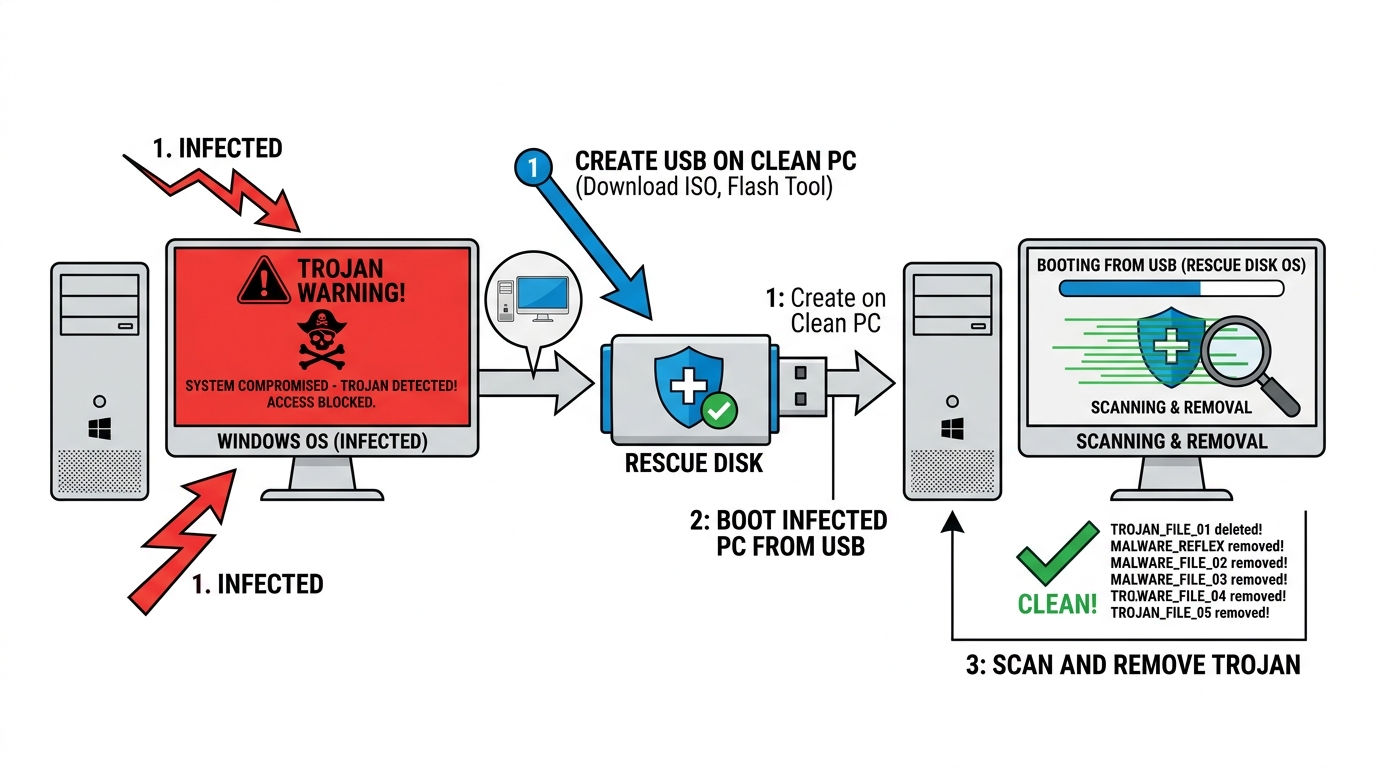
- Create a bootable antivirus rescue USB: Several major security vendors offer free bootable rescue disk images that you download on a clean PC and write to a USB drive. When you boot the infected computer from this USB (before Windows loads), you are running a completely independent operating system that the Trojan has no ability to interfere with. Recommended free rescue environments include:
- Kaspersky Rescue Disk 18
- Bitdefender Rescue Environment
- ESET SysRescue Live
- Boot sequence: Access your BIOS/UEFI firmware (typically by pressing F2, F12, Del, or Esc during startup) and set the USB drive as the primary boot device. The rescue environment will load its own OS and antivirus engine, scanning your Windows drive from a completely external perspective—bypassing all of the Trojan’s active defenses.
- Effectiveness: This method is highly effective against Trojans that hook into the Windows boot process, disable Safe Mode, or actively terminate security software processes. It is also the recommended approach for suspected MBR (Master Boot Record) or bootkit infections.
Recognizing When to Seek Professional Assistance
- Critical red flags indicating professional help may be necessary:
- Continued anomalous system behavior after multiple complete scans with different tools
- Inability to access security-related websites (antivirus vendor sites, Microsoft Update) even after removal attempts—a sign of persistent HOSTS file or DNS manipulation
- Security software that cannot be installed, launched, or updated
- Complete system lockout or inaccessible user accounts
- Evidence of ongoing data exfiltration (continued unusual outbound network traffic after disconnecting from the internet is impossible, but unusual traffic upon reconnection is a serious indicator)
- Community resources for expert guided assistance: The BleepingComputer Malware Removal Help forum is one of the most respected free resources for severe infection cases. Trained volunteer analysts guide users through the use of diagnostic tools such as Farbar Recovery Scan Tool (FRST) to generate detailed system logs, which are then analyzed to create custom, targeted removal instructions. This service is free, moderated, and staffed by genuine security professionals.
- The clean reinstall: the definitive solution. As a last resort—or in cases where sensitive data (banking credentials, business data) may have been comprehensively compromised—a clean Windows reinstall from verified, trusted media (Microsoft’s official Media Creation Tool) is the only way to guarantee complete elimination of the infection. Format all partitions during reinstallation, not just the system partition. As cybersecurity professional and malware researcher Bruce Schneier has noted in the context of advanced persistent threats: “At some point, the cost of continued cleaning of a deeply compromised system exceeds the cost of starting fresh—and more importantly, you can never be fully certain a thoroughly compromised system is truly clean.” A clean reinstall eliminates this uncertainty entirely. Before reinstalling, back up only your personal data files (documents, photos)—do not back up executable files or program folders, as these may contain the Trojan.
Frequently Asked Questions
Q1: How can I tell if I have a Trojan virus right now?
The most common indicators include: unexplained system slowdowns, high CPU or network usage with no active programs, security software that suddenly stops working or cannot update, new programs appearing that you didn’t install, browser redirects to unfamiliar websites, and unusual pop-up windows. For definitive confirmation, run a Full Scan with 360 Total Security with all engines enabled—it will identify and report any Trojan components present on your system.
Q2: Is it safe to use my computer while a Trojan removal scan is running?
It is strongly recommended that you avoid using the infected computer for any sensitive activities—particularly banking, email, or anything requiring login credentials—while a Trojan is suspected to be active. If you must use the computer, disconnect it from the internet first to prevent active data exfiltration. Ideally, complete the full removal process described in this guide before resuming normal use.
Q3: Will removing the Trojan recover files that were already stolen or encrypted?
Removing the Trojan stops the ongoing threat but does not reverse damage already done. If the Trojan was a keylogger, credentials captured before removal remain compromised—change all passwords immediately from a clean device. If it was a ransomware Trojan that encrypted your files, removal of the Trojan itself does not decrypt the files. File recovery in ransomware cases requires either a clean backup, a publicly available decryption tool (check the No More Ransom project at nomoreransom.org), or in rare cases, professional data recovery services.
Q4: How long does a full Trojan removal scan take with 360 Total Security?
A Full Scan with all engines enabled typically takes between 20 minutes and 2 hours, depending on the number of files on your system, your hard drive speed (SSD vs. HDD), and available RAM. The initial full scan is always the longest; subsequent scans benefit from cached results for unchanged files and run significantly faster. Running the scan in Safe Mode may extend the duration slightly but produces significantly more reliable results for Trojan detection.
Q5: Can a Trojan come back after I remove it?
Yes—reinfection is possible if the root cause is not addressed. The most common reinfection scenarios include: unpatched vulnerabilities that the Trojan exploited still being present (use 360’s Vulnerability Fixer to address this), the original infected file still existing on your system or a connected drive, the same risky behavior (visiting crack sites, opening suspicious attachments) being repeated, or incomplete removal leaving a dropper component that re-downloads the main payload. Following all steps in this guide—including the vulnerability patching and behavioral habit changes—dramatically reduces reinfection risk.
About the Author:
Dr. Marcus Elliot is a Senior Cybersecurity Analyst and Technical Writer with over 14 years of experience in malware research, endpoint security architecture, and threat intelligence. He has contributed to cybersecurity publications across North America and Europe, specializing in making complex security concepts accessible to everyday users. Dr. Elliot holds CISSP and CEH certifications and has served as a technical advisor to enterprise security teams across multiple industries. He advocates strongly for accessible, high-quality free security tools as a fundamental component of broad societal cyber resilience.